

What Is R-Studio Data Recovery and How to Use the Software

Today, there are a lot of data recovery tools on the market. Some of them can recover lost data, while others just waste money and time. R-Studio Data Recovery, for example, stands out as one of the most reputable data recovery software programs. However, customers may have a few questions before they download and purchase the software program. Therefore, this article researches and reviews the data recovery software, so that you can learn it in one place.
PAGE CONTENT:
Part 1: R-Studio Data Recovery Review
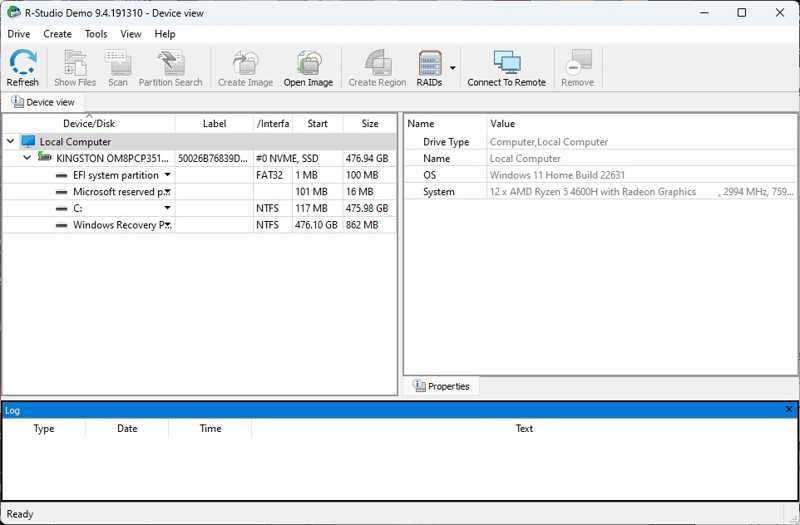
R-Studio Data Recovery software was released by R-Tools Technology, which is a technology company specializing in research and development in data recovery. The software has been on the market for over 15 years.
Key Features of R-Studio Data Recovery
1. Recover files on internal and external hard drives.
2. Work on Windows, macOS, and Linux.
3. Compatible with documents, images, videos, audio, and more.
4. Support a wide array of file systems, including NTFS, FAT, exFAT, etc.
5. Retrieve data from HDDs, SSDs, USB flash drives, memory cards, and optical disks.
6. Create a disk image for data recovery later.
7. Available to damaged, formatted, or deleted partitions.
8. Integrate S.M.A.R.T. monitoring.
9. Equip flexible scan options and custom options.
10. Perform different tasks simultaneously.
R-Studio Data Recovery Review
- It supports all major operating systems and file systems.
- It is compatible with JPG, PNG, MP4, MP3, PDF, DOC, and more.
- R-Studio Data Recovery can automatically reconstruct broken RAID arrays.
- It offers a free demo for beginners.
- Users can configure RAID.
- The interface looks outdated and less intuitive.
- The free edition can only recover files up to 256MB.
- It doesn't work on Apple Silicon or T2-chip Macs due to secure restrictions.
- R-Studio Data Recovery is expensive with confusing pricing.
- The license specifies for one operating system.
- It lacks real-time customer support.
Price of R-Studio Data Recovery
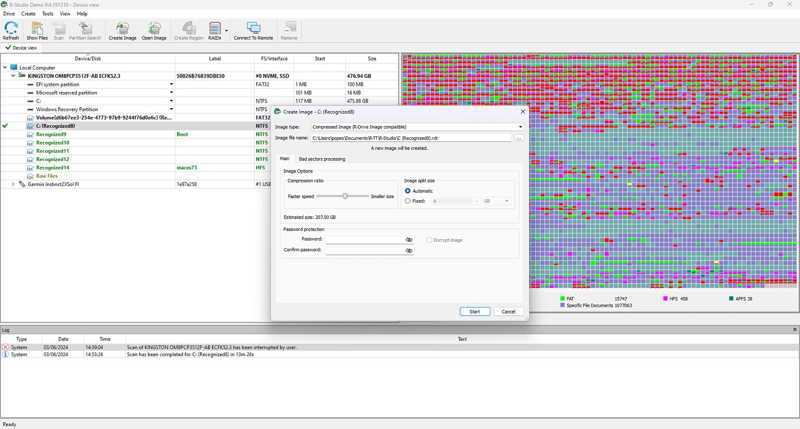
As mentioned previously, R-Studio Data Recovery offers a free demo, but it is not freeware. It means that you must purchase a license if you want to recover something. It comes with four versions: the basic version costs $79.99 per license, the Technician version costs $899.00 per license, the T80+ version costs $80.00 per license, and the Corporate version costs $179.99 per license. For Windows users, there are two extra licenses: the NTFS version costs $59.99, and the FAT version costs $49.99.
Part 2: How to Use R-Studio Data Recovery
Whether you have accidentally deleted files, formatted a drive, or your device crashed, R-Studio is here to help. After purchasing a license, follow our step-by-step guide below to use R-Studio Data Recovery properly.
Step 1. Download and install R-Studio on your computer.
Step 2. Open it from your desktop and register the license.
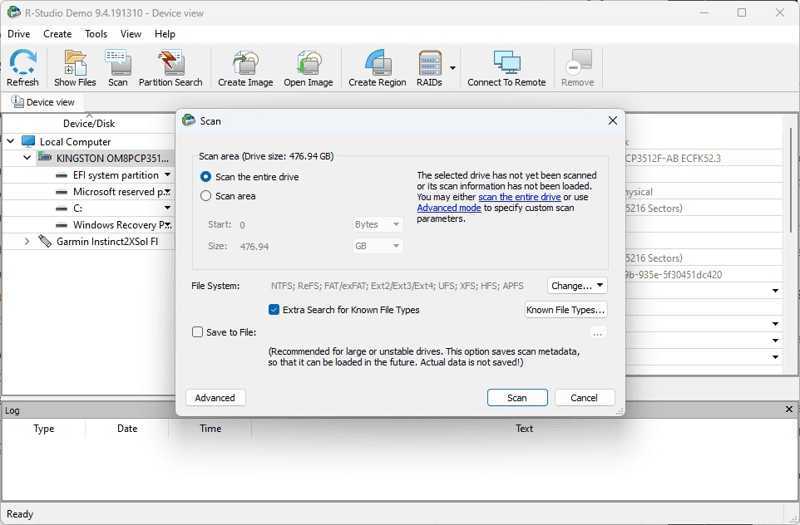
Step 3. Locate the Device view pane on the left side, and select the drive where your files were stored before deleting.
Tips: If you need to recover data from an external hard drive, connect it to your computer, and select it in the left pane.
Step 4. Click the Scan button.
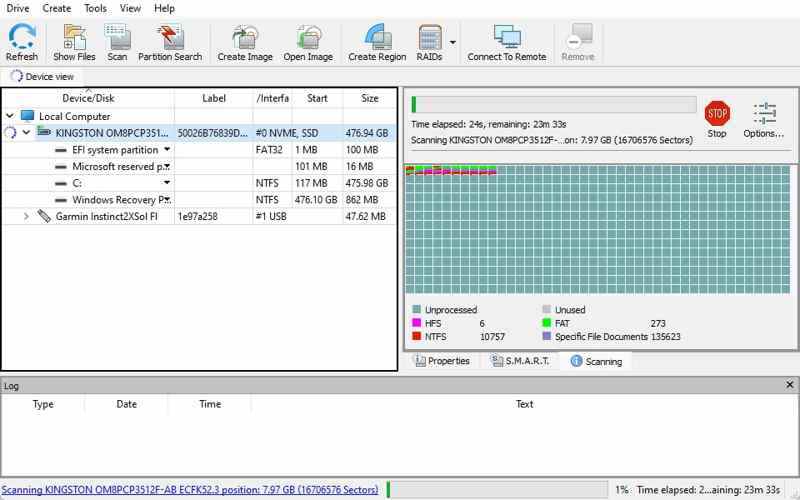
Step 5. Then, select Scan the entire drive or Scan area and set the Start and Size according to your needs.
Step 6. Click the Scan button again to initiate scanning your drive.
Step 7. Double-click the desired partition and browse the recoverable files.
Step 8. Now, you can preview the found files on the drive.
Step 9. Tick the checkbox for each file you want to recover.
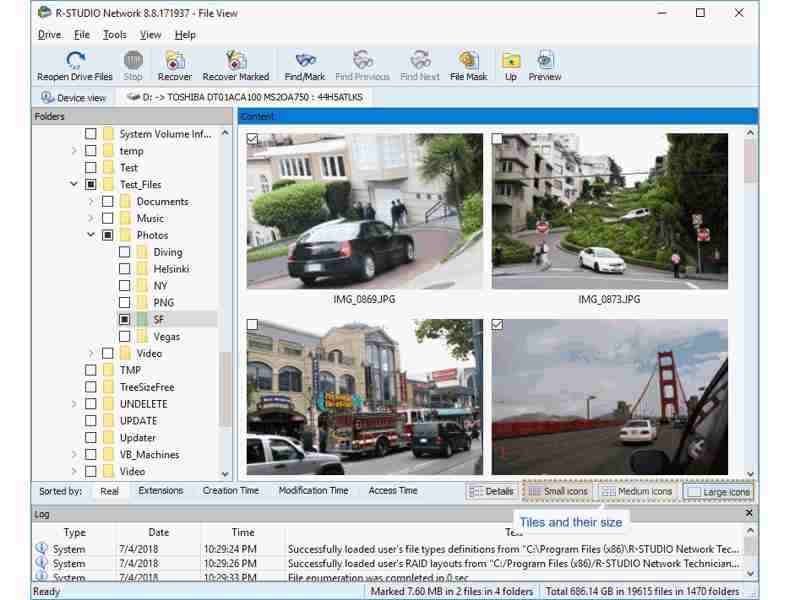
Step 10. Click the Recover Marked button on the top ribbon.
Step 11. Hit the three-dot button, choose a destination folder, and click the OK button to confirm the recovery.
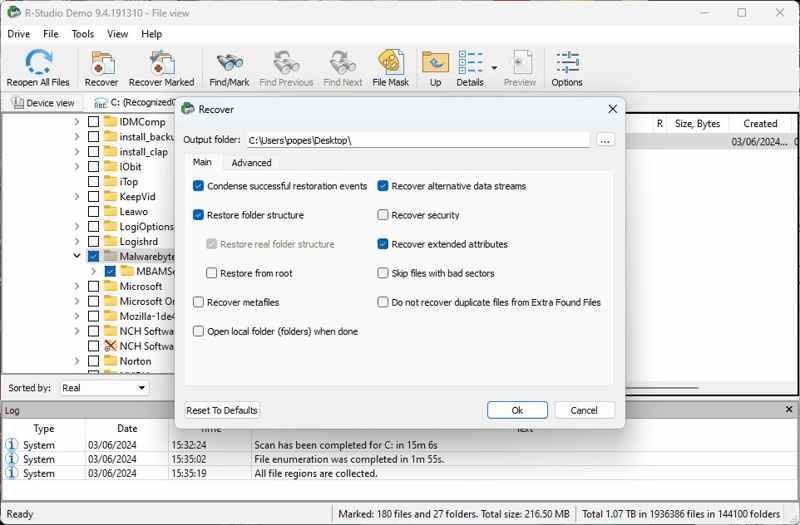
Step 12. When it finishes, go to the output folder and verify the recovered files.
Further Reading
Part 3: A Good Alternative to R-Studio Data Recovery
Using R-Studio Data Recovery to recover recently deleted files is a good idea; however, it may fail in other situations. Moreover, it is too expensive for ordinary people. From this point, we recommend Apeaksoft Data Recovery. It not only simplifies the workflow of data recovery but also comes with affordable plans. The user-friendly interface makes it available for beginners.
A Cost-effective Alternative to R-Studio Data Recovery Software
- Recover data from your device with one click.
- Work for all types and formats of files, including emails.
- Retrieve data from HDD, SSD, USB, SD card, digital camera, etc.
- Available for deleted files, formatted drive, or damaged disk.
- Deliver a high success rate due to advanced technology.
Secure Download
Secure Download

How to Use R-Studio Data Recovery Alternative
Step 1. Scan your drive
Launch the alternative to R-Studio Data Recovery once you install it on your PC. It is compatible with Windows 11/10/8/7/XP/Vista. There is another version for Mac users. Head to the Hard Drive Recovery tab, select the disk you want to recover, and click the Start Scan button. To recover data from an external device, connect it to your PC, go to USB / SD Card Recovery, select the device, and click Scan Disk.

Step 2. Preview deleted files
Wait for data scanning to finish. You can preview the found files by type and location. You can find the file types in the Type List tab or folder tree in the Path List tab. If there are too many files, check Only Show Deleted at the top of the window to only display deleted files. You can quickly locate a specific file using the Filter option.
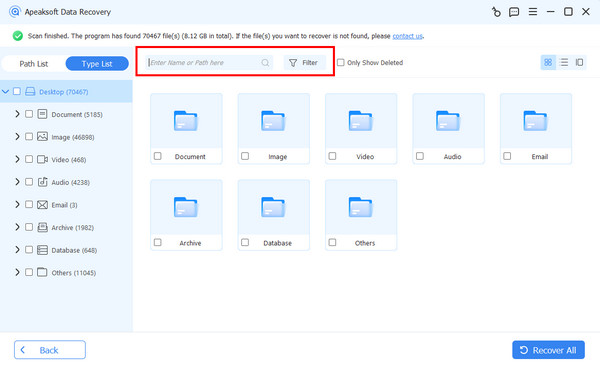
Step 3. Recover deleted files
Finally, select the files you would like to restore and click the Recover button. Set an output folder and confirm your action.

Conclusion
Now, you should understand what R-Studio Data Recovery is, its advantages and disadvantages, and other information you should know about the software. Moreover, we share a step-by-step guide to help you recover your data using R-Studio. You can explore advanced features on your own. Apeaksoft Data Recovery is a good alternative if R-Studio is unavailable for your files.
Related Articles




