


How to Recover Deleted Files from a Flash Drive Safely in 2026

Key Takeaways:
- If you have a backup on Windows File History / Mac Time Machine, restore the deleted file from the backup. Quick and easy.
- If there's no backup, Apeaksoft Data Recovery is great for both Windows and Mac.
- A possible solution on Windows without installation or backup: use Command Prompt to reveal hidden files.
No need to freak out when you accidentally delete something important from a flash drive – there are still chances to rescue it. You need to stop using it before finding a way to recover deleted files from the USB flash drive.
PAGE CONTENT:
Why Deleted Files Can Be Recovered from a Flash Drive
When you click "delete", the file doesn't disappear instantly from your storage. What really happens is that the flash drive marks the space used by the "deleted" file, indicating it is now available. But the file is still there, just invisible to the system. It will eventually be gone when a new file comes in and takes its place. USB flash drives and HDDs use this strategy to improve performance and efficiency. After all, marking a file is much easier than deleting it.
Now, I guess you already realized how to recover deleted files from a flash drive in theory. Recovery tools kick in after the file is marked but before it gets replaced, removing the mark and making it detectable again. This is why you need to stop using it as soon as possible after deletion. When the file hasn't been rewritten with new data, it's possible to bring it back into view.
Method 1: Recover Deleted Files from Flash Drive with Backups
Recover Deleted Files from Flash Drive on Windows File History
Once enabled, File History automatically saves files in your user libraries to an external drive. Add the USB drive folders manually so File History stores them as well. If you did this before, then congrats, you can now recover your file like a breeze.
Step 1. Connect the USB flash drive and the backup external drive to the computer.
Step 2. Click Start and search for Control Panel. Open it, then go to System and Security > File History.
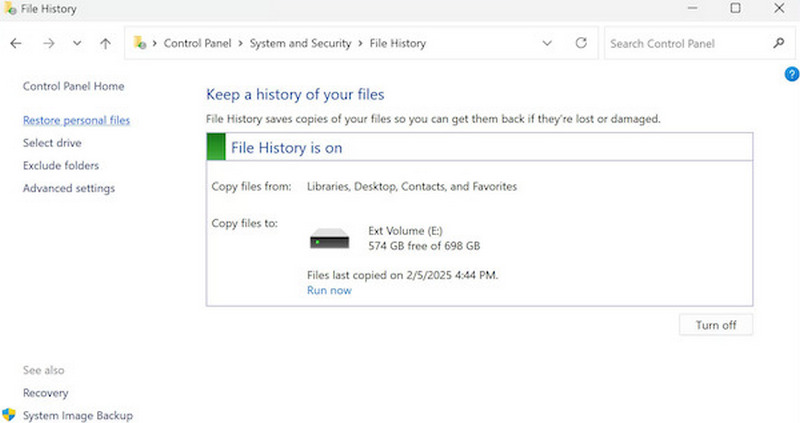
Step 3. Look through the backup list to see if there is a copy of the file. If so, select Restore to save it locally.
Recover Deleted Files from Flash Drive on Mac Time Machine
Time Machine automatically keeps hourly, daily, and weekly backups on macOS. Depending on the capacity of the external drive connected to it, Time Machine can back up data for months to even years. If you have activated Time Machine, you will very likely find your lost file in its backup.
Step 1. Connect the USB flash drive and the backup external drive to your Mac.
Step 2. Open Finder and go to the location where the deleted file was once stored.
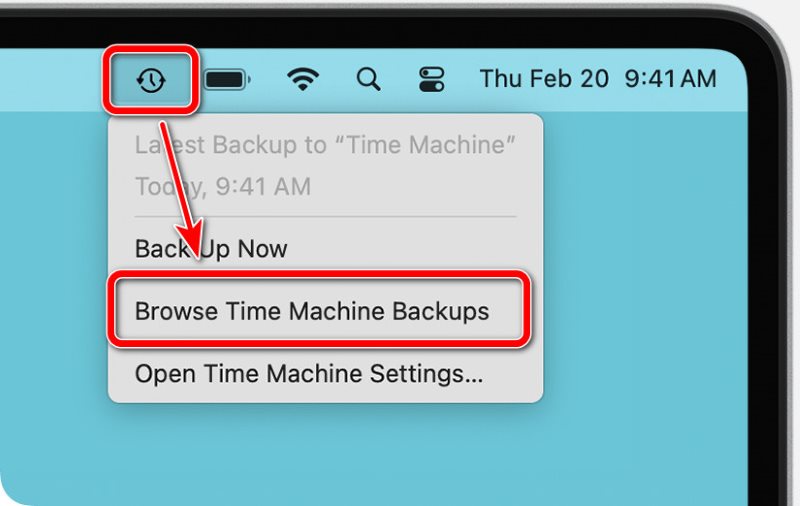
Step 3. Click the Time Machine button, which is shaped as a clock, in the menu bar.
If you can't find Time Machine in the menu bar, go to System Settings > Control Center > Time Machine, and turn on Show in Menu Bar.
Step 4. Select Browse Time Machine Backups. Your screen will switch to the Time Machine mode, showing older versions of your folders.
Step 5. Look for the lost file. Use the timeline on the right side of the screen to return to a backup date when the file still existed.
Step 6. When you find the file, select it and click Restore, so the file returns to its original location in the present. Check on it after leaving Time Machine.
Method 2: Recover Deleted Files from Flash Drive with Software
How can you recover deleted files from a flash drive without any backup? Let professional tools get the job done.
Use Third-Party Recovery Tool (for Both Windows & Mac)
Apeaksoft Data Recovery is an expert in retrieving lost files when there's no backup. It can handle many types of files and complex situations. Files deleted, the recycle bin emptied, or the USB flash drive formatted, Apeaksoft can recover them for you. If you're looking for the most stable way to recover deleted files from a flash drive, this software is worth a try.

Downloaded by over 1,000,000 users
- Locate recoverable files blazing fast.
- Supports multiple data types and file systems.
- With a User-friendly workflow, you can easily recover lost files without tech chops.
- Supports deep scanning to recover formatted or long-deleted files.
Secure Download
Secure Download

Step 1. Plug in the USB drive and run the software.
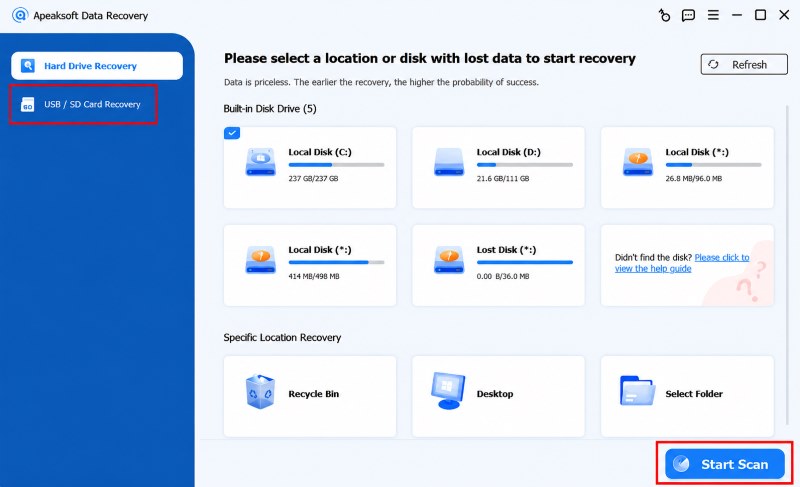
Step 2. Switch to USB/SD Card Recovery and click the USB drive in the device list. Select the file type you want to recover and click Start Scan.
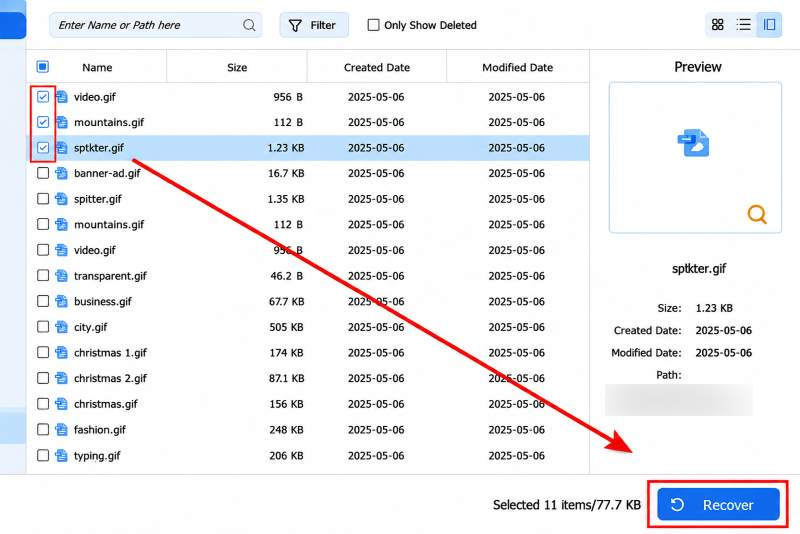
Step 3. You can now preview recoverable files and check what you want to retrieve. If you can't find the file you want in this way, select Path in the left menu bar or filter directly in the search box.
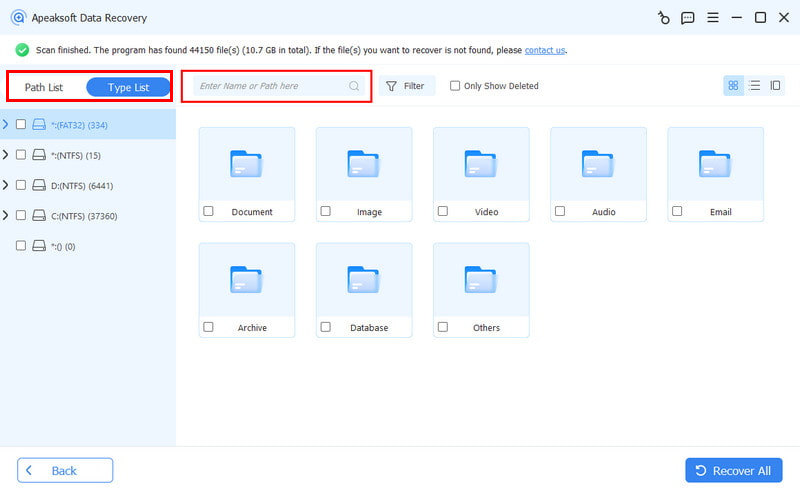
Step 4. Last, click Recover to save the file to your computer instead of the USB flash drive to avoid overwriting the data.
Use Microsoft Official Tool (for Windows Only)
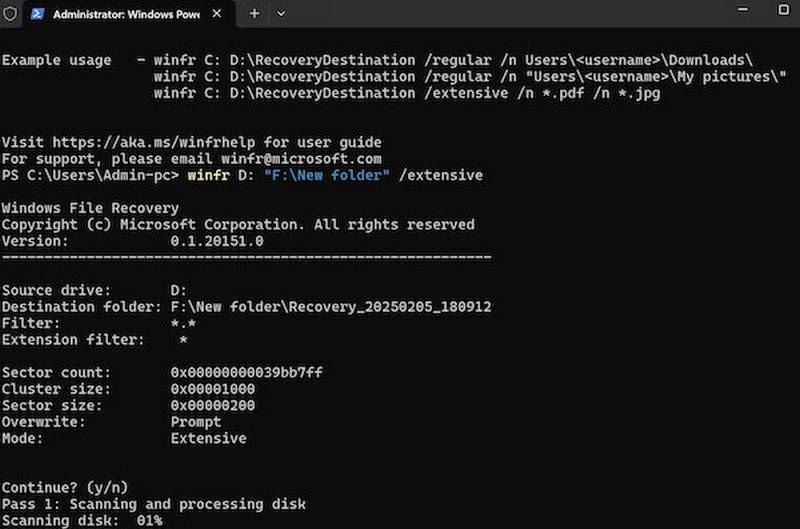
Windows File Recovery is a flash drive recovery tool developed by Microsoft for users to recover deleted files from a USB flash drive or local storage. But it needs to be installed from the Microsoft Store and operated with command lines, so not as easy as third-party tools. But still, it's an effective way to rescue your data.
Step 1. Install Windows File Recovery in the Microsoft Store.
Step 2. Insert the USB flash drive into the computer.
Step 3. Press Windows + R, type cmd into the Run box, and hit Enter to launch Command Prompt.
Step 4. Type in the recovery command, like:
winfr E: D: /regular /n *.docx
(E is the path of the U disk, D is the recovery and saving location, which can be changed at your will.)
Step 5. Wait for file scanning and export to complete after execution.
Method 3: Recover Hidden Files from Flash Drive Without Software
Sometimes, the fact that you can't see the file doesn't mean it's deleted. Chances are, it's been hidden without you realizing it. Maybe you accidentally hit the shortcut for hiding files and thought you just deleted them. Or maybe a virus on the USB drive hid the files to mess with you.
In this case, recovery tools may be overkill. A simple command line will make all hidden files visible again.
Recover Hidden Files on Windows
Step 1. Insert the flash drive.
Step 2. Launch Command Prompt and type the following command:
attrib -h -r -s /s /d X:*.*
Replace X: with your flash drive letter, like E: or F: .
Step 3. Wait a few seconds for the command to run. When it's done, hidden files should all be back in place.
Recover Hidden Files on Mac
Step 1. Insert the flash drive.
Step 2. Open Terminal. Enter the following command:
defaults write com.apple.finder AppleShowAllFiles -boolean true; killall Finder.
Press Enter.
Step 3. Wait a few seconds before the hidden files show up in their saving locations.
Bonus: How to Prevent Deleting Files Accidentally
Humans make mistakes. Save for rainy days so you can fix them quickly.
Back up regularly.
Insert an external drive, then turn on File History for restoring Windows folders, or Time Machine to create Mac backups. Saves so much trouble when recovering after deleting the wrong file.
Organize Files Clearly.
Create separate folders for work, personal, and backup. Move unwanted files to an archive folder instead of deleting them right away.
Protect Important Files from Deletion.
Use Windows NTFS Permissions to limit who can delete this file, or change the Mac user privilege setting to Read Only or No Access.
Conclusion
You still get a chance to recover deleted files from a flash drive, so long as they have not been overwritten. After deletion, stop using the flash drive and seek a solution. You can restore from a backup, get help from professional tools like Apeaksoft Data Recovery or Windows File History, and reveal hidden files using a command line.
 Apeaksoft Data Recovery
 Recover deleted or lost data on Windows and Mac computer.
Secure Download
Secure Download
Related Articles




