

How to Quickly Recover an Unsaved or Deleted Excel File

"I tried to open a workbook today and found that files had suddenly disappeared. How can I recover an unsaved Excel file?" As a component of the utilities in MS Office, Excel is a powerful spreadsheet program widely used among individuals and businesses. Suppose you worked on an Excel project for hours and then closed it directly without clicking the Save button, all your work will be lost. Nevertheless, our guide helps you retrieve your workbooks.
PAGE CONTENT:
- Part 1: How to Recover Permanently Deleted Excel
- Part 2: How to Recover an Unsaved Excel File
- Part 3: How to Recover the Previous Version of an Excel File
- Part 4: How to Recover a Deleted Excel File
- Part 5: How to Recover an Overwritten Excel File from OneDrive
- Part 6: How to Repair and Recover Corrupted Excel Files
Part 1: How to Recover Permanently Deleted Excel
In some cases, an Excel file can be deleted permanently. For example, you press Shift + Delete to delete the Excel, and your Recycle Bin or Trash is emptied. Thankfully, Apeaksoft Data Recovery can help you recover a permanently deleted Excel file on Mac and Windows. It deeply scans your hard drive and looks for lost Excel files.
A Quick Way to Recover Deleted Excel Files on Mac and Windows
- Recover deleted Excel files with one click.
- Preview lost Excel files for selective recovery.
- Work for both internal and external hard drives.
- Support Windows 11 and earlier, macOS 10.7 and later.
Secure Download
Secure Download

How to Recover Deleted Excel Files Quickly
Step 1. Install the Excel recovery tool
Install the Excel recovery software on your PC and launch it. There is another version for Mac. Go to the Hard Drive Recovery tab, select the disk where your Excel files are saved, and click Start Scan.

Step 2. Preview deleted Excel files
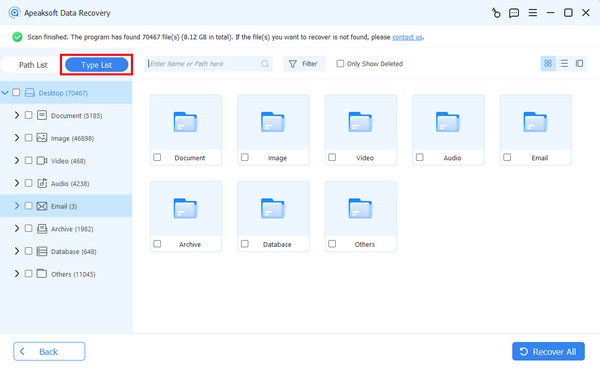
Once disk scanning is complete, go to the Type List tab, check Document, and preview all Excel files. To view deleted Excel files, check Only Show Deleted.
Step 3. Recover Excel files
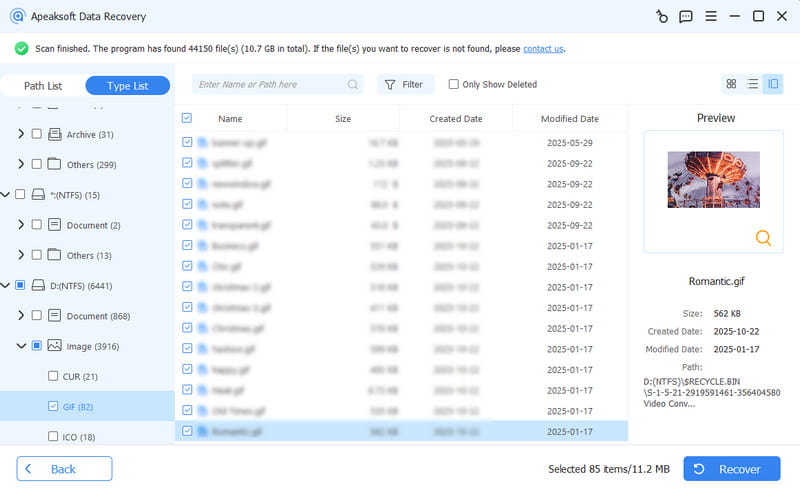
Select the deleted Excel files you want to restore, and click the Recover button. Then, select an output folder and begin deleting the Excel file recovery.
Part 2: How to Recover an Unsaved Excel File
The built-in AutoSave feature in Excel is an easy way to recover an unsaved Excel file. This feature is available on both Windows and macOS, but it can only recover the recently lost Excel files.
On Mac
Step 1. Open the Excel app.
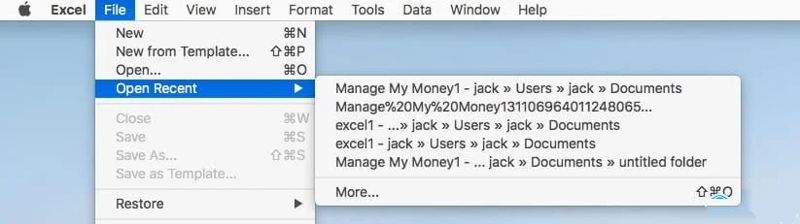
Step 2. Go to the File menu.
Step 3. Choose Open Recent, and pick the unsaved Excel workbook.
Step 4. Click Save As on the top notification bar and save it again.
On Windows
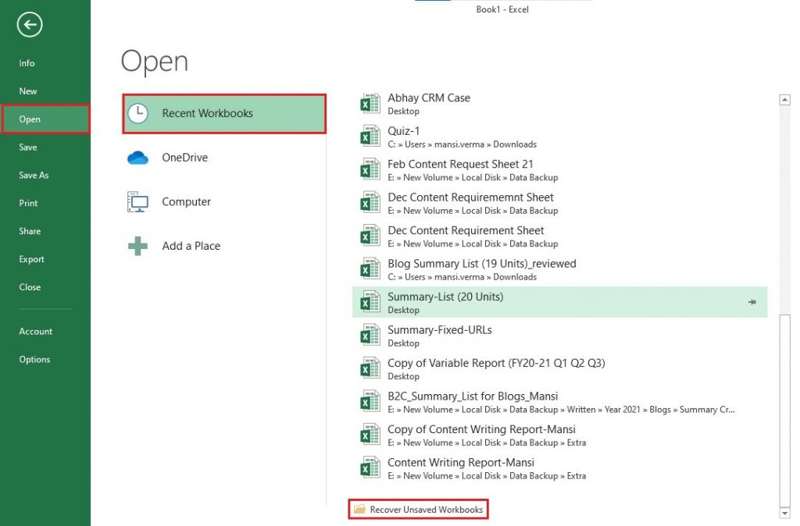
Step 1. Go to the File menu in Excel.
Step 2. Click Open, hit Recent Workbooks, and click Recover Unsaved Workbooks.
Step 3. Then, select the latest workbook.
Step 4. Next, click Save As and save it again.
Note: Besides, you can access the UnsavedFiles folder to find the Excel file. The path on Windows is \Users\
Further Reading
Part 3: How to Recover the Previous Version of an Excel File
How to Recover an Earlier Version of an Excel File
As mentioned previously, Excel automatically saves your workbooks once you configure the AutoSave feature. If you delete any information by mistake, this feature enables you to recover an earlier version of the Excel file.
On Mac
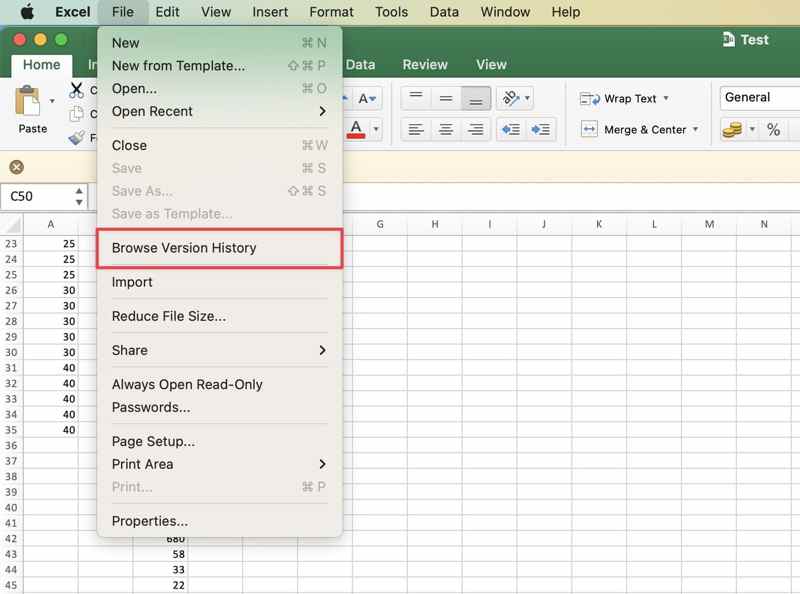
Step 1. Open the workbook in Excel.
Step 2. Go to the File menu and choose Browse Version History.
Step 3. Click a version, and hit Open version.
Step 4. Then, click the Restore button.
On Windows
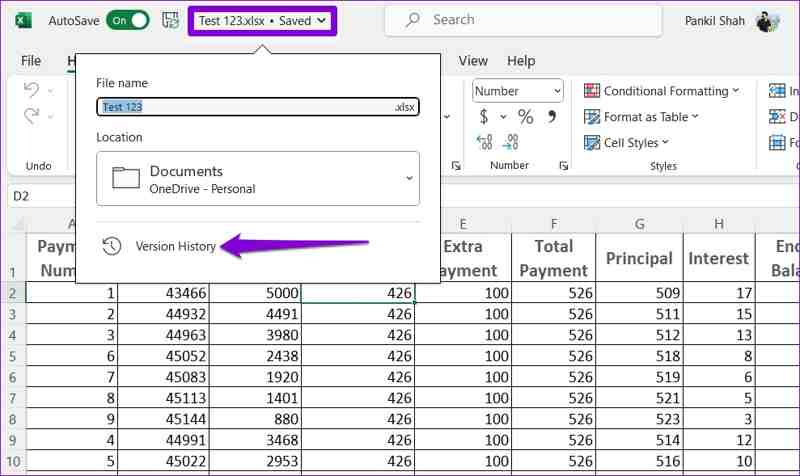
Step 1. Click your file name at the top, and hit Version History.
Step 2. Select the right version and click Open version.
Step 3. Next, click the Restore button on the notification.
How to Recover the Previous Version of an Excel File from Backup
The backup-and-restore feature on Windows and Mac enables you to recover a previous version of an Excel file after saving. For Windows, the prerequisite is that you have turned on File History. On macOS, you must have a Time Machine backup.
On Mac
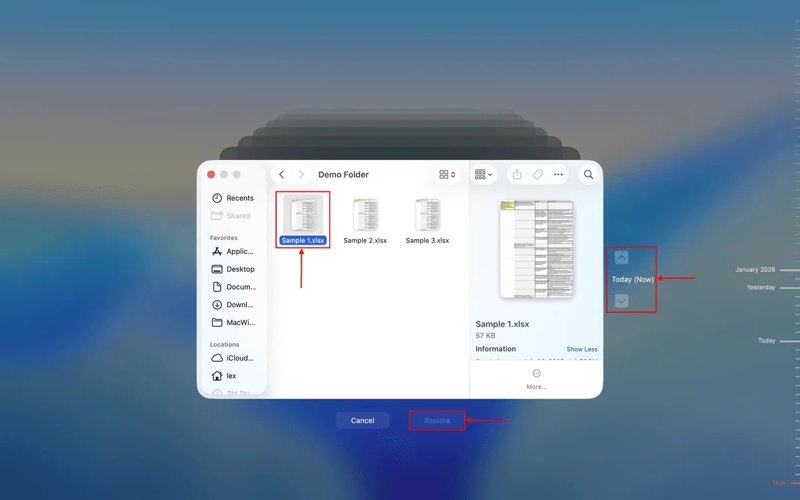
Step 1. Locate the folder where Excel files are saved in Finder.
Step 2. Connect the backup media to your computer.
Step 3. Click the Time Machine button in the top right corner, and choose Enter Time Machine.
Step 4. Click the Arrow buttons to find the right version.
Step 5. Select the desired workbooks and click the Restore button.
On Windows
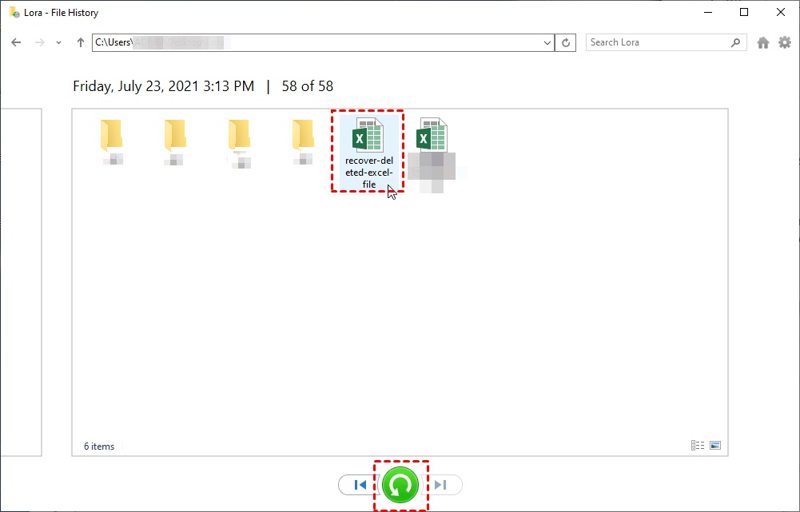
Step 1. Right-click the folder where your Excel file is stored.
Step 2. Choose Restore previous versions.
Step 3. Highlight the right version, expand the Open button, and choose Open in File History.
Step 4. Select the desired Excel files and click the Restore button.
Step 5. Go to the original folder and check if the earlier version of the Excel file is recovered.
Part 4: How to Recover a Deleted Excel File
Generally speaking, the Excel file will go to the Trash or Recycle Bin after you delete it. In other words, you can recover an Excel file that was deleted before you empty the Trash or Recycle Bin folder.
On Mac
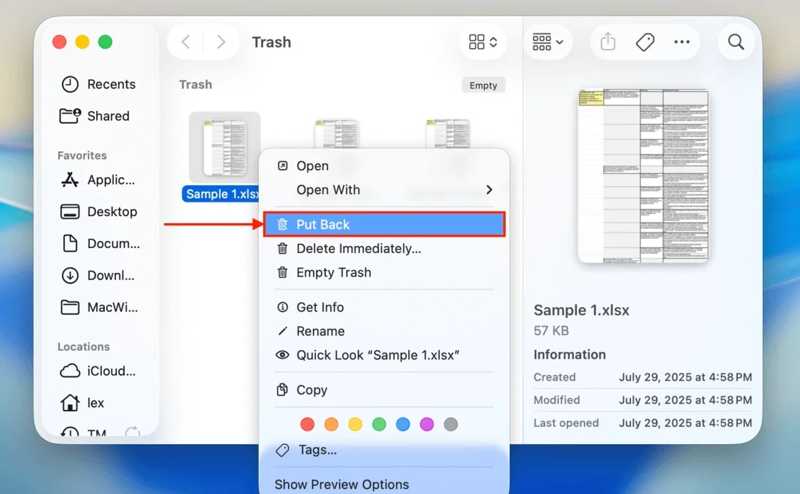
Step 1. Open the Trash from your Dock.
Step 2. Find and right-click on the desired Excel file.
Step 3. Choose Put Back.
Note: If you want to save the workbook to another location, open the destination folder in Finder, drag and drop the Excel file.
On Windows
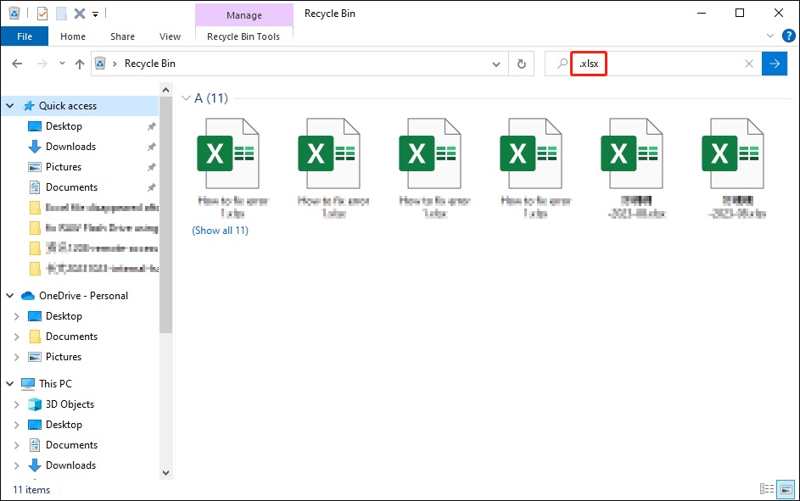
Step 1. Open the Recycle Bin from your desktop or a File Explorer.
Step 2. Highlight the desired Excel files.
Step 3. Right-click on one selected file and choose Restore.
Part 5: How to Recover an Overwritten Excel File from OneDrive
Some users automatically back up their Excel files using OneDrive. It allows you to recover overwritten Excel files on Windows and macOS with a Microsoft 365 account. Here are the steps:

Step 1. Go to https://onedrive.com/ in a browser.
Step 2. Sign in with your Microsoft 365 account credentials.
Step 3. Type xlsx into the search bar to find Excel files.
Step 4. Select the desired files and click the Download button.
Step 5. Then, you can find the recovered Excel files in the Downloads folder.
Note: This method requires you to turn on AutoSave and configure your Microsoft 365 account in the Excel application.
Part 6: How to Repair and Recover Corrupted Excel Files
Currently, Microsoft has introduced the Open-and-Repair feature into the Excel application. It can repair and recover a corrupted Excel file without extra software. Although this feature is unavailable to all corrupted workbooks, it is still worth trying.
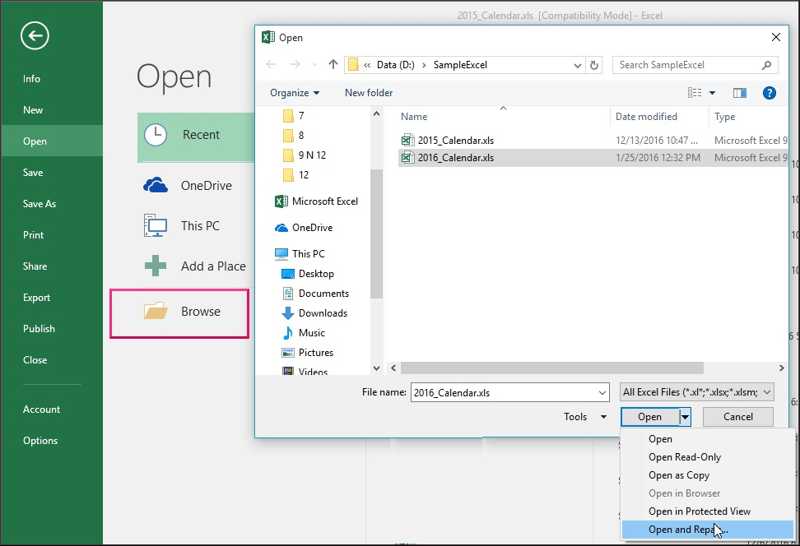
Step 1. Go to the File menu in your Excel app.
Step 2. Click Open on the left sidebar, and choose Browse.
Step 3. Select the corrupted workbook.
Step 4. Click the Arrow button next to the Open button.
Step 5. Choose Open and Repair.
Step 6. When prompted, click the Repair button on the alert to recover as much of the workbook data as possible.
Step 7. Next, select Yes to confirm your action.
Note: If the Repair button is unavailable, click the Extract Data button on the alert to extract the main information in the corrupted workbook.
Conclusion
This guide explained how to recover unsaved Excel files, deleted, overwritten, or corrupted workbooks on Windows and Mac. You can pick the right method according to your situation and follow our steps to get back your workbooks. Apeaksoft Data Recovery is a great option for ordinary people. It can retrieve any Excel file, no matter you lose it due to deletion, corruption, overwritten, and more. Plus, it is very simple to use.
Related Articles




