


How to Recover Permanently Deleted Files on iPhone

Unlike computers, iPhones do not keep deleted files in a recycle bin indefinitely. Usually, if iPhone files are deleted for more than 30 days, they will be removed from the recently deleted folder permanently.
However, it doesn't mean your deleted files are permanently gone. They are still stored on your iPhone storage until overwritten by new data. As long as the storage space has not been reused, you may still have a chance to recover permanently deleted files on your iPhone. Keep reading this comprehensive tutorial and learn how to recover deleted files from iPhone using built-in features, iCloud or iTunes/Finder backups, and professional iPhone data recovery software.
PAGE CONTENT:
Quick Comparison: Which Method Should You Choose
| Method | Best for | Pros | Limitations | Recovery Rate |
| Recently Deleted Folder | Files deleted within 30 days | Free and easy to use | Only works before permanent deletion | High |
| iPhone Data Recovery Software | Permanently deleted files | Recovers many file types without backup | Requires third-party software and depends on overwrite status | Medium to High |
| iCloud Backup | Recovering data from an iCloud backup | Official Apple solution | Requires a backup and factory reset | Medium |
| iTunes/Finder Backup | Recovering data from a computer backup | Works with local backups | Requires a previous backup | Medium |
Method 1: iPhone's Recent Deleted Folder Recovery [Free]
iPhone provides a built-in Recently Deleted folder, which can temporarily store deleted files, including photos, videos, PDFs, scanned documents, and other supported files. Without a computer or any third-party software, it is the most convenient and cost-free way to recover accidentally deleted files from an iPhone in the short term. However, this method is only applicable to deleted files that were created within the last 30 days.
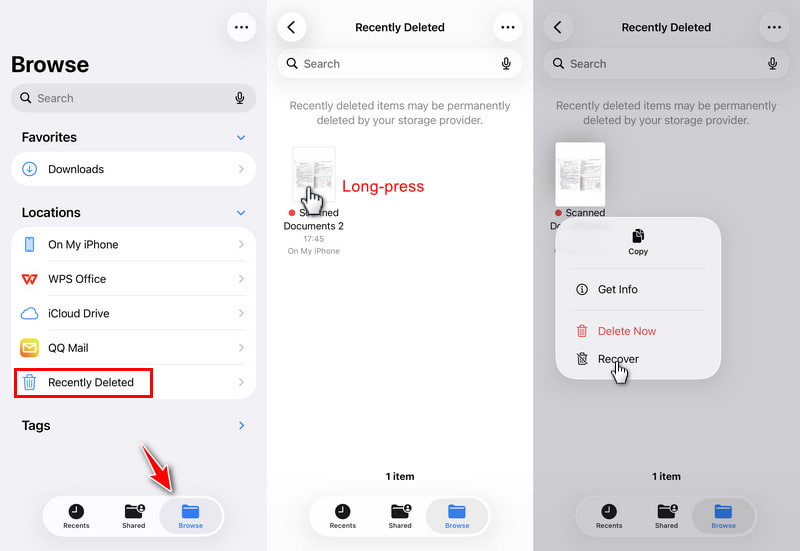
Step 1. Open the Files app on your iPhone.
Step 2. Go to the Browse tab at the bottom.
Step 3. Select the Recently Deleted option.
Step 4. Long-press the target deleted file and tap Recover.
Method 2: Recover Permanently Deleted Files on iPhone [Editor's Choice]
If you can't find the deleted files in the Recently Deleted folder because they were deleted over 30 days ago, and you don't have any iCloud or iTunes backup, don't worry. Third-party iPhone data recovery software, such as Apeaksoft iPhone Data Recovery, can help you scan through your iPhone and retrieve permanently deleted files.

Downloaded by over 1,000,000 users
- Recover deleted iPhone files that are not in the Recently Deleted folder.
- Recover deleted files on iPhone without a backup.
- Supports various data types, including docs, photos, SMS, etc.
- Enables you to preview and selectively recover target files.
- Compatible with Windows and Mac.
Secure Download
Secure Download

Step 1. Download and install this software onto your computer from the download button above.
Step 2. Choose the iPhone Data Recovery option from the interface.
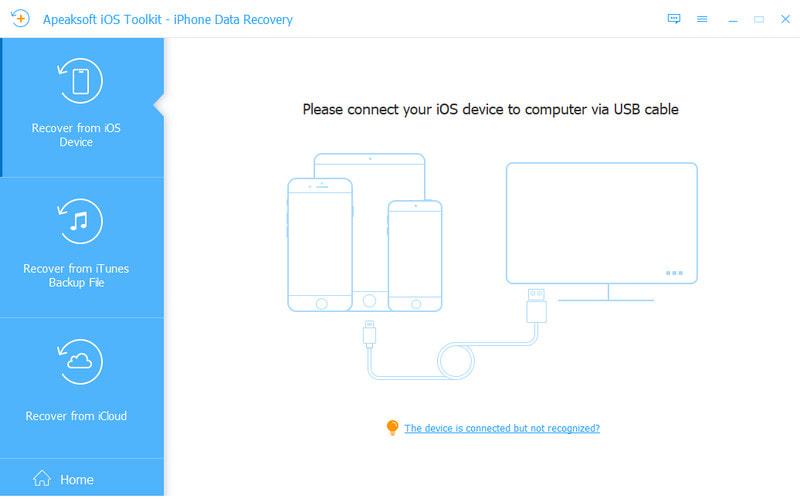
Step 3. Connect your iPhone to your computer, and then click Start Scan.
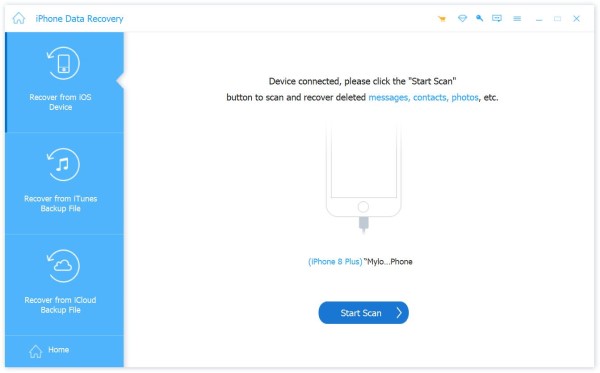
Step 4. This program will start scanning your iPhone. The estimated time is decided by your iPhone's data size.
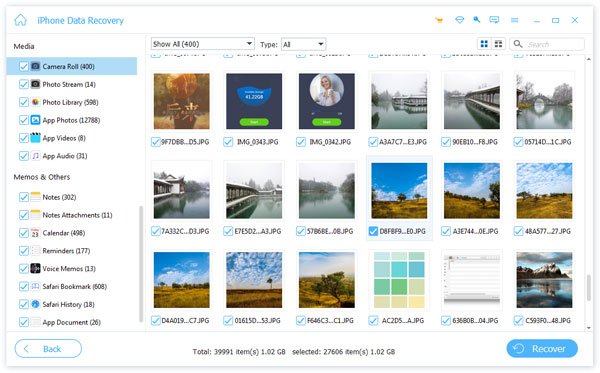
Step 5. When the scan is complete, select your target data type from the left panel.
Step 6. Check your deleted files on the right page. Select them and click the Recover button.
Method 3: Recover Deleted Files on iPhone from iCloud Backup
If you have the habit of backing up your iPhone to iCloud, you can recover deleted iPhone files by restoring the previous iCloud backup. It is the official standard recovery channel of Apple. Keep in mind that this method will require a factory reset, which will erase all your current iPhone data. Back up your iPhone in advance.
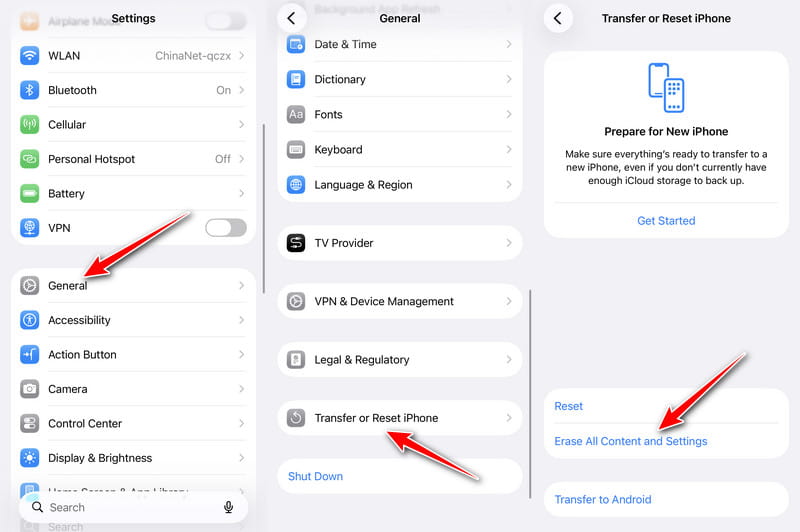
Step 1. Open Settings, and follow General - Transfer or Reset iPhone - Erase All Content and Settings to factory reset your iPhone.
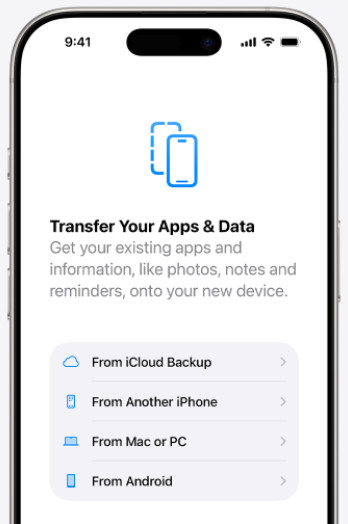
Step 2. Set up your iPhone as a new one. On the Transfer Your Apps & Data page, choose From iCloud Backup.
Step 3. Sign in to your Apple account.
Step 4. Choose the previous iCloud backup that should contain your deleted files. Wait for the data restoration to complete.
Method 4: Restore iPhone Deleted Files from iTunes/Finder
If you have once backed up your iPhone to your computer, you can easily restore the previous backup without factory resetting your iPhone. But also note that it will overwrite your current iPhone data with the previous backup.
Step 1. Open iTunes or Finder (macOS Catalina 10.15 and later) on the computer and connect the iPhone using a data cable.
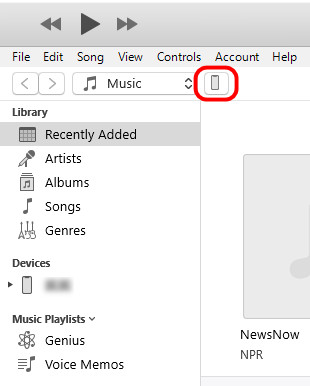
Step 2. Click on the device icon.
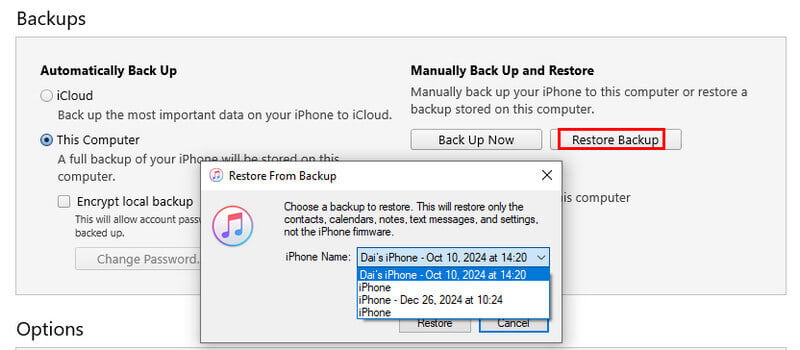
Step 3. Select the Restore Backup option. Choose a complete backup version before the loss of the file.
Step 4. Once the process is completed, simply restart and restore your iPhone from the backup.
Conclusion
Now you may grasp several ways to recover deleted files on iPhone. If your files are deleted less than 30 days ago, you can directly recover them from the Recently Deleted folder. If you don't have any backup, you can use software like Apeaksoft iPhone Data Recovery to recover permanently deleted files without a backup. If you have once created an iCloud or iTunes/Finder backup, you can follow our step-by-step guide to restore your iPhone with ease.
 Apeaksoft iPhone Data Recovery
 Recover deleted or lost data from iOS Devices, iTunes, and iCloud backup.
Secure Download
Secure Download
Related Articles




