


3 Best Methods to Recover Data from Android with a Broken Screen

Many people believe that once the phone screen is broken, it will be difficult to retrieve the data inside, especially when the screen is inoperable and cannot be unlocked. However, a broken screen does not necessarily mean data loss. As long as the motherboard and internal storage of the phone are not broken, there is still a chance to recover the data.
This article will share how to recover data from Android phone with a broken screen via an OTG adapter, from Google backup, or using dedicated data recovery software such as Apeaksoft Android Data Recovery.
PAGE CONTENT:
Method 1: Use an OTG Adapter to Connect an External Mouse/Keyboard
If it is only a damaged screen (black screen, touch failure, etc.) and the system is still functioning normally, you can use the OTG function to connect an external USB mouse to replace the touch operation. In this way, you finish unlocking the phone and enabling USB debugging to back up your data with an external USB mouse.
You should prepare: a USB OTG Adapter (The specific model depends on the interface of your mobile phone), a USB mouse.
Step 1. Insert the adapter into your Android phone's charging port.
Step 2. Connect the wired mouse to the other end of the OTG adapter.
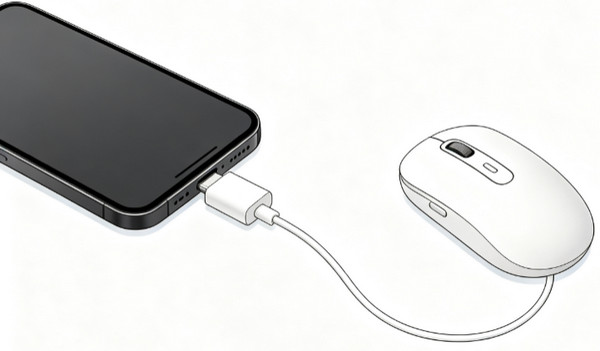
Step 3. You will see a mouse cursor on the phone screen. Use the mouse cursor to replace your finger touch to unlock your Android phone.
Step 4. Go to Settings and enable USB Debugging and File Transfer (MTP) mode.
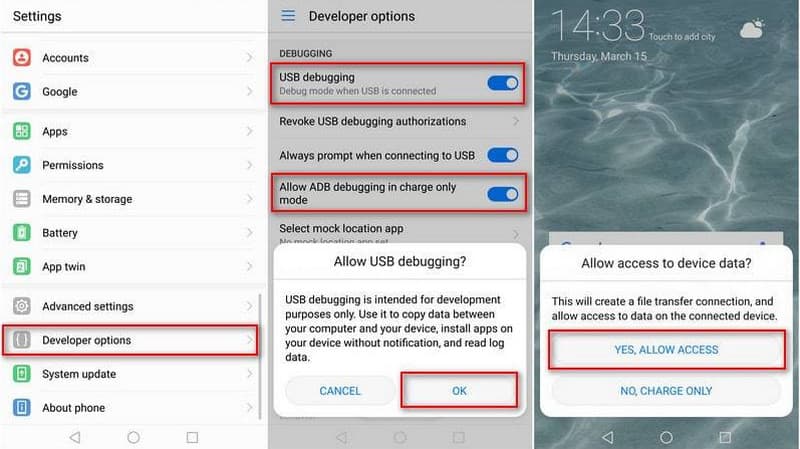
Step 5. Disconnect the OTG adapter and connect the phone to a computer using a USB cable. Then, you can directly access the phone's storage from the computer. Choose and copy the Android data you want.
Method 2: Restore Broken Screen Android Data from Google Drive Backup
If you have previously enabled automatic Google backup or created a scheduled Google backup, you can directly retrieve the data from Android phone with a broken screen from the cloud. However, the backup supported file types are limited, and usually contains contacts, call history, messages, device settings, Wi-Fi passwords, photos and videos (synced separately via Google Photos).
Tips: Before any steps, please make sure your Android phone has a previous Google Drive backup linked to your Google account.
Step 1. Turn on a new Android phone or a reset device, set up, and log in with the same Google account as your damaged phone.
Step 2. On the Copy apps & data screen, tap Next. On the Use your old phone page, tap Can't use old phone. Then select A backup from the cloud.
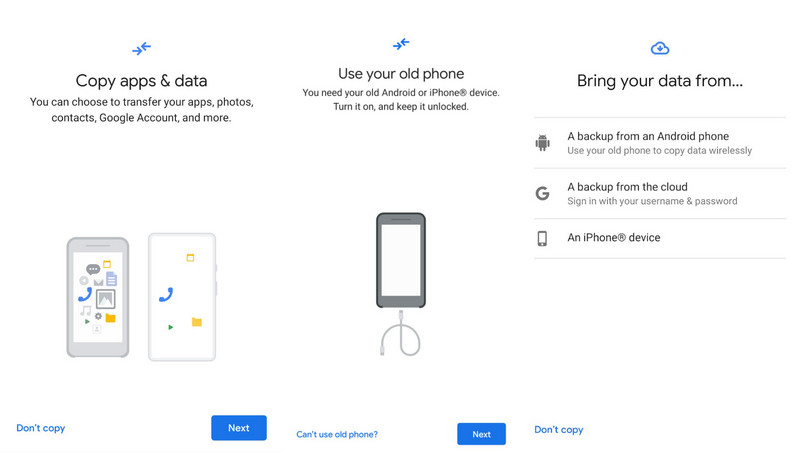
Step 3. Select the content you want to restore, and click Restore.
Step 4. Keep your device connected to Wi-Fi. Wait for the whole restoration process to finish.
Method 3: Professional Android Broken Screen Data Recovery Tool
If you cannot operate the device through the OTG Adapter, or if you haven't enabled Google Drive backup before, it may be difficult to retrieve the broken Android phone data. At this time, you can use professional data recovery tools, such as Apeaksoft Android Data Recovery as long as the phone can still be detected by the computer.
It can scan through your Android device deeply and recover important data like photos, contacts, messages, and videos. Even if the phone screen is damaged and cannot operate normally, it can provide a more efficient and convenient data recovery solution. The whole process is also easy to follow.
Secure Download
Secure Download
Step 1. Download this tool from the button above. Initiate it after the installation.
Step 2. Connect your broken Android phone to your computer via a USB. Enable USB debugging if required.
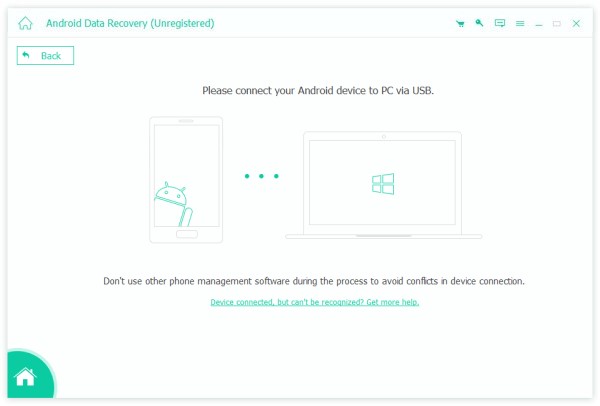
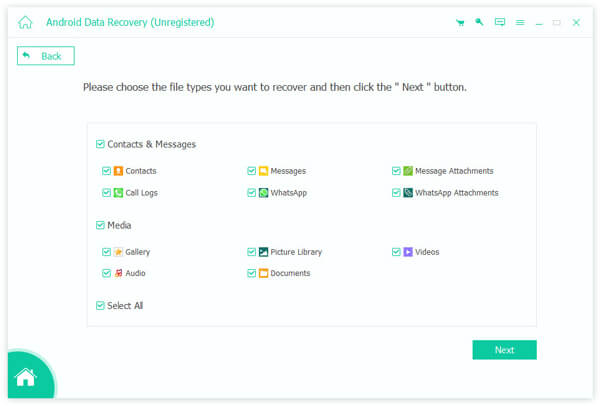
Step 3. Select the data types and start scanning your Android phone.
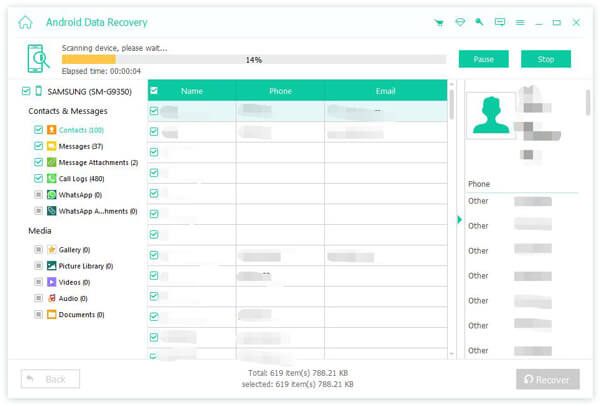
Step 4. Check your desired data and click the Recover button. Select a saving path for the recovered files.
Tips: This tool can also help you recover deleted text messages on Android.
Final Verdict
| Method | Best for | Pros | Cons |
| OTG External Mouse | Screen is unresponsive but the device is still functional | • No need for a computer or cloud backup • Allows direct control of the phone • Access and back up data from the device | • Requires the phone to support OTG • Requires an additional OTG adapter and USB devices • Cannot work if the phone is completely damaged or locked |
| Google Cloud Backup | Have a Google backup in advance | • Free • Don’t need to connect to your broken Android phone • Official and reliable way | • Requires a previous backup • Cannot recover unsynced data • Limited recovery options |
| Professional Recovery Software | Completely black and unresponsive touch screen | • No backup required • Supports various data types • Preview before recovery | • Requires a computer connection • May require USB debugging • Cannot recover data from physically damaged storage chips |
Conclusion
This post has shared 3 possible methods to recover data from Android phone with a broken screen. You can choose the right method based on your situation and try to retrieve important files from your broken Android phone.
 Apeaksoft Android Data Recovery
 Recover various deleted or lost data from all popular Android devices.
Secure Download
Secure Download
Related Articles




