


How to Recover Deleted Videos from Android Phone or Tablet

Taking high-quality videos has become easier than ever before due to advanced Android devices. However, losing precious video files can be disheartening, but fear not. Whether you accidentally deleted your videos, experienced a system crash, or encountered a reset issue, our comprehensive guide can help you recover lost videos. In this guide, you can learn multiple proven methods to recover deleted videos from your Android phone or tablet, even if you don't have a backup.
PAGE CONTENT:
Part 1: How to Recover Deleted Videos from Android Without Backup
Unlike iPhones, Android devices don't come with many features for storing and backing up media files. Fortunately, Apeaksoft Android Data Recovery can help you recover deleted videos from an Android phone without backup. Plus, the straightforward design makes it easy to use for beginners.

Downloaded by over 1,000,000 users
- Recover lost videos from Android devices in 3 steps.
- Work for a variety of data types, like videos, photos, and more.
- Preview deleted videos on your phone.
- Support a wide range of Android phone brands and models.
Secure Download
Secure Download

How to Recover Deleted Videos from Android Without Backup
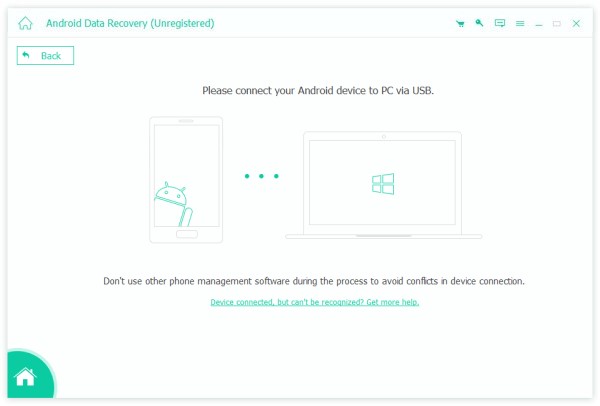
Step 1. Connect to your phone
Launch the Android video recovery software after installing it on your computer. It is compatible with Windows 11 to Vista, macOS 10.6 and above. Turn to your phone, and enable USB Debugging mode in the Settings app. Next, connect it to your PC with a USB cable. If prompted, choose Transfer files.
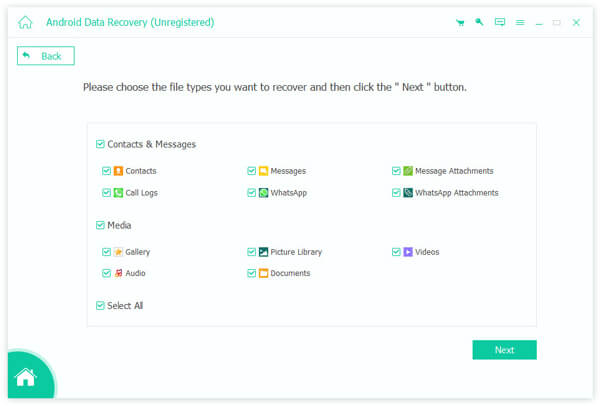
Step 2. Preview videos
Once your phone is recognized, you will be taken to the data type window. Select Videos, then click Next to begin scanning videos on your phone. When it is done, toggle on Only display the deleted items to preview deleted videos.
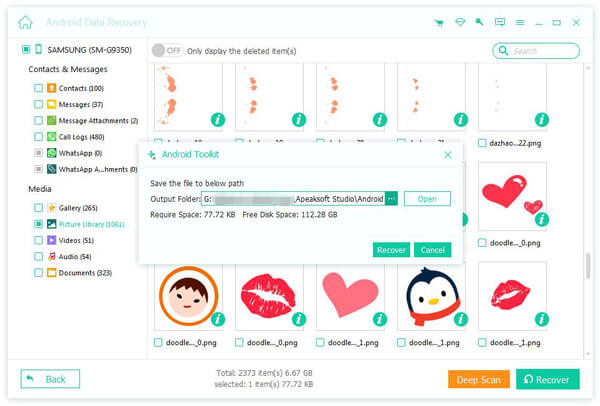
Step 3. Recover deleted videos
Select the videos you want to recover and click the Recover button. Finally, set an output folder and recover permanently deleted videos from your Android device with a computer.
Part 2: How to Recover Deleted Videos on Android from the Recycle Bin
The design of the built-in Gallery app is different on Android devices. Some devices come with the Recycle Bin folder in the Gallery. Whether you can recover deleted videos on Android depends on your device. We use a Samsung Galaxy phone as an example to show you the process.
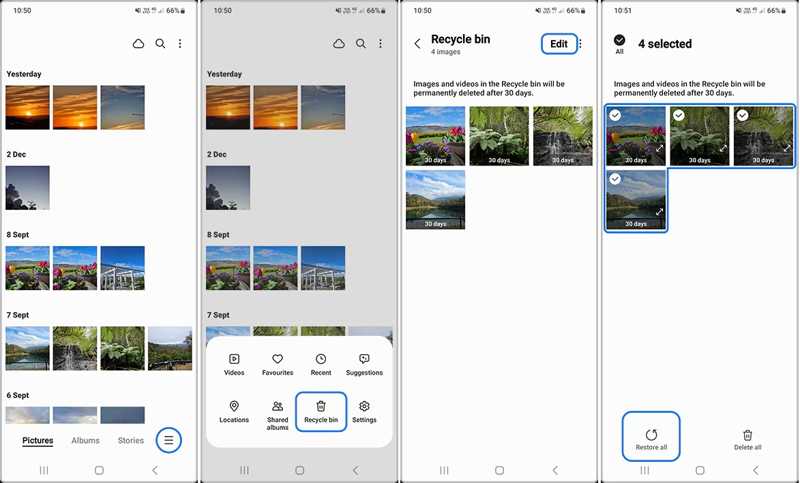
Step 1. Run the Gallery app on your phone.
Step 2. Tap the Hamburger button.
Step 3. Choose the Recycle bin on the toolbox.
Step 4. You will now see the recently deleted videos and photos.
Step 5. Select all the videos you want to recover, then tap Restore all.
Step 6. Back to the library and check your deleted videos.
Note: If you cannot find the Recycle bin or Trash folder in your Gallery app, go to the My Files or File Manager app and check the Recycle bin for deleted videos.
Part 3: How to Recover Deleted Android Videos from Google Photos
If you use Google Photos on your Android phone to back up photos and videos, you can recover deleted Android videos from the Trash for free. Deleted videos in Google Photos will remain in Trash for up to 60 days.
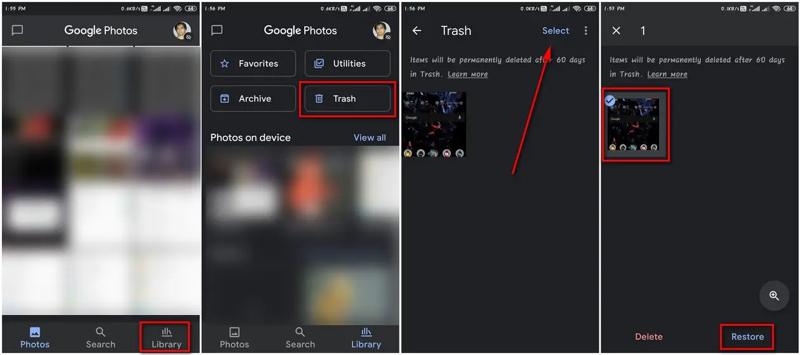
Step 1. Run your Google Photos app.
Step 2. Go to the Library tab at the bottom.
Step 3. Tap the Trash or Bin folder to view recently deleted videos.
Step 4. Tap Select and touch each video you want to retrieve.
Step 5. Next, tap the Restore button.
Further Reading
Part 4: How to Recover Deleted Android Videos from Backup
If you have set up Google One on your mobile device, you can recover permanently deleted videos from an Android tablet for free. Remember that the process requires you to factory reset your device first.
Step 1. Run your Settings app.
Step 2. Navigate to System and Reset options.
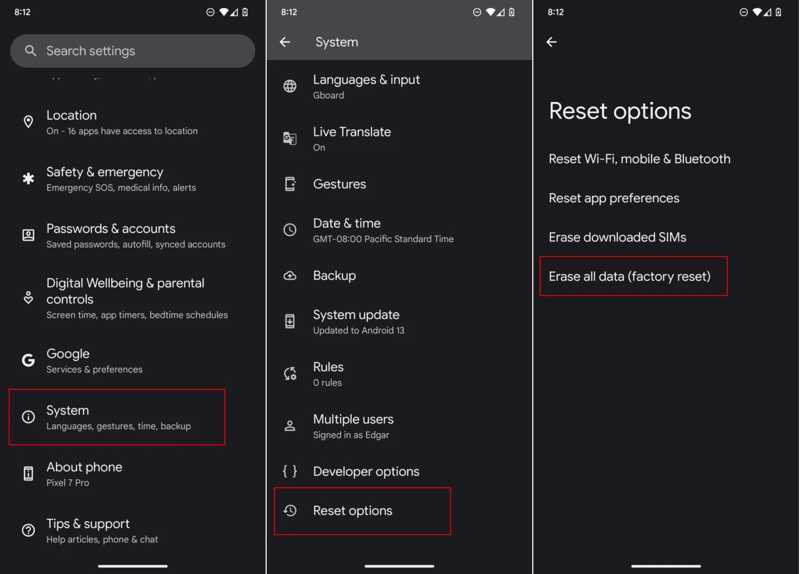
Step 3. Tap Erase all data(factory reset) and hit Erase all data.
Step 4. Enter your PIN if prompted.
Step 5. Next, tap Erase all data.
Step 6. When your device restarts, tap Start, then agree to the terms and conditions.
Step 7. Make sure to connect to a Wi-Fi.
Step 8. When you reach the Copy apps and data screen, tap Next.
Step 9. Select Can't use old device.
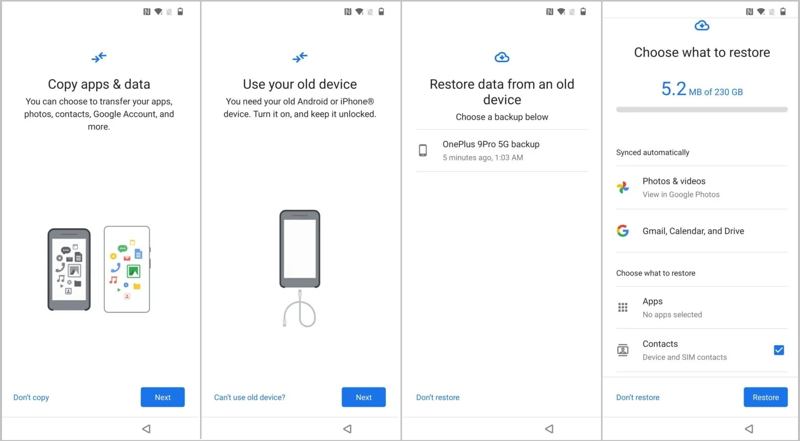
Step 10. Log in with your Google account.
Step 11. Select the last backup, choose Photos & videos and other desired data types, and tap Restore.
Conclusion
This guide shared four ways to recover deleted videos from Android phones and tablets. If you can find the Trash or Recycle Bin album in the built-in Gallery, you can recover recently deleted videos. Google Photos is not only a way to back up your media files but also to retrieve lost videos. Backup is another option if you have set up Google One. Apeaksoft Android Data Recovery is a quick way to recover your videos without a backup.
 Apeaksoft iPhone Data Recovery
 Recover deleted or lost data from iOS Devices, iTunes, and iCloud backup.
Secure Download
Secure Download
Related Articles




