

How to Recover Lost and Deleted Contacts on Android Phone

Android phones are equipped with some amazing features to save you from awful situations. One of them is the Contacts app pre-installed on Android devices. It allows you to store unlimited contacts and phone numbers. Plus, you can manage them, such as removing, adding, assigning new persons, updating, and more. This guide shares multiple proven methods to retrieve deleted phone numbers from your Android phone in a variety of situations.
PAGE CONTENT:
Part 1: How to Find Contacts from a SIM Card on Android
Where does Android store contacts? On an Android phone, you can store contacts in your memory and SIM card. If you lose local contacts, you can undo deleted Android contacts from SIM or vice versa.
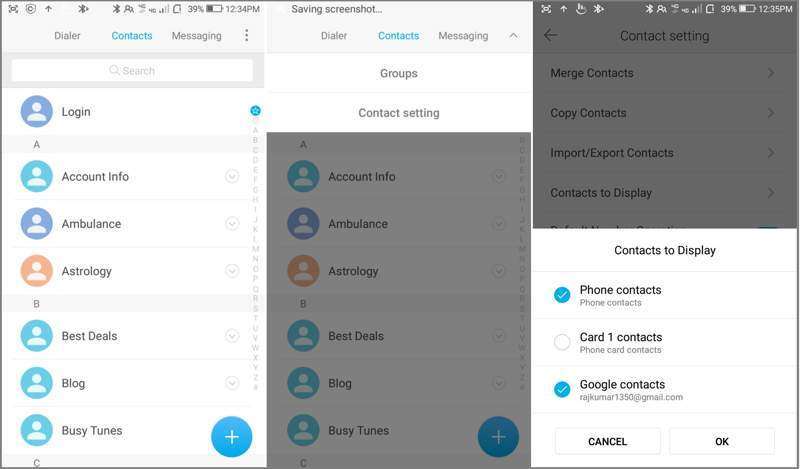
Step 1. Open the built-in Contacts app on your phone.
Step 2. Tap the Menu button with a three-dot icon.
Step 3. Choose Contacts to Display to proceed.
Step 4. Then, select Phone contacts if you accidentally deleted contacts on the SIM card. Or select your SIM card if you deleted contacts on your phone.
Step 5. Tap the OK button, and you can recover erased contacts from the SIM card on your Android.
Part 2: How to Recover Contacts from Bin
On some Android phone models, you can recover erased contacts on Android from the Recycle Bin or Trash folder. The deleted contacts are stored in the folder for up to 30 days. Before they are permanently removed, you can get them back on your device directly.
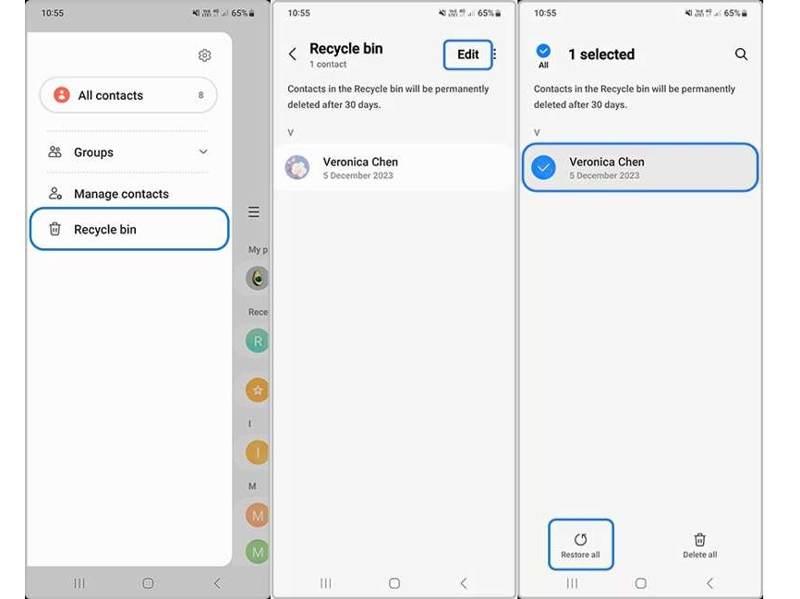
Step 1. Run the Contacts app on your app tray.
Step 2. Tap the Hamburger button and choose Recycle bin or Trash.
Step 3. Hit the Edit button and select the contact you want to retrieve.
Step 4. Then, tap the Restore button to restore deleted contacts on Android.
Step 5. When it finishes, you can find the contacts on your contact list.
Note: We use a Samsung Galaxy phone as an example. The workflow on other phone brands may be different but similar.
Part 3: How to Get Android Contacts Back from Google
When you purchase an Android phone, you need to activate it with a Google account. At the same time, you can sync contacts and other data to your account. That gives you a chance to restore contact from Google to Android.
How to Copy Google Contacts to Android
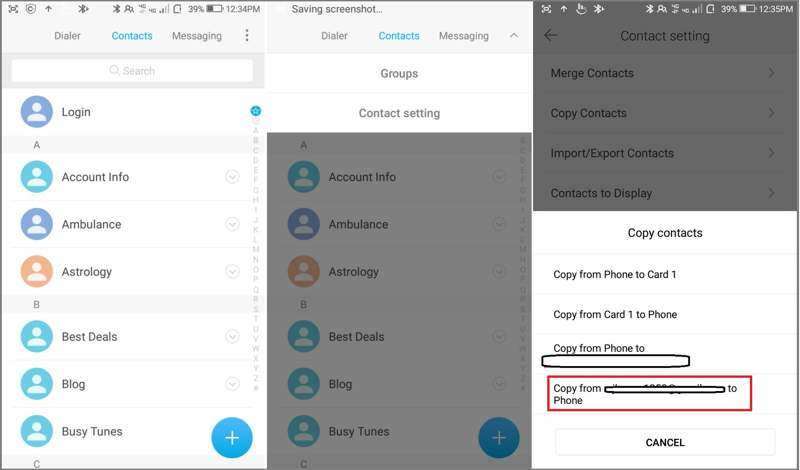
Step 1. Open the Contacts app.
Step 2. Tap the Menu button with a three-dot icon.
Step 3. Choose Copy Contacts from the list.
Step 4. Then, tap Copy from [your Google account] to Phone.
Step 5. Check the boxes next to all lost contacts, and tap Copy.
How to Recover Google Contacts on Android in Contacts
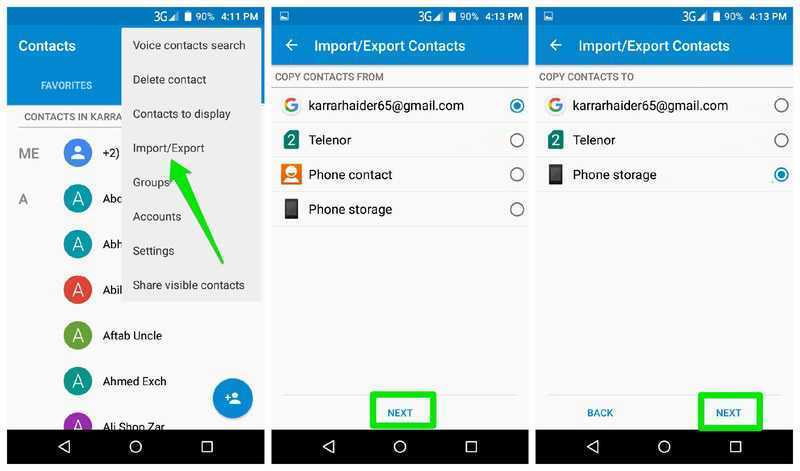
Step 1. Tap the Menu button in your Contacts app.
Step 2. Choose Import/Export from the context menu.
Step 3. Select your Google account under COPY CONTACTS FROM, and tap Next.
Step 4. Then, select your phone storage under COPY CONTACTS TO.
Step 5. Finally, tap Next and confirm Google contacts recovery on Android.
How to Recover Google Contacts on Android in Settings
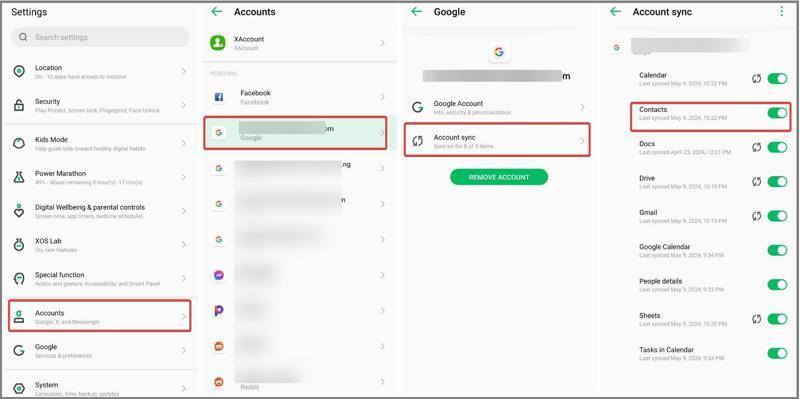
Step 1. Once you delete contacts, go to the Settings app, and connect your phone to an internet connection.
Step 2. Choose Password & accounts and choose your Google account.
Step 3. Tap Account sync and toggle off Contacts.
Step 4. Then, toggle on Contacts to get deleted contacts back on Android.
Part 4: How to Restore Contacts on Android from a Backup
Android phones come with a built-in backup and restore feature, which uses Google One to back up most data. If you previously created an Android backup, you can restore deleted contacts on Android.
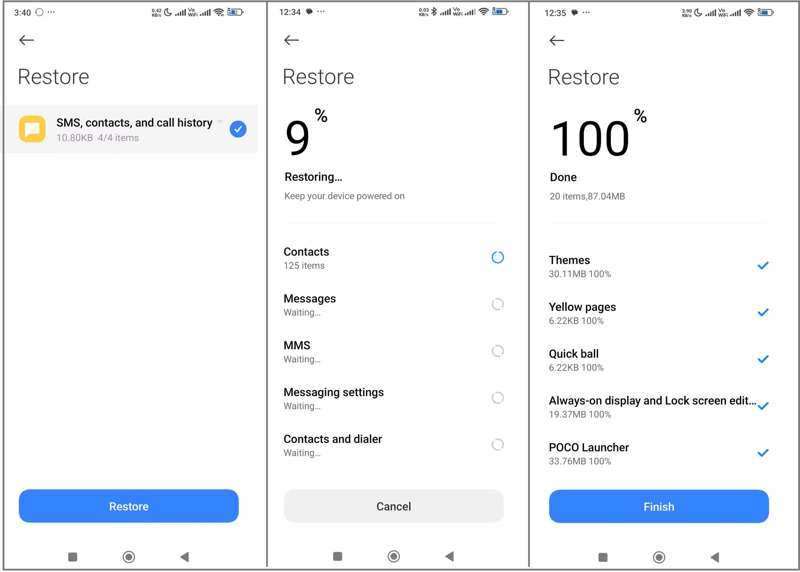
Step 1. Run the Settings app.
Step 2. Choose System or About Phone.
Step 3. Tap Backup and Restore or the related option.
Step 4. Pick the right backup that stores the deleted contacts and tap Restore.
Step 5. Step 5: Then, select SMS, contacts, and call history and tap Restore again.
Step 6. Step 6: When it is done, you can find your contacts on Android in the built-in Contacts app.
Part 5: How to Retrieve Contacts from Android Without Backup
If you haven't synced or backed up your contacts, you need a powerful data recovery tool to retrieve deleted contacts on Android without backup. Apeaksoft Android Data Recovery, for example, is able to extract lost contacts from your phone memory without backup.
The Best Way to Retrieve Contacts on Android Without Backup
- Recover deleted contacts without backup.
- Available for various situations, including a broken device.
- Preview lost contacts for selective recovery.
- Keep contacts in their original condition.
- Support almost all Android phone brands and models.
Secure Download
Secure Download

How to Retrieve Contacts from Android Phone Memory
Step 1. Detect your phone
Start the best contacts recovery software after installing it on your computer. Turn on your phone, go to the Settings app, choose Developer options, and enable USB debugging mode. Then, connect your phone to your computer with a USB cable. If prompted, select Transfer files.

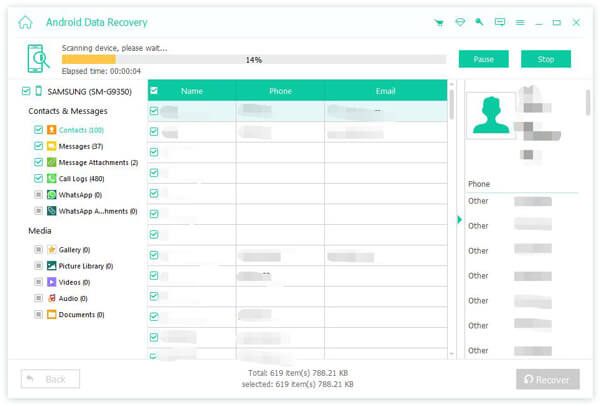
Step 2. Preview contacts
Tick the checkbox next to Contacts and click the Next button to begin scanning contacts recoverable on your device. Follow the onscreen instructions to authorize and permit it to access your device. After scanning, toggle on Only display the deleted items and view deleted contacts.

Step 3. Recover groups together with phone numbers
Make sure to select the contacts you want to recover and click the Recover button at the bottom. If you cannot find the desired items, click Deep Scan to perform a deep scan. Finally, set an output folder and confirm Android contact recovery. You can also use this program to recover deleted videos on Android.
Conclusion
This guide has shared multiple ways to restore contacts on your Android phone. After accidentally deleting contacts, you can copy them from your SIM card. If you have synced contacts to your Google account, you can copy, import, or download contacts to your phone. Furthermore, a backup allows you to get contacts back quickly. Apeaksoft Android Data Recovery enables you to recover lost contacts from your phone memory without a backup file.
Related Articles




