

[5 Proven Methods] How to Recover Deleted Contacts on iPhone

Key Takeaways
You can restore deleted contacts on iPhone in 5 ways
- Restore iCloud backup
- Recover from iCloud.com
- Restore from iTunes/Finder backup
- Restore from Google or Mail Account
- Use third-party iPhone data recovery tool
How to restore contacts on iPhone? Have you ever encountered such a problem when you lost all contacts on iPhone?
When you switch to a new iPhone or erase some data to free up your iPhone storage, you may find your contacts lost by accident. It's not easy to recall the lost contact info on iPhone simply in your memory. Is there a way to recover deleted contacts on an iPhone?
Luckily, there are many feasible ways to make it. Apple can help you recover deleted contacts from iCloud and iTunes. You can also recover lost contact numbers on your iPhone even without backups. This article will tell you how to recover deleted contacts on iPhone in 5 proven ways.
PAGE CONTENT:
- Quick Overview of the 5 Methods to Recover Contacts on iPhone
- Part 1: How to Recover Erased Contacts on iPhone via iCloud.com (No Data Loss)
- Part 2: How to Restore Contacts on iPhone from iCloud Backup (Requires Reset)
- Part 3: How to Get Back Deleted Contacts on iPhone from iTunes Backup
- Part 4: How to Find Deleted Contacts on iPhone from Google Account
- Part 5: How to Recover Deleted Contacts on iPhone Without Backup
- Part 6: FAQs About Recovering Contacts on iPhone
Quick Overview of the 5 Methods to Recover Contacts on iPhone
| Method | Requires Backup | Data Loss | Best For |
| iCloud.com | No | No | Recover recently deleted contacts without resetting iPhone |
| iCloud Backup | Yes | Yes (full device overwrite) | Users who have a recent iCloud backup containing contacts |
| iTunes Backup | Yes | Yes (full device overwrite) | Users who back up iPhone locally to computer |
| Google Account | No | No | Contacts previously synced with Gmail/Google Contacts |
| Third-party Recovery Software | No | No | Recover contacts without any backup |
Part 1: How to Recover Erased Contacts on iPhone via iCloud.com (No Data Loss)
You may consider iCloud Restore makes a big fuss, for you only need to restore lost contacts on your iPhone, not all data. Losing contacts doesn’t always mean you have to reset your iPhone. If your contacts were synced with iCloud, you can restore them directly from iCloud.com without erasing your device. This is one of the safest and easiest ways to recover deleted contacts on iPhone.
Here are the steps on how to retrieve iPhone deleted contacts via icloud.com:
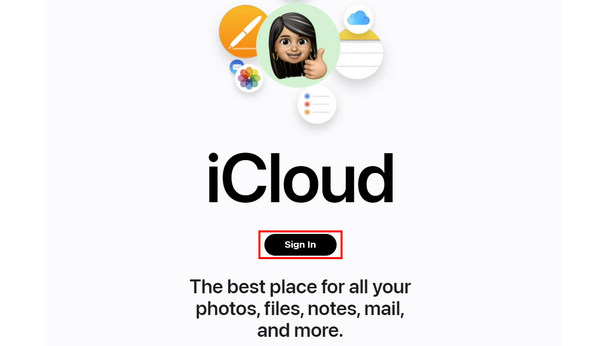
Step 1. Go to iCloud.com and click the Sign In button to log into your Apple account, which is also your iCloud account. If you forget your iCloud password, you can reset it using the combined phone number and mail address.
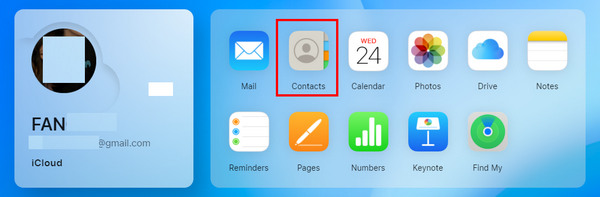
Step 2. When you've entered your iCloud, you should click the Contacts button to see all contacts saved in your iCloud Backup.
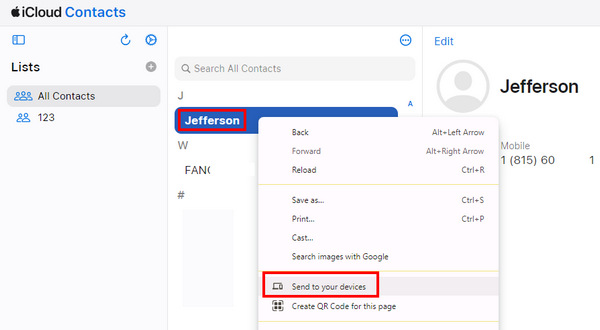
Step 3. Now you are in iCloud Contacts. You can choose the lost contacts on your iPhone and right-click on it. Then, choose Send to your devices. Then, you can find deleted contacts on your iPhone from the iCloud website.
Part 2: How to Restore Contacts on iPhone from iCloud Backup (Requires Reset)
If you have an iCloud backup created before the contacts were deleted, you can easily restore deleted contacts on iPhone from iCloud. Below are the detailed steps to recover missing contacts on iPhone from iCloud backup:
Step 1. You should factory reset your iPhone first. Open the Settings app and tap on General. Slide down and tap the Transfer or Reset iPhone button. On the new window, you should tap the Erase All Content and Settings button to reset your iPhone before you recover erased contacts on your iPhone.
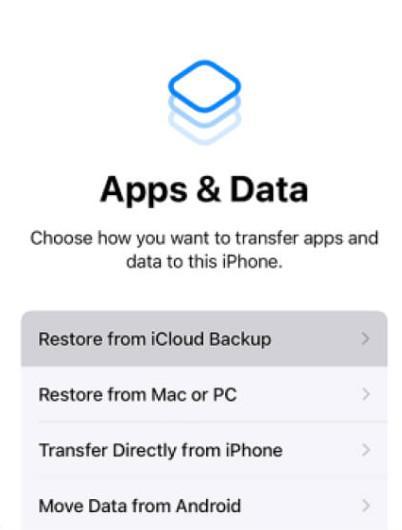
Step 2. Restart your iPhone to set it up again. When it comes to the App & Data screen, you should choose Restore from iCloud Backup to recover all data on your iPhone from iCloud Backup. Then, you can recover deleted contacts on iPhone from iCloud.
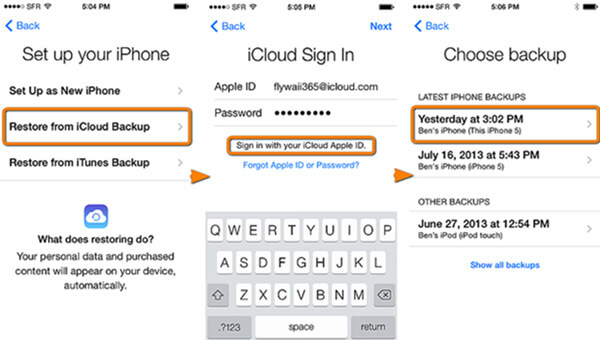
Tips: However, your iCloud storage is not infinite, and sometimes, iCloud Backup won't turn on, so some newly added contacts can't be backed up. It's also a great waste if you clear iCloud storage only for contact backup. Therefore, iCloud may not restore recently deleted contacts on an iPhone.
Part 3: How to Get Back Deleted Contacts on iPhone from iTunes Backup
How do I get my contacts back on my iPhone without iCloud? If you previously backed up your iPhone to a computer, you can restore deleted contacts using an iTunes backup.
iCloud has no sufficient storage, but iTunes has no storage limits, for you can back up your iPhone directly to your computer through iTunes. However, if you don't regularly back up your device, you may not be able to recover recently deleted contacts on your iPhone. Also note that this method restores the entire backup to your device, which means your current data will be replaced totally by the backup version.
Follow the steps below to learn how to get deleted contacts back on iPhone from iTunes backup:
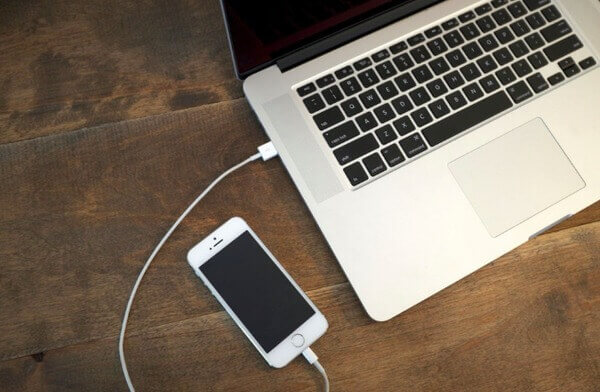
Step 1. Open iTunes on your Windows or Mac, and then connect your iPhone to iTunes with a USB cable. Then, you can click the small Device button on the top left side of iTunes.
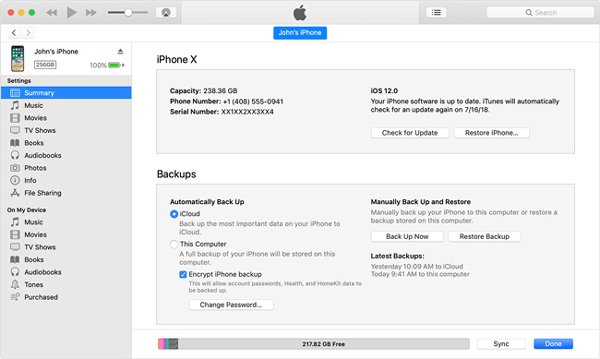
Step 2. iTunes will go to the Summary panel. You should click the Restore Backup button to recover the lost contacts on iPhone from iTunes backups.
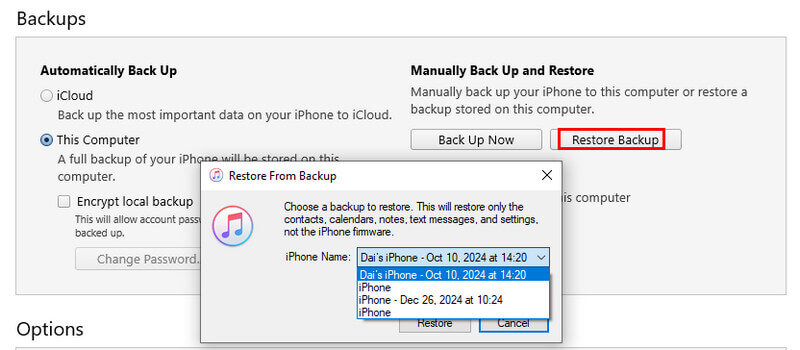
Step 3. Choose one of the backups that you think contains your deleted contacts and then click Restore.
Part 4: How to Find Deleted Contacts on iPhone from Google Account
If you have synced your contacts with Gmail before, you can easily retrieve deleted phone numbers on iPhone whether you've switched to a new iPhone or deleted iPhone contacts by re-enabling Google contacts sync. Here are the steps on how to restore lost contacts on iPhone via Gmail:
Step 1. Open Settings on your iPhone.
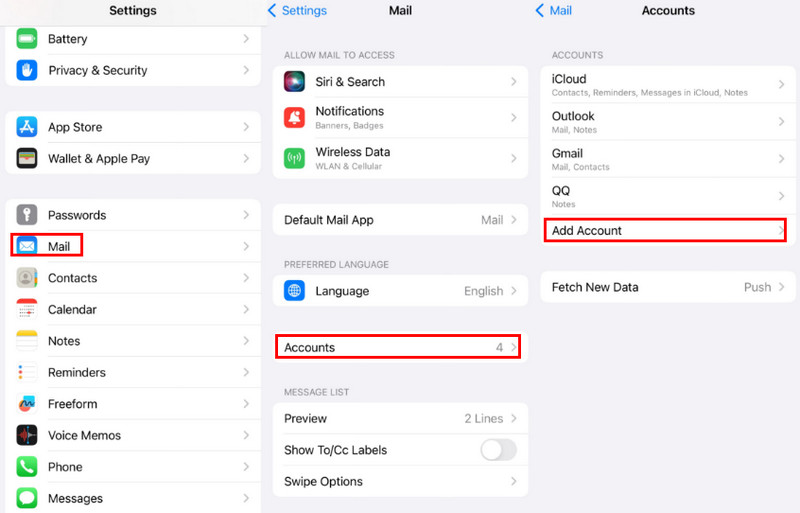
Step 2. Follow the path: Mail > Accounts > Add Account. Choose Gmail on the following page. Sign in with your Gmail account.
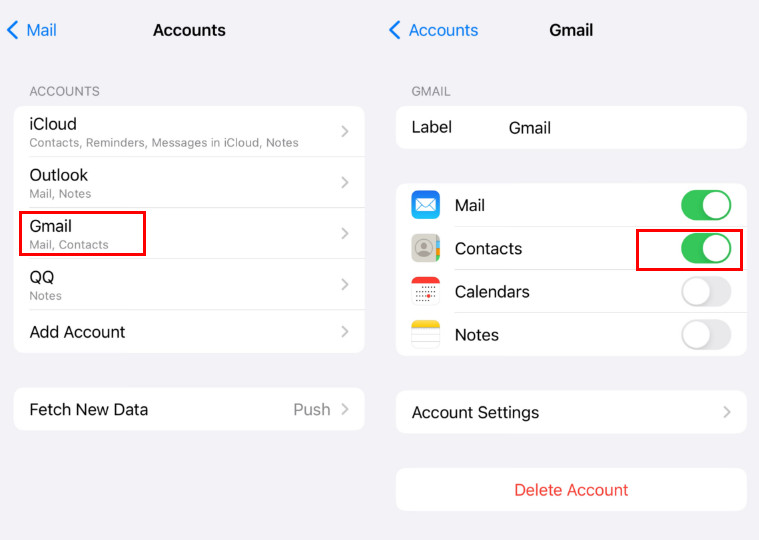
Step 3. Back to the previous page and click the Gmail option. Toggle Contacts on (green) on the next page. Then, the contacts will be restored to your contact automatically.
Part 5: How to Recover Deleted Contacts on iPhone Without Backup
Suppose you have no iCloud or iTunes backups, recovering deleted contacts becomes more difficult. Do you wonder how to find deleted contacts without any backup? A professional iPhone data recovery tool like Apeaksoft iPhone Data Recovery can scan your device and help retrieve lost contacts even if there is no backup. Even if the contacts are deleted for a long time, you can still undo deleted contacts on your iPhone.

Downloaded by over 1,000,000 users
- Retrieve deleted contacts on iPhone without backup.
- Preview deleted contacts highlighted in red before recovery.
- Automatically organize deleted contacts into a separate category.
- Batch-choose contacts and recover them in one click.
Secure Download
Secure Download

Below are the steps on how to restore contacts on iPhone without backup:
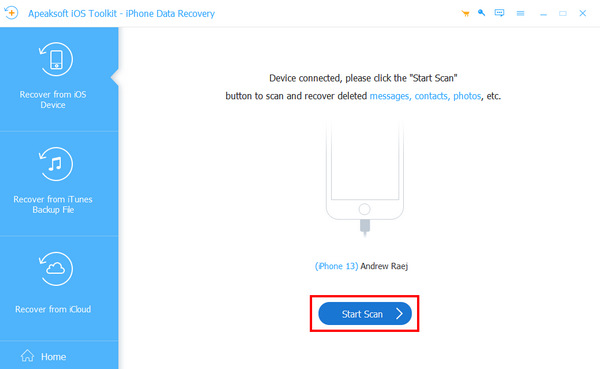
Step 1. Download Apeaksoft iPhone Data Recovery and launch it. Connect your iOS device to your computer. Click the Start Scan button to retrieve the deleted contacts.
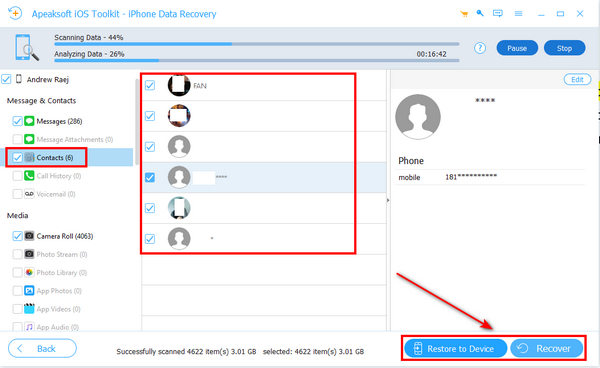
Step 2. After scanning, you can see the accidentally deleted contacts on an iPhone. Open the Contacts group on the left side to check your contacts. Then, choose the lost ones and click the Restore to Device or Recover button to restore them. Then, you can recover lost contact numbers on iPhone.
Tips: This software also works when you want to recover data from a broken iPhone if the screen still works.
Part 6: FAQs About Recovering Contacts on iPhone
How can I get back my deleted contacts on iPhone?
You can recover deleted contacts on iPhone by restoring them from iCloud.com, iCloud/iTunes backup, Google account sync, or using a third-party recovery tool if there is no backup available.
Can I recover deleted contacts without backup?
Yes. You can get back deleted iPhone contacts from iCloud website or third-party software like Apeaksoft iPhone Data Recovery.
Does iCloud save deleted contacts?
Yes. If you have enabled the Contacts sync before, you can try restoring missing contacts from iCloud.
Conclusion
You've learned how to find deleted contacts on iPhone on your iPhone in 5 feasible ways. Your iCloud and iTunes are good assistants when you have lost your contacts or other files. However, if you have no backup files or the backup files can't cover the recently deleted contacts on your iPhone, Apeaksoft iPhone Data Recovery can recover erased contacts on your iPhone most easily. Even if you've lost all contacts on an iPhone for a long time, this program can still get them all back.
Related Articles




