


Recover Data from a Broken iPhone Even Without a Backup

Key Takeaways
Is it possible to recover data from an iPhone that won’t turn on? Yes. You can recover data if:
- The device can still be detected by a computer.
- The storage chip is not physically damaged.
- You have previously backed up our iPhone Using iTunes or iCloud.
Even without a backup, professional data recovery software can still help you recover data from broken iPhone as long as the iPhone’s internal storage remains intact and accessible.
Did your iPhone fall out of your pocket and end up with a broken screen?
It is a frustrating situation because your iPhone may contain treasured photos, important messages, and essential documents that suddenly become inaccessible.
Is it possible to recover data from an iPhone that won't turn on? Don't worry! This article provides corresponding solutions to recover data from broken iPhone for various situations.
If you are lucky, you will not pay one cent for this. Without further ado, let's move on to the four methods.
PAGE CONTENT:
- Part 1: Golden 24 Hours After your iPhone Breaks
- Part 2: How to Recover Data from a Broken iPhone Without Backup
- Part 3: How to Recover Data from a Broken iPhone with Backup
- Part 4: Recover Data from iPhone with Damaged Storage Chip (Last Resort)
- Bonus Tips: Back up Your Broken iPhone When the Screen Still Works
- Part 5: FAQs About Recovering Data from Broken iPhone
Part 1: Golden 24 Hours After your iPhone Breaks
If your iPhone is broken, you should try to fix it or recover data from it as soon as possible. You should not put this off for more than 24 hours. Any procrastination could prevent you from successfully recovering data from your broken iPhone.
But before recovering your data, keep these three things in mind:
• If hard things damage your iPhone: For example, your iPhone falls into the ground, so it is broken. In this case, you should carefully pick up your iPhone and don't do any further damage. Then, try unlocking it and see if you can turn on the iCloud sync or any sync functions to save as much data as possible.
• If your iPhone is damaged by water: Don't try unlocking your iPhone! This situation is distinguished from the former one. Any activity on your wet iPhone could burn out the circuit and cause irretrievable damage. You should first forcibly shut down your iPhone and dry it with tissue. Don't use a hairdryer. Flow may carry water to undamaged parts and cause a black screen.
• If your iPhone is damaged by non-pure water: Non-pure water, like coffee, leads to severe problems on a running motherboard. This is similar to the second situation. Also, don't use a hairdryer. Just absorb the surface coffee, lean the phone with its charging port on the bottom, and let the inner coffee stream down.
After these essential steps, you can try to recover data from broken iPhone. Below is a quick comparison table for you to quickly choose the method that suits you best:
| Method | Requires Backup | Success Rate | Difficulty | Cost |
| iCloud/iTunes Backup | Yes | High | Easy | $0 |
| iPhone Data Recovery Software | No | High | Easy | $30-$100 |
| Repair Shop Chip Repair | No | Medium | Hard | $200-$1000+ |
Part 2: How to Recover Data from a Broken iPhone Without Backup
Can I recover data from a broken iPhone? How to recover data from broken iPhone without backup? In most cases, yes. Professional data recovery software can still retrieve data directly from a broken iPhone without requiring any prior backup.
Why Data Recovery Software Works on Broken iPhone
Data is still stored on the iPhone’s internal storage even when the device is broken or cannot be turned on. This means that photos, messages, and contacts are usually still there even if the system crashes or the screen is damaged. In many cases, the problem is not that the data is gone, but that the iPhone can no longer access it normally. As long as the storage has not been physically damaged or overwritten, recovery tools can still read and extract the data.
Recommended Broken iPhone Data Recovery Software
One commonly used option is Apeaksoft iPhone Data Recovery. This professional iOS data recovery program supports all iPhones, iPads, and iPods. As long as the inner storage chips still work, it can recover data from your iPhone, whether hard things, water, or coffee damage it.

Downloaded by over 1,000,000 users
- Recover data from broken iPhone with ease.
- Preview files (even deleted) for free beforebefore the recovery.
- Recover 25+ data types, like photos, videos, WhatsApp, Safari history, and app data.
- Selectively recover broken iPhone with no overwrite.
Secure Download
Secure Download

Use Guide
After downloading and launching this program, let's recover data from the broken iPhone by following the steps below:
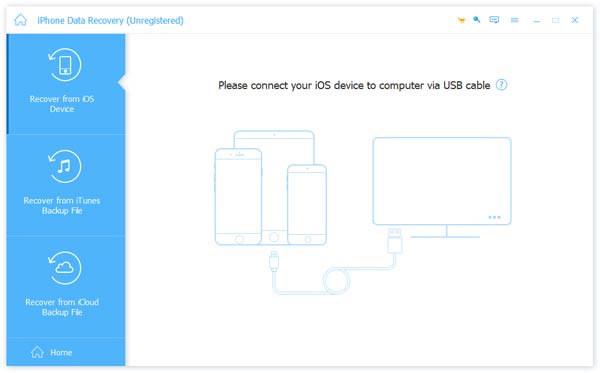
Step 1. Connect Devices.
Connect your broken iPhone to the computer. You can use a USB cable. Click iPhone Data Recovery > Recover from iOS Device.
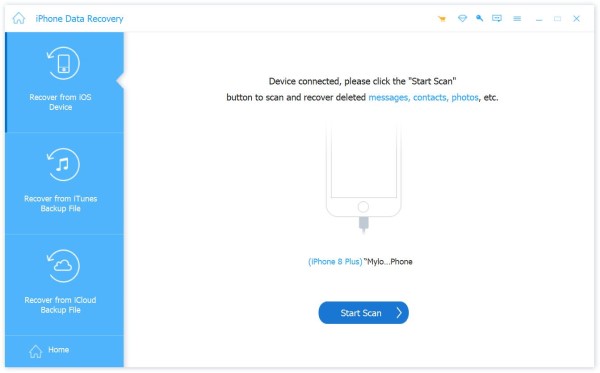
Step 2. Scan Data.
This program will ask your device to Trust the computer and unlock your iPhone. Click Next and Start Scan.
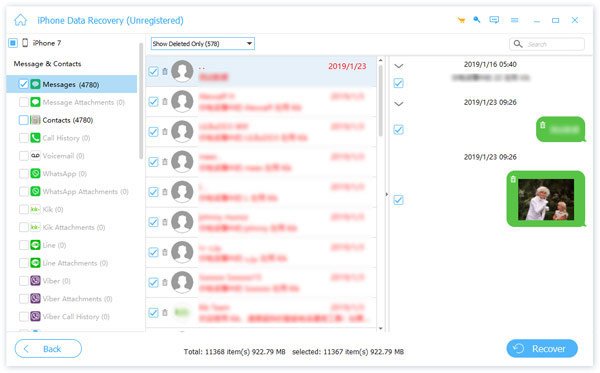
Step 3. Select Data.
Now you can see your iPhone data. If you wonder how to recover photos from broken iPhone, you can click the Photos option. Click Show All/Show Deleted Only on the top drop-down box to filter files. Then, click the Recover button.
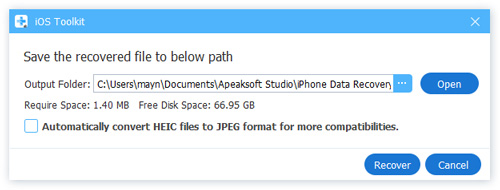
Step 4. Recover Data.
Select Open to specify the final path for your data. Click Recover, and the process will be done in a few seconds. Then, you can retrieve memory from the broken iPhone successfully.
Note:
If your iPhone screen is broken and can’t be unlocked, try enabling VoiceOver via Siri. If Siri doesn’t work, you should seek help from professional software like Apeaksoft iOS Unlocker.
Part 3: How to Recover Data from a Broken iPhone with Backup
If you have previously enabled iCloud sync or created a backup, recovering data from a broken iPhone becomes much easier. Even if the device is completely unusable, your data can still be restored from iCloud or a computer backup. All you need is a new iPhone or a computer. Let's quickly skim how to transfer all data from a broken iPhone to a new iPhone:
How to Recover Data from Broken iPhone with a Computer
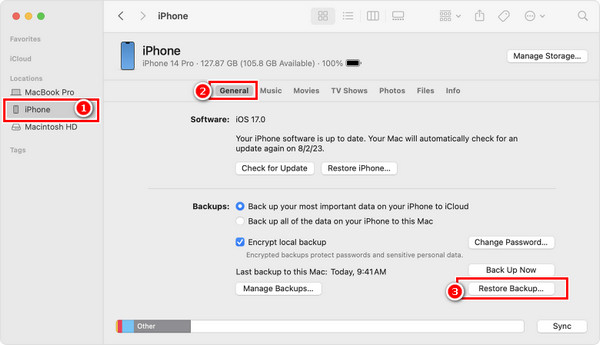
Step 1. Connected your iPhone to your computer. Launch iTunes or Finder.
Step 2. Find your iPhone name > select General or Summary tab > click Restore Backup. Choose one of your backups and restore it to your new iPhone.
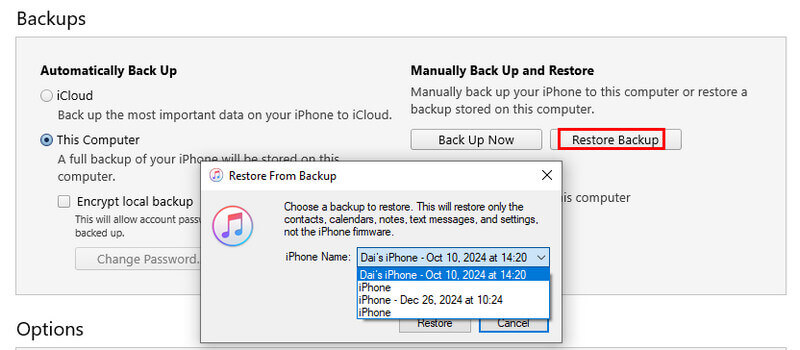
If you are using iTunes on Windows, you should click your iPhone pattern - Restore Backup - select your latest backup - Restore to retrieve memory from the broken iPhone.
How to Recover Data from Broken iPhone with iCloud
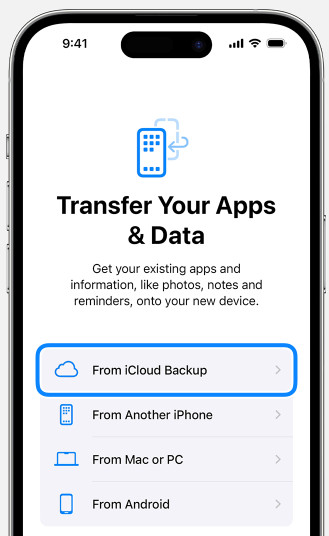
Step 1. Prepare a new iPhone. If it is already been set up, erase it first.
Step 2. Tap Recover from iCloud Backup on the App & Data screen when setting up your new iPhone. If you have already turned on iCloud sync, your data will be copied from iCloud.
Note:
• If you don’t have an extra iPhone, you can preview and download files to your computer with Apeaksoft iPhone Data Recovery.
• If you have an extra iPhone but want to selectively restore what you truly need to your iPhone, you can also utilize Apeaksoft iPhone Data Recovery, which provides a preview feature and selective recovery, to help you recover your iPhone from iTunes/iCloud backup.
Part 4: Recover Data from iPhone with Damaged Storage Chip (Last Resort)
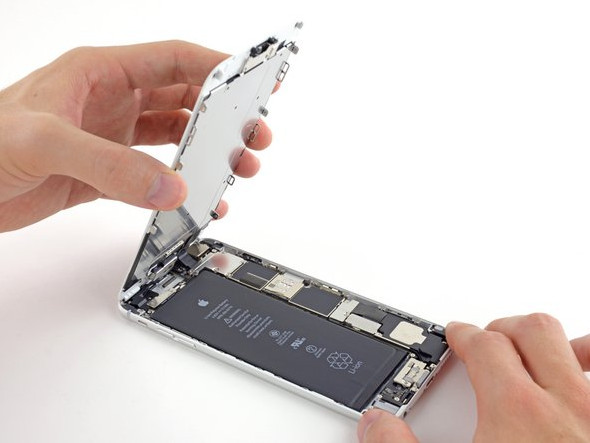
Generally, only long-time liquid socking or comminuted broken of your iPhone may damage the essential chips, such as the chip that controls unlocking Apple ID authorization.
In that case, you can ask phone fixers to help.
Some super professionals will clean and weld the chip to recover the primary unlocking function. As long as the iPhone can be unlocked, everything is easy.
However, this is costly, and you must find reliable fixers. Your data may be lost forever if they are not skilled. Think twice before you make decisions to retrieve data from broken iPhone.
Bonus Tips: Back up Your Broken iPhone When the Screen Still Works
If your iPhone just fell down to the ground, or water, or suffered any other damage, you should back up your iPhone with a broken screen to other devices while the screen still works. It will save a lot of work when you recover important data later.
Downloaded by over 1,000,000 users
- Back up various iOS data like photos, contacts, etc. in one click.
- Set passwords for your backup.
- Restore the backup from your computer quickly.
- Support all popular iOS devices and versions.
Secure Download
Secure Download
Part 5: FAQs About Recovering Data from Broken iPhone
Can I recover data from an iPhone with a broken screen?
Yes. As long as the device can be detected and was once synced with iCloud/iTunes.
Can I recover data from a broken iPhone without backup?
Yes. Some professional iPhone data recovery software can scan the device directly even it is broken, and recover photos, messages, contacts, and more without backup.
Can data be recovered from a water-damaged iPhone?
Yes - as long as the internal storage chip is intact. Then, you can recover data from water-damaged iPhone using backups or data recovery software.
Conclusion
This article introduces how to preprocess a broken iPhone and how to recover data from broken iPhone in four ways. The key is to save your iPhone and data without delay. If you think inviting a fixer to recover data from a broken iPhone is costly, Apeaksoft iPhone Data Recovery is a good and affordable choice with a high success rate.
 Apeaksoft iPhone Data Recovery
 Recover deleted or lost data from iOS Devices, iTunes, and iCloud backup.
Secure Download
Secure Download
Related Articles




