


How to Safely Recover Data from a Broken Screen Samsung

Sometimes your Samsung phone takes a tumble and the screen cracks. Sometimes it still works, so you can make calls or use apps. Other times, it won't turn on at all, leaving you with just a black screen. When that happens, transferring your data to a new device becomes essential. So, how can you recover data from a broken screen Samsung in these different scenarios? This guide will show you easy and reliable ways to safely and effectively retrieve your data.
PAGE CONTENT:
Part 1: How to Recover Data from Broken Screen Samsung - 4 Basic Methods
If your Samsung phone screen is broken, you can still recover your data with the following 4 methods. Choose the option that best fits your situation.
Quick Guide:
| Method | Best For | Key Tool/Feature |
| Smart Switch | Screen partially unresponsive, USB debugging available | Samsung Smart Switch on PC |
| OTG Adapter + USB Mouse | Touchscreen completely dead, but display still visible | OTG adapter + USB mouse |
| Mirror Screen to External Display | Screen damaged but still displays content, touchscreen partially working | HDMI adapter + optional mouse or keyboard |
| Cloud Restore | Phone completely unresponsive, black screen, but backups exist | Previous Cloud backups |
Method 1: Transfer Data with Smart Switch
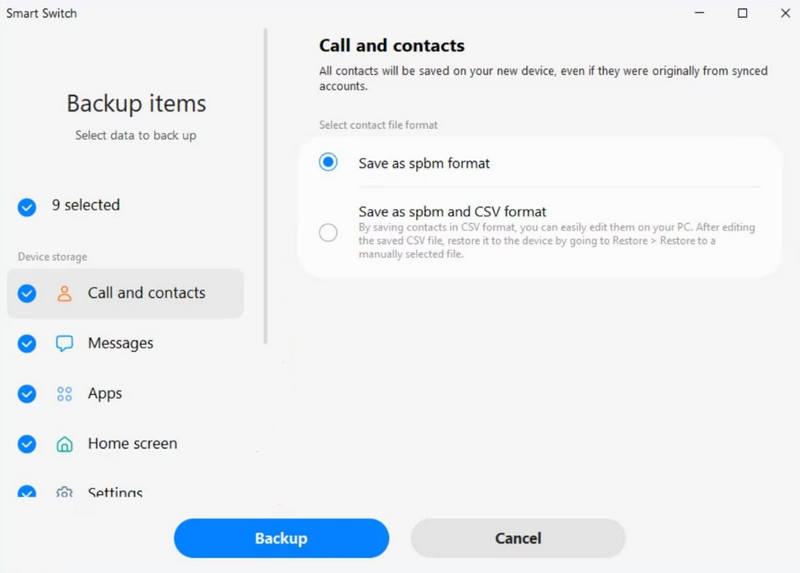
Samsung Smart Switch is an official app that lets you back up and transfer data from your Samsung phone to a computer or another Samsung device. If your Samsung phone is partially unresponsive but still recognized via USB, you can use Smart Switch to transfer data from the broken screen Samsung to a new device.
Step 1. Download and install Smart Switch on your computer. Connect your broken screen Samsung phone to the computer via a USB cable.
Step 2. Launch Smart Switch on the computer. Tap Allow on your phone if prompted.
Step 3. When Smart Switch detects your phone, click Backup to start transferring your data.
Step 4. Select the data type you want to store, then click Backup. Wait for the restore process to complete.
Step 5. On your new phone, open Smart Switch and connect it to the computer. Click Restore in Smart Switch on your PC, select your data categories, and then click Restore to recover data from broken screen Samsung.
Method 2: Access Samsung via OTG Adapter and USB Mouse
What if the touchscreen is dead but the display is still visible? In this case, you can't touch the screen at all. Connecting a USB mouse via an OTG adapter is the most direct way to unlock your phone and transfer files manually.
Step 1. Plug an OTG adapter into your Samsung phone, then connect a USB mouse to the OTG adapter.
Step 2. Restart your broken Samsung, and use the mouse to unlock it.
Step 3. Enable File Transfer under USB options. Now you can transfer data to a cloud service or a PC.
Method 3: Mirror Screen to External Display
If your phone's touchscreen is partially working but still displays content internally, you can mirror it to a monitor or TV to see everything clearly. If the touchscreen stops responding completely, you can control it using a mouse or keyboard.
Step 1. Connect your Samsung phone to a TV or monitor using an HDMI adapter.
Step 2. Power on the phone and the TV or monitor. If asked, enable screen mirroring. Your phone's screen should now appear on the TV or monitor.
Step 3. Connect a USB mouse or keyboard to control your device if needed. Now you can navigate your phone and transfer data to external storage.
Method 4: Restore via Cloud Service
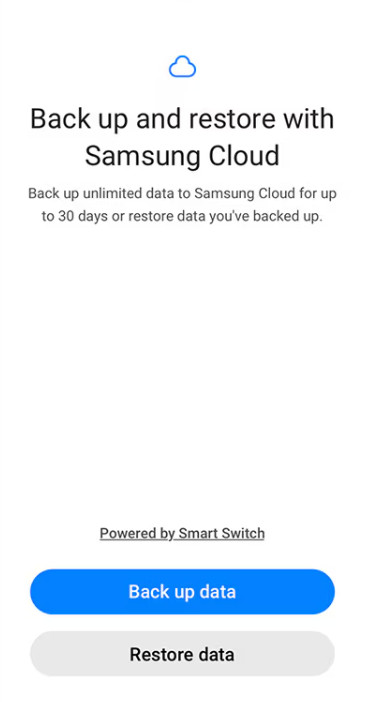
If you've backed up your data to a cloud service, like Google Account or Samsung Cloud, you can restore from backups even if your Samsung won't turn on with a black screen. Here's how to recover data from broken Samsung using Samsung Cloud.
Step 1. On another device, sign in with the same Samsung account linked to your broken phone.
Step 2. Go to Settings > Accounts and Backup > Samsung Cloud.
Step 3. Tap Recover data and choose the backup you want to restore from.
Step 4. Select the data types you want to recover, then tap Restore.
Part 2: How to Recover Data from Broken Screen Samsung Without Backups
So far, we've covered 4 methods for restoring your Samsung data from backups. But what if you didn't back up your data, and your Samsung won't turn on? Apeaksoft Android Data Recovery can help you recover contacts, messages, photos, videos, and other files directly from a broken screen Samsung. This tool supports most Samsung models and Android versions.

Downloaded by over 1,000,000 users
- Recover deleted and lost data on Android without backups.
- Recover 20+ data types from various scenarios.
- Restore data from Android phones, tablets, and SD cards.
- Support a wide range of brands, like Samsung, HUAWEI, and Xiaomi.
Secure Download
Secure Download

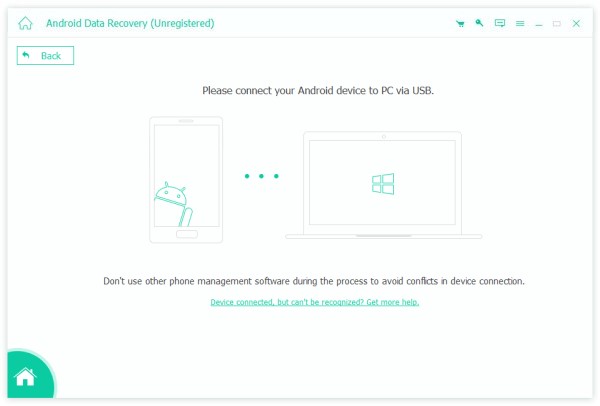
Step 1. Launch the program and choose Android Data Recovery from the interface. Connect your broken Samsung to the computer.
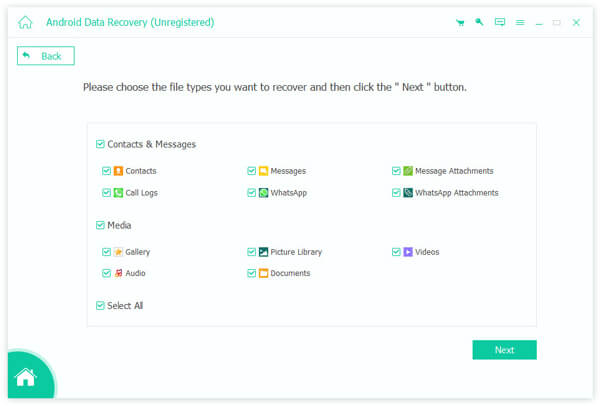
Step 2. Choose the data type you want to recover and click Next.
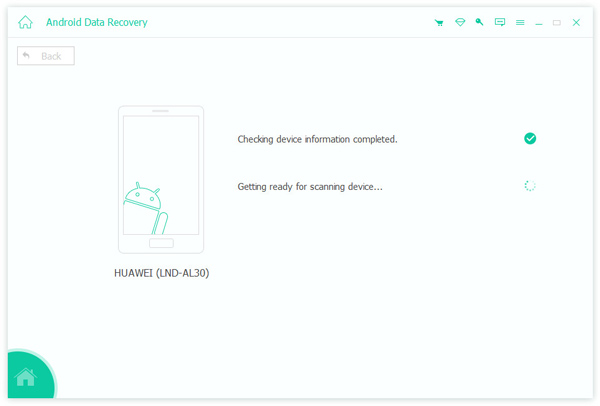
Step 3. The software will check your device information and begin scanning your Samsung.
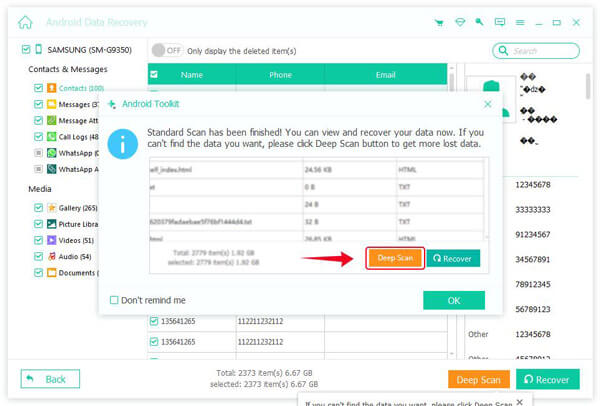
Step 4. After scanning, all your data will be displayed on your device. If you can't find the data you need, click Deep Scan in the bottom-right corner to perform a more thorough scan.
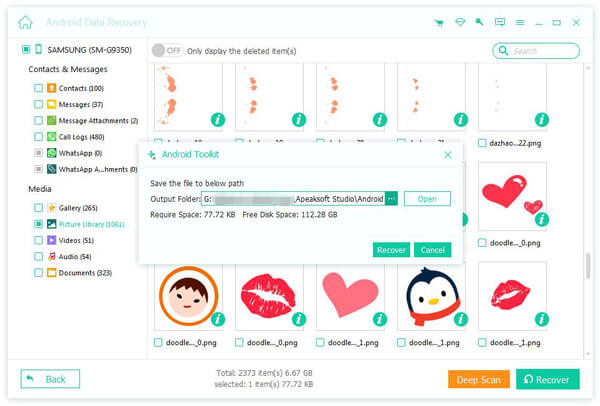
Step 5. Select the data you want to recover, and click the Recover button to save the files to your computer.
Part 3: FAQs About Recovering Data from Broken Screen Samsung
Can I recover data from a Samsung phone with a completely black screen?
Yes, you can. You can restore data from a cloud service if you have a previous backup, Such as a Google Account or Samsung Cloud. Otherwise, consider using a professional recovery tool like Apeaksoft Android Data Recovery to access and recover files from a black-screen Samsung.
Can I transfer WhatsApp messages from a broken Samsung?
Yes, you can recover Samsung WhatsApp chat history if they are saved in cloud backups. Sign in with the same Samsung account, then go to Settings > Accounts and Backup > Samsung Cloud. Select Recover data, then choose WhatsApp messages from the backup. Tap Restore to download the messages.
How long does it take to recover data from a broken Samsung?
It really depends on the method you use and the amount of data. The recovery time can take from a few minutes to 3 hours. The more data there is, the longer it will take, so be patient and don't disconnect your phone during the process.
Conclusion
Recovering data from Samsung with broken screen is easier than you expected. If your device still works, you can use tools like Smart Switch, OTG adapters, or screen mirroring to transfer files. If your phone won't power on, professional software like Apeaksoft Android Data Recovery can help. To avoid future data loss, back up your data to cloud services regularly so you can restore it safely.
 Apeaksoft Android Data Recovery
 Recover various deleted or lost data from all popular Android devices.
Secure Download
Secure Download
Related Articles




