


How to Recover Data from Mac With or Without Backup

Losing data on a Mac is a stressful experience. For example, you accidentally delete important files and folders, you format your Mac's hard drive, or your Mac's hard drive is dead. While no computer on the market can guarantee you will never lose some important files, there is free hard drive recovery software for Mac. This article shares the proven methods to get back lost files from your Mac hard drive.
PAGE CONTENT:
- Part 1: How to Recover Data from a Mac Hard Drive by Trash
- Part 2: How to Recover Data from a Mac Hard Drive Using Disk Utility
- Part 3: How to Recover Data from a Mac Hard Drive via Time Machine
- Part 4: How to Recover Data from a Mac Hard Drive from iCloud
- Part 5: How to Recover Data from a Mac Hard Drive with TestDisk
- Part 6: Ultimate Way to Recover Data from Mac Hard Drive
Part 1: How to Recover Data from a Mac Hard Drive by Trash
When you select a file and press the Delete button by mistake, it will go to the Trash folder and be stored there before you empty the Trash. That gives a simple option to recover data from a Mac hard drive.
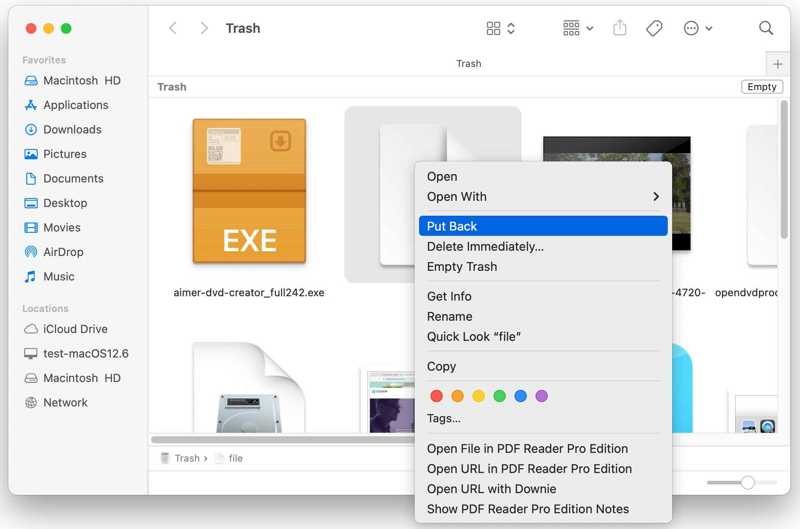
Step 1. Open the Trash folder from the Dock bar.
Step 2. Find the data you want to recover.
Step 3. Right-click on the file and choose Put Back.
Step 4. Go to the original folder and check if the file is restored successfully.
Part 2: How to Recover Data from a Mac Hard Drive Using Disk Utility
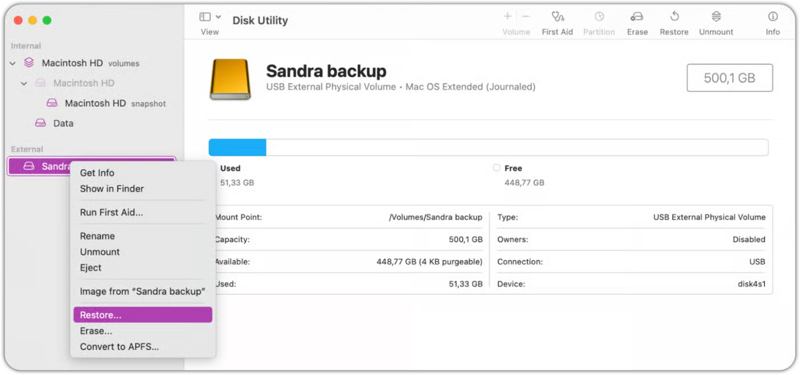
Disk Utility is the built-in feature to manage internal and external hard drives on Mac. It allows you to recover data from a formatted Mac hard drive, repair damaged drives, create a disk image, and more.
Step 1. Run a Finder app.
Step 2. Go to the Applications folder.
Step 3. Open Utilities and click Disk Utility.
Step 4. Select the volume you want to recover on the sidebar.
Step 5. Optionally, right-click on the volume and choose Run First Aid to repair the disk.
Step 6. When disk repairing is complete, right-click on the volume again and choose Restore.
Step 7. Next, choose the volume where to store the data.
Tips: Make sure that the destination volume has enough space.
Step 8. Click the Restore button again and hit Done to start the recovery process.
Part 3: How to Recover Data from a Mac Hard Drive via Time Machine
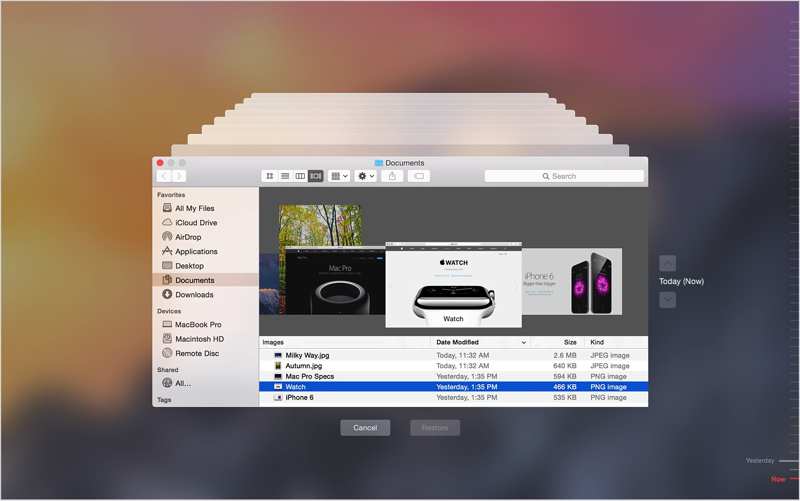
You can restore your Mac from Time Machine if you have turned it on and keep backing up. Tiime Machine can help you recover data from a dead hard drive on a Mac. Insert the backup medium into your computer and follow the steps below to recover your data:
Step 1. Open a Finder and locate the drive where the lost data was stored.
Step 2. Click the Time Machine button on the top menu bar and choose Enter Time Machine.
Step 3. Next, click the Upward and Downward buttons until you find the lost data.
Step 4. Click the Restore button to recover it.
Part 4: How to Recover Data from a Mac Hard Drive from iCloud
Another option to recover data from a Mac hard drive is your cloud storage, like iCloud. After you have backed up or synced your data to iCloud, you can recover it even if your hard drive is formatted or dead.
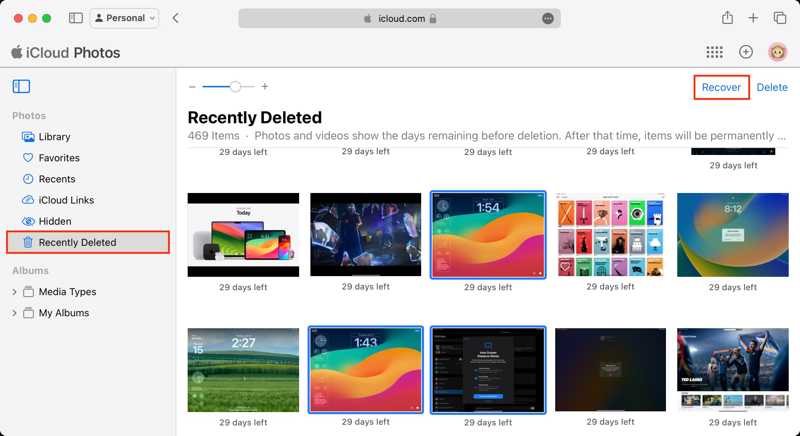
Step 1. Go to www.icloud.com in a browser and log in with your Apple ID and password.
Step 2. To recover photos, choose Photos, select the desired photos, and click the Recover button.
If you want to recover Contacts, Calendars, Reminders, or Safari Bookmarks, locate the Data Recovery section. For example, choose Restore Calendars and Reminders, select a backup, and click Restore.
Part 5: How to Recover Data from a Mac Hard Drive with TestDisk
TestDisk is one of the best free data recovery software for external hard drives on Mac since it is an open-source project. The downside is that the software requires technical skills. Insert the external hard drive into your Mac and try the process:
Step 1. Download TestDisk from the official website.
Step 2. Go to the Apple menu and choose System Settings.
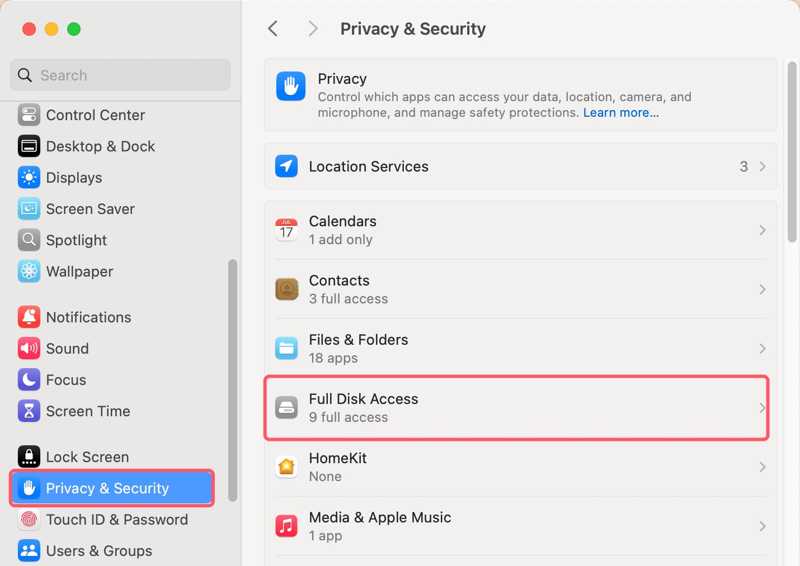
Step 3. Choose Privacy & Security, click Full Disk Access, and turn on TestDisk.
Tips: If you cannot find TestDisk, click the + button and add the application.
Step 4. Double-click the archive to extract it and open the textdisk.exe file.
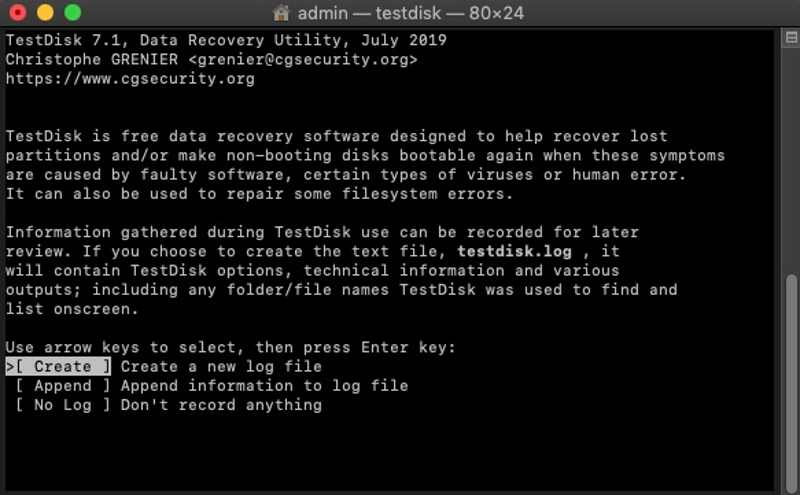
Step 5. Select Create using the arrow buttons on your keyboard, and press Return.
Step 6. Next, select the hard drive that stores the lost files and hit Return.
Step 7. Then, select the partition table type and press Return.
Step 8. Choose Analyse and hit Return to begin a quick search.
Step 9. Select the partition you want to recover and hit Return.
Step 10. Choose Write to save the partition structure and recover data from the Mac hard drive.
Part 6: Ultimate Way to Recover Data from Mac Hard Drive
Apeaksoft Data Recovery is an ultimate option to recover data from a Mac hard drive, even if it is dead and inaccessible. It is able to scan your hard drive and restore lost data without backups on a Mac.

Downloaded by over 1,000,000 users
- Restore data from a Mac hard drive without a backup.
- Support a wide range of data types.
- Available for various situations.
- Preview lost data for selectively recovering.
- Compatible with macOS 10.7 and above.
Secure Download
Secure Download

How to Recover Data from a Mac Hard Drive
Step 1. Install Mac Recovery
Launch the data recovery software after installing it on your Mac. Choose the Mac Data Recovery mode to proceed.
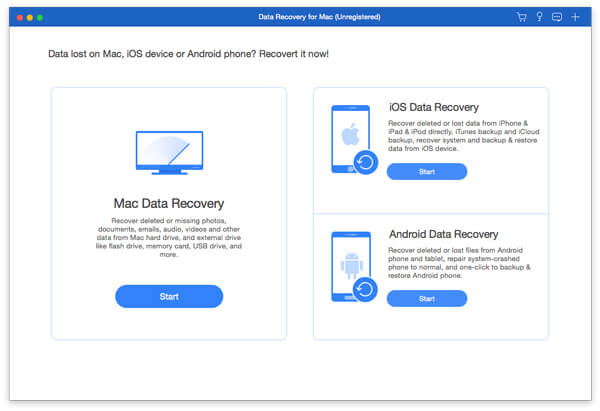
Step 2. Scan the hard drive
Select the hard drive that you want to recover and click the Scan button to initiate scanning your drive. It may take a while, depending on the amount of your data.
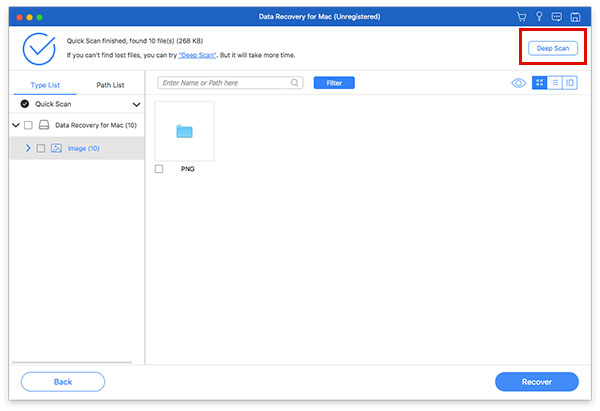
Step 3. Recover your data
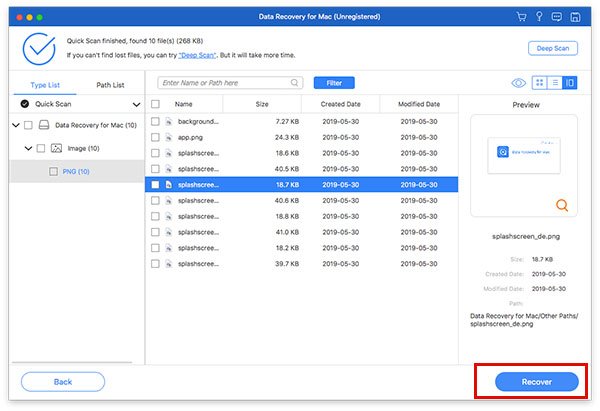
After data scans, go to the Type List tab and view lost data by type. The Filter feature can quickly locate specific files. Select the files you want to restore and click the Recover button. Set another location and confirm data recovery.
Further Reading
Conclusion
This guide demonstrated six ways to recover data from a Mac's internal and external hard drives quickly. The Trash folder stores temporarily deleted files on a Mac. Disk Utilities allows you to repair and restore a volume. If you have a backup, restore your data from Time Machine or iCloud. TestDisk is a free data recovery software for tech-savvy users. Apeaksoft Data Recovery is a quick option for data recovery on Mac for beginners.
 Apeaksoft Data Recovery
 Recover deleted or lost data on Windows and Mac computer.
Secure Download
Secure Download
Related Articles




