


How to Recover Data from a Water Damaged iPhone or iPad

Similar to other digital devices, water damage is a concern for many iPhone users. Although modern iPhones come with various degrees of water resistance, none are completely waterproof. Apple uses an IP rating system to define the resistance to water for each model. It indicates iPhones can survive in water up to a certain depth for a specific period. This guide shares proven ways to recover data from a water-damaged iPhone.
PAGE CONTENT:
Part 1: Can Data Be Recovered from a Water-Damaged iPhone
Can you recover data from a water-damaged iPhone? In most cases, yes. According to Apple, your media files, contacts, messages, and app data are stored on a NAND flash storage chip. Water won’t instantly destroy this chip. To enhance the success rate, you’d better power off your iPhone immediately once it is water-damaged.
Part 2: How to Recover Data from a Water-Damaged iPhone via iCloud
If you have set up iCloud backup on your handset, you can easily retrieve data from a water-damaged iPhone. This way requires an iOS device with enough space. Moreover, you need to erase the device before recovering your data.
Step 1. If the accessible iOS device is new, skip to step 6. If not, run the Settings app.
Step 2. Go to General, then Transfer or Reset iPhone.
Step 3. Tap Erase All Content and Settings (It will factory reset your iPhone, so you'd better have previously backed up your iPhone).
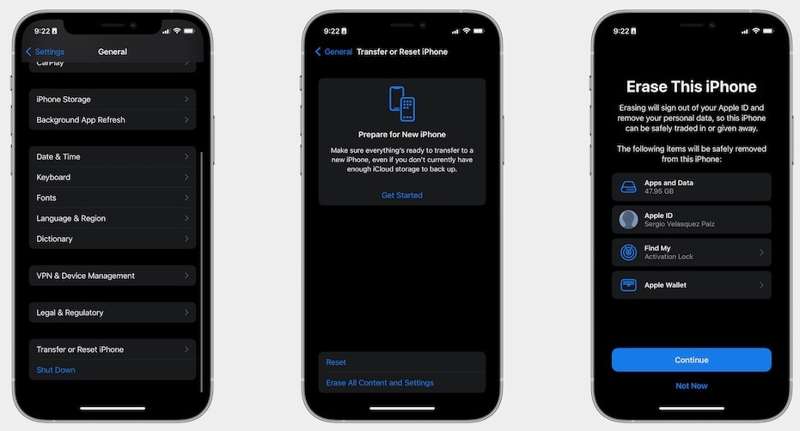
Step 4. Read the message and tap Continue.
Step 5. If prompted, enter your iPhone passcode and confirm the action.
Step 6. Restart your iPhone and set it up.
Step 7. Connect to a Wi-Fi network.
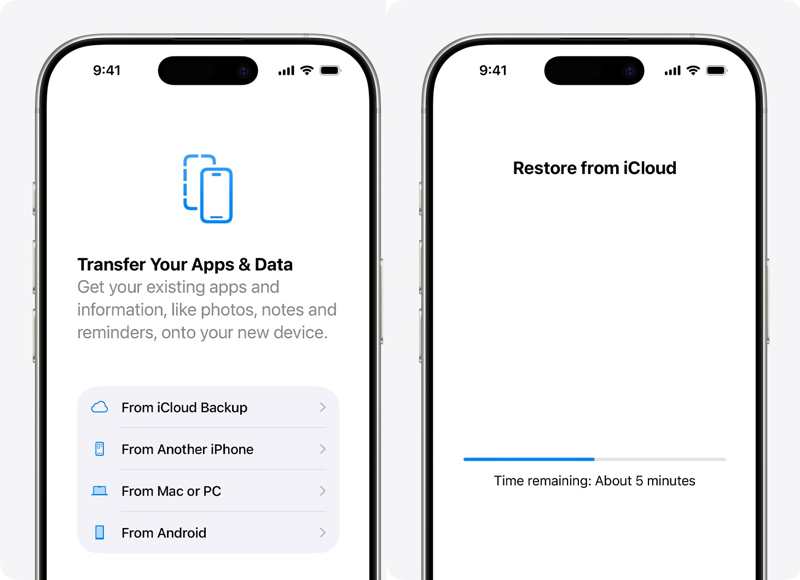
Step 8. When you reach the Transfer Your Apps & Data screen, choose From iCloud Backup.
Step 9. Enter your Apple Account and password.
Step 10. Choose the latest backup and begin the process.
Step 11. Next, complete the setup, and you can access your data.
Part 3: How to Recover Data from a Water-Damaged iPhone with a Computer
Another way to recover data from a water damaged iPhone is a backup on your computer. The precondition is that you have a backup. Furthermore, you must have a second iOS device with enough storage for the backup.
How to Recover Data from a Water-Damaged iPhone on PC
Step 1. Connect the second iPhone to your PC with a USB cable.
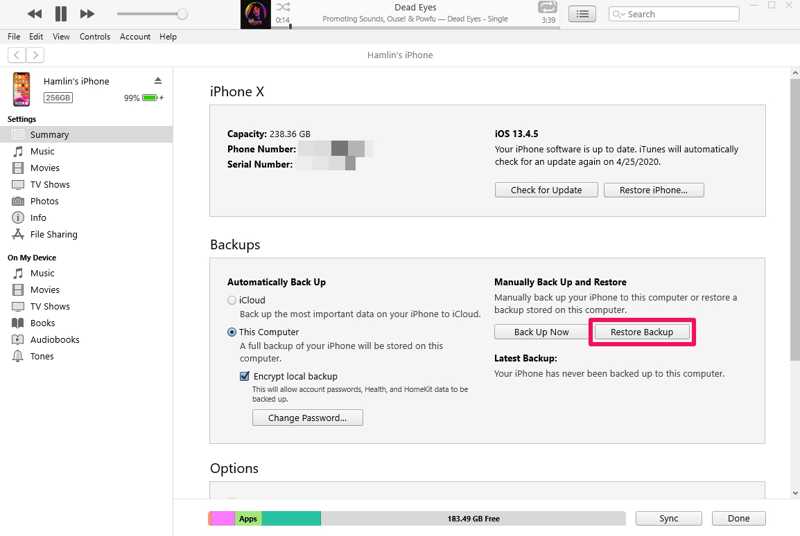
Step 2. Open the latest version of iTunes.
Tips: iTunes is available on macOS Mojave and earlier.
Step 3. Click the Phone button at the top left corner after your iPhone is detected.
Step 4. Go to the Summary tab and click Restore Backup under the Backups heading.
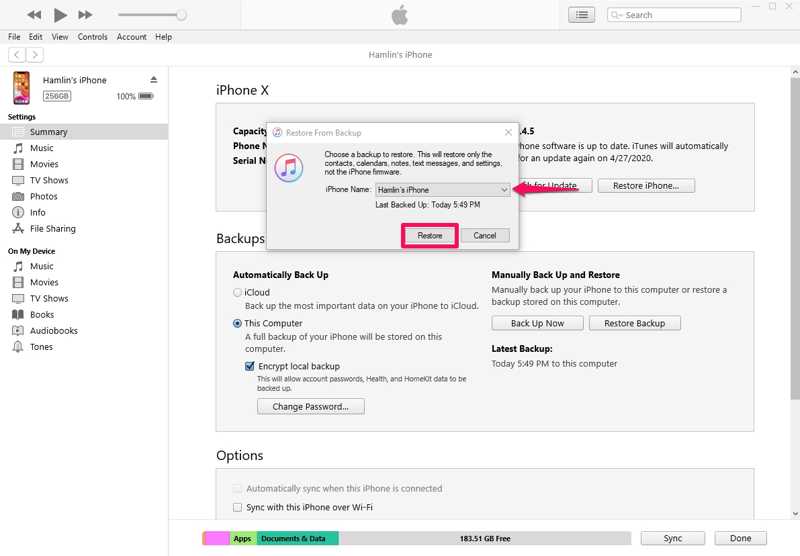
Step 5. Choose the latest backup and click the Restore button.
How to Retrieve Data from a Water-Damaged iPhone on a Mac
Step 1. Hook up the second iPhone to your Mac with a compatible cable.
Step 2. Run the Finder app.
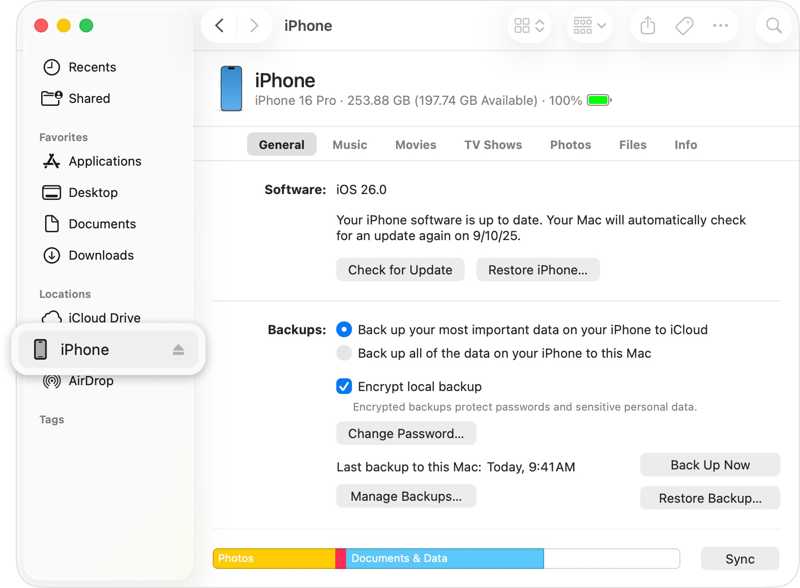
Step 3. Click the device name and head to General.
Step 4. Click the Restore Backup button under the Backups section.
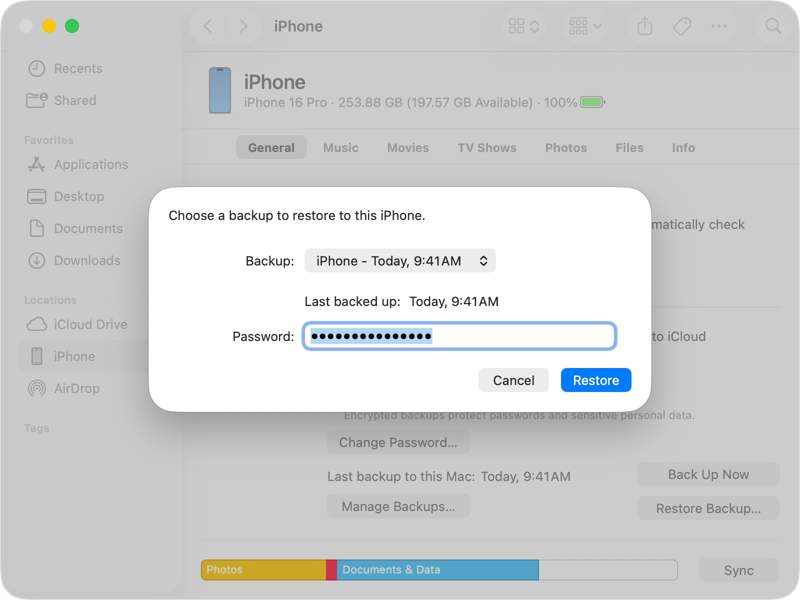
Step 5. Choose the latest backup and click Restore.
Part 4: How to Recover Data from a Water-Damaged iPhone Without Backup
Apeaksoft iPhone Data Recovery can help you get data from a water-damaged iPhone even if you don’t have a backup. It scans your memory and looks for lost files on a water-damaged iPhone. Plus, the user-friendly interface makes it easy to use.

Downloaded by over 1,000,000 users
- Retrieve iPhone data without a backup.
- Extract lost data from iTunes or iCloud backup.
- Preview iPhone data for selective recovery.
- Work for locked, disabled, or water-damaged devices.
- Support a wide range of iPhones and iPad devices.
Secure Download
Secure Download

How to Recover Data from a Water-Damaged iPhone Without a Backup
Step 1. Scan your iPhone
Launch the iPhone data recovery software after installing it on your PC. There is another version for Mac. Plug your iPhone into your PC with a Lightning cable. Go to the Recover from iOS Device tab and click the Start Scan button after the software detects your device.

Step 2. Preview your data
After data scanning, you can preview data on your iPhone by type. To recover photos, for example, choose Photo Library and Camera Roll.
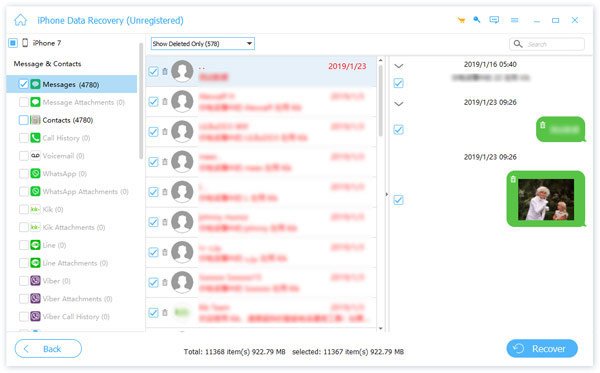
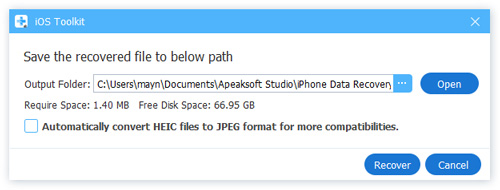
Step 3. Recover data from a water-damaged iPhone
Select the files and items you want to recover from your water-damaged iPhone and click the Recover button. Set an output folder and hit Recover.
Further Reading
Conclusion
This guide explained how to retrieve data from a water-damaged iPhone. You can restore iCloud or computer backup to a second iOS device and retrieve your data. The precondition is that you have backed up your iPhone before it is water-damaged. Apeaksoft iPhone Data Recovery enables you to extract data from a water-damaged iOS device without a backup.
 Apeaksoft iPhone Data Recovery
 Recover deleted or lost data from iOS Devices, iTunes, and iCloud backup.
Secure Download
Secure Download
Related Articles




