


How to Recover Deleted Files on Your Windows Computer

Since files and documents store important information, it is a big challenge if you accidentally delete your files on Windows. If you have backed up your data, you will have no problem getting back deleted files. In fact, even if you don't have a backup, you can try a few other techniques to recover deleted files on Windows. This guide walks you through the proven methods and gets into the art of Windows file recovery.
PAGE CONTENT:
- Part 1: How to Recover Deleted Files on Windows Without Backup
- Part 2: How to Recover Deleted Files on PC from the Recycle Bin
- Part 3: How to Recover Deleted Files on Windows from File History
- Part 4: How to Recover Deleted Files on Windows from Backup
- Part 5: How to Recover Deleted Files with Windows File Recovery
Part 1: How to Recover Deleted Files on Windows Without Backup
In most cases, you don't have a backup for deleted files, especially when you remove them accidentally. Fortunately, Apeaksoft Data Recovery can help you resolve this problem. It works for lost files on both internal and external hard drives. More importantly, beginners can learn it quickly due to the user-friendly interface.

Downloaded by over 1,000,000 users
- Recover deleted files on Windows 11/10 and earlier.
- Complete the process with three steps.
- Preview lost files by type or directory.
- Support a wide range of file types and formats.
- Available to internal and external hard drives.
Secure Download
Secure Download

How to Recover Permanently Deleted Files on Windows
Step 1. Scan your drive
Launch the Windows data recovery software once you install it on your PC. Go to the Hard Drive Recovery mode and select where your files are stored. Click the Start Scan button to begin scanning your drive.

Tips: If you need to recover data from an external hard drive, connect it to your PC, and switch to the USB/SD Card Recovery mode.
Step 2. Preview lost files
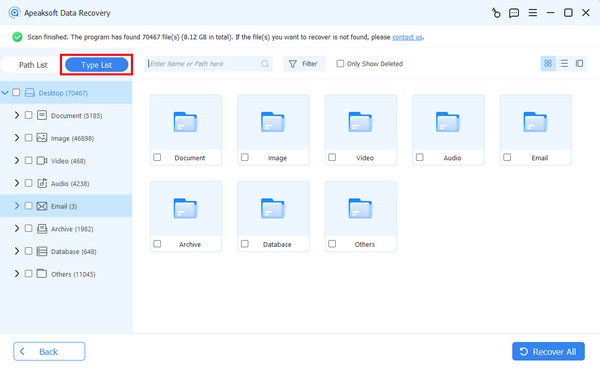
Once the quick scan finishes, the software will perform a deep scan automatically. Then, go to the Type List tab, select the desired data types, and view your files. Optionally, tick the checkbox of Only Show Deleted to preview deleted files on your PC.
Step 3. Recover deleted Windows files
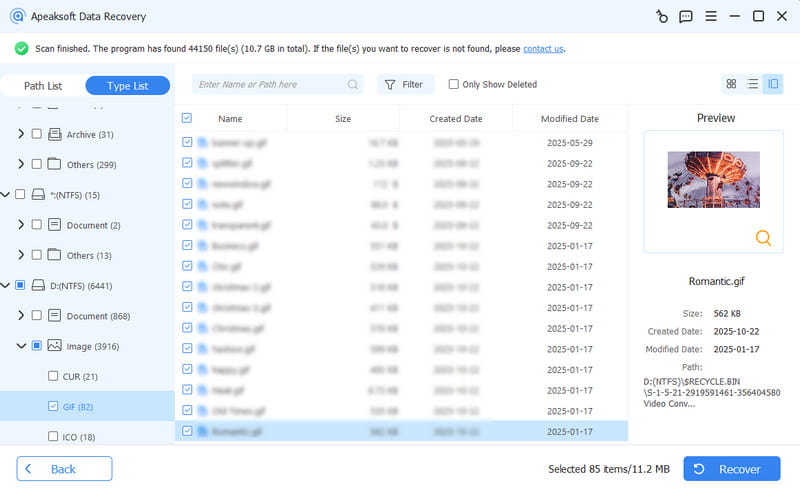
Select the files you want to retrieve and click the Recover button at the bottom right corner. Set an output folder and confirm deleted file recovery on Windows.
Part 2: How to Recover Deleted Files on PC from the Recycle Bin
After you delete a file on Windows, it will go to the Recycle Bin folder. Before you empty the Recycle Bin, you can recover recently deleted files on Windows quickly. Bear in mind that this way is unavailable to the files deleted by the Shift + Delete buttons.
Step 1. Double-click the Recycle Bin folder on your desktop. Or open a File Explorer window and open the Recycle Bin.
Step 2. Input the file name into the SearchBar at the top right corner.
Step 3. Then, right-click on the desired file and choose Restore.
Note: If you want to recover the deleted file on Windows to another location, open the destination folder in a File Explorer. Drag and drop the file to the destination.
Part 3: How to Recover Deleted Files on Windows from File History
File History is a native feature on Windows. Once you set it up, Windows will save your files regularly. That gives you a chance to recover deleted Windows files if you have turned on File History.
Step 1. Open the Settings app from the Start menu.
Step 2. Search for File History in the top field.
Tips: Alternatively, right-click the folder where the lost files were previously and choose Properties. Go to the Previous Versions tab, select the right version, and click Open.
Step 3. Then, click the Restore your files with File History on the sidebar.
Step 4. Navigate through the folder where the deleted files are stored.
Step 5. Select the deleted files you want to recover and click the Restore button.
Note: This way is only available to recently deleted files.
Part 4: How to Recover Deleted Files on Windows from Backup
Another way to recover deleted files on Windows is the built-in Backup and Restore feature. If you have made a backup before deleting a file, follow the steps below to retrieve it on your Windows.
Step 1. Open the Control Panel from the Start menu.
Step 2. Locate the System and Security section and click Backup and Restore(Windows 7).
Step 3. Click the Restore my files under the Restore heading.
Step 4. Click the Browse for files button and select the deleted files.
Step 5. Hit the Next button to enter the next window.
Step 6. Select in the original location. If you want to save it to another directory, select In the following location and hit the Browse button to set the destination.
Step 7. Finally, click the Restore button at the bottom.
Further Reading
Part 5: How to Recover Deleted Files with Windows File Recovery
Microsoft has launched the free software to recover deleted files on Windows 10 and later, called Windows File Recovery. It is able to retrieve permanently deleted files from your hard drive, even if you have emptied the Recycle Bin. The downside is that the software works through command lines, so it is not intuitive.
Step 1. Open the Microsoft Store, search for Windows File Recovery, and install it on your PC.
Step 2. Then, right-click on the Start menu and choose Windows PowerShell(Admin).
Step 3. Type the following command and then press the Enter key on your keyboard.
winfr D: E:\Recovered /regular
D: is the drive of the partition where your deleted files are stored. Replace it with your own.
E:\Recovered means the destination location. Replace it with your own.
/regular means performing a regular scan. You can replace it with /extensive for a more thorough search.
Step 4. Press Y to begin recovering deleted files on Windows 10.
Note: If the freeware discovers files with the same filename, you can select the desired one with the onscreen keys.
Conclusion
Now, you should understand how to recover Windows deleted files with or without a backup. The Recycle Bin is a quick way to restore deleted files with one click. If you have set up File History or Backup and Restore on your Windows, you can get back lost files from the backup. Apeaksoft Data Recovery is an easy way of file recovery if you don't have a backup.
 Apeaksoft Data Recovery
 Recover deleted or lost data on Windows and Mac computer.
Secure Download
Secure Download
Related Articles




