


How to Recover Temporarily and Permanently Deleted Folder

Generally speaking, accidentally deleted folders can easily be found in the Recycle Bin or Trash folder on a computer. However, in more serious cases, your data may be permanently removed, making it difficult to recover. In this guide, we explain proven methods to help you recover deleted folders and lost data in various situations, including temporarily and permanently deleted folders, even if you don’t have backups.
PAGE CONTENT:
Part 1: How to Recover Deleted Folders on Windows 11/10
How to Recover a Deleted Folder from the Recycle Bin
The easy way to recover a deleted folder on Windows 11/10 is the Recycle Bin folder. When you select a folder and press the Delete button by mistake, it will go to the Recycle Bin. Before emptying the Recycle Bin, you can recover them at any time.
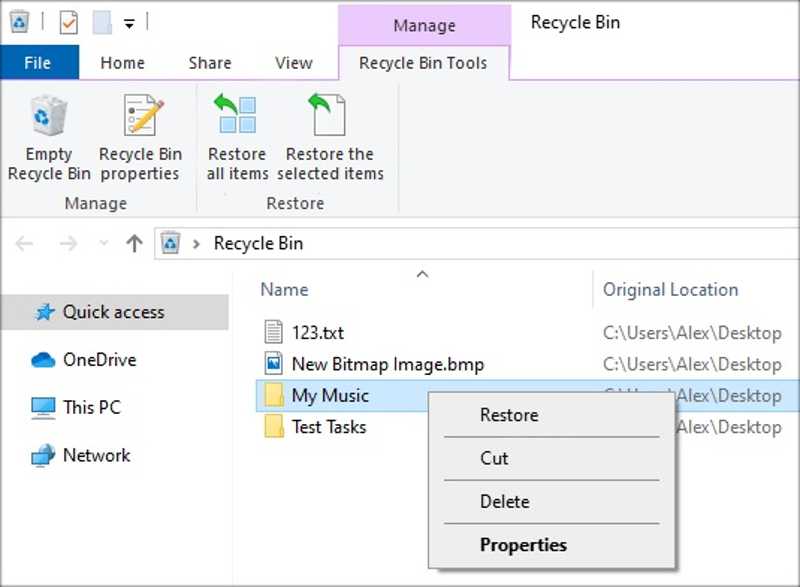
Step 1. Double-click the Recycle Bin folder on your desktop.
Tips: If you cannot find it on the desktop, open a File Explorer and choose Recycle Bin.
Step 2. Find the folder you want to recover.
Step 3. Right-click on the folder and choose Restore to restore the deleted folder to the original location.
Note: If you want to restore the folder to another location, select it in the Recycle Bin and press the Ctrl + C buttons. Go to the destination folder, and press Ctrl + V.
How to Restore a Deleted Folder by the Previous Version
Suppose you accidentally delete a folder by pressing Shift + Delete, and you cannot find it in the Recycle Bin folder. It is permanently deleted. If you have turned on the built-in backup feature, File History, you can restore a deleted folder on Windows 11/10.
Step 1. Locate the folder or drive where the deleted folders were stored.
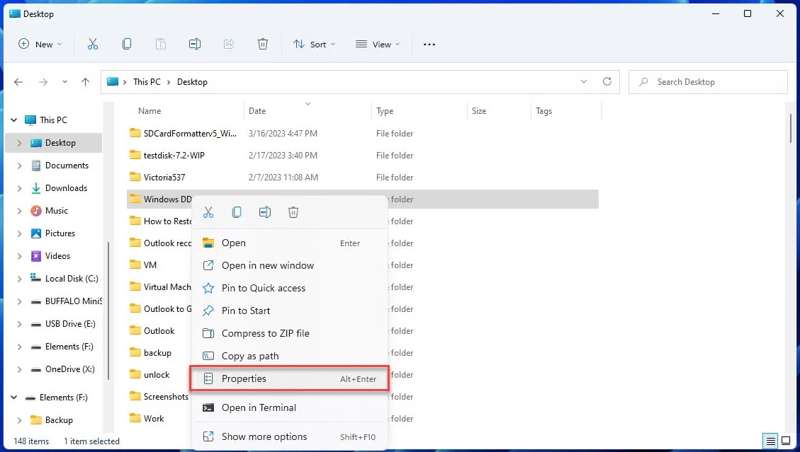
Step 2. Right-click on the folder and choose Properties.
Step 3. Go to the Previous Versions tab on the dialog.
Step 4. Select the right version and click the arrow button next to the Open button.
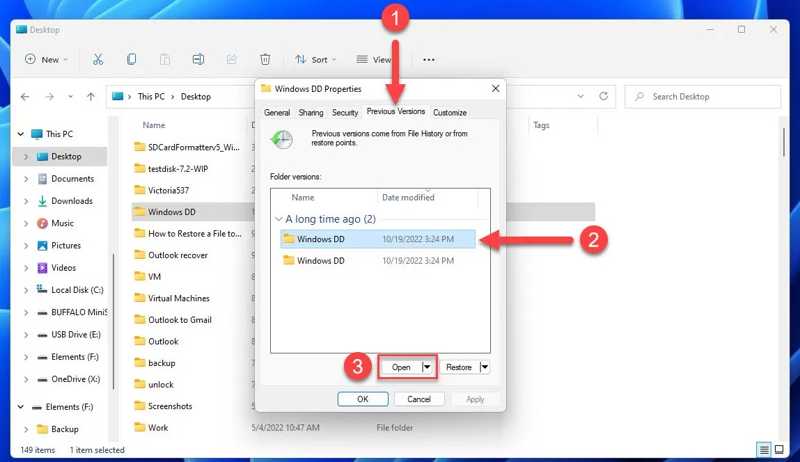
Step 5. Next, select the deleted folder and click the Restore button to restore it to the original location.
Note: To restore the deleted folder to another location, open another File Explorer. Go to the destination, drag and drop the deleted folder to the destination.
Part 2: How to Recover Deleted Folders on Mac
How to Recover a Deleted Folder from Trash
The Trash folder is designed to store the deleted folders and files on macOS. In other words, you can recover a deleted folder on macOS before you empty your Trash. Here are the steps to complete the job:
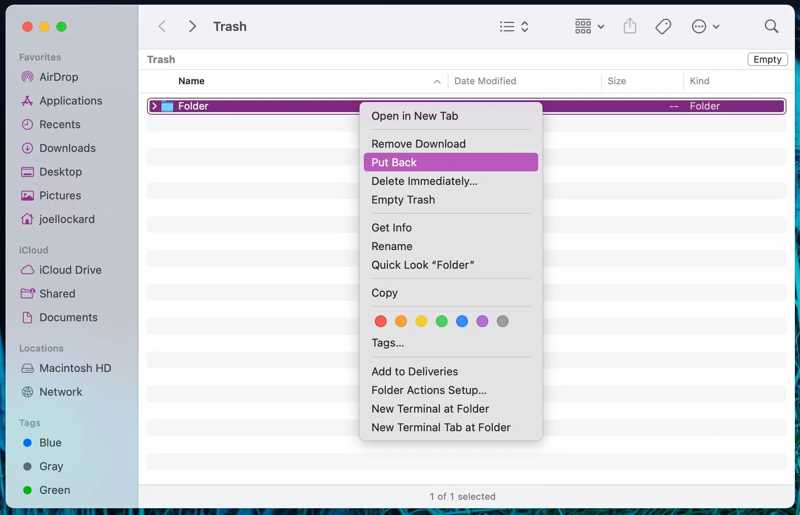
Step 1. Click the Trash option on the Dock bar to open it.
Or run the Finder app and navigate to the Trash folder.
Step 2. Find the deleted folder.
Step 3. Right-click on the folder and choose Put Back on the context menu.
Note: To recover the deleted folder to another location, like your desktop, drag and drop it to the destination directly.
How to Restore a Deleted Folder via Time Machine
Time Machine is the built-in backup feature on macOS. It backs up your files and folders to an external hard drive. If you remove a folder by mistake, you can recover the deleted folder on a Mac via Time Machine.
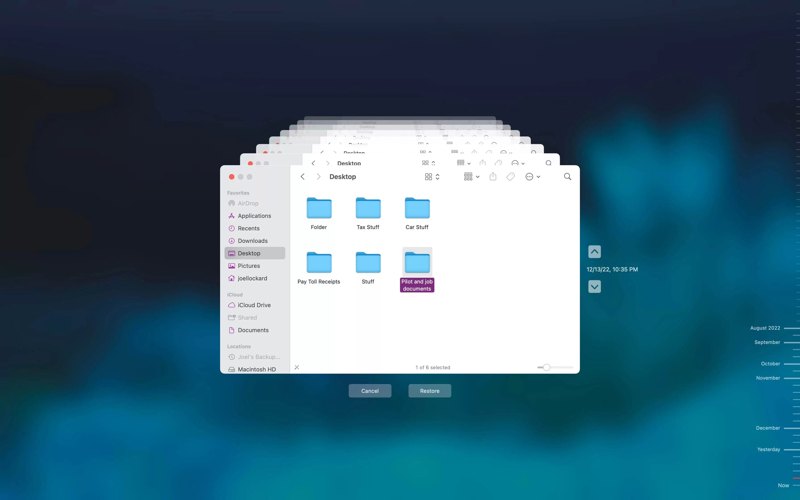
Step 1. Connect the backup medium to your computer.
Step 2. Open Finder and locate the folder that contains the deleted folder.
Step 3. Click the Time Machine button on the top menu bar and choose Enter Time Machine.
Tips: If you cannot find the Time Machine button, press the Command + Space buttons to launch Spotlight. Type in Time Machine in the search bar, press the Return button, and open it from the result.
Step 4. Press the Upward and Downward buttons until you see the deleted folder.
Step 5. Highlight the desired folder and click the Restore button.
Step 6. Then, find the deleted folder in the original location and check if the recovery is successful.
Further Reading
Part 3: How to Recover Permanently Deleted Folder Without Backup
Is it possible to recover a permanently deleted folder without a backup? Yes. Even if you permanently delete a folder, it is still on your hard disk, and the index is removed, waiting for new data. Before the folder is overwritten, you can recover the deleted folder using Apeaksoft Data Recovery. It is able to scan your hard drive and look for deleted folders and files quickly.

Downloaded by over 1,000,000 users
- Deep scan hard drives for deleted data recovery.
- Recover deleted folders from internal and external hard drives.
- Support a wide range of data types.
- Preview lost files and folders for selective recovery.
- Work on Windows 11/10/8/7/XP/Vista and macOS 10.7 or above.
Secure Download
Secure Download

How to Recover a Deleted Folder Without Backup
Step 1. Scan your drive
Download and install the deleted folder recovery software on your PC. There is another version for Mac users. Go to the Hard Drive Recovery tab on the sidebar, select the disk where the deleted folder is stored, and click the Start Scan button.
If you need to recover a deleted folder on an external hard drive, plug the device into your computer. Choose the USB / SD Card Recovery tab and click Scan Disk.

Step 2. Preview folders
Once data scanning is complete, go to the Path List tab and find the deleted folder according to the directory. Or go to the Type List tab and preview files by type.
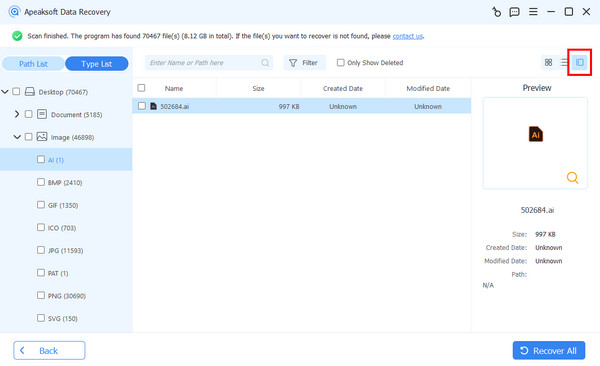
Step 3. Recover the deleted folder
Select the folder you want to recover and click the Recover button. Set an output folder and confirm data recovery.

Conclusion
This guide shared multiple ways to recover deleted folders on Windows 11/10/8/7 and macOS. For temporarily deleted folders, you can find them in the Recycle Bin and Trash folder quickly. If you have backed up your files and folders, you can restore deleted data from the right version of backup. Apeaksoft Data Recovery is a fast way to get back lost files and folders from Windows and Mac without a backup.
 Apeaksoft Data Recovery
 Recover deleted or lost data on Windows and Mac computer.
Secure Download
Secure Download
Related Articles




