


How to Recover Deleted History on Your Android Device

Browser history is a record of the websites that you have visited in a browser. It includes a variety of data, like cookies, cache, search activity, and more. With history, you can return the recorded websites quickly. Plus, browser history can save the visited websites and let you find the URLs you want to visit again. This guide demonstrates the proven methods to recover deleted Chrome history on your Android device.
PAGE CONTENT:
Part 1: How to Recover Deleted History in Chrome on Android
After logging in to your Google account in the Chrome app, your browser history will sync across devices. If you need to recover deleted browser history on Google Chrome on your Android phone, try checking it on another device.
On Your Desktop
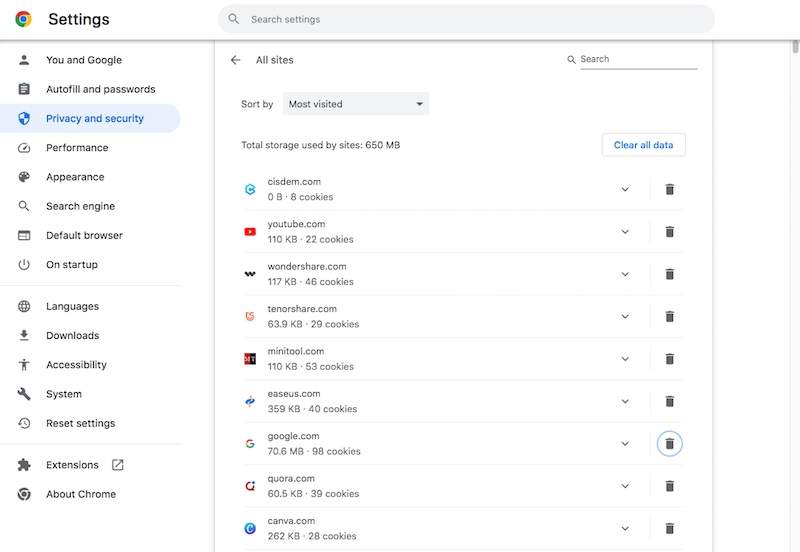
Step 1. Click the More button with a three-dot icon in Chrome.
Step 2. Go to Settings, then Privacy and security.
Step 3. Click the Cookies and other site data option.
Step 4. Hit See all site data and permissions.
Step 5. Now, you can check the browsing history.
On Another Mobile Device
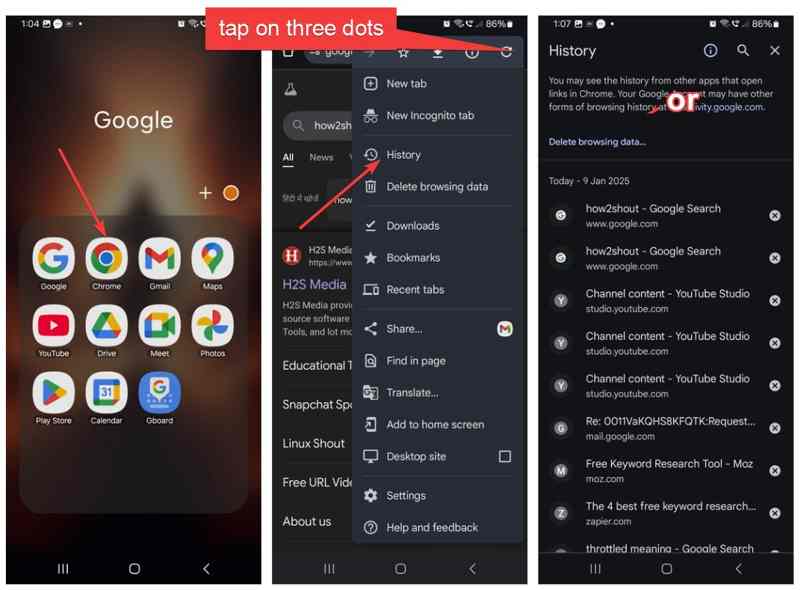
Step 1. Run the Chrome app on another mobile device.
Step 2. Tap the More button at the top right corner.
Step 3. Choose History to display all browsing data.
Part 2: How to Recover Deleted History on Android via Search History
Google Chrome not only saves your browsing history but also keeps your search history. In other words, you can recover deleted browser history from Google Chrome on your Android device through your search history.
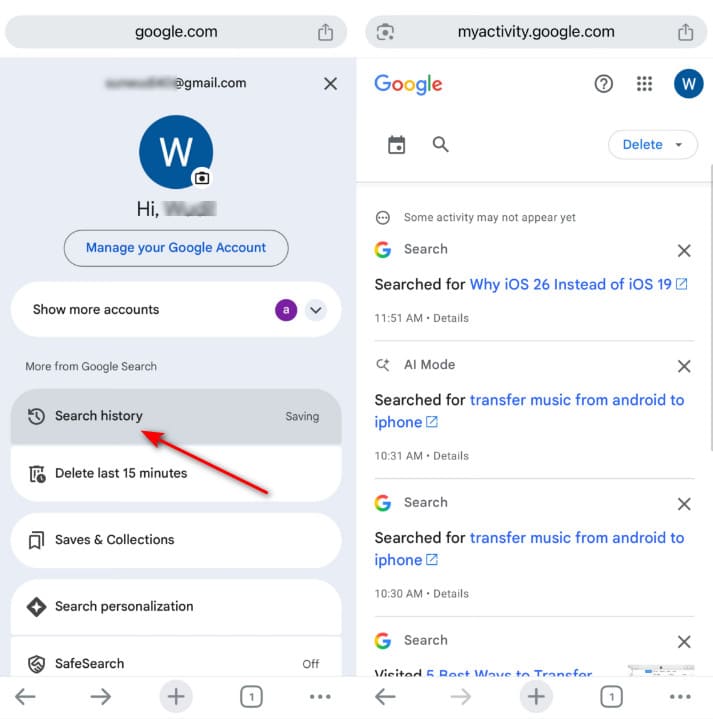
Step 1. Tap on your profile in the Chrome app.
Step 2. Tap the Search history option.
Step 3. View the website addresses you want to revisit.
Note: This way is only available to the websites you have visited recently since the search history only saves a limited number of items.
Part 3: How to Recover Deleted History on Android from Your Account
Whether you can recover deleted history on Google Chrome on Android is determined by your settings. In fact, Google keeps your online activities if you have signed into your Google account and have sync enabled.
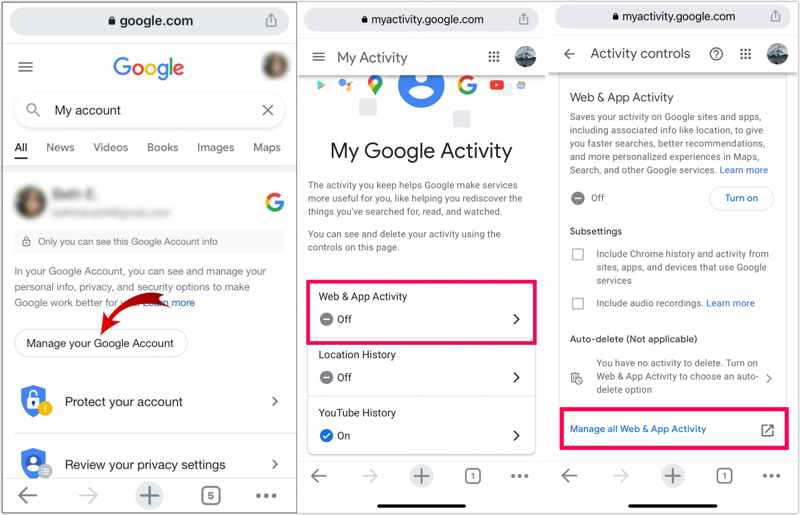
Step 1. Open your Chrome browser.
Step 2. If you have logged into your account, tap Manage your Google Account under your profile.
If not, go to https://myactivity.google.com/, sign in with your account, choose Web & App Activity, select Chrome, and tap Apply.
Step 3. Switch to the Data & privacy tab.
Step 4. Tap the My Activity option.
Step 5. Now, you can check the browsing history.
Further Reading
Part 4: How to Recover Deleted History with Android Data Recovery
When you accidentally delete a visited website, it is still stored in your phone's memory, but the storage is marked as empty and waiting for new data. Before new files overwrite it, you can recover deleted browser history on your Android using Apeaksoft Android Data Recovery. It is able to scan your Android phone and look for lost data even if you don't have a backup. Plus, the intuitive design simplifies the process.

Downloaded by over 1,000,000 users
- Recover deleted browser history on Android.
- Work for accidental deletion, system crash, and more.
- Available to a wide range of data types.
- Preview deleted browsing history.
- Support almost all Android brands and device models.
Secure Download
Secure Download

How to Recover Deleted History on Your Android Phone
Step 1. Scan your phone
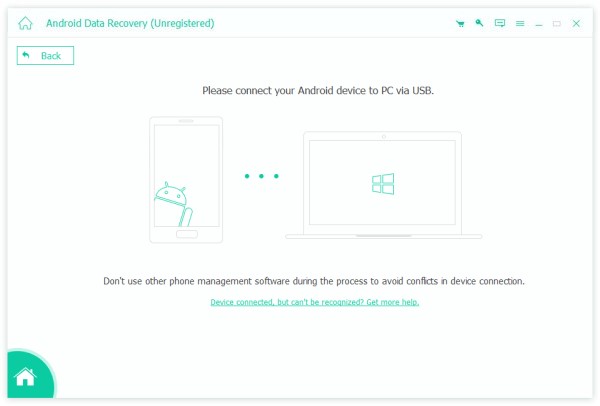
Start the Android data recovery software after you install it on your computer. It is compatible with Windows 11/10/8/7/XP/Vista and Mac OS X 10.6 or above.
Turn on your phone, run the Settings app, go to Developer options, and enable the USB Debugging mode. Connect your Android phone to your computer with a compatible USB cable. If prompted, choose the Transfer files option on the Use USB for dialog.
Step 2. Preview lost data
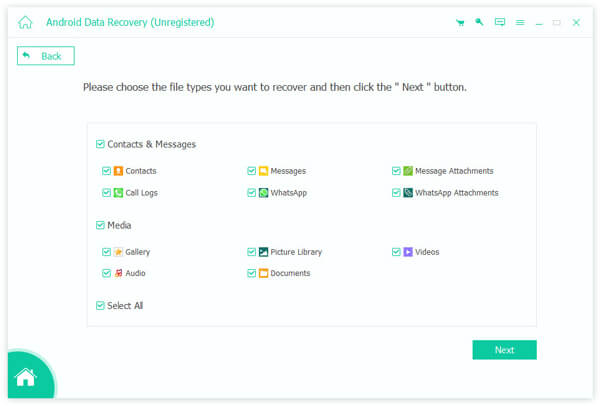
Once the software detects your phone, the data type window will appear. Select the data types you want to retrieve. If you are not sure, check Select All. Click on the Next button to begin scanning your phone memory. When it finishes, you can view the data recoverable by type. Toggle on Only display the deleted items to check deleted data.
Step 3. Recover deleted history
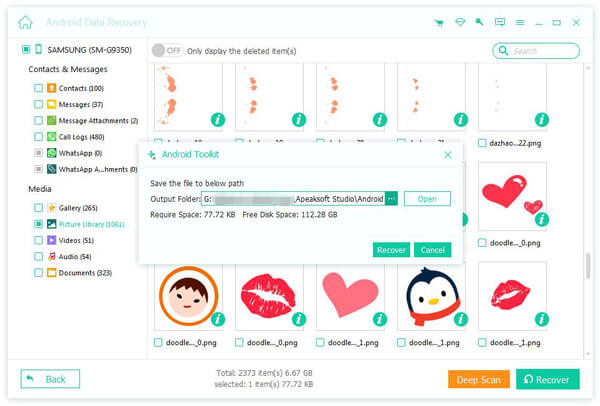
Select the deleted files and items, and click the Recover button at the bottom right corner. Set an output location and confirm data recovery on your phone.
Conclusion
This guide shared four ways to recover deleted Chrome history on Android devices. First of all, you can check the synced browsing history on other devices that you have signed in with the same Google account. Then, you can try the search history to find out the deleted websites. If you have enabled sync in Chrome, you can retrieve deleted history from Google Web Activity. Apeaksoft Android Data Recovery is the ultimate solution to get back deleted history on your phone.
 Apeaksoft Android Data Recovery
 Recover various deleted or lost data from all popular Android devices.
Secure Download
Secure Download
Related Articles




