

How to Recover Deleted OneNote Pages, Sections, and Notebooks - 6 Ways

Key Takeaways
- If you've just deleted OneNote files, you can press Ctrl + Z (Windows) or Command + Z (Mac) to undo your last operation.
- Deleted Notebooks, sections, and pages can be recovered from the OneNote Recycle Bin.
- Third-party software like Apeaksoft Data Recovery can help you recover long-deleted OneNote files without backup.
- If you want to restore old page versions, you can try on OneNote Web.
- OS backup features like File History (Windows) or Time Machine (Mac) can help restore lost OneNote files from local backup.
Accidentally delete pages, sections, or entire notebooks in OneNote due to a system crash or malfunction? Can OneNotes be recovered? Don't worry - it is recoverable.
This article will show you how to recover deleted OneNote files using the built-in Recycle Bin, local backups, or professional software like Apeaksoft Data Recovery.
PAGE CONTENT:
- Method 1: The Easiest Way to Recover Deleted OneNote Files
- Method 2: Recover Deleted Notebooks from OneNote Recycle Bin
- Method 3: Recover Deleted Files in OneNote Without Backup [Recommended]
- Method 4: Recover Deleted Sections in OneNote on Web
- Method 5: Restore OneNote Deleted Pages from Local Backups
- Method 6: Restore OneNote Notebook Using File History/Time Machine
Method 1: The Easiest Way to Recover Deleted OneNote Files
If you have just delete OneNote files, whether it's notebooks, pages, or sections, you can immediately press Ctrl + Z (Windows) or Command + Z (Mac) to undo the deletion. But keep in mind that it only works when you have no other operations on your computer after the deletion.

Method 2: Recover Deleted Notebooks from OneNote Recycle Bin
Notebook Recycle Bin is a built-in feature in OneNote. It enables you to recover a recently deleted OneNote notebooks, sections, and pages. But there are also restrictions:
The notebook must be stored in OneDrive or SharePoint.
The file must be deleted (not just closed).
The files are still within the recycle bin retention period.
Below are the steps on how to restore OneNote deleted pages/sections/notebooks:
Step 1. Launch OneNote on your computer.
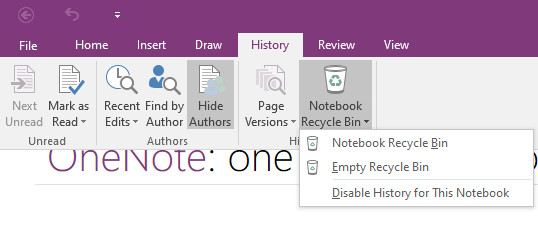
Step 2. Go to the top menu bar and click History. Then click Notebook Recycle Bin and choose the first option.
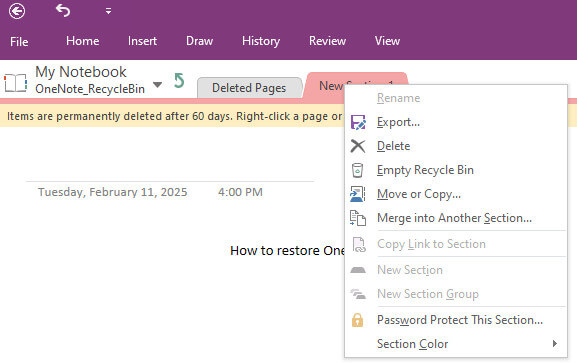
Step 3. Right-click your deleted OneNote page and choose Export (Move or Copy is ok as well). Then, choose a path for the recovered OneNote notebook page. So, if you wonder, "Can OneNotes be stored locally on my PC?", this is the answer.
Method 3: Recover Deleted Files in OneNote Without Backup [Recommended]
If you cannot find your OneNote files in the Recycle Bin, you can seek help from third-party data recovery software, such as Apeaksoft Data Recovery. Unlike the built-in recovery options that rely on backups, cloud storage, or retention limits, this tool can easily recover deleted notebooks in OneNote and fix lost or unsaved pages in OneNote notebooks even if you’ve permanently deleted the OneNote notebooks in the Recycle Bin.
Recover Deleted OneNote Pages/Sections/Notebook
- Fully scan your computer for all deleted OneNote files.
- Highlight the lost OneNote file in red for you to select.
- Preview the deleted OneNote notebook files in advance.
- Selectively restore deleted OneNote Files.
Secure Download
Secure Download

Follow the detailed steps below to learn how to recover deleted OneNote pages in one click:
Step 1. Download and install this tool from the button above.
Step 2. Choose which disk your OneNote files are stored in from the left panel.

Step 3. Click Start Scan.
Step 4. Locate OneNote files by Type List on the left. You can also search for it in the top box.
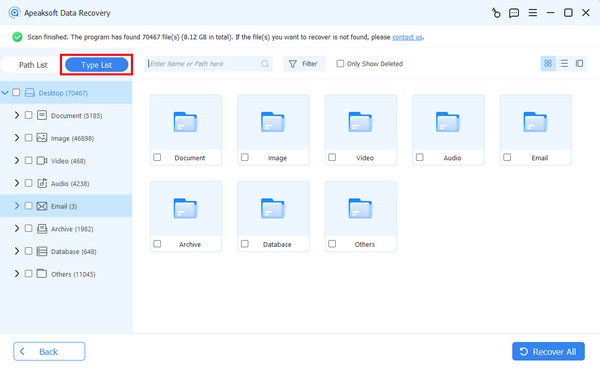
Step 5. Preview the deleted OneNote files.

Step 6. Check your desired one and click Recover.
Method 4: Recover Deleted Sections in OneNote on Web
If your OneNote content was accidentally deleted, overwritten, or lost due to system crash, you can try to restore an earlier version using OneNote on the web. Note that only the web version of OneNote can do it.
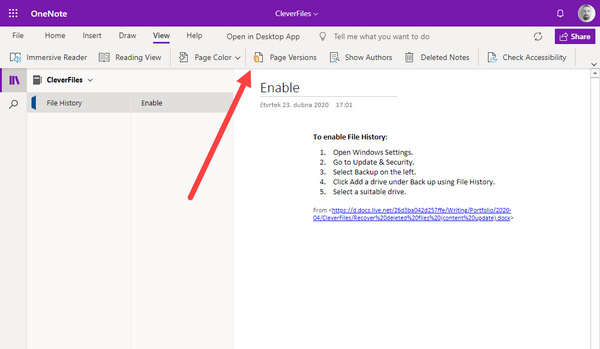
Open a notebook in the web OneNote and log into your Microsoft account. Go to the notebook page where you want to recover, and click the View button on the menu bar. Then, click the Page Versions button. You can view the previous versions of your OneNote notebook and choose your desired version, and OneNote will recover the deleted page for you.
Method 5: Restore OneNote Deleted Pages from Local Backups
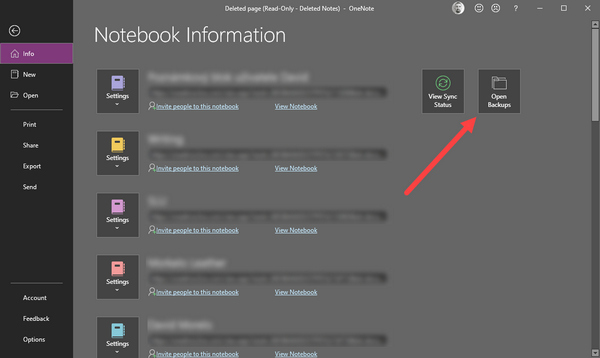
Microsoft offers a backup feature that allows you to recover deleted OneNote notebooks from backup files. Those backup files are also stored in your local hard disks. Therefore, if this feature is turned on, it will be very easy to recover the deleted notebooks in OneNote. So, if you wonder how to restore OneNote from backup and how to open OneNote backups, follow the steps below:
Step 1. Open Microsoft OneNote.
Step 2. Click the File button on the top left side.
Step 3. click the Info button. you will see the Open Backups button on the right side of the Info panel.
Step 4. Click on it, and then you will find the backup files of the deleted notebooks in OneNote.
Method 6: Restore OneNote Notebook Using File History/Time Machine
Windows and Mac both have native data backup features. If you have enabled the backup feature on your device before, you can try the steps below to recover deleted files from OneNote:
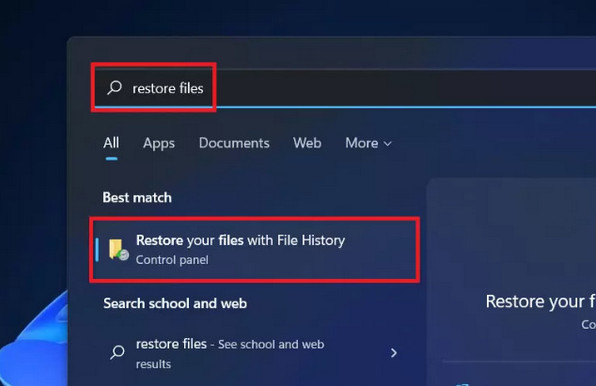
Recover Deleted OneNote Files on Windows Using File History
Step 1. Search for restore files in the Windows search box, and then choose Restore your files with File History.
Step 2. Browse the backed-up folders to locate the deleted OneNote notebooks.
Step 3. Click Restore to recover the deleted OneNote notebooks.
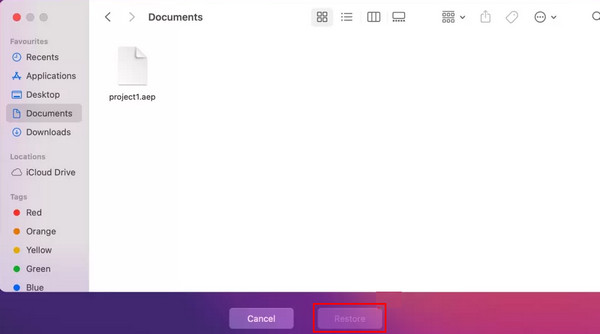
Restore Deleted Notebook in OneNote on Mac Using Time Machine
Step 1. Tap Command + Spacebar and then enter Time Machine in the box.
Step 2. Browse the file and choose your deleted notebook files.
Step 3. Click Restore to restore the deleted OneNote notebook on Mac.
Tips: You can also follow similar steps to restore Chrome bookmarks.
Conclusion
You can learn 6 proven ways to recover deleted OneNote files. The updates of Microsoft products increasingly provide considerate functions to keep your data safe. However, those features are not easy to use because of specific preconditions. The easiest way to recover deleted notebooks in OneNote is Apeaksoft Data Recovery. You can easily recover lost OneNote notebooks from any place on your PC, Mac, and phone. What’s more wonderful is that you don’t need any previous backup or account logins. We hope you can easily recover your deleted OneNote notebooks for your work and life!
Related Articles




