


How to Recover Deleted iPhone Reminders Without iCloud

The Reminders app on iPhone helps you keep track of important tasks, schedules, and daily plans. So, when reminders suddenly disappear after an iOS update or accidental deletion, it can be stressful. How to recover deleted reminders on iPhone? In this guide, you'll learn 5 simple and effective ways to get your reminders back effortlessly.
PAGE CONTENT:
Part 1: Why Do iPhone Reminders Disappear After a System Update
Many iPhone users find that their reminders disappear after iOS 26 update. Sometimes, reminders are accidentally deleted while cleaning up old tasks. In other cases, software glitches after the new update may cause reminders to stop showing properly.
Another common reason is iCloud syncing issues. If you log into a different iCloud account or accidentally turn off Reminders syncing, your reminder lists may disappear from the device. In some cases, restoring an old iCloud backup can overwrite existing reminder data. A factory reset can cause the same issue.
Fortunately, missing reminders are often recoverable. In the following sections, we'll show you several effective ways to recover deleted reminders on iPhone.
Part 2: How to Recover Deleted Reminders on iPhone (Official)
If your reminders disappeared recently, Apple provides several official ways to recover them. Below are 3 effective official methods to get your deleted reminders back.
Recover Deleted Reminders from Recently Deleted Folder
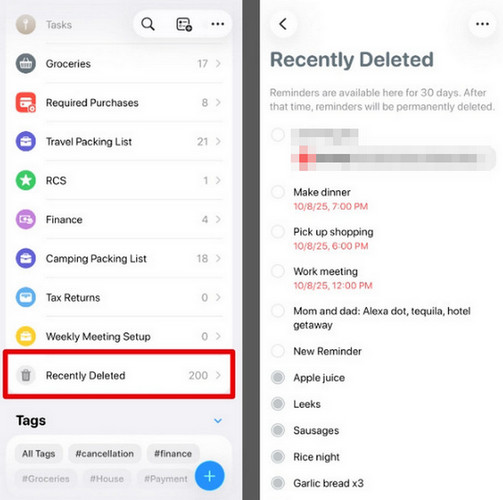
If your iPhone is running iOS 18 or above, things become very easy. You can recover deleted reminders through the Recently Deleted folder if you accidentally deleted them within 30 days.
Step 1. Open the Reminders app on your iPhone, scroll down and tap the Recently Deleted folder.
Step 2. Tap the deleted reminders you want to restore, then select Recover to get back your reminder.
Recover Deleted Reminders on iPhone from iCloud
If you used iCloud to sync your reminders, you may be able to recover deleted reminders by restoring an earlier archived version from iCloud.com. But before restoring your reminders from iCloud, note that it will replace your current reminders with the archived ones.
Note: Recovering deleted reminders will erase all shared reminder lists information. If you use shared reminder lists, make a note of the list names, participants, and permissions. After restoring, you can reshare them and ask others to reinvite you to any lists they own.
How to recover deleted reminders via iCloud.com:
Step 1. Go to icloud.com/reminders, then sign in to your Apple Account.
Step 2. Click the Apps button in the top right corner and choose Data Recovery.
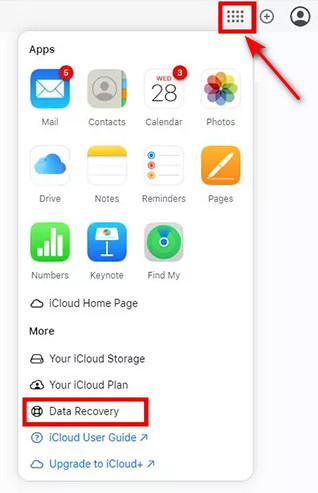
Step 3. Select Restore Calendars and Reminders to view available archived versions.
Step 4. Browse the backup versions listed by date and time, then locate the version created before your reminders disappeared, then click Restore.
Note: Don’t edit or create reminders when the process is incomplete. All new changes cannot be saved during the restore.
Recover Deleted Reminders on iPhone via iTunes
Users can recover deleted reminders on iPhone by restoring from an iTunes backup. This method requires a computer with iTunes/Finder installed.
Step 1. Open iTunes on your computer. Connect your iPhone to your computer using a USB cable.
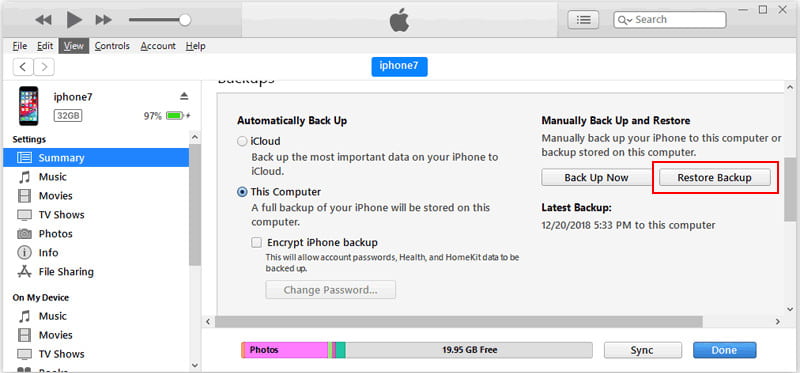
Step 2. Select your device from the top of the panel. Click Summary and select Restore Backup.
Step 3. Choose a backup of the deleted reminders and click Restore.
Part 3: How to Recover Deleted Reminders on iPhone Without iCloud
If you didn't enable iCloud backup in advance, is there any way to recover deleted reminders on iPhone? Absolutely! In this part, we'll cover two practical methods to restore lost reminders without using iCloud.
Recover Reminders on iPhone Using a Recovery Tool
A dedicated recovery tool can save you much time when trying to retrieve your deleted reminders. Apeaksoft iPhone Data Recovery is a powerful solution that can recover 30+ types of iOS data from iPhone, iPad or iPod. It can restore your lost data in various situations, whether your device suffered a factory reset, physical damage or system glitches.

Downloaded by over 1,000,000 users
- Recover deleted reminders from your iPhone without backups.
- Restore data from iOS devices or iTunes/iCloud backup.
- Recover 30+ types of data, including reminders, photos, and messages.
- Support all iPhone models and the latest iOS versions with a high success rate.
Secure Download
Secure Download

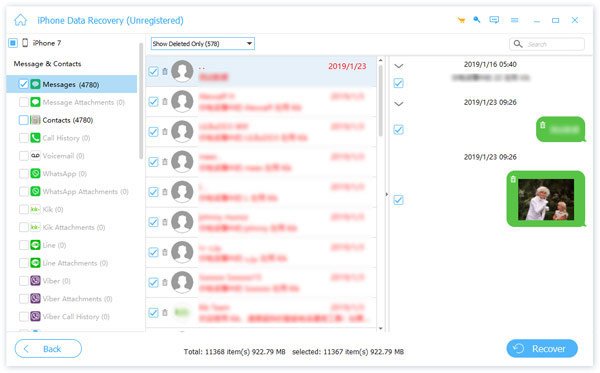
Step 1. Launch the software on computer, and click Recover from iOS Device in the left bar. Connect your iOS device to the computer via USB. Tap Trust to trust your computer.
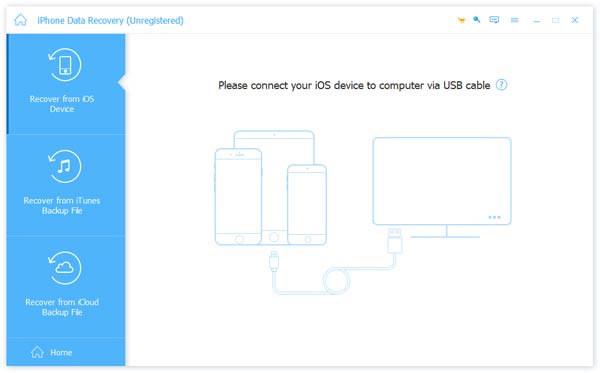
Step 2. Click the Start Scan button, and it will scan all your data on your iPhone.

Step 3. You can select Show all or Show Deleted Only to preview the scan results quickly. Select the reminder you want to recover, and click Recover.
Recover Reminders on iPhone via Email
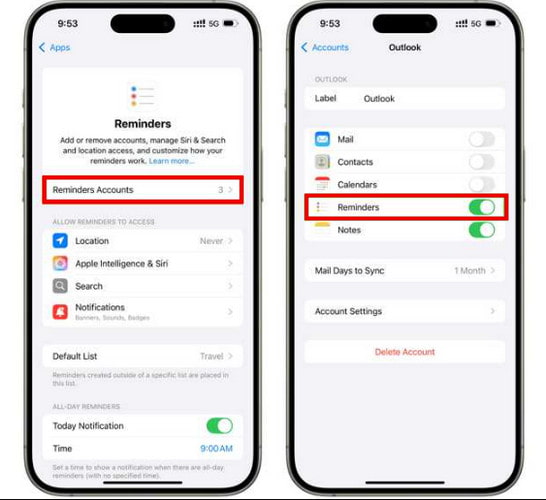
If you've synced your reminders with an email account such as Gmail, Yahoo, or Outlook, your reminders may also appear in the calendar, tasks, or reminder section of that email account. So, if you delete a reminder by accident, you can find and recover it through the synced email account.
Step 1. Open the email account that is synced with your reminders.
Step 2. Go to the Calendar, Tasks, or Reminder section in your email account.
Step 3. Search for the deleted reminders, then restore them to your iPhone or manually copy the reminder details back to your iPhone.
Part 4: Tips to Prevent Future Reminder Loss
Losing reminders is frustrating, but these tips can help you prevent it:
- Always keep iCloud syncing enabled.
- Back up your iPhone regularly with iCloud or iTunes.
- Back up important files before iOS updates to avoid data loss.
- Double-check shared reminder lists and make sure syncing settings are correct.
Conclusion
To sum up, you can recover deleted reminders on iPhone from the Recently Deleted folder, iCloud or iTunes backups, or use a professional tool like Apeaksoft iPhone Data Recovery when no backup is available. By following these methods, you can quickly restore your important reminders and keep your tasks on track!
 Apeaksoft iPhone Data Recovery
 Recover deleted or lost data from iOS Devices, iTunes, and iCloud backup.
Secure Download
Secure Download
Related Articles




