


How to Recover Deleted Safari History on iPhone: 5 Working Methods

Have you ever accidentally tapped Clear History and Website Data on iPhone Safari, or deleted a single history record in Safari? There may be important files in such Safari history records. And unfortunately, simply undoing cannot help you get them back. Don't worry! This article will show you how to recover deleted Safari history on iPhone easily.
PAGE CONTENT:
- Method 1: See Deleted Safari History on iPhone in Settings
- Method 2: Use Screen Time to Find Deleted Safari History on iPhone
- Method 3: Recover Deleted Safari History on iPhone with the Same Apple ID
- Method 4: Recover Deleted History on Safari on iPhone in One Click
- Method 5: Restore Deleted iPhone Safari History from iCloud/Finder Backup
- Final Verdict
Method 1: See Deleted Safari History on iPhone in Settings
Safari often keeps cached website data even after you clear your browsing history, as long as you didn't select Clear History and Website Data together. Therefore, you can try checking the deleted history in Safari on iPhone.
Step 1. Open Settings and scroll down to the bottom to click Apps.
Step 2. Scroll and find Safari.
Step 3. Tap Advanced at the bottom.
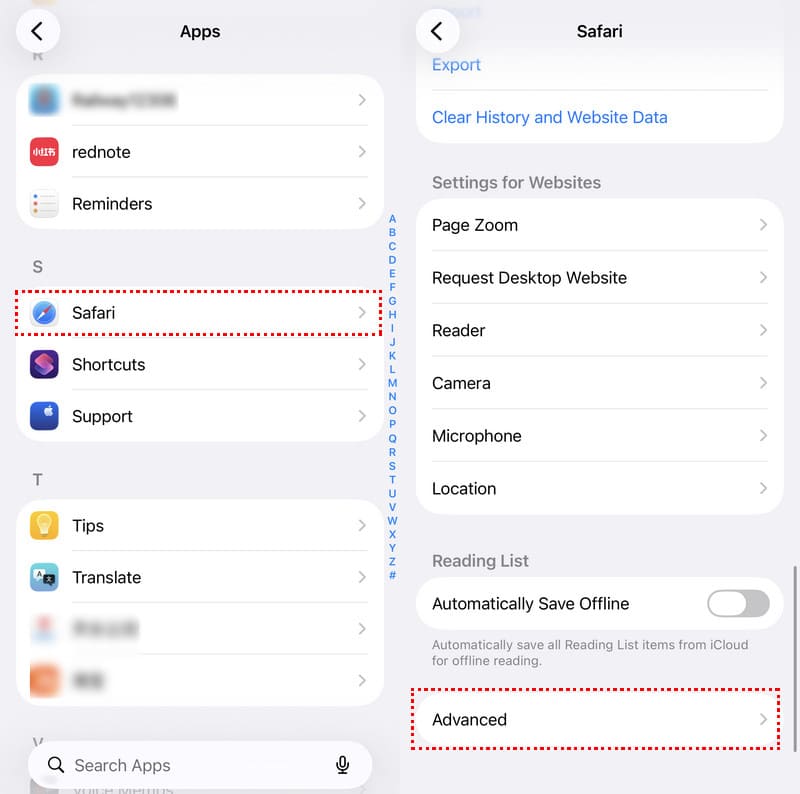
Step 4. Select Website Data.
Step 5. Tap Show All Sites to view the cached Safari domains.
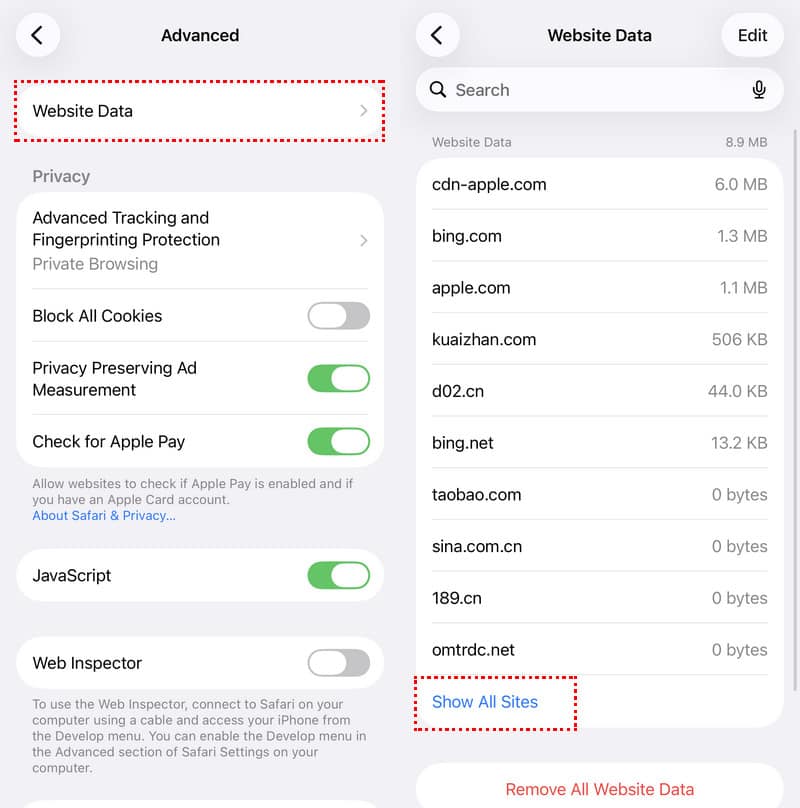
Tips: This method only shows root domains instead of full page URLs. It will not work if you have cleared both history and cache.
Method 2: Use Screen Time to Find Deleted Safari History on iPhone
If you have enabled App & Website Activity before deleting Safari history, Screen Time may still have a record of the website you visited.
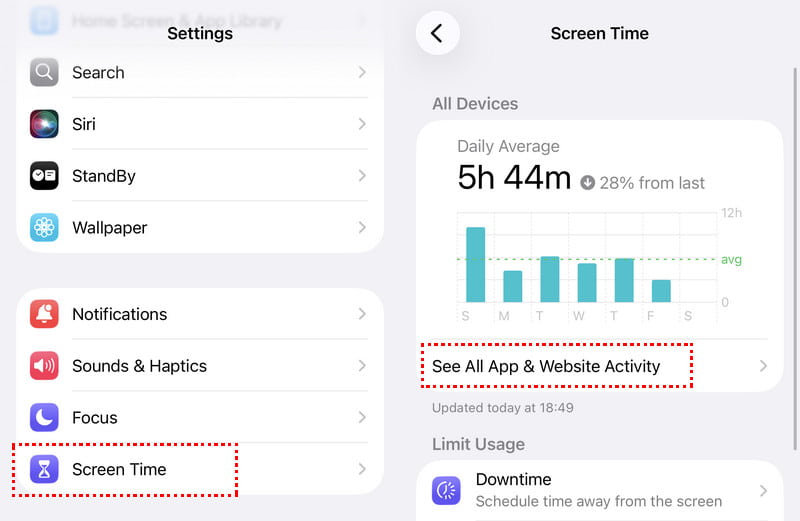
Step 1. Open Settings and tap Screen Time.
Step 2. Click See All App & Website Activity below the column chart.
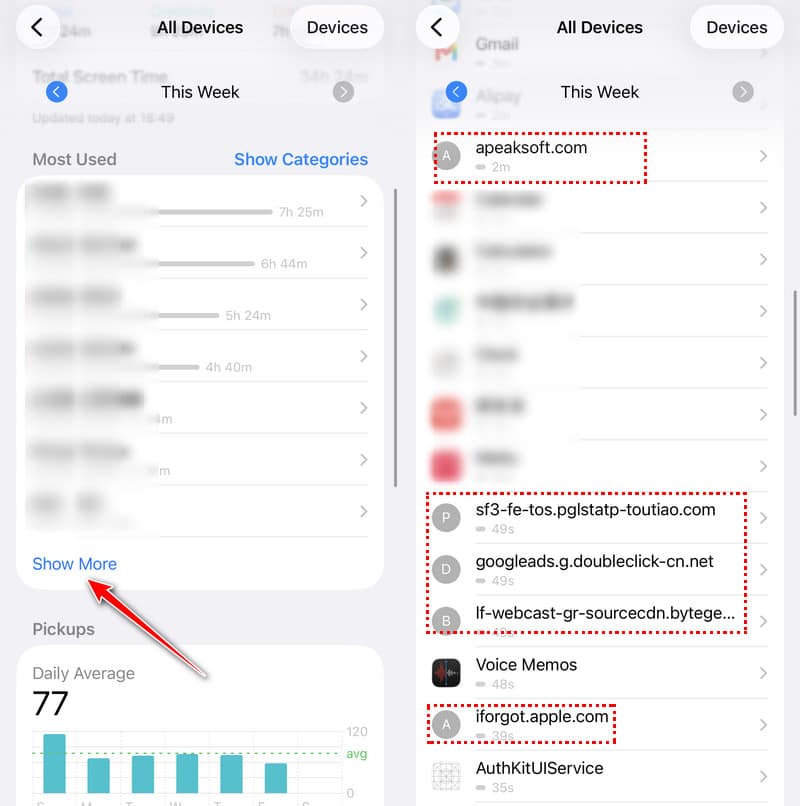
Step 3. Keep clicking Show More in the Most Used section until you see relevant websites.
Step 4. Look through and check whether there is the Safari history you deleted.
Method 3: Recover Deleted Safari History on iPhone with the Same Apple ID
If you have signed in with the same Apple ID on your Mac or iPad and enabled Safari sync, other devices may keep the Safari history records before iCloud sync completes.
Step 1. On your other Apple device, open Safari.
Step 2. Click History in the menu bar.
Step 3. Browse records before auto-sync erases them.
Tips: You must enable Safari sync before the deletion.
Method 4: Recover Deleted History on Safari on iPhone in One Click
If none of the methods above help you find the deleted Safari history, you can try professional data recovery tools, such as ApeakSoft iPhone Data Recovery, to help scan your iPhone or local backups to find and recover deleted Safari history without overwriting your current data.

Downloaded by over 1,000,000 users
- Recover deleted Safari history with ease.
- Deleted Safari history without restoring or overwriting.
- Selectively choose which Safari history to recover.
- Preview the detailed Safari history record.
Secure Download
Secure Download

Step 1. Download and install ApeakSoft iPhone Data Recovery on your computer from the button above.
Step 2. Connect your iPhone to your computer via a USB cable.
Step 3. Select Recover from iOS Device (the default one). Click the Start Scan button to enable this software to scan your iPhone for deleted Safari history.

Step 4. After a successful scan, check Safari History from the left bar.
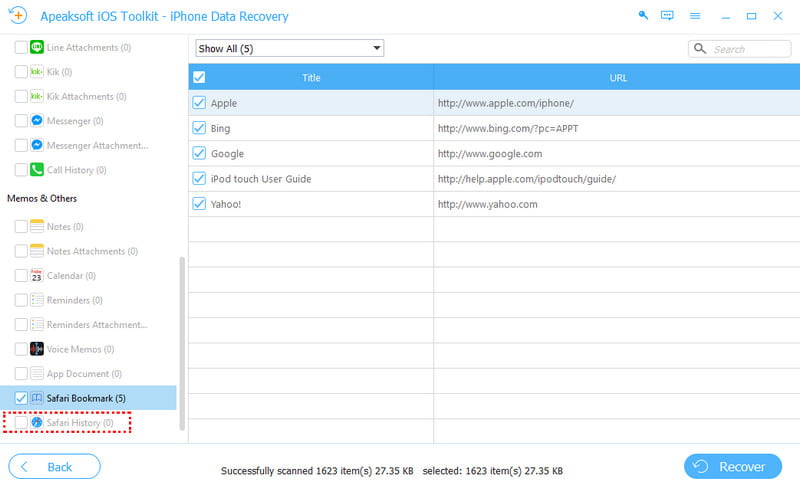
Step 5. Check the deleted Safari history you want and click the Recover button.
Method 5: Restore Deleted iPhone Safari History from iCloud/Finder Backup
If you have created a backup before you deleted the Safari history, you can try restoring it via an iCloud or iTunes backup. But we should remind you that it will overwrite the current data.
Restore Safari History from iCloud Backup
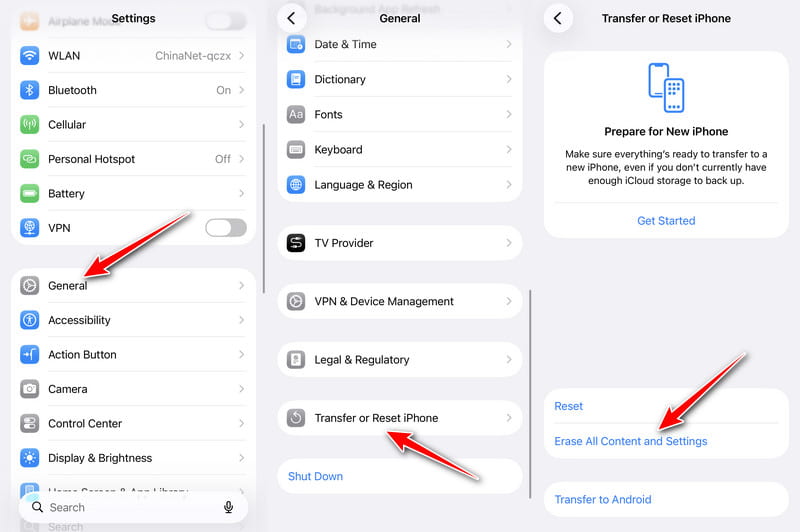
Step 1. First of all, you should erase your iPhone via Settings > General > Transfer or Reset iPhone > Erase All Content and Settings.
Step 2. Follow the setup steps and select From iCloud Backup.
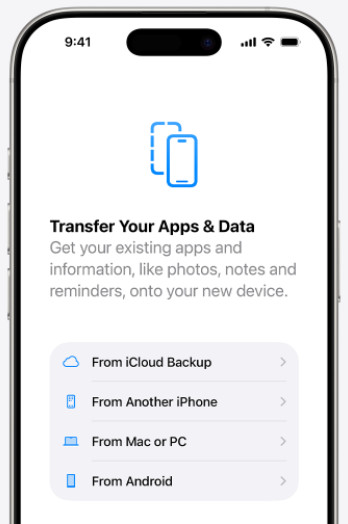
Step 3. Select the backup created before you deleted Safari history.
Restore Safari History from Finder
Step 1. Connect your iPhone to your computer and open Finder.
Step 2. Select your device and click Restore Backup.
Step 3. Choose the pre-deletion backup and click Restore.
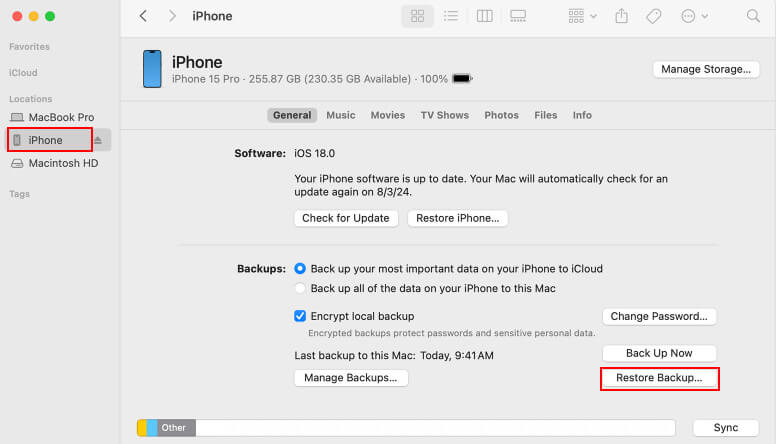
Tips: This method will overwrite all current iPhone data. An iPhone backup is recommended.
Final Verdict
| Method | Best For | Key Limitation |
| Safari Website Data Check | Finding visited websites without extra tools | No full URLs or accurate timestamps |
| Screen Time Website Activity | Checking website activity if it was enabled before deletion | Can’t confirm if records are from Safari |
| Other Apple ID Devices | Users with multiple Apple devices and enable Safari sync | iCloud sync may remove records quickly |
| ApeakSoft iPhone Data Recovery | Selectively recovering Safari history without overwriting current data | Full access requires paid version |
| iCloud/Finder Backup Restore | Full recovery when no other methods work | Overwrites all current iPhone data |
Conclusion
To recover deleted Safari history on iPhone, you can pick the method in this post that fits your needs best. Apeaksoft iPhone Data Recovery is the most time-saving way to get back your lost Safari browsing records without unnecessary hassle. Download and try it for free now!
 Apeaksoft iPhone Data Recovery
 Recover deleted or lost data from iOS Devices, iTunes, and iCloud backup.
Secure Download
Secure Download
Related Articles




