


How to Recover PDF Files on PC/Mac With or Without Backup

As a document type, the PDF is widely used in daily life and the workplace. A PDF file contains all the elements of a printed document as a digital image. That makes it compatible with a wide range of platforms, devices, and software. However, like other digital files, you may lose PDF files due to accidental deletion, file corrupted or unsaved, and more. This guide shares the proven methods to recover PDF files with or without a backup on Windows and Mac computers.
PAGE CONTENT:
Part 1: How to Recover a Deleted PDF File Quickly
Apeaksoft Data Recovery is an ideal way to recover PDF documents even if they are replaced or corrupted. It is able to scan your internal or external hard drive and look for lost PDF files without backup.

Downloaded by over 1,000,000 users
- Recover PDF files with one click.
- Work for various situations, including replacing PDFs.
- Preview lost PDF files for selective recovery.
- Available for PDF recovery in internal and external hard drives.
- Support a wide range of file types.
Secure Download
Secure Download

How to Recover Deleted PDF Files Without Backup
Step 1. Scan your drive
Download and install the PDF recovery software once you install it on your computer. It is compatible with Windows 11/10/8/7/XP/Vista and macOS 10.7 or above. Go to the Hard Drive Recovery mode, choose the drive where your PDF files are stored, and click the Start Scan button.
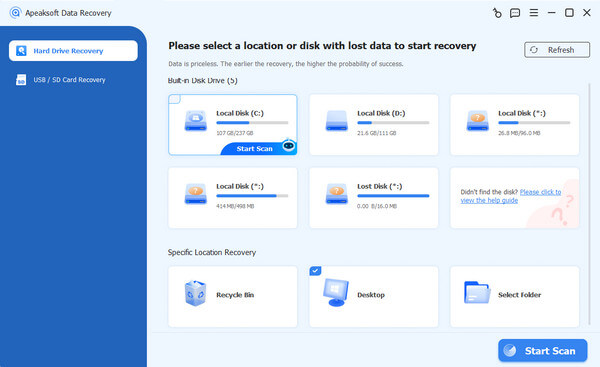
Tips: If you need to recover deleted PDFs from an external hard drive, switch to the USB / SD Card Recovery tab instead.
Step 2. Preview lost PDF files
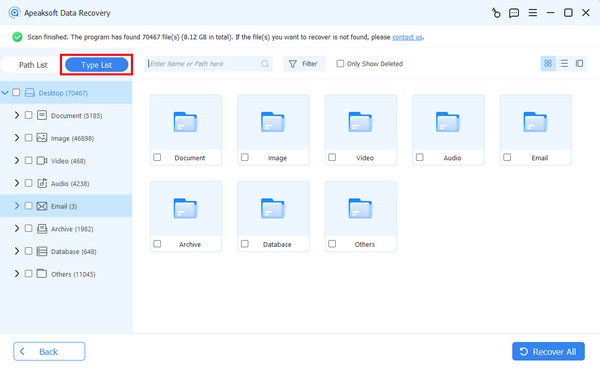
The software will perform a deep scan after the quick scan. Then, head to the Type List tab and choose Document. Now, you can view all PDF files on your hard drive. Use the Filter option to quickly locate specific PDF files.
Step 3. Recover PDF documents
Select the PDF files you want to get back. Click the Recover button, set an output folder, and confirm PDF recovery.

Part 2: How to Recover an Unsaved PDF File
You can create and edit PDF files with a few programs. Adobe Acrobat, for example, is a dedicated PDF editor and reader. Plus, you can export a PDF file from MS Word. Moreover, some photo editors can produce PDF files, like Photoshop. Can you recover unsaved PDF files? Yes, you can try the temp folder.
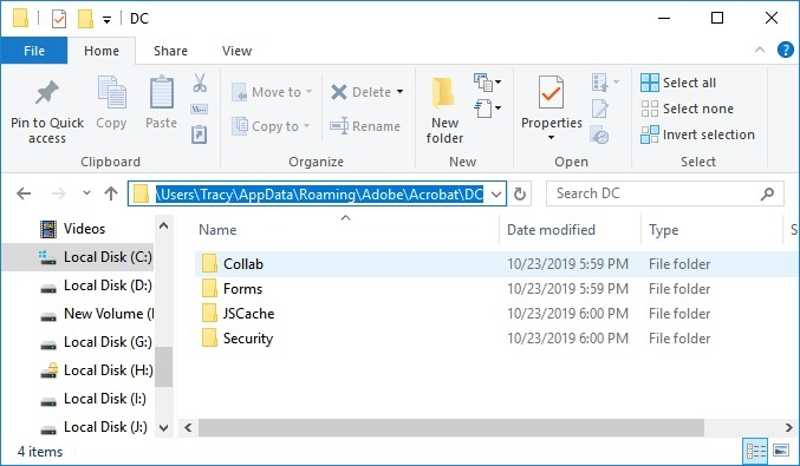
If you make the PDF with Adobe Reader, the autosave folder is C:\Users\%UserName%\AppData\Roaming\Adobe\Acrobat\1X.0\AutoSave\. For MS Word, try the AutoRecover folder.
You can also go to the temporary file directory %temp% on Windows or /temp on Mac.
Part 3: How to Recover a Corrupted PDF File Online
Looking for an online PDF tool is a fast way to recover corrupted PDF files. To avoid data loss, you’d better use a reputable tool, such as iLovePDF. It can repair PDF files online for free. Plus, it won’t save your documents.
Step 1. Go to ilovepdf.com/repair-pdf in a browser.
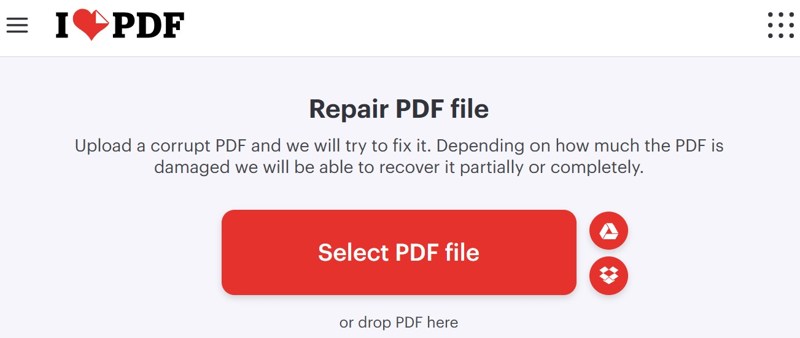
Step 2. Click the Select PDF file button and upload the corrupted PDF.
Step 3. Next, click the Repair PDF button to proceed.

Step 4. Wait for the process to finish.
Step 5. Then, click the Download file button to get the recovered PDF.
Further Reading
Part 4: How to Recover a Replaced PDF File from Backup
With a backup, you can recover replaced PDF files quickly. The good news is that you can use the built-in backup feature on Windows or Mac, File History, and Time Machine. We demonstrate the workflows respectively.
How to Recover a PDF File on Windows
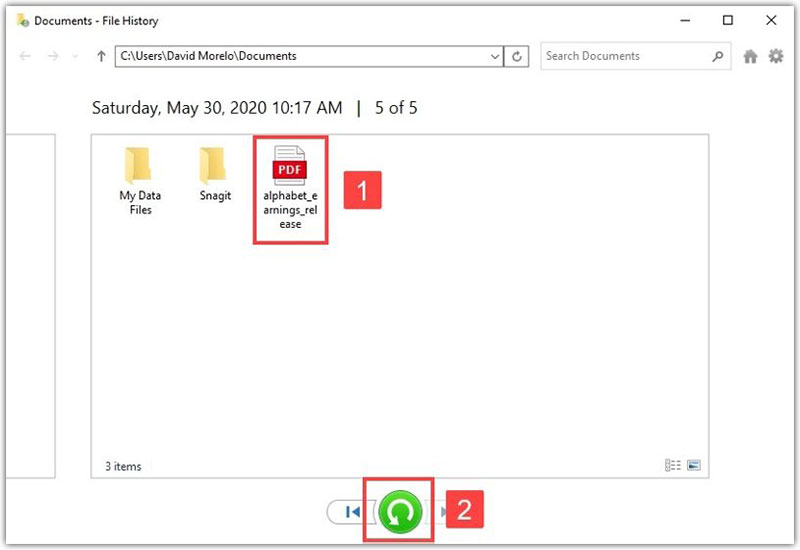
Step 1. Locate the folder where your PDF is stored.
Step 2. Right-click on the folder, and choose Restore previous versions. Or choose Properties and switch to the Previous Versions tab.
Step 3. Select the right version, click the Arrow button next to Open, and choose Open in File History.
Step 4. Find the deleted PDF, select it, and click the Restore button.
How to Recover a PDF File on Mac
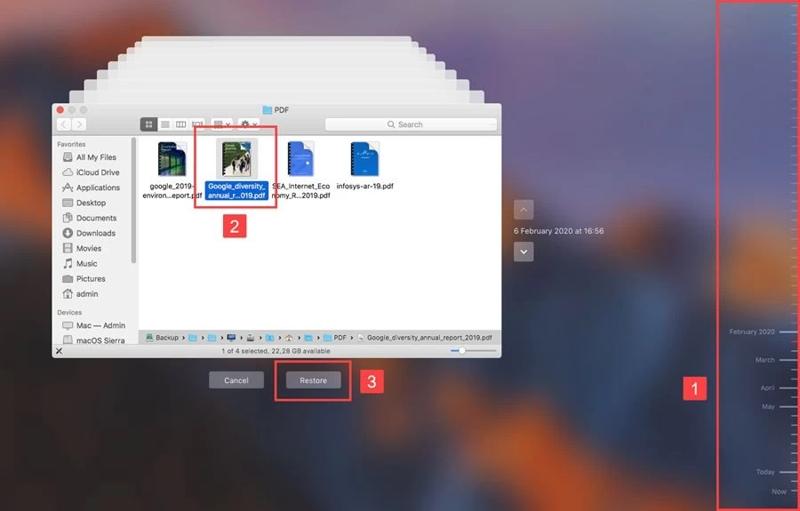
Step 1. Open Finder on your Mac.
Step 2. Navigate to the folder where your PDF is stored.
Step 3. Click the Time Machine button on the top ribbon and choose Enter Time Machine.
Step 4. Press the Upward and Downward buttons to find the right version.
Step 5. Then, highlight the desired PDF file and click the Restore button.
Conclusion
This article shared multiple ways to recover corrupted PDF files and more. An online PDF repair tool can help you to retrieve a corrupted or damaged PDF. If you forgot to save your document, go to the temporary folder to find your PDF. A backup can help you find the lost PDF, too. Apeaksoft Data Recovery is able to scan your hard drive and look for lost PDF files without a backup.
 Apeaksoft Data Recovery
 Recover deleted or lost data on Windows and Mac computer.
Secure Download
Secure Download
Related Articles




