


How to Effectively Recover Deleted Videos from Blink Camera

Blink is a line of wireless security cameras developed by Amazon. It offers an affordable smart home solution and captures 1080p HD resolution, motion alerts, and whole-home video monitoring. While the Blink camera system stands out as an efficient and reliable solution for safeguarding homes, the possibility of losing significant video footage becomes a concern for many customers. This tutorial explains whether deleted Blink videos can be recovered and how to recover deleted Blink videos.
PAGE CONTENT:
Part 1: Where Blink Videos Store
When the Blink camera detects motion or is triggered by an event, it will begin recording videos. The Blink Home Monitor app allows you to see your videos on your mobile device, download them to your device, and share them with your family. Depending on your Blink setup, recorded clips may be saved to Blink Cloud Storage or locally on a USB drive connected to Sync Module 2.
Save to Blink Cloud Storage
If you choose Blink Cloud Storage, you need an active Blink Subscription Plan. According to Blink policies, cloud clips are retained for up to 60 days in the US/CA/MX/AU/NZ, and up to 30 days in the EU and UK.
Save to Local Storage
If you use local storage, you need a Sync Module 2 with a compatible USB flash drive. Blink clips can be saved locally on the USB drive, allowing you to access and manage your recordings without relying only on cloud storage.
Part 2: Can Deleted Blink Videos Be Recovered
Can you recover deleted Blink videos? It depends on where you stored the videos.
If you have stored Blink videos to Cloud storage and manually deleted the clips, they will be removed from the Blink server, and you can't recover deleted Blink videos from cloud storage.
If your Blink videos are saved on USB local storage, or you have downloaded them to your computer or phone, the videos are still recoverable when you delete them. Because the deleted videos are not immediately erased from the storage device. Data recovery software may help retrieve them if they are not overwritten by new data.
Part 3: Things to Check Before Recovering Deleted Blink Videos
In addition to accidental deletion, other factors can also lead to your Blink videos disappearing, including incorrect date filters, logging into the wrong Blink account, expired subscription plans, and cloud storage issues. Therefore, before recovering deleted Blink videos, you should first:
- Check your Blink account. Run the Blink app on your mobile device and make sure you are signed in with the Blink account linked to your camera system.
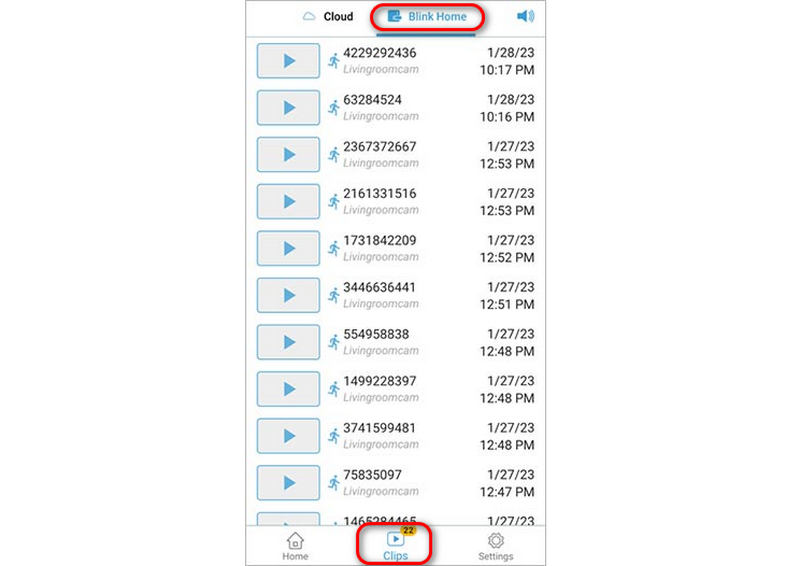
- Check the clip list. Select the correct camera in the Blink app and adjust the date range to look for older recordings.
- Check subscription and storage status. Make sure your Blink Subscription Plan or free trial is active, and check whether the videos have reached the storage retention limit.
Then, you can go to the Clips section and confirm whether the missing videos are still available.
Part 4: How to Recover Deleted Blink Videos from Local Storage
Although deleted Blink videos stored in Cloud Storage cannot be recovered, you may still have a chance to retrieve videos saved on local storage. If your Blink clips were stored on a USB drive, Apeaksoft Data Recovery can help you easily retrieve deleted Blink videos as long as the data is not overwritten. Just remove the USB flash drive from your Sync Module 2 and connect it to your computer, and this program can quickly recover all lost and existing Blink videos, even if they are permanently deleted.
If you have ever downloaded Blink videos from the Blink app on your computer or phone, you can still use Apeaksoft Data Recovery to recover lost Blink videos. For videos deleted from your computer, launch Apeaksoft Data Recovery and scan the drive where the videos were stored. For videos deleted from your phone, connect your device to your computer and follow the on-screen instructions to scan for recoverable files.

Downloaded by over 1,000,000 users
- Recover deleted Blink videos from local storage in 3 steps.
- Support all video file formats such as MP4, AVI, MOV, and more.
- Work for accidental deletion, factory reset, file system corruption, etc.
- 97% success rate with advanced scan technology.
Secure Download
Secure Download

How to Recover Deleted Blink Videos from Local Storage
Step 1. Scan your SD card
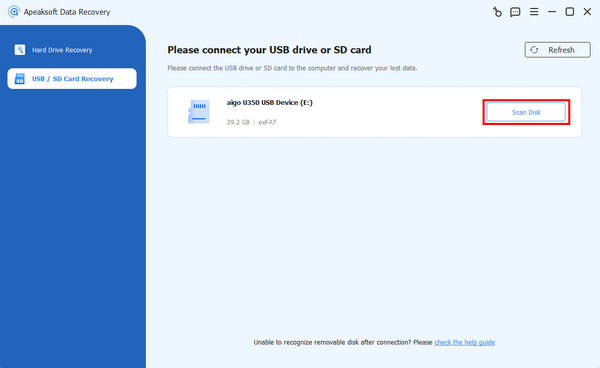
Launch the best video recovery software once you install it on your computer. It is compatible with Windows 11/10/8/7/XP/Vista and Mac OS X 10.7 or later. Go to the USB/SD Card Recovery tab and follow the onscreen instructions to insert the SD card into your computer. After the software detects your card, click the Scan Disk button to begin looking for lost files.
Step 2. Preview recoverable videos
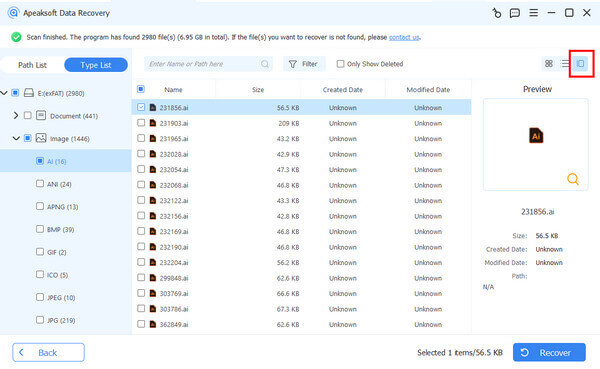
After a quick scan, the software will automatically perform a deep scan. When it is done, you can preview the recoverable video files by type or location. Heading to the Type List tab, for example, allows you to choose Video and check all video files. Or you can head to the Path List tab and pick the target folder. The Filter and Search features are able to quickly locate specific videos.
Step 3. Retrieve deleted videos
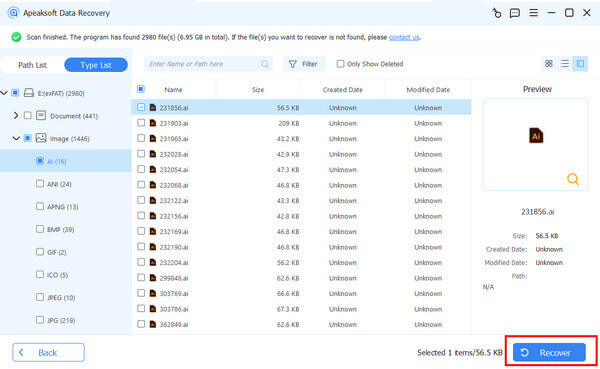
Finally, tick the checkboxes next to videos you want to restore and click the Recover button at the bottom right corner. Select an output folder and confirm the deletion of Blink video recovery. You’d better not use the SD card as the output folder to avoid further data loss. You can also recover deleted Word document with this program.
Conclusion
This guide explained how to recover deleted Blink videos. Whether Blink videos can be recovered depends on the storage place. If they are stored on Blink cloud, you can do nothing after automated deletion after 30 or 60 days. If they are kept on USB storage with Sync Module 2, you should stop using your Blink camera to avoid data being overwritten, then you can download data recovery tools such as Apeaksoft Data Recovery to find your videos from local storage.
 Apeaksoft Data Recovery
 Recover deleted or lost data on Windows and Mac computer.
Secure Download
Secure Download
Related Articles




