

How to Recover Unsaved or Deleted Notepad Files on Windows (2026)

Key Takeaways
- Microsoft Notepad does not support auto-save, so unsaved files are usually lost once the program is closed.
- The only reliable way to recover unsaved text is to use Ctrl + Z before closing Notepad.
- After a crash or power loss, temp files may help recover unsaved data, but success is low.
- If the file was previously saved, you can recover it via the Recycle Bin or a recovery tool like Apeaksoft Data Recovery.
"My computer rebooted when I didn’t save my files, and I lost several important notepads. Is there any way to recover unsaved notepads?"
Lost an unsaved Notepad file after a crash or accidental close? You're not alone. Unfortunately, unlike Microsoft Word, Excel, PowerPoint, and others, Notepad is not able to automatically save content, which means unsaved files are often unrecoverable.
However, in some cases, there are still a few scenarios where you may retrieve your Notepad files. Read more!
PAGE CONTENT:
Part 1: Can You Recover Notepad Files
Is there a way to recover Notepad documents? It depends on why and how your Notepad files are lost.
There are a variety of circumstances where a Notepad file might disappear from your hard drive, such as:
1. You delete the Notepad files accidentally.
2. You close the Notepad window without saving the file.
3. Your Notepad files are corrupted due to third-party software.
In general, deleted files can often be restored, unsaved files are usually unrecoverable unless the program is still open, and corrupted files may be partially repaired.
In the following sections, we’ll cover the most effective methods for each situation.
Part 2: How to Recover Unsaved Notepad Files
Method 1: Recover Notepad Files Unsaved Using Ctrl + Z
Success Rate: ⭐⭐⭐⭐⭐
If your Notepad window is still open after making changes, you can try using Ctrl + Z to undo your edits and recover unsaved Notepad text. This method only works before closing the program.

Tips: If you click Don't Save after closing Notepad, files can be virtually impossible to recover.
Method 2: Recover Notepad Files When Shutdown / Crash with Temp Files
Success Rate: ⭐⭐
If your computer crashes or Notepad is forcefully closed, there’s a small chance that you can recover Notepad unsaved data from temporary files. Although Notepad does not save files automatically, Windows stores temporary files. That gives you a chance to recover Notepad files that are not saved. This way is available to the latest Notepad files.

Step 1. Press the Win + R keys on your keyboard to open the Run dialog.
Step 2. Type %AppData% in the box, and hit the Enter key on your keyboard. That will open the directory C:Users%USERNAME%AppDataRoaming.
Step 3. Next, input *.txt into the search bar at the top right side. Then find the desired Notepad file, copy it to another folder, and open the file.
Part 3: How to Recover Deleted Notepad Files
If your Notepad files were previously saved but later deleted, there are several ways to restore them. Depending on whether the files were simply deleted, overwritten, or permanently deleted, you can try methods such as checking the recycle bin, restoring previous versions, or using professional recovery tools.
In the following sections, we will step-by-step introduce each method so that you can quickly and safely retrieve the lost files.
Way 1: Recover Deleted Notepad Files from the Recycle Bin
Success Rate: ⭐⭐⭐⭐
If you just delete a Notepad file with the Delete key on your keyboard, chances are that the file is just moved to your Recycle Bin. Therefore, the first place to recover Notepad files is the Recycle Bin folder.
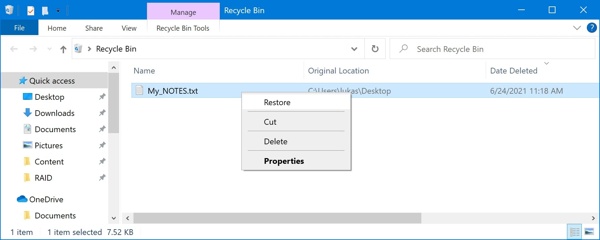
Step 1. Open the Recycle Bin folder from your desktop.
Step 2. Find the Notepad file that you want to recover, and right-click on it.
Step 3. Choose Restore on the context menu. Then you can find the file in the original directory.
Way 2: Recover Permanently Deleted Notepad Files Using Data Recovery Software
Success Rate: ⭐⭐⭐⭐⭐
If the file was permanently deleted or not found in the Recycle Bin, a professional tool like Apeaksoft Data Recovery may help scan and recover lost text files. It can deeply scan your disk and recover lost TXT files even after deletion or formatting.
Best Notepad Recovery Tool
- Recover Notepad files quickly and easily.
- Retrieve lost files from Recycle Bin, hard drive, and flash drive.
- It offers 200 MB of recovery space, enough to restore hundreds of Notepad (TXT) files.
- Preview lost Notepad files before recovery.
Secure Download
Secure Download

Step 1. Scan your disk drive
Launch the best Notepad recovery tool as long as you install it on your PC. select the hard drive where your lost files are saved. Click Start Scan.

Step 2. Look for the lost Notepad files
Check the desired data type under the Type List section, such as Document.
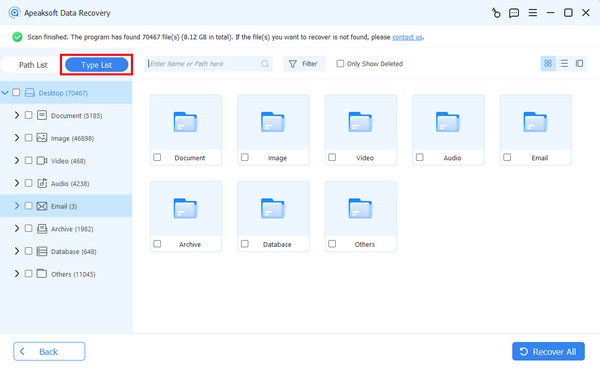
Step 3. Recover Notepad files
Select the Notepad folder, and preview the lost files. Select the desired Notepad files, and click the Recover All button. Select a directory and retrieve the file.

Tips: You can also recover deleted Google Docs in this program.
Way 3: Recover Notepad Files via Previous Version
Success Rate: ⭐⭐⭐
The built-in Rollback feature on Windows enables you to recover unsaved Notepad or Excel temp files. This feature is available on Windows 11/10/8/7. This feature can restore Notepad files within 10 days.
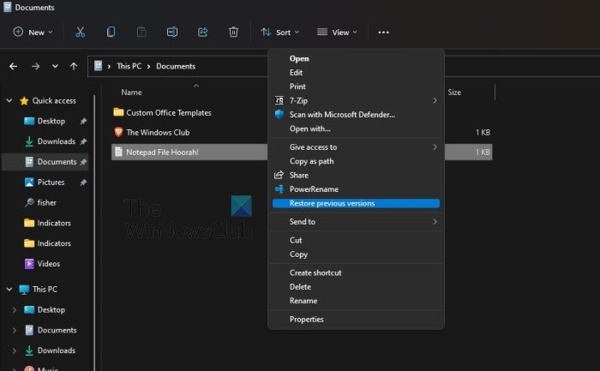
Step 1. Locate the folder that stores the unsaved Notepad files.
Step 2. Right-click on the folder, and choose Restore previous version. On Windows 11. Select Show more options, and then choose Restore previous version.
Step 3. Then select an appropriate version on the list and click the Restore button.
Part 4: FAQs About Notepad File Recovery
Does Notepad have an auto-save feature?
No. Microsoft Notepad does not support auto-save, so unsaved files are lost once the program is closed.
Can I recover an unsaved Notepad file after closing?
No. Unsaved Notepad files cannot be recovered once the window is closed.
Where are Notepad temp files stored?
Notepad does not create official temporary files, but if you want to locate your unsaved text, you can check the Notepad temp file location under %AppData%.
Can I recover deleted Notepad files?
Yes. You can recover deleted Notepad files using methods like Recycle Bin, Previous Versions, or with a recovery tool like Apeaksoft Data Recovery.
Conclusion
Now, you should understand how to recover deleted or unsaved Notepad files on Windows 11/10/8/7 in various situations. While Ctrl + Z works for unsaved content, deleted or permanently lost files can be restored using the Recycle Bin, previous versions, or a reliable recovery tool like Apeaksoft Data Recovery.
Related Articles




