

How to Recover Video Files from Your SD Card Quickly

“I formatted my SD card and forgot to back up my videos. How can I recover videos from an SD card?” SD cards and memory cards are widely used to store media files and expand the storage of digital cameras. However, video loss is a common problem due to the vulnerability of SD cards. The good news is that there are multiple ways to get back your lost media data from your SD card in various situations.
PAGE CONTENT:
Part 1: How to Recover Lost Videos from an SD Card
Apeaksoft Data Recovery is the ultimate way to recover lost videos from an SD card after you accidentally deleted them, formatted your card, or your video files are corrupted. More importantly, it is easy to use and doesn’t require technical skills.
- Recover videos from the SD card quickly.
- Support almost all video formats, including MP4, MKV, MOV, ProRes, AVI, and more.
- Preview lost videos for selective recovery.
- Work for both internal and external hard drives.
- Compatible with Windows and macOS.
Secure Download
Secure Download

How to Recover Lost Videos from Your SD Card
Step 1. Scan your SD card
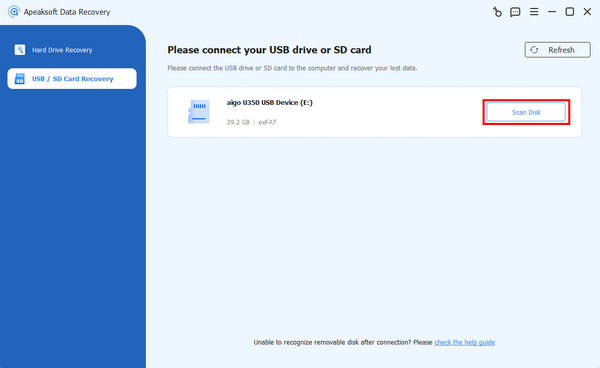
Launch the video recovery software after you install it on your PC. There is another version for Mac. Go to the USB / SD Card Recovery mode. Insert the SD card into your computer, select it from the drop-down option, and click the Scan Disk button.
Step 2. Preview videos
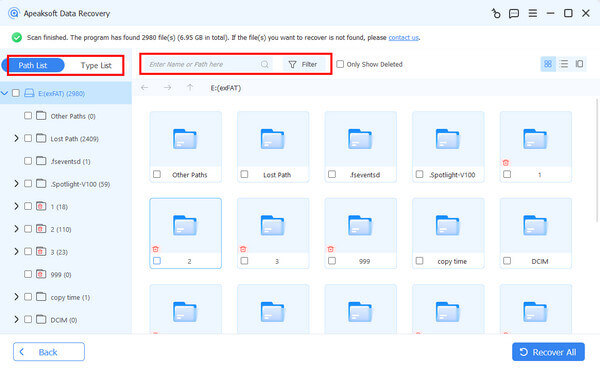
After a quick scan, the software will automatically perform a deep scan. Then, go to the Type List tab and choose Video. Now, you can view all videos on your SD card. Use the Filter option to quickly locate specific videos.
Step 3. Recover lost videos
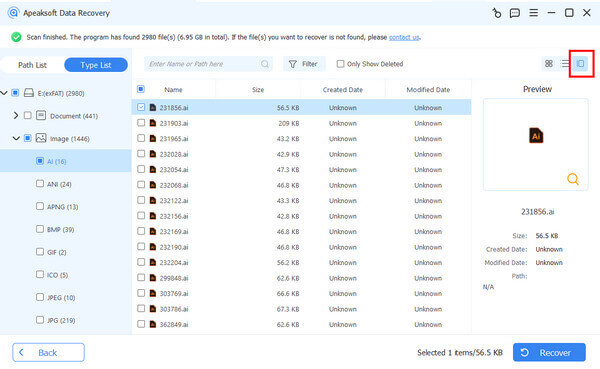
Select the video files you wish to retrieve and click the Recover button. Then, set an output folder and confirm video recovery from the SD card.
Part 2: How to Recover Deleted Videos from SD Card in Recycle Bin or Trash
If you open your SD card on your computer and accidentally delete videos, chances are that you can recover deleted videos from the SD card in the Recycle Bin or Trash. The easy methods are worth trying.
How to Recover Deleted Videos from an SD Card in the Recycle Bin
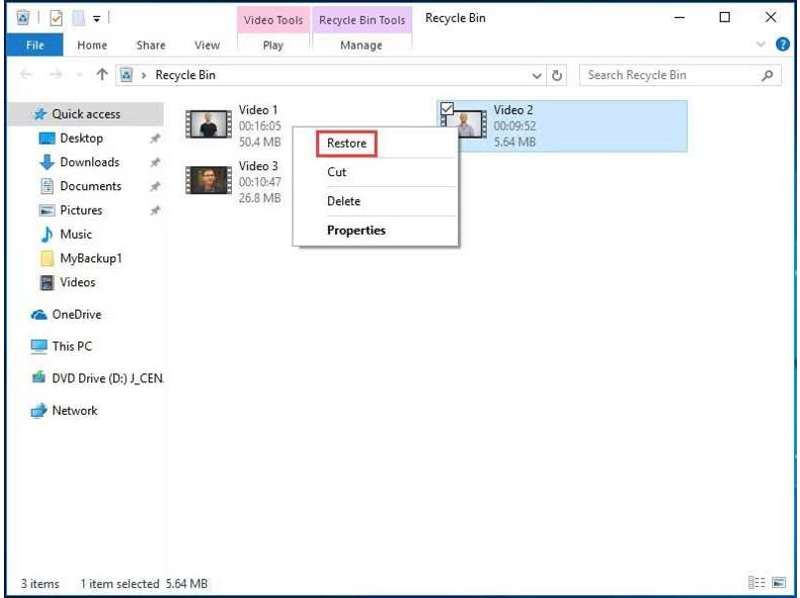
Step 1. Open the Recycle Bin from your desktop or File Explorer.
Step 2. Search for the video you want to recover.
Step 3. Right-click the file and choose Restore.
How to Recover Deleted Videos from an SD Card in Trash
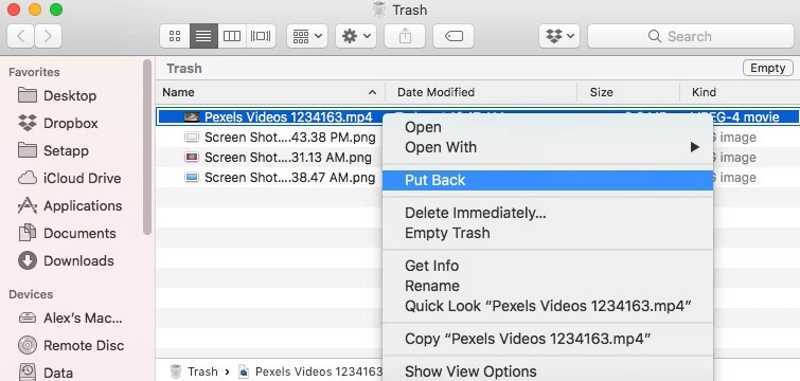
Step 1. Open Trash from the Dock bar.
Step 2. Find the video file you intend to recover.
Step 3. Right-click on the video file and choose Put Back.
Note: These methods will restore deleted videos to the original location. You can also select them and drag them to your desktop if your SD card is inaccessible.
Part 3: How to Recover Videos from a Formatted SD Card Using a Backup
Backup is a good option to avoid data loss. In other words, you can recover videos from a formatted SD card if you have backed up your videos using the built-in File History and Time Machine features.
How to Recover Videos from an SD Card via File History
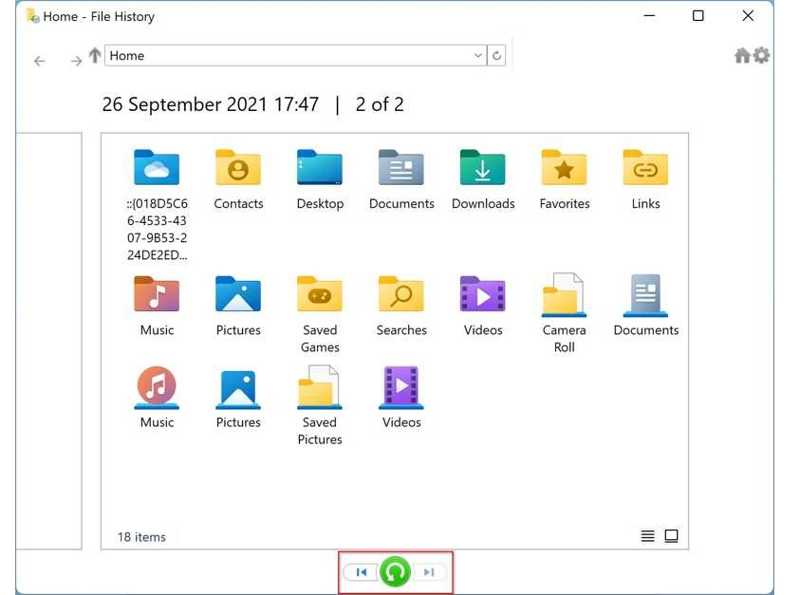
Step 1. Open a File Explorer and find the SD card.
Step 2. Right-click on your card and choose Properties.
Step 3. Switch to the Previous Versions tab.
Step 4. Select the right version, click the arrow button next to Open, and choose Open in File History.
Step 5. Click the video file and drag it to your desktop.
How to Recover Videos from an SD Card with Time Machine
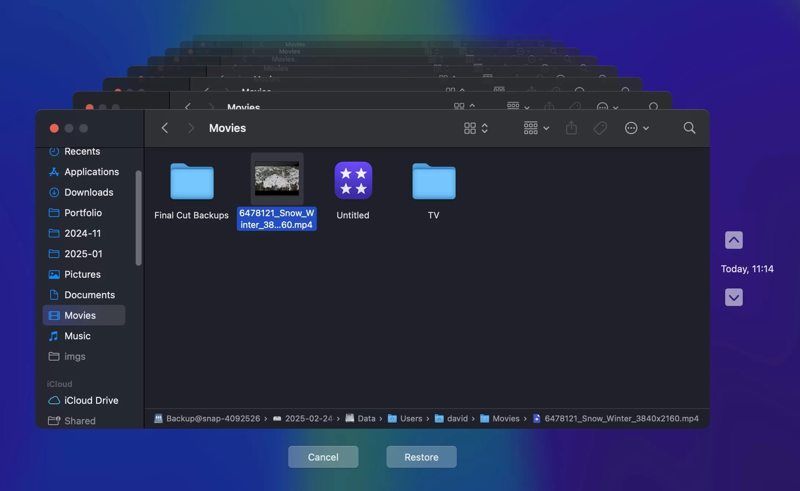
Step 1. Insert the backup medium into your Mac.
Step 2. Open your Finder and locate where your video is stored.
Step 3. Click the Time Machine button on the top ribbon and choose Enter Time Machine.
Step 4. Press the Upward and Downward buttons until you find the right version.
Step 5. Select the desired video file, copy and paste it to the destination folder.
Further Reading
Part 4: How to Recover Corrupted Videos from an SD Card with PhotoRec
PhotoRec is a free and open-source file recovery program. It is able to repair and recover corrupted videos from the SD card. However, it works with command lines and requires technical skills.
Step 1. Download TestDisk to your hard disk.
Step 2. Open the archive, right-click on the photorec.exe file, and choose Run as administrator.
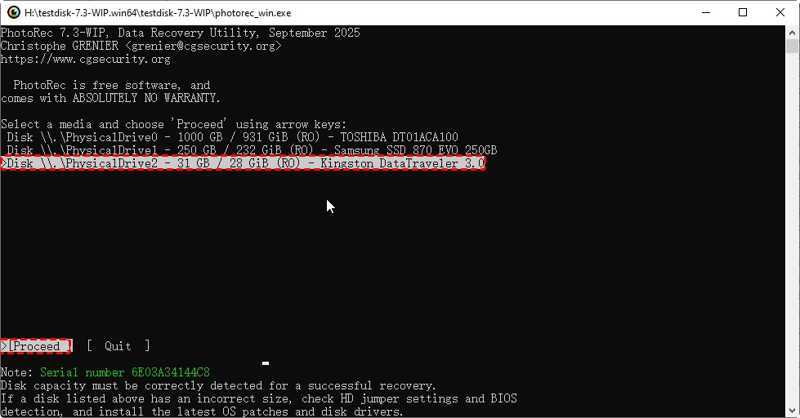
Step 3. Use the arrow keys on your keyboard to select your SD card.
Step 4. Press the Enter or Return key.
Step 5. Next, select and perform Proceed.
Step 6. Then, select the file system of your SD card.
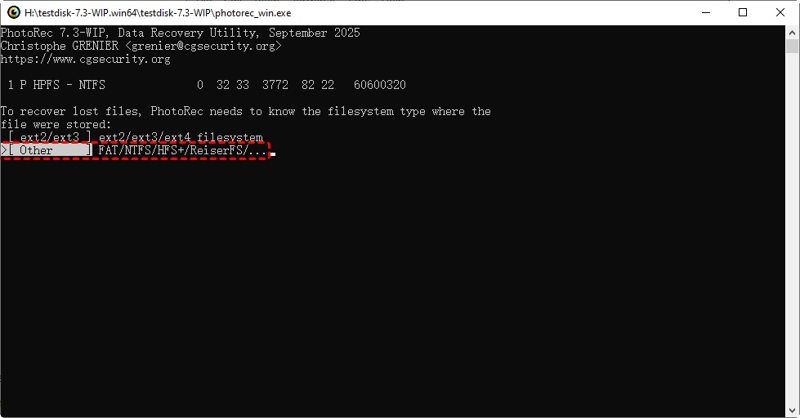
Step 7. Choose Free or Whole according to your needs.
Step 8. Select the destination folder and begin file recovery.
Conclusion
This guide shared multiple ways to recover deleted videos from an SD card in various situations. You can pick an appropriate method and follow our steps to get back your video files quickly. Apeaksoft Data Recovery is the ultimate way to retrieve video files from internal and external hard drives.
Related Articles




