

How to Recover Voice Messages on iPhone (With or Without Backup)

Key Takeaways
Generally, voice messages on iPhone can expire and be auto-deleted after 2 minutes of being listened to. To get back deleted voice messages on iPhone, you can:
- Head to Recently Deleted to restore voice messages deleted within a short period.
- Retrieve iPhone voice messages from iTunes backup if you backed up your iPhone before deletion.
- Retrieve old voice messages on iPhone from iCloud backup.
- Using professional iPhone data recovery tools if voice messages are deleted over 30 days and there is no backup is available.
You may notice that a voice message suddenly disappears after you listen to it or can no longer find it in your Messages app. In many cases, this happens due to automatic expiration settings, accidental deletion, or system issues.
Don’t worry! This guide will show you 4 effective ways to recover voice messages on your iPhone easily and quickly!
PAGE CONTENT:
- Before You Start: Why Voice Messages Disappear on iPhone
- Part 1: How to Recover Recently Deleted Voice Messages on iPhone
- Part 2: How to Recover Voice Messages on iPhone After 30 Days
- Part 3: How to Get Back Deleted Voice Messages on iPhone from iTunes Backup
- Part 4: How to Retrieve Deleted Voice Messages from iCloud Backup
- Part 5: FAQs About Recovering Voice Messages on iPhone
Before You Start: Why Voice Messages Disappear on iPhone
If you found your voice messages suddenly disappeared after listening to, and you make sure that you haven't deleted them, it is usually related to the iPhone message settings. this is caused by the default automatic expiration setting, which removes audio messages a short time after they are played (by default, 2 minutes).
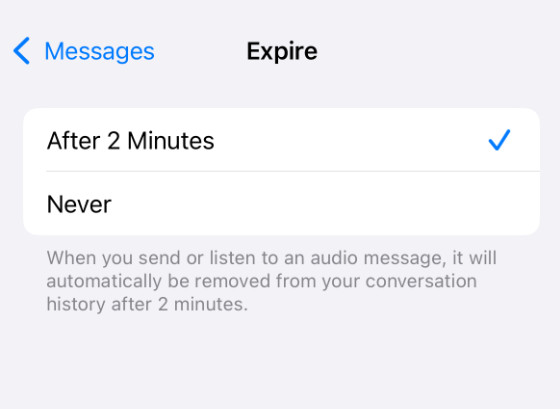
If you want to keep your voice messages on iPhone permanently, you can follow the steps below to change this setting:
Step 1. Open Settings and swipe down to the bottom and click Apps.
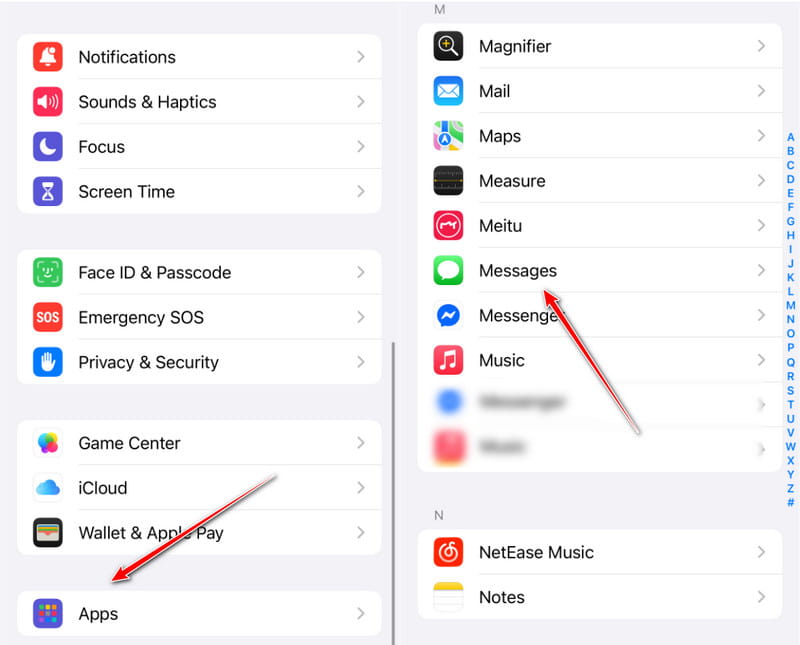
Step 2. Find Messages.
Step 3. Swipe down on the next page. Find Expire and click it.
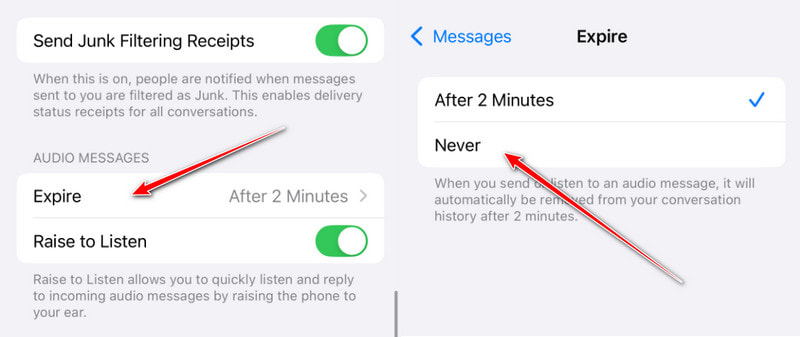
Step 4. Click Never.
Part 1: How to Recover Recently Deleted Voice Messages on iPhone
If you have just deleted a voice message by mistake, it may still be available in the Recently Deleted folder within the Messages app. This method is similar to how deleted messages are stored temporarily on iPhone. In most cases, iPhone keeps deleted voice messages for up to 30 days before permanently removing them.
Step 1. Open the Messages app.
Step 2. Click Filters in the top left and select Recently Deleted folder.
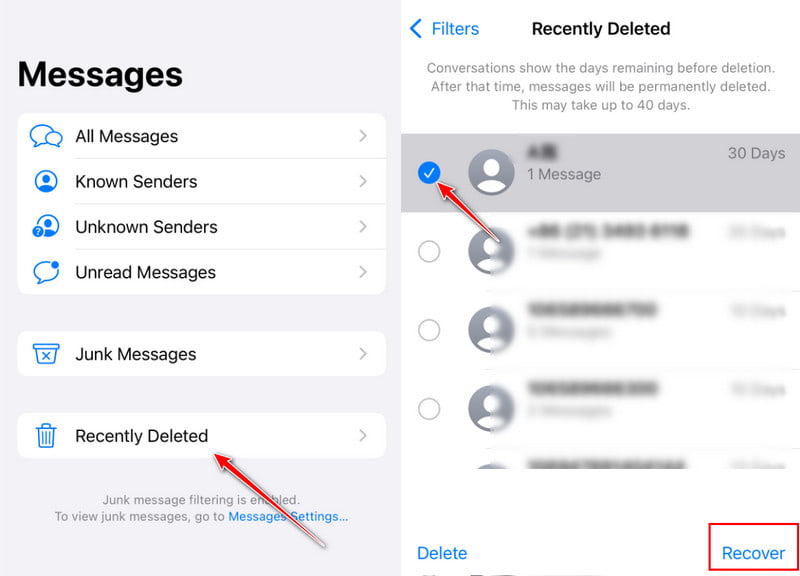
Step 3. Locate the message that contains your deleted messages.
Step 4. Check it and click Recover in the bottom right.
Tips
Why can’t I retrieve voice messages on my iPhone?
iOS only keeps your deleted voice messages for 30 days. After the expiration, your messages will be permanently removed from your device. If you do not have a backup, you have to use third-party software to retrieve deleted voice messages.
Moreover, if you have synced iPhone/iPad to computer, the voice messages will be cleared along with the synchronization.
Part 2: How to Recover Voice Messages on iPhone After 30 Days
My voice messages have been deleted and are no longer available in the Recently Deleted folder. I have no backups neither. How can I get them back?
Don't worry. Even if you don't have a backup, there are still ways to recover deleted voice messages on your iPhone. One common approach is to use an iOS data recovery tool like Apeaksoft iPhone Data Recovery. It can scan your device and help retrieve deleted audio messages. What's more, it even enables you to preview the messages content first to judge whether it is the one that you want.

Downloaded by over 1,000,000 users
- Recover voice messages on iPhone without a backup.
- Retrieve voice messages that are deleted over 30 days on iPhone.
- Preview voice messages before selectively recovering them.
- Compatible with the latest iPhone brands and iOS versions.
Secure Download
Secure Download

Here are the steps on how to recover permanently deleted voice messages from iPhone:
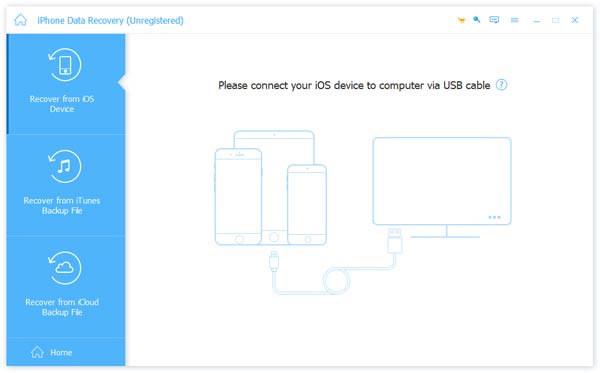
Step 1. Connect to your iPhone
Install the best voice message recovery software on your computer. It is available on Windows 11/10/8/7/XP/Vista and Mac OS X 10.7 or above.
Launch it and choose Recover from iOS Device from the left side. Next, plug your iPhone into your computer with a Lightning cable.
If prompted, tap Trust on your iPhone to trust the computer. Then click the Start Scan button.
Step 2. Find lost voice messages
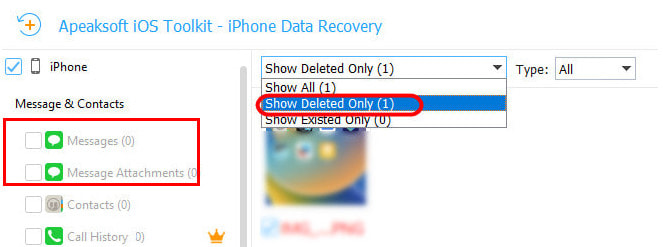
After data scanning, you will be taken to the preview window. Go to the Messages tab. If you want to get back deleted voice messages on
your iPhone, select Show Deleted Only from the top drop-down list.
Step 3. Recover voice messages
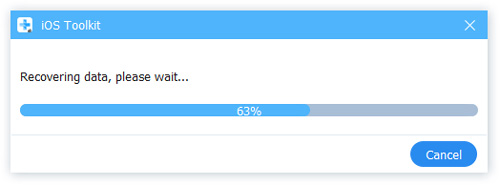
Tick the checkbox next to each voice message that you want to recover, and click the Recover button at the bottom right corner. Then set the output folder on the pop-up dialog, and hit the Recover button again.
Part 3: How to Get Back Deleted Voice Messages on iPhone from iTunes Backup
If you frequently back up your iPhone with Finder on macOS Catalina or above, you can recover deleted voice messages from a backup. For PCs and old Macs, you can get back your messages from an iTunes backup.
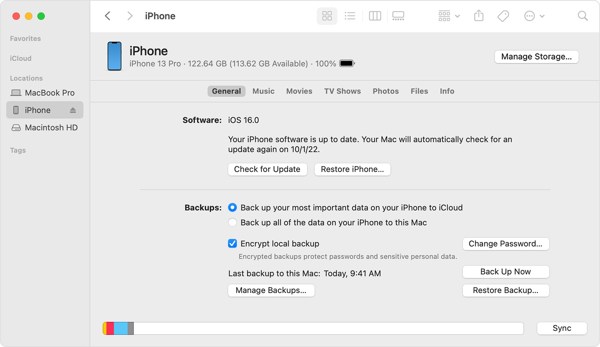
Step 1. Connect your iPhone to your computer with a USB cable, and open the latest version of iTunes or Finder.
Step 2. Click Phone at the top left side of iTunes, go to the Summary tab, and click the Restore Backup button under the Backups section. Make sure to select This computer.
In Finder, click your iPhone name, go to the General tab, and click the Restore Backup button.
Step 3. Then select the right backup file, and restore it to your iPhone.
Note: Be aware that all existing data on your iPhone will be overwritten after restoring. If you want to recover wanted data files only, you can use Apeaksoft iPhone Data Recovery to have a selective iTunes data recovery.
Part 4: How to Retrieve Deleted Voice Messages from iCloud Backup
I have never backed up my iPhone with iTunes. How to get back deleted voice messages on iPhone? Are there any other methods?
Some people prefer to back up their iPhones using iCloud. Therefore, it is another way to get back deleted voice messages on your iPhone. This way requires a good internet connection. Plus, you must have an iCloud backup.
Step 1. Run the Settings app, go to General, choose Transfer or Reset iPhone or Reset, and tap Erase All Content and Settings.
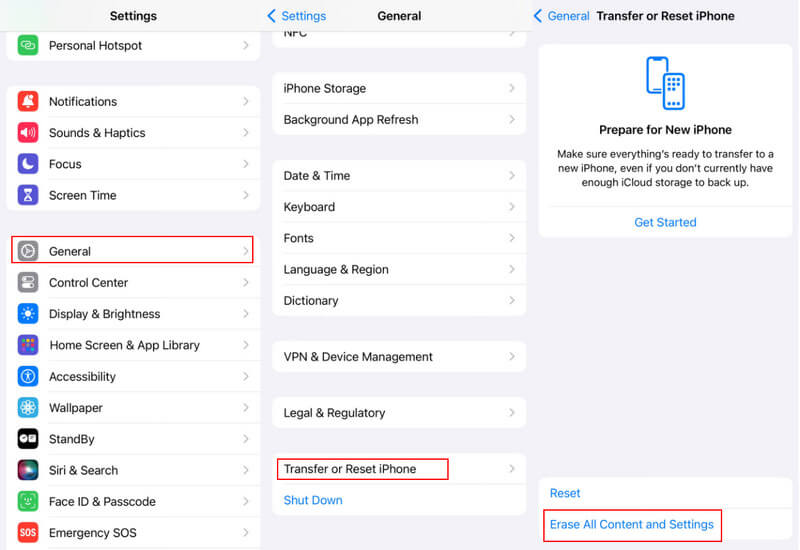
Step 2. When prompted, enter your Apple ID and password or your iPhone passcode.
Step 3. When your iPhone reboots, you will see the Hello screen. Set up your device until you reach the Apps & Data screen.
Choose Restore from iCloud Backup.
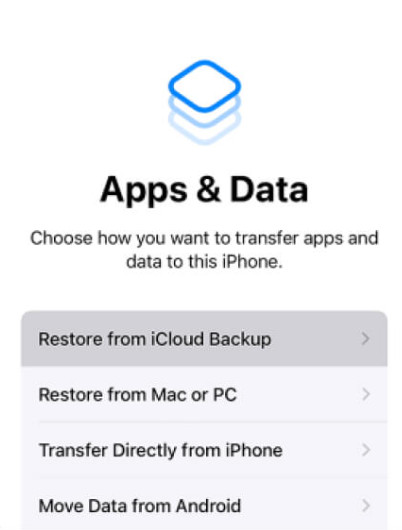
Step 4. Sign in to iCloud with your Apple ID and password. Then choose an appropriate backup to recover voice messages on your iPhone. When it finishes, complete the setup and you will get back your messages.
Part 5: FAQs About Recovering Voice Messages on iPhone
Will voice messages on iPhone be automatically deleted?
Yes. By default, they will be deleted two minutes after you finish listening to them, unless you change the expiration setting in Messages.
Can I recover deleted voice messages on iPhone?
Yes, deleted voice messages can often be recovered if they are still in the Recently Deleted folder or if you have a backup in iCloud or iTunes.
Can I recover voice messages on iPhone without a backup?
Yes, you can use iOS data recovery tool, such as Apeaksoft iPhone Data Recovery to recover deleted voice messages on iPhone without a backup, but success is not guaranteed.
Conclusion
Now, you should understand how to recover deleted voice messages on your iPhone. The Deleted Messages folder shows you the messages that you recently deleted. Plus, you can get back your messages easily if you have an iTunes/Finder or iCloud backup. Apeaksoft iPhone Data Recovery is the ultimate solution to get back your messages without a backup.
Related Articles




