


How to Restore an Android Device to Factory Settings

Restoring an Android to factory settings means resetting it to the factory settings. It works similarly to formatting. When you restore your Android phone or tablet, all accounts, installed apps, and files are completely erased from the device. Before you give away your Android device or when troubleshooting, you can perform a factory restore. This guide shares the proven approaches and the detailed steps to complete the job.
PAGE CONTENT:
- Part 1: How to Restore Android to Factory Settings
- Part 2: How to Restore Android to Factory Settings in Recovery Mode
- Part 3: How to Restore Android to Factory Settings with Google Find My Device
- Part 4: How to Restore Samsung to Factory Settings
- Part 5: Bonus Tip: How to Recover Data After Restoring Android
Part 1: How to Restore Android to Factory Settings
The easiest way to restore factory settings on an Android device is the built-in Settings app. Google has added the Reset Options to all Android versions. All you need is to authenticate with your PIN.
Step 1. Ensure your phone has enough battery.
Step 2. Open the Settings app from the app tray.
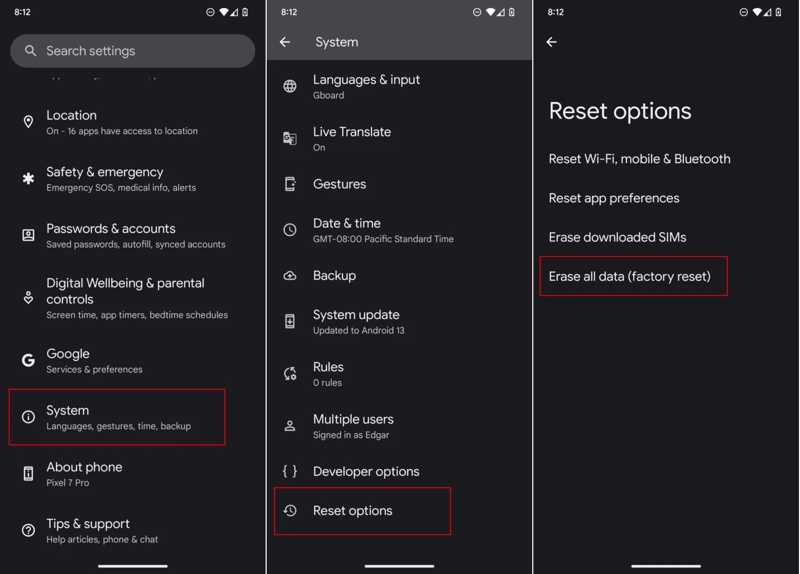
Step 3. Navigate to System and Reset options.
Step 4. Tap the Erase all data(factory reset).
Step 5. Read the alert and tap the Erase all data button again.
Step 6. Next, type in your PIN if prompted.
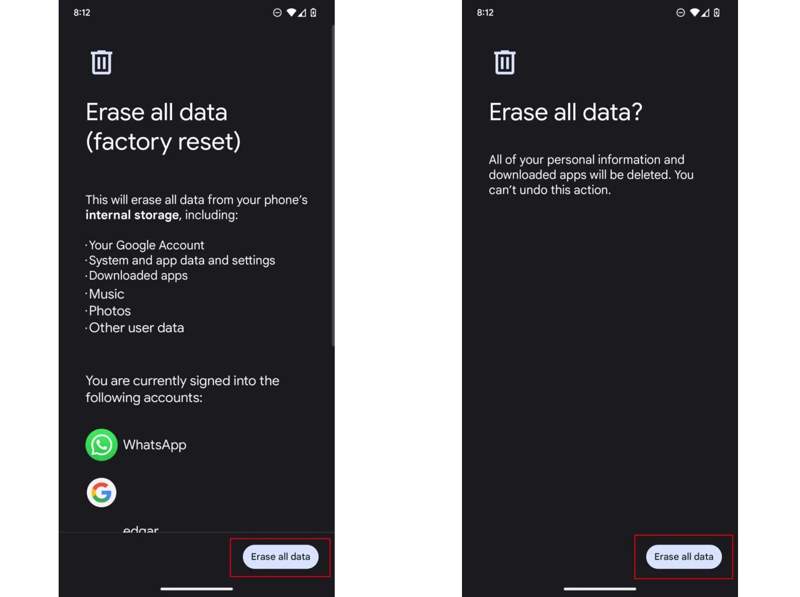
Step 7. Finally, tap the Erase all data button to confirm it.
Note: The process may be different, depending on your Android version and manufacturer.
Part 2: How to Restore Android to Factory Settings in Recovery Mode
If your phone is inaccessible or you forgot the lock screen password, you have to restore Android to factory settings in Recovery Mode. This method doesn't require extra software or hardware, but the physical buttons must be working now.
Step 1. Hold down the Power button until the power menu screen appears.
Step 2. Tap the Power off option.
Step 3. For most Android devices, press and hold the Volume Down + Power buttons together.
For Samsung phones, hold down the Volume Up + Power buttons simultaneously.
Step 4. When the bootloader screen pops up, release the buttons.
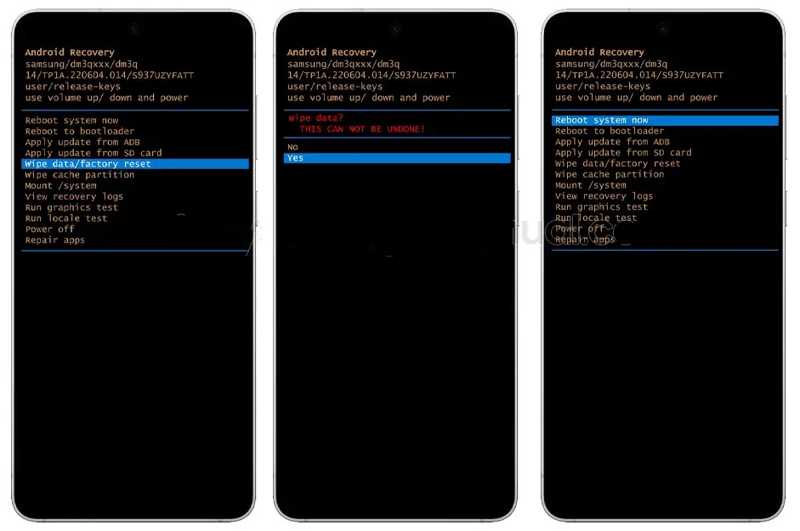
Step 5. Select the Wipe data/factory reset option with the volume buttons, and hit the Power button to perform it.
Step 6. Next, select the Yes option with the volume buttons and press the Power button.
Step 7. When factory restoring Android finishes, you will be back to the bootloader menu.
Step 8. Select the Reboot system now option and press the Power button to boot into the standard mode.
Part 3: How to Restore Android to Factory Settings with Google Find My Device
Google's Find My Device is another way to restore an Android tablet or phone to factory settings, even if your device is in your hand currently. The prerequisite is that you have turned on Find My Device. Moreover, this way requires the linked Google account and password.
On the Web Portal
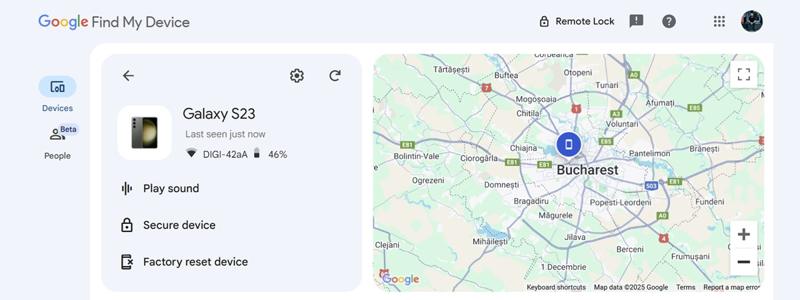
Step 1. Go to www.google.com/android/find in a web browser.
Step 2. Next, log in with your Google account and password linked to your device.
Step 3. Choose your device from the Devices tab to track it on the map.
Step 4. Click on the Factory reset device option.
Step 5. Read the warning and click the Next button.
On the Find My Device App
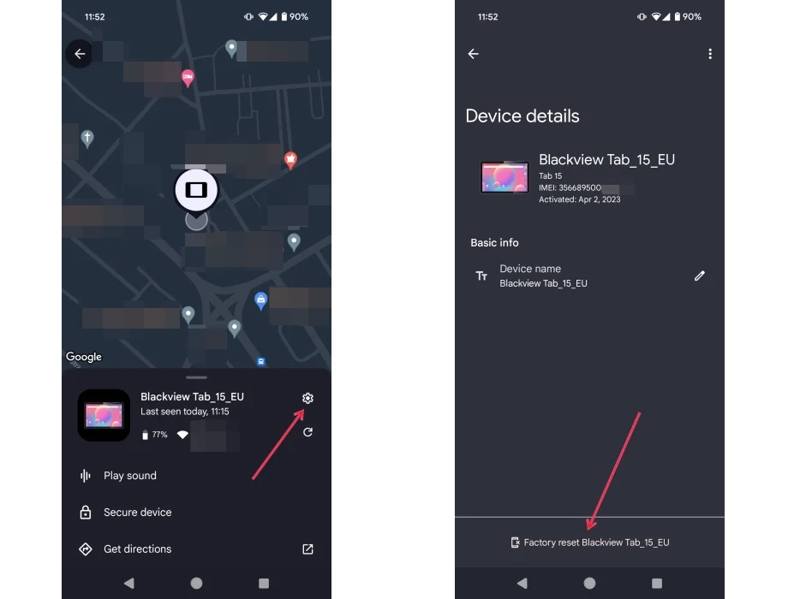
Step 1. Run Google's Find My Device app on another Android device.
Step 2. Sign in with your Google account.
Step 3. Go to the Devices tab and choose your device.
Step 4. Swipe upward from the bottom and tap the Settings button with a gear icon.
Step 5. Tap the Factory reset [your phone name] button at the bottom.
Step 6. Next, tap the Reset button to confirm it. If you have Android backup, you can recovery some data from those backup files.
Part 4: How to Restore Samsung to Factory Settings
For Samsung users, SmartThings Find and Samsung Find can be used for restoring an Android phone to factory settings remotely. The prerequisite is that you have turned on Find My Mobile.
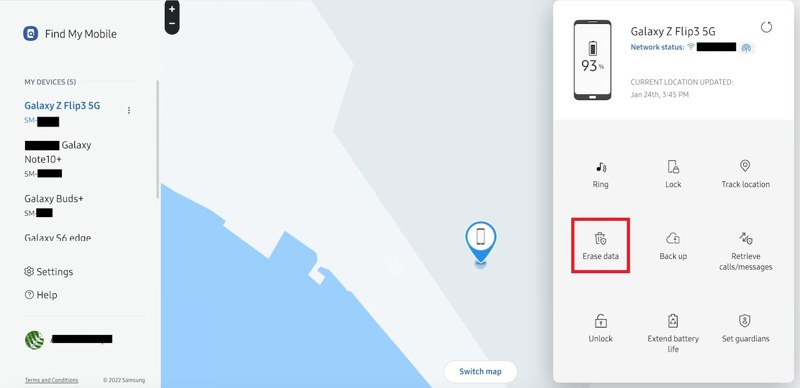
Step 1. Visit smartthingsfind.samsung.com/ or samsungfind.samsung.com/login in your browser.
Step 2. Type in the Samsung account and password associated with your phone.
Step 3. Choose your device under the MY DEVICES heading on the sidebar.
Step 4. Then, click the Erase data option on the toolbox.
Step 5. Authenticate with your Samsung account password again.
Step 6. Read the alert message and click the Erase button.
Part 5: Bonus Tip: How to Recover Data After Restoring Android
As mentioned previously, restoring factory settings on Android will erase all data on your device. Fortunately, Apeaksoft Android Data Recovery can help you get back your data after factory restoring. Moreover, the user-friendly design can simplify the workflow. . It is able to scan your phone memory and discover lost files. More importantly, the user-friendly interface makes it easy to navigate.

Downloaded by over 1,000,000 users
- Recover lost data after factory restoring Android.
- Work for a wide variety of data types.
- Available to locked, disabled, or frozen Android devices.
- Preview lost data before recovering it.
- Support all devices from Samsung, LG, Google, and more.
Secure Download
Secure Download

How to Recover Data After Factory Restoring Android
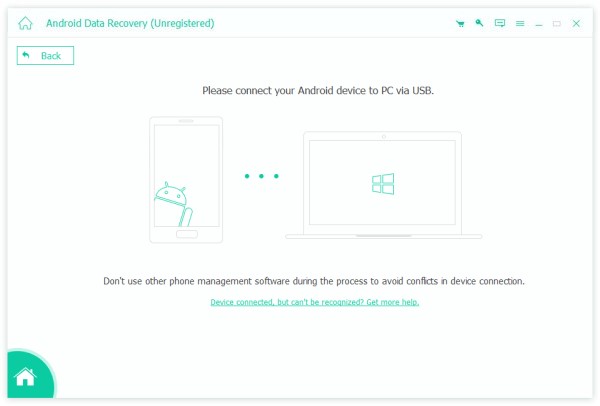
Step 1. Connect to your phone
Start the Android data recovery software once you install it on your computer. It is available on Windows 11 to XP and Mac OS X 10.6 or above. Make sure to turn on the USB Debugging mode on your phone. Then, connect it to your computer with a USB cable. If prompted, select Transfer files on the Use USB for dialog.
Step 2. Preview lost data
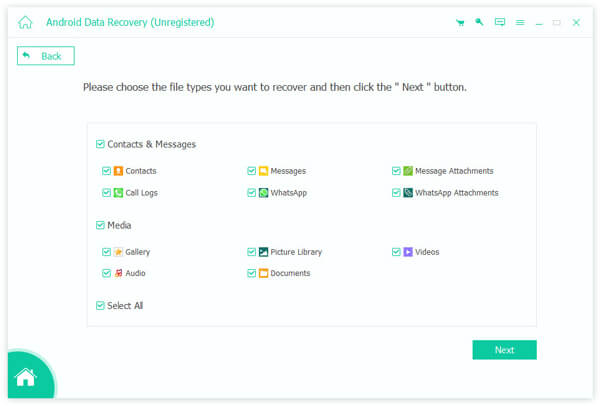
Once your device is detected, select the data types you want to recover. If you are not sure, tick Select All. Click the Next button to begin scanning your device. Then, preview the lost data by type.
Step 3. Recover data after restoring Android
Select the files and data you want to retrieve and click the Recover button. Set the destination folder and confirm data recovery. During the process, keep your device connected.
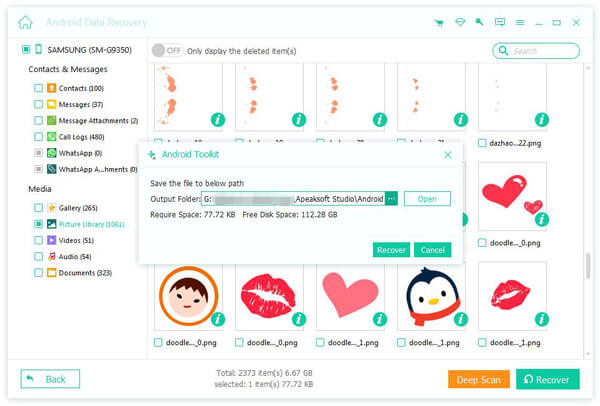
Note: If you cannot find the desired files, click the Deep Scan button to find more data.
Conclusion
This guide shared multiple ways to factory restore Android phones and tablets in various situations. If your device is accessible, the built-in Settings app offers the factory resetting option. If not, you have to complete the process in Recovery Mode. Google Find My Device and Samsung Find My Mobile are the remote options to reset Android devices. We also recommend Apeaksoft Android Data Recovery for data recovery after factory restoring.
 Apeaksoft Android Data Recovery
 Recover various deleted or lost data from all popular Android devices.
Secure Download
Secure Download
Related Articles




