

How to Restore Deleted Calendar from Your iPhone/iPad

Some users complained that their events had disappeared from Apple’s Calendar. That may be due to a variety of factors, such as iOS update, accidentally deletion, and more. If you have faced the same problem, here are four effective methods to restore the deleted Calendar on your iPhone. You can pick the right method and follow our steps to get back your lost events from your iPhone or iPad.
PAGE CONTENT:
Part 1: How to Restore Calendar on iPhone Without Backup
Without backup, you need a data recovery program to get your Calendar back on your iPhone, including the app and lost events. Apeaksoft iPhone Data Recovery, for example, is one of the best data recovery software programs for iPhone.
The Best Way to Recover Deleted Calendar on iPhone
- Restore Calendar on iPhone without backup.
- Open iTunes or iCloud backup for Calendar recovery.
- Preview recoverable events for selective recovering.
- Won’t interrupt existing data on your iPhone.
- Compatible with the latest models of iPhone and iPad.
Secure Download
Secure Download

How to Recover Lost Calendar on Your iPhone
Step 1. Scan your iPhone
Launch the best data recovery software once you install it on your PC. There is another version for Mac. Plug your iPhone into your PC with a Lightning cable. Go to the Recover from iOS Device tab and click the Start Scan button to begin scanning lost data on your device.

Tips: If you want to retrieve disappeared Calendar events on your iPhone from iTunes or iCloud backup, choose Recover from iTunes Backup File or Recover from iCloud Backup File.
Step 2. Preview disappeared events
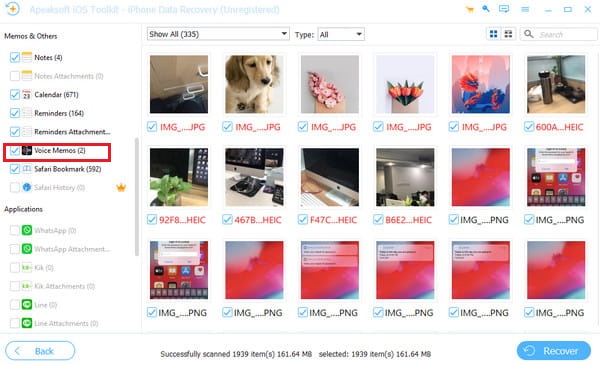
When the data scan finishes, choose Calendar under the Memos & Others section on the sidebar. Now, you can view all recoverable events. If there are too many events, choose Show Deleted Online from the top option. You can also select the contact album to recover contacts on your iPhone.
Step 3. Recover disappeared events
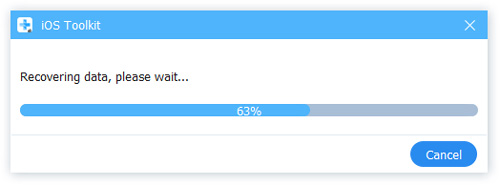
Select the events you want to recover and click the Recover button. Then, set an output folder and hit Recover to start retrieving deleted Calendar events on your iPhone.
Part 2: How to Recover Calendar on iPhone from iCloud
iCloud is the official cloud storage released by Apple for users. It can sync and back up Calendar events on your iPhone wirelessly. Therefore, it allows you to recover deleted events from iPhone Calendar.
How to Retrieve Synced Calendar on iPhone from iCloud
Step 1. Open the Settings app. Make sure to connect your iPhone to a stable Wi-Fi network.
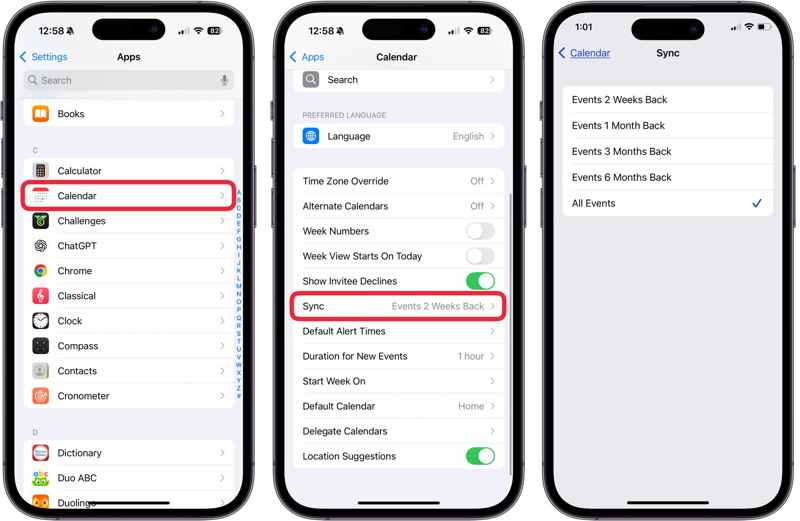
Step 2. Tap Apps and choose Calendar.
Step 3. Press Sync and tap All Events to sync every event.
Step 4. Back to the home screen and run the Calendar app.
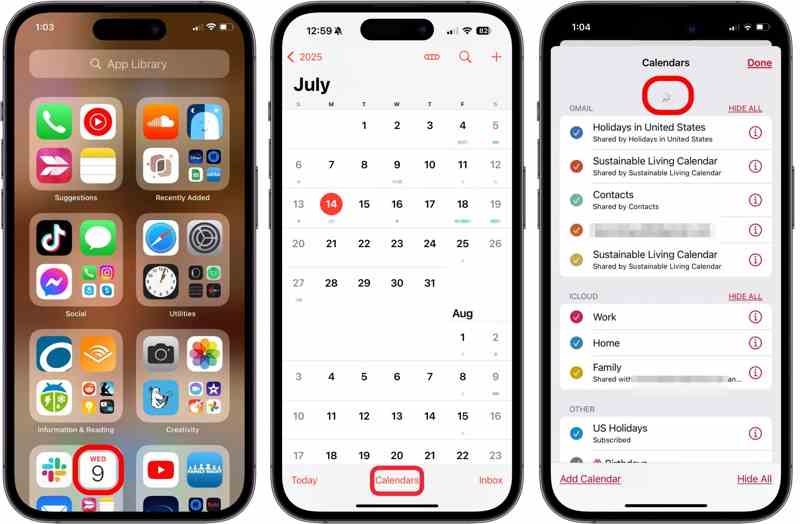
Step 5. Tap Calendars, and drag three fingers down from the top of your screen to refresh your events.
How to Restore Deleted Calendar on iPhone from iCloud
Step 1. Go to www.icloud.com/recovery/ in a browser, and sign in with your Apple account.
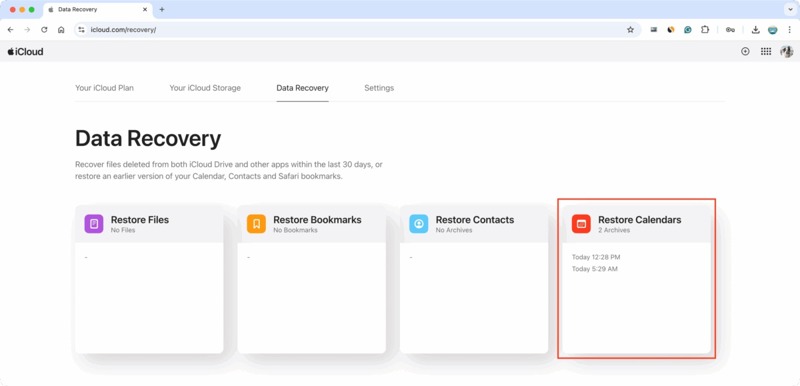
Tips: If two-factor authentication is turned on, enter the verification code that appears on your iPhone screen.
Step 2. Choose Restore Calendars.
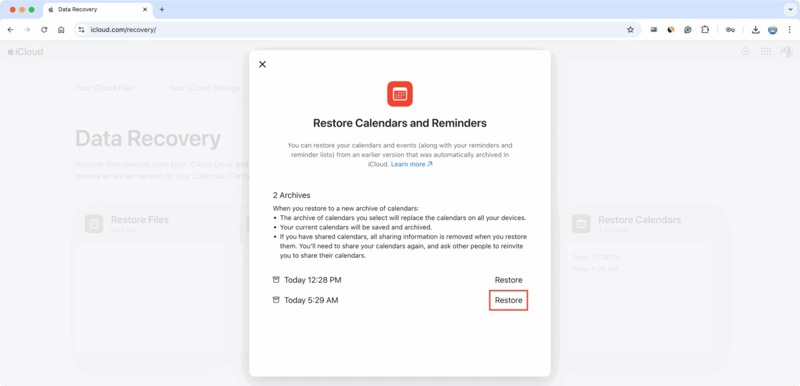
Step 3. Find the iCloud backup that may include the lost events and click the Restore button.
Step 4. Once it completes, your Calendar app will have all the events.
Part 3: How to Recover Calendar from iTunes/Finder Backup
If you back up your handset regularly to a computer using iTunes or Finder, you can recover lost calendars on an iPhone. Unlike iCloud backup, all existing data on your device will be overwritten by the backup.
On Windows and macOS Mojave or earlier
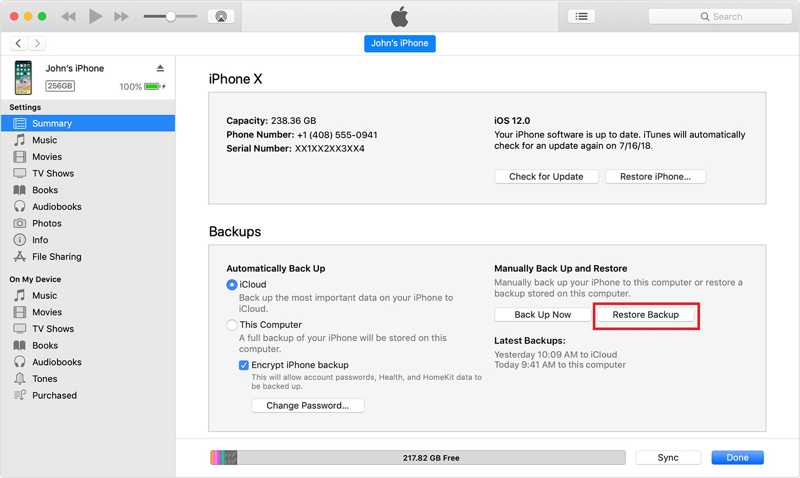
Step 1. Open the latest version of iTunes.
Step 2. Hook up your iPhone to your computer with a USB cable.
Step 3. Once your device is recognized, click the Phone button at the top left corner.
Step 4. Go to the Summary tab and move to the Backups section.
Step 5. Click the Restore Backup button.
Step 6. Choose the right backup and click the Restore button.
Note: If the iTunes backup is encrypted, enter the iTunes backup password to confirm it.
On macOS Catalina or later
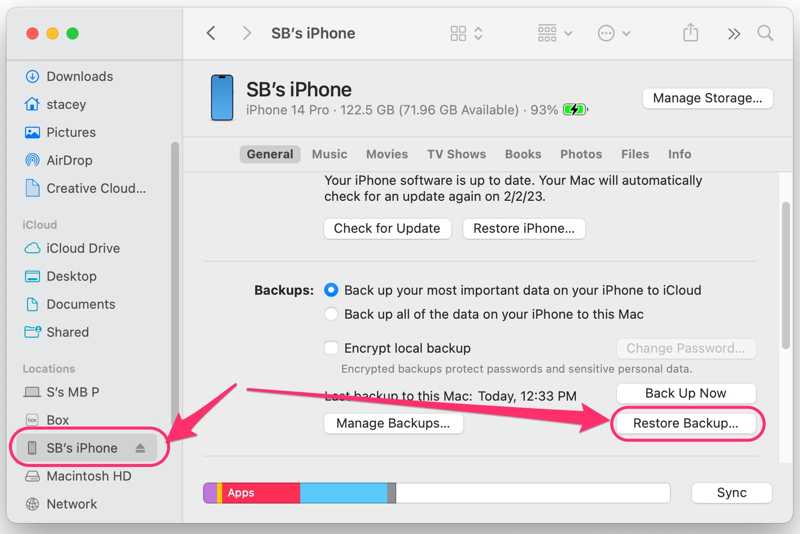
Step 1. Connect your iPhone to your Mac with a compatible cable.
Step 2. Run the Finder app on the Dock bar.
Step 3. Click your iPhone name on the sidebar once it is detected.
Step 4. Head to the General tab and locate the Backups area.
Step 5. Click the Restore Backup button, select the right one, and hit Restore.
Conclusion
This guide explained how to restore a Calendar on an iPhone in various situations. If you sync your iPhone Calendar to iCloud, you can get back lost events before the changes sync to iCloud. Or you can restore disappeared events from iCloud backup. iTunes or Finder backups are another option to retrieve your events. Apeaksoft iPhone Data Recovery lets you find the deleted calendars on your device without a backup.
Related Articles
This article is the ultimate guide on how to retrieve memory from a broken iPhone. Follow 4 simple methods here to recover data from a broken iPhone.
If you are trying to retrieve old text messages on your iPhone, read this step-by-step guide and pick an appropriate method.
This post will talk about how to recover iPhone files after factory reset, including photos, contacts, SMS, notes, and more in 5 ways!
This tutorial will introduce how to get iPhone out of recovery mode in 3 proven ways. Don't worry when your iPhone is stuck in recovery mode anymore!



