

How to Restore from iCloud Backup on iPhone with/Without Reset

Lost data on your iPhone? Once you lose important data on your device, you can restore it from iCloud backup. This guide explains how to restore from iCloud on a new/reset iPhone, how to restore without resetting, and what to do if the restore gets stuck. Explore a comprehensive tutorial in this post now.
PAGE CONTENT:
Part 1: What Does Restoring from iCloud Mean
Restoring from iCloud means bringing all data backed up to your iCloud account to your iPhone or iPad. Remember that all data synced to iCloud won’t be backed up to iCloud.
What Does an iCloud Backup Cover?
An iCloud backup covers all the information and settings stored on your device, including:
- Device settings, Home screen layout, and app organization.
- On-device information, like voicemail password.
- Apple Watch backups.
- Photos, videos, messages, and app data.
- iMessage, SMS, and MMS.
How to Check iCloud Backup on Your iPhone/iPad
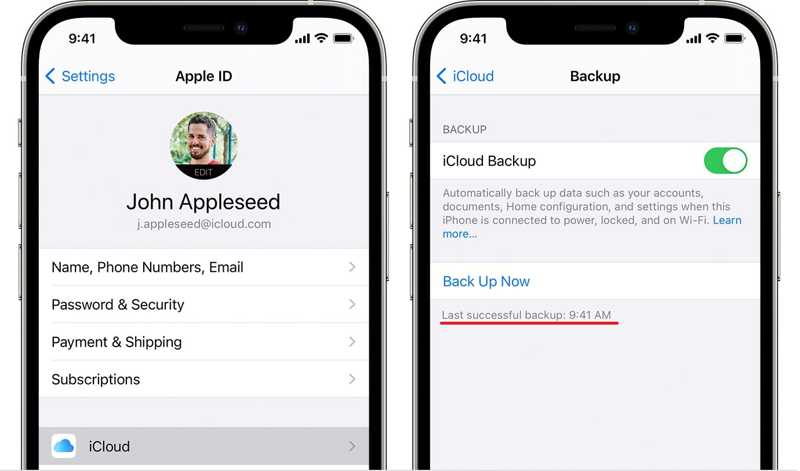
Step 1. Run the Settings app and tap on your profile.
Step 2. Choose iCloud and tap iCloud Backup.
Step 3. Then, you can see the time for the last successful backup under the Back Up Now button.
Part 2: [Official] How to Restore from iCloud on a New or Reset iPhone
If you get a new iOS device or delete important data, you can restore from iCloud backup. The prerequisite is that your device is new or you have erased your iPhone or iPad.
Preparation Before You Start
- A stable Wi-Fi connection
- Apple ID and password
- Enough battery or power connection
- A recent iCloud backup
Step-by-Step Guide
Step 1. Go to the General tab in your Settings app. If you are using a new device, skip to step 5 directly.
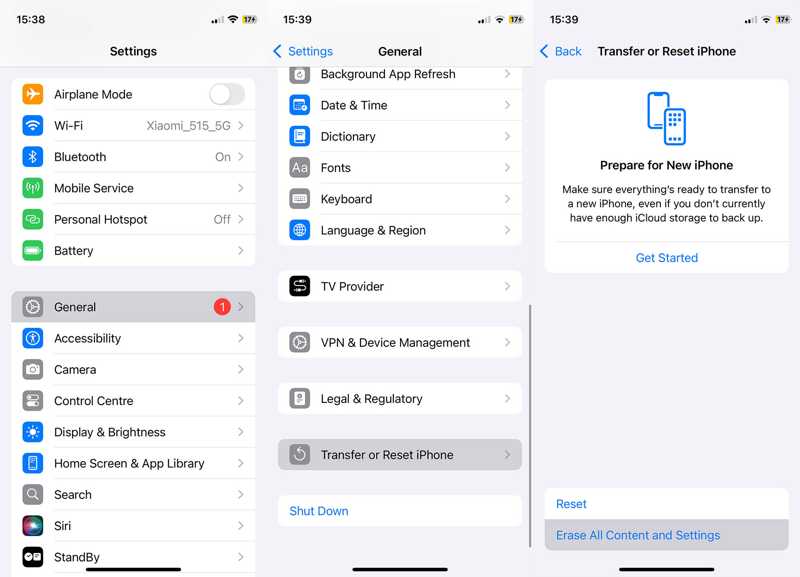
Step 2. Tap Transfer or Reset iPhone and choose Erase All Content and Settings. Note that this will factory reset your device.
Step 3. Read the onscreen message and tap Continue.
Step 4. Input your iPhone passcode or Apple ID password to confirm erasing your device.
Step 5. When your iPhone restarts in the Hello screen, set it up following the onscreen instructions.
Step 6. Connect your device to a Wi-Fi network.
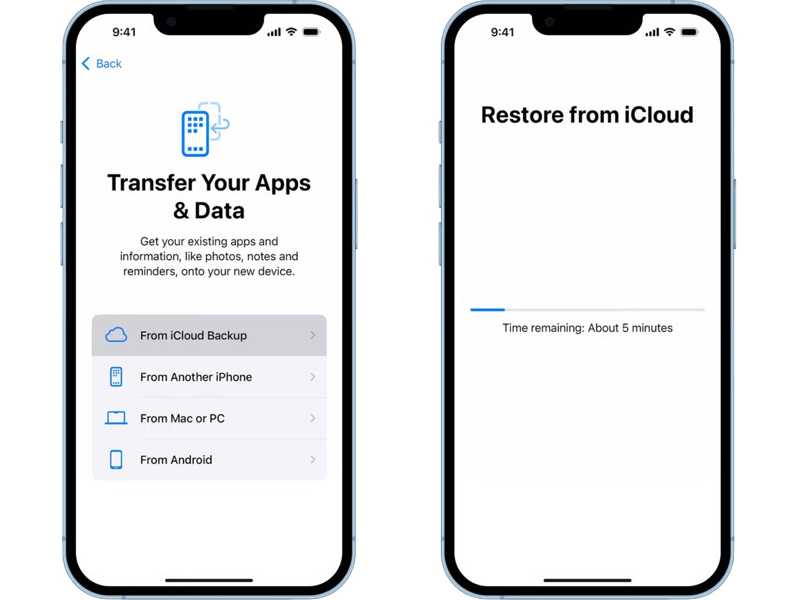
Step 7. Choose From iCloud Backup on the Apps & Data screen.
Step 8. Enter your Apple ID and password, and pick a proper backup to begin restoring from iCloud on your iPad or iPhone.
Step 9. Then, complete setting up your device. However, this method cannot let you access iCloud backup, and you also need to reset your iPhone, which takes much time.
Tips:
• This method will erase all existing data.
• Restore time depends on backup size and network speed.
• Please do not interrupt the restore process, or it will cause failure.
Part 3: [Alternative] How to Restore from iCloud Without Resetting
Can I restore from iCloud backup without resetting? The answer is Yes. If you don't want to erase your current iPhone, you can use a third-party tool like Apeaksoft iPhone Data Recovery to access iCloud backups and extract selected data. What's more, it supports the latest versions of iOS and iPadOS.
Use Cases
- You need to restore from iCloud backup without data loss.
- You don't want to restore the whole backup. You only need specific files (photos, messages, etc.).
- You want to preview the backup files to decide which one to choose.
Secure Download
Secure Download
How to Restore from iCloud Without Resetting iPhone
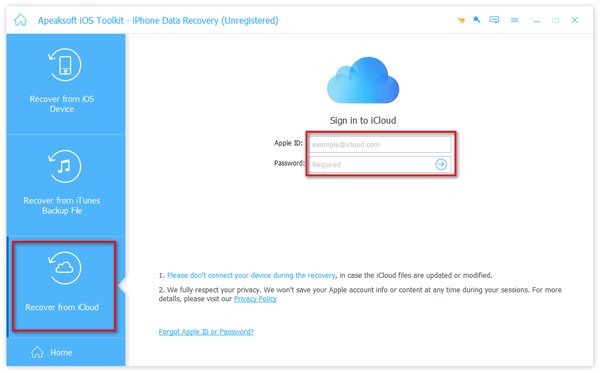
Step 1. Sign in to your iCloud account
Launch the best data restoring software and choose the Recover from iCloud tab.
Sign in with your Apple ID and password.
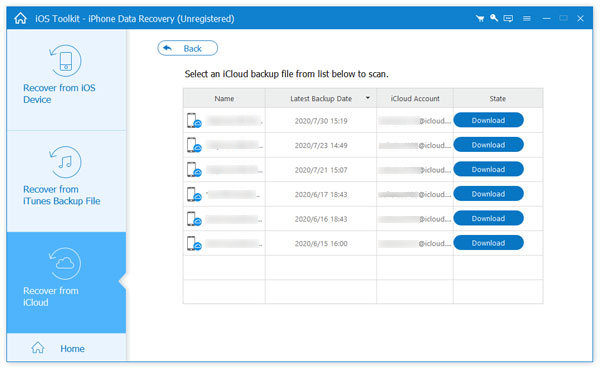
Step 2. Download your iCloud backup
Click iCloud Backup and download the backup according to the date.
Step 3. Preview data
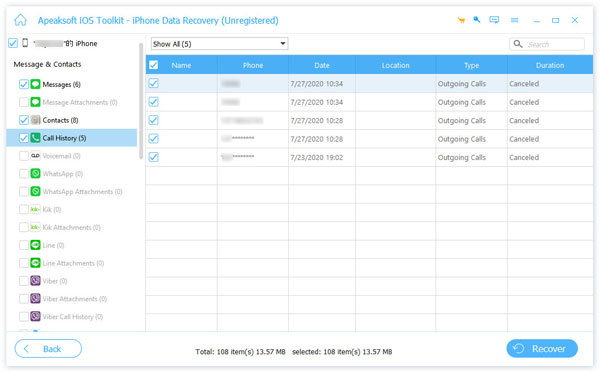
Select the data types you want to restore and click Next. Then, preview the data stores in your iCloud backup. If you want to recover messages, for example, select Messages.
Step 4. Restore data from iCloud
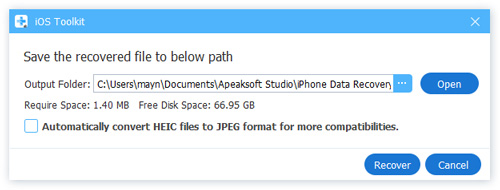
Check all files and items you want to restore and click the Recover button. Set an output folder and hit Recover.
Part 4: [Troubleshooting] Fix iPhone Stuck on Restore from iCloud
If your iPhone is stuck on restoring from iCloud for a long time or forever, it means something is wrong. You can try the solutions below to fix this problem.
Solution 1: Restart Your Device
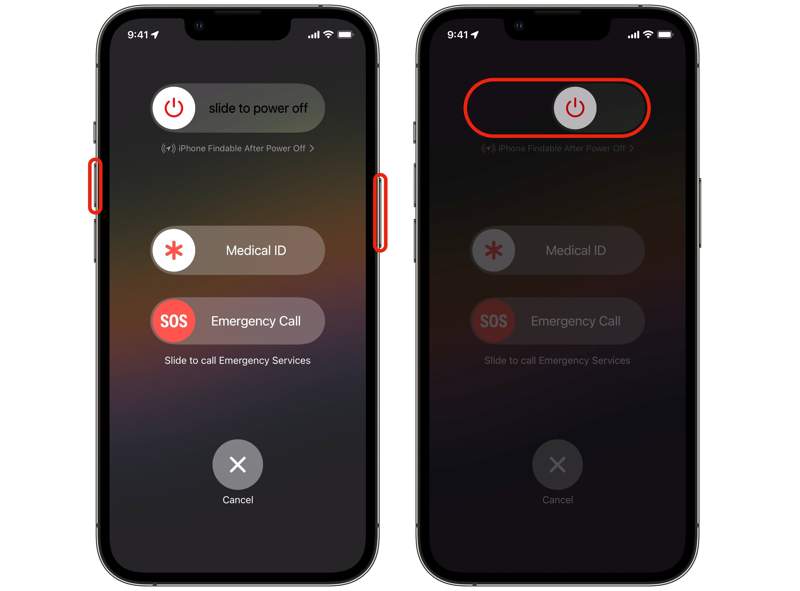
Step 1. For iPhone X and later, keep pressing either Volume button and hold the Side button.
For iPhone 8 and earlier, hold the Side or Sleep/Wake button.
Step 2. Release them when you see the power-off screen.
Step 3. Move the slider to shut down your device.
Step 4. Then, hold the Side button until the Apple logo appears.
Solution 2: Connect to a Wi-Fi Network
If your new iPhone gets stuck restoring from iCloud, you’d better check your internet connection. You need to connect to a Wi-Fi network before restoring iCloud backup, rather than cellular data or public networks.
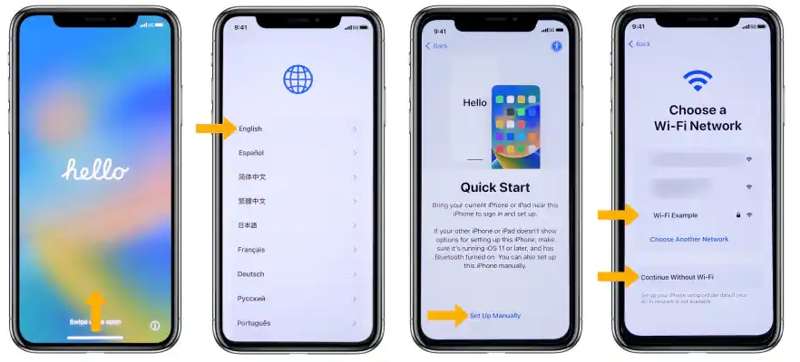
Step 1. Start setting up your new iPhone or old iPhone after resetting.
Step 2. Select your language and country.
Step 3. Tap Set Up Manually on the Quick Start screen.
Step 4. Next, select your Wi-Fi network when prompted and enter the Wi-Fi password.
Step 5. Set Face ID and passcode following the onscreen instructions.
Step 6. Then, choose From iCloud Backup on the Apps & Data screen, and restore iCloud backup.
Solution 3: Update Software through iTunes
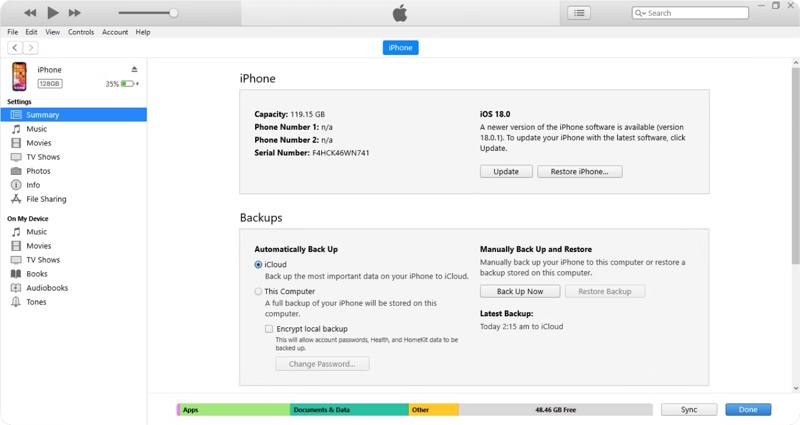
If your screen gets stuck on restoring from iCloud time remaining estimating, you can fix it by updating the software using iTunes or Finder. This solution requires a computer and a compatible USB cable.
Step 1. Connect your iPhone to a computer with a USB cable.
Step 2. Run the latest version of iTunes. If your computer runs macOS Catalina or later, run Finder instead.
Step 3. Click the Phone button in iTunes or your device name in Finder after your iPhone is detected.
Step 4. Go to the Summary or General tab, and click the Update button to search for updates.
Step 5. Then, follow the onscreen instructions to install the update on your device.
Step 6. Next, try restoring from iCloud again.
Part 5: FAQs About Restoring from iCloud
How long does it take to restore from iCloud?
It usually takes 1 to 4 hours. The specific time depends on your backup size and your internet condition.
Small backup: 30-60 minutes.
Large backup: 1-4 hours or more.
Why is Restore from iCloud Stuck on "Estimating Time Remaining"?
This usually happens due to an unstable internet connection, a large backup, or temporary server delays. Try restarting your iPhone, switching to a faster Wi-Fi network, or updating your device before restoring again.
Can I Restore Only Photos from iCloud?
No, Apple does not support partial restore. To restore a certain type of data, you can choose Apeaksoft iPhone Data Recovery.
Conclusion
This guide explains how to restore from iCloud backup without resetting your device and what you can do if your screen gets stuck on iCloud restoring. You can follow our steps to restore data from iCloud backup. Apeaksoft iPhone Data Recovery is the best way to open your iCloud backup and extract lost files and data from the backup file.
Related Articles




