


How to Restore Your WhatsApp Conversations from iCloud

As an instant messaging app, WhatsApp is popular across all generations. It keeps your chats, messages, and multimedia attachments. However, WhatsApp doesn't store your chat history on its server and cannot recover deleted messages. On the other hand, it enables you to back up chats to iCloud on an iPhone. When you lose important messages, you can restore WhatsApp from iCloud. This article shares a step-by-step guide.
PAGE CONTENT:
Part 1: How to Restore WhatsApp from iCloud on iPhone
You can restore WhatsApp from iCloud if you have backed up your chat. Therefore, you need to check the backup status first. Moreover, you need to reinstall WhatsApp during the process. The linked phone number is indispensable.
Step 1. Open your WhatsApp app.
Step 2. Go to the Settings tab.
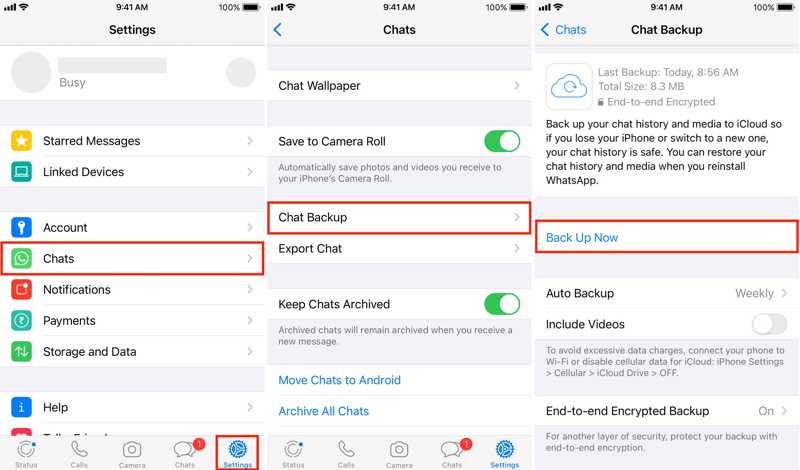
Step 3. Navigate to Chats and Chat Backup.
Step 4. Check the Last Backup.
Tips: WhatsApp allows you to auto-back up or manually back up conversations.
Step 5. Go back to the home screen.
Step 6. Long-press the WhatsApp icon and choose Remove App.
Step 7. Tap Delete App and choose Delete.
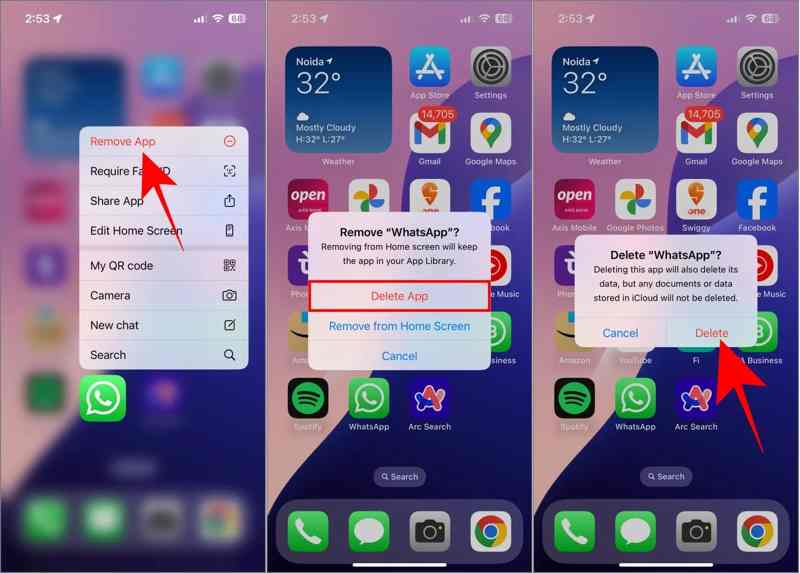
Step 8. Restart your iPhone and install WhatsApp from the App Store.
Step 9. Run WhatsApp and set it up with the same phone number.
Step 10. You don't need to directly access iCloud Backup, but tap Restore Chat History on the Restore from iCloud screen.
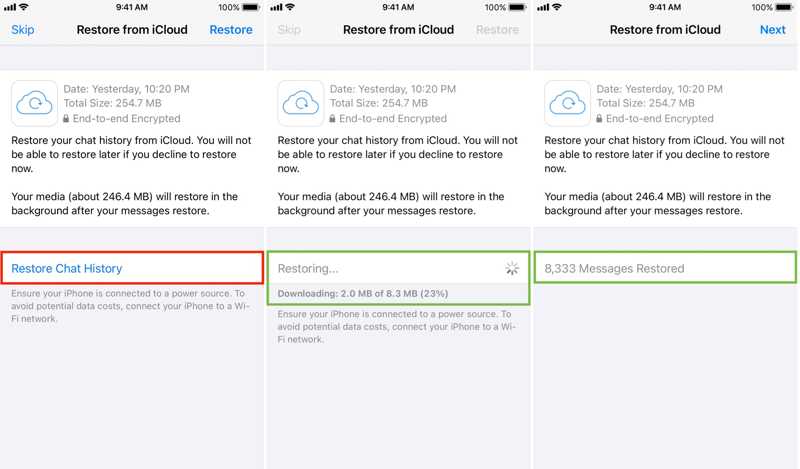
Step 11. Once it finishes, tap Next.
Step 12. Complete the setup process.
Step 13. Now, you will find WhatsApp restored from iCloud.
Part 2: What to Do If You Cannot Restore WhatsApp from iCloud
How long does it take to restore WhatsApp from iCloud? It typically takes 5 to 30 minutes. If it takes longer, the restoration process may get stuck. Try the solutions below to fix this problem:
Solution 1: Free up Space
If you can't restore WhatsApp from iCloud, the first thing to do is check your iPhone storage. Without enough space, you have to free up space on your iPhone before restoring.
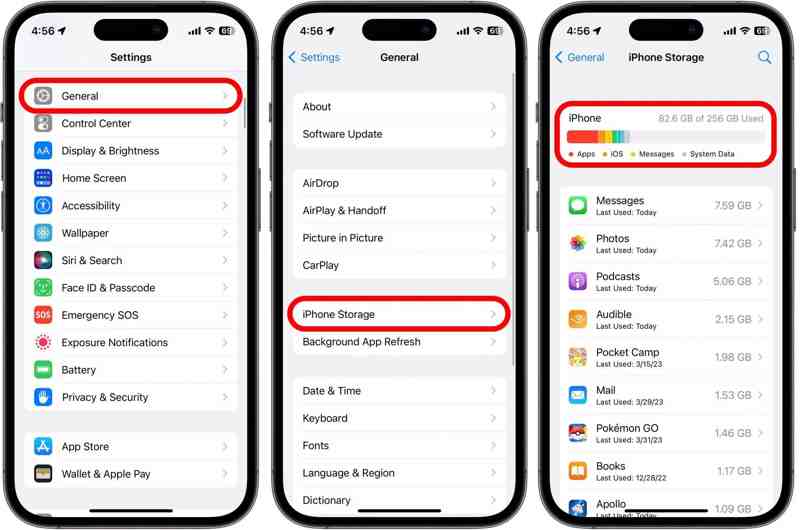
Step 1. Run the Settings app.
Step 2. Go to General and iPhone Storage.
Step 3. Check whether the free space is sufficient for the WhatsApp backup. If not, uninstall useless apps to free up space.
Further Reading
Solution 2: Check Network
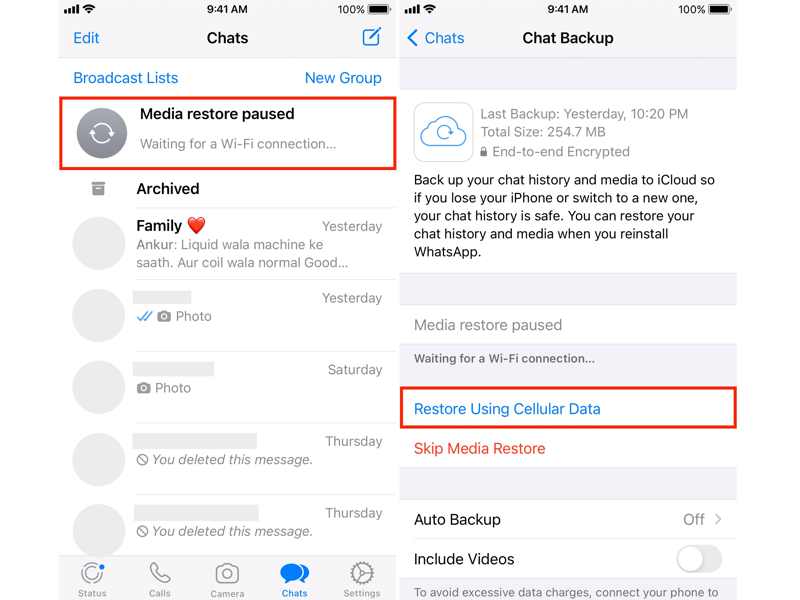
WhatsApp restoration from iCloud gets stuck, partly due to a poor internet connection. The process relies on a stable network. If you intend to restore WhatsApp using cellular data, you must enable Restore Using Cellular Data in WhatsApp.
Solution 3: Install WhatsApp again
Another solution to fix restoring WhatsApp from iCloud that gets stuck is to do a fresh install of WhatsApp. Uninstall the messaging app from your iPhone. Then, download it from your App Store again. Open the app and try to restore the chats.
Part 3: How to Restore WhatsApp Without iCloud
Apeaksoft iPhone Data Recovery allows you to extract lost data from iCloud without uninstalling the app. If you cannot restore WhatsApp from iCloud due to a lack of a backup, the software can help you retrieve deleted WhatsApp messages directly from your iPhone's memory.

Downloaded by over 1,000,000 users
- Restore WhatsApp chats in three steps.
- Recover lost WhatsApp messages without a backup.
- Preview WhatsApp messages and recover specific items.
- Work for WhatsApp messages and multimedia attachments.
- Support the latest versions of iOS and iPadOS.
Secure Download
Secure Download

How to Restore WhatsApp Without iCloud
Step 1. Install iPhone Data Recovery
Launch the iPhone Data Recovery software after installing it on your computer. It is compatible with Windows 11/10/8/7/XP/Vista and macOS 10.7 or later. Choose the Recover from iOS Device mode. Connect your iPhone to the computer with a Lightning cable. Once the software detects your iPhone, click the Scan button to search for lost data on your memory.
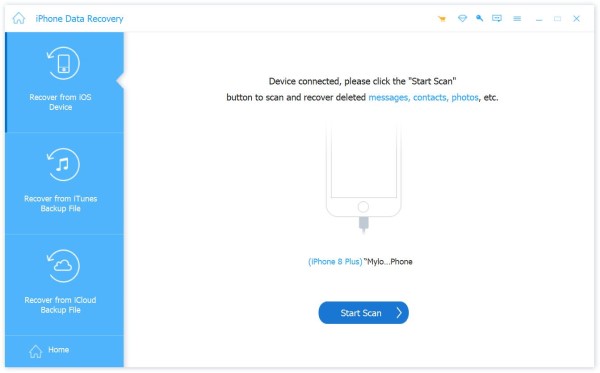
Step 2. Preview WhatsApp chats
When data scanning finishes, the preview window will pop up. Select the desired data types on the sidebar, such as WhatsApp and WhatsApp Attachments. Then, you can view them on the main panel. If there are too many chats, select Show Deleted Only to filter the deleted messages.
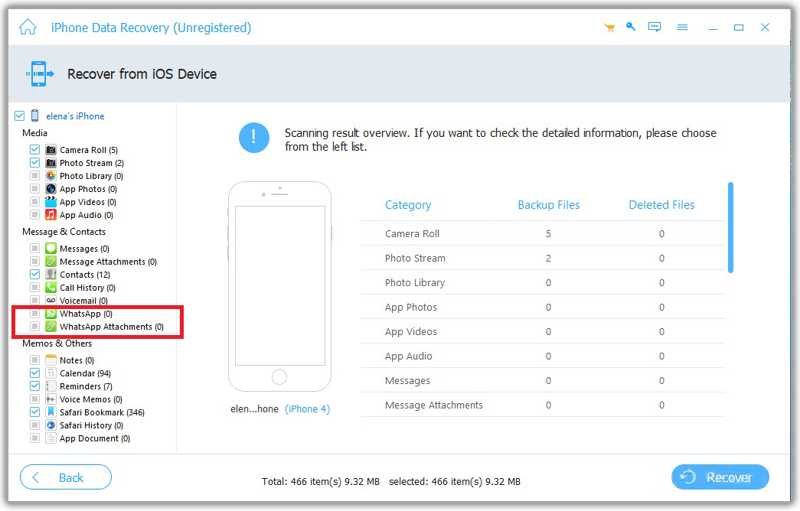
Step 3. Restore WhatsApp without iCloud
Select the WhatsApp messages and attachments that you want to retrieve. Click the Recover button at the bottom right corner. In the dialog, click the Open button and select an output folder. Finally, click the Recover button again to restore WhatsApp without iCloud backups.
Note: The software won’t interrupt existing data on your iPhone or uninstall WhatsApp.
Conclusion
This guide explained the entire process for restoring WhatsApp from iCloud if you have enabled automatic backup or manually backed up your chats to iCloud. Furthermore, we explained what to do if the restoration process gets stuck, freezes, or fails. Apeaksoft iPhone Data Recovery is the ultimate solution for retrieving lost WhatsApp messages and attachments from your iPhone's memory without an iCloud backup. Moreover, it simplifies the workflow with a user-friendly interface.
Related Articles

 Apeaksoft iPhone Data Recovery
 Recover deleted or lost data from iOS Devices, iTunes, and iCloud backup.
Secure Download
Secure Download



