


How to Restore iPad from an iCloud, iTunes/Finder Backup

If something is wrong with your iPad, you can always try restoring it from a backup. After accidentally deleting photos, videos, contacts, SMS, and more, for example, you can restore lost data from a backup. The good news is that you have multiple ways to back up and restore your iPad, depending on your settings. This concrete guide shares the proven methods to restore an iPad from backup and demonstrates the detailed steps.
PAGE CONTENT:
Part 1: How to Restore iPad from iCloud Backup
To restore an iPad from an iCloud backup, you must have a backup. Moreover, you need to erase your device before the process if you are restoring a used iPad. The process requires your Apple ID and password.
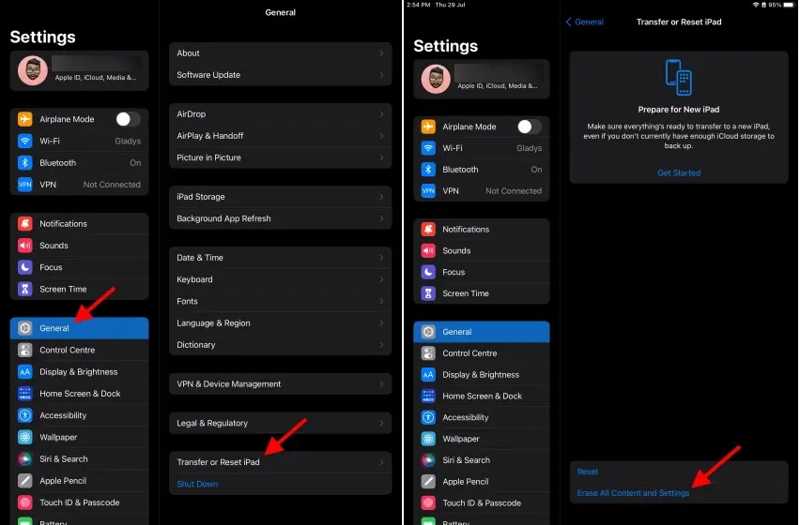
Step 1. Turn on your iPad and open the Settings app.
Step 2. Go to General, then Transfer or Reset iPad.
Step 3. Tap Erase All Content and Settings.
Tips: Before the process, you should turn off Find My iPad.
Step 4. Read the alert and tap the Continue button.
Step 5. Enter your iPad passcode and tap Erase Now to initiate erasing it.
Step 6. When your iPad restarts, set it up as a new device.
Step 7. Connect to a Wi-Fi network during the process.
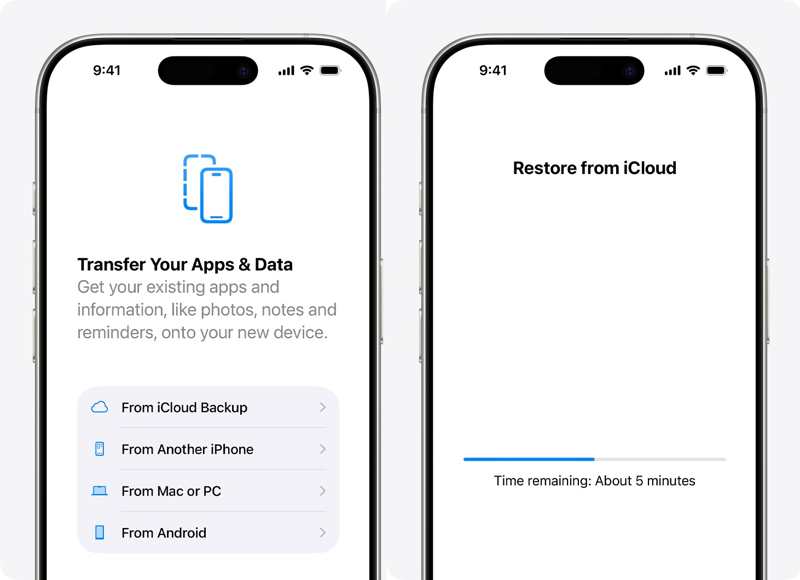
Step 8. Choose the From iCloud Backup option on the Transfer Your Apps & Data screen.
Step 9. Type in the Apple Account and password associated with your iPad.
Step 10. Choose a backup and start restoring the iPad from a previous backup.
Step 11. When it is done, complete the setup.
Part 2: How to Restore iPad from iTunes Backup
Some people prefer to back up their data to computers. You can restore an iPad from an iTunes backup. Bear in mind that the backup will overwrite the current data on your iPad. This way doesn’t require an internet connection.
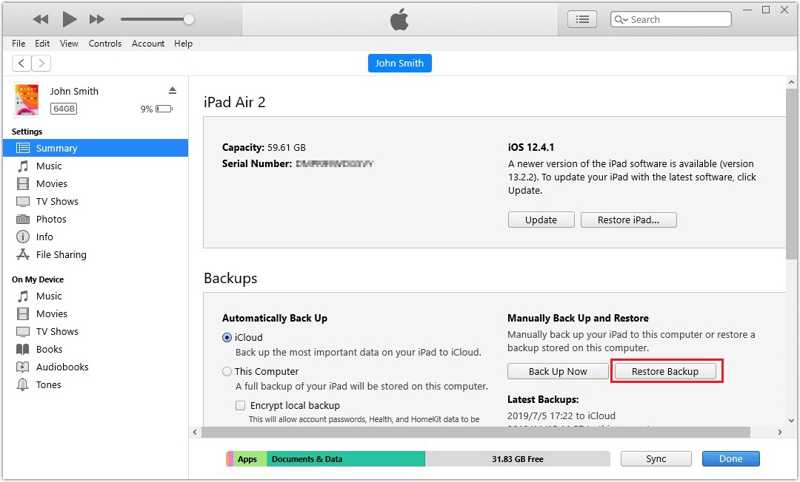
Step 1. Connect your iPad to your PC with a USB cable.
Tips: iTunes is available on macOS Mojave and earlier, too.
Step 2. Open the latest version of iTunes.
Step 3. Click the Device button at the top left corner.
Step 4. Go to the Summary tab and click Restore Backup at the Backups heading.
Step 5. Choose the right backup and click Restore.
Note: If the backup is encrypted, enter the password.
Part 3: How to Restore iPad from Finder Backup
Apple has stopped iTunes when releasing macOS Catalina. Instead, you can back up and restore your iOS device with Finder. In other words, you need to restore the iPad from a computer backup if you are using macOS Catalina or later.
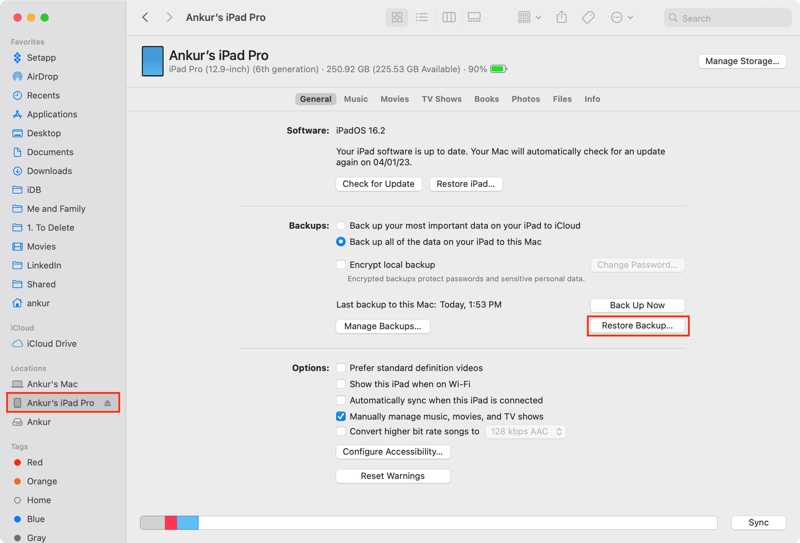
Step 1. Plug your iPad into your Mac with a compatible cable.
Step 2. Run the Finder app.
Step 3. After your device is recognized, click your iPad name and head to General.
Step 4. Click the Restore Backup button in the Backups section.
Step 5. Pick a proper backup, enter the iTunes backup password if the backup is encrypted, and hit Restore.
Further Reading
Part 4: How to Restore an iPad Without a Backup
The iCloud and computer backups will remove current data on your iPad. Fortunately, Apeaksoft iPhone Data Recovery can help you restore an iPad without a backup. It scans your iPad memory and looks for lost data quickly. Moreover, it can open iCloud or iTunes backup and extract specific files.

Downloaded by over 1,000,000 users
- Recover lost data on iPad without a backup.
- Extract data from iCloud/iTunes backup without resetting the iPad.
- Preview lost data on your iPad.
- Support photos, videos, music, contacts, SMS, etc.
- Compatible with the latest editions of iPadOS.
Secure Download
Secure Download

How to Restore Your iPad Without a Backup
Step 1. Scan your iPad
Run the iPad data recovery software after installing it on your PC. There is another version for Mac. Choose the Recover from iOS Device tab. Link your iPad to your PC with a Lightning cable. Follow the onscreen instructions to trust this computer. Once your device is detected, click the Start Scan button.

Step 2. Preview iPad data
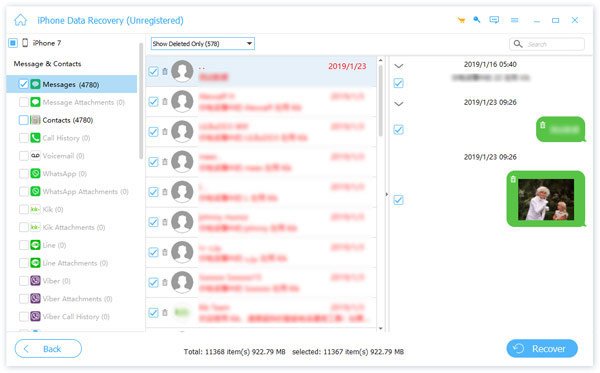
After data scanning, you can view your iPad data by type. For instance, choose Camera Roll to view photos on your iPad.
Step 3. Restore iPad without backup
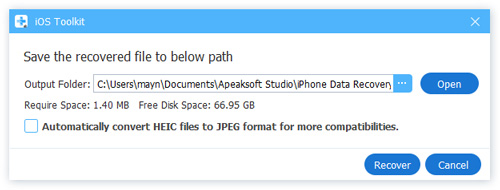
Select the files and items you want to retrieve and click the Recover button at the bottom right corner. Click the Open button to select an output folder and hit Recover to begin restoring your iPad without a backup.
Conclusion
This guide shared multiple ways to restore your iPad from a backup wirelessly or with a computer. If you have an iCloud backup, erase your device and restore the backup through your Apple Account credentials. With a computer backup, you can restore your device using the latest version of iTunes or Finder. Apeaksoft iPhone Data Recovery is a simple way to retrieve lost data from your iPad without a backup.
 Apeaksoft iPhone Data Recovery
 Recover deleted or lost data from iOS Devices, iTunes, and iCloud backup.
Secure Download
Secure Download
Related Articles




