


How to Bypass iPad Locked to Owner Without Password

You turn on your iPad after a reset or right after buying a second-hand device, and suddenly see the iPad Locked to Owner screen. At this point, the device asks for the original Apple ID and password, and you can't continue the setup.
This happens because of Activation Lock, a security feature to protect your device from unauthorized access. While it helps keep your data safe, it can also become a problem if you forget the Apple ID password. In this guide, we'll share the most effective methods to bypass or remove the iPad Locked to Owner, so you can choose the solution that fits your case.
PAGE CONTENT:
Part 1: How to Unlock iPad Locked to Owner with Apple ID or Passcode
If you know the Apple ID credentials linked to the iPad or the most recent device passcode, it can be easy to unlock the iPad from the Locked to Owner screen. Before you begin, make sure your iPad is connected to a stable Wi-Fi network.
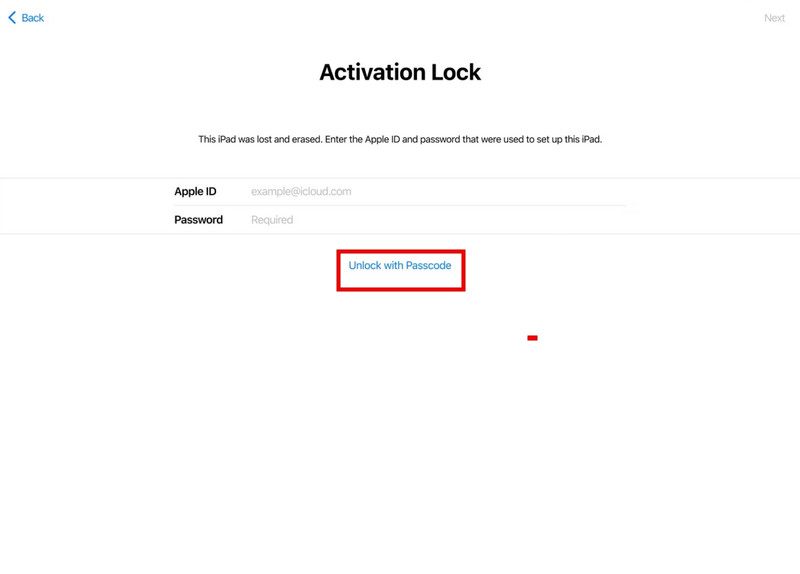
Step 1. On the Locked to Owner screen, enter the original Apple ID and password, and tap Return to unlock your iPad.
Step 2. You can also tap Unlock with Passcode and choose Use Device Passcode to unlock the iPad using the most recent screen passcode. This option is available only if Find My and Two-Factor Authentication were enabled before the device was locked.
Part 2: How to Bypass iPad Locked to Owner Without Passcode
What if you don't know the Apple ID password or the previous screen passcode? In that case, you won't be able to unlock the iPad directly; you'll need to bypass the Activation Lock to regain access to your iPad. A dedicated unlocking tool may make this process much easier.
If you're stuck on the iPad Locked to Owner screen, Apeaksoft iFoneKit can help you bypass the Apple Activation Lock to unlock your iPad easily and safely. No matter what type of lock is preventing you from accessing your device, this tool can handle it effortlessly.

Downloaded by over 1,000,000 users
- Remove the previous owner's Apple ID from a second-hand iPhone/iPad.
- Wipe screen passcode, Face ID, and Touch ID within a few clicks.
- Bypass MDM, iTunes Backup encryption, and Screen Time password easily.
- Get rid of SIM card restrictions from different carriers.
Secure Download
Secure Download

How to Unlock iPad with Apeaksoft iFoneKit:
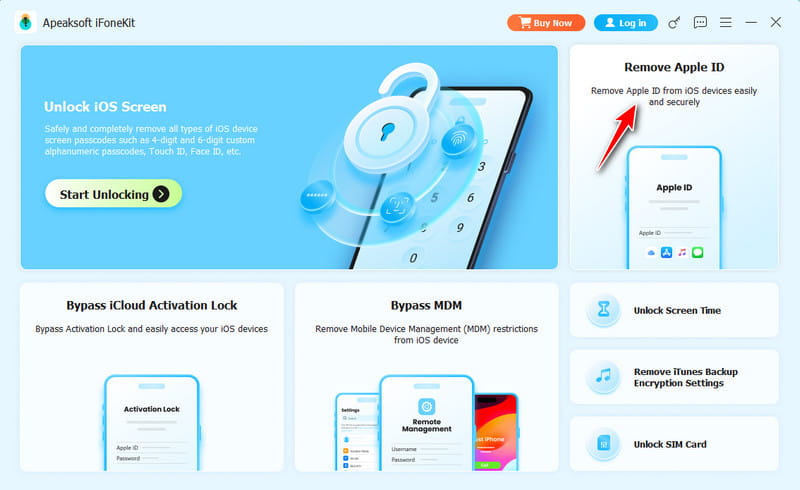
Step 1. Download and launch the software on your computer. Choose Remove Apple ID mode. Connect your iPad to a computer and tap Trust on your iPad.
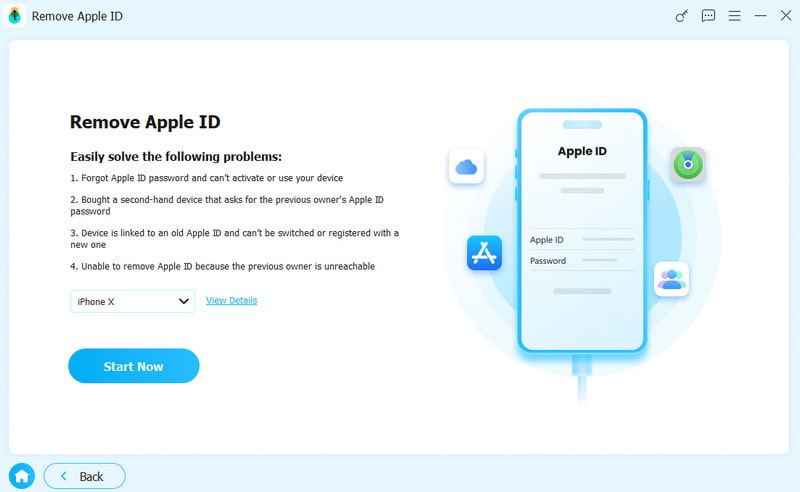
Step 2. Click the Start Now button to start removing the Apple ID.
If Find My is disabled, iFoneKit will start removing your Apple ID immediately.
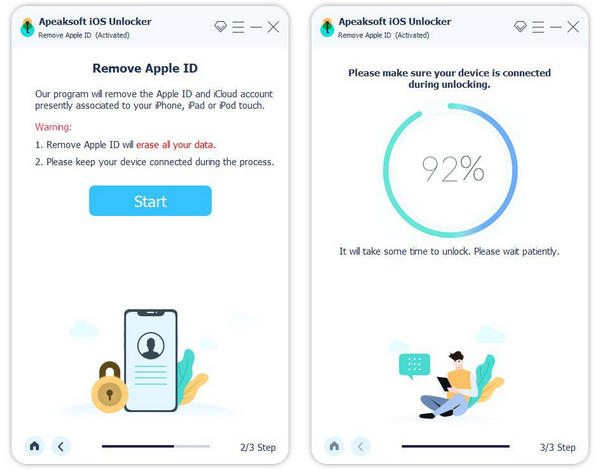
If Find My is enabled, you'll need to reset your iPad first. Follow the on-screen instructions to perform the reset. This step will erase all data on your device, so make sure to back up your important data in advance.
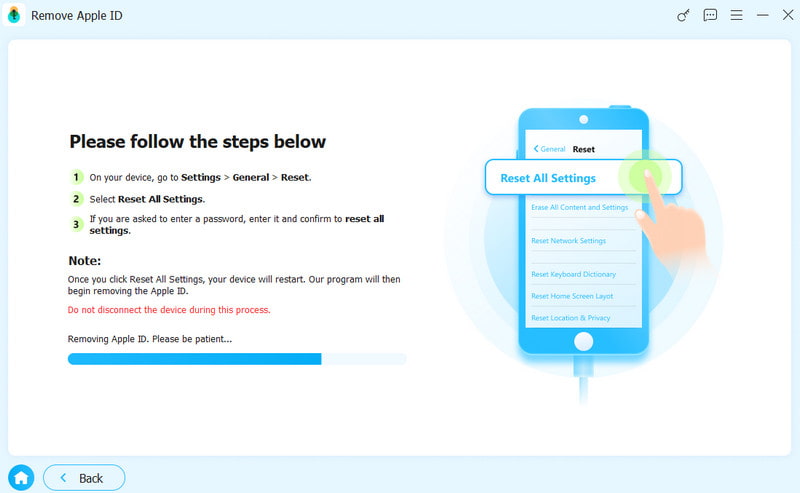
Note: After bypassing Activation Lock, some features like iCloud login, App Store access, or cellular service may be limited depending on the device model and system version.
Part 3: How to Unlock iPad Locked to Owner - 3 Proven Ways
Is there any workaround to unlock iPad locked to owner without a password? Yes, here are 3 alternatives that are useful for certain situations. Check them to
Contact the Previous Owner to Remove It via iCloud
Best for: Users who can get in touch with the previous owner of the iPad.
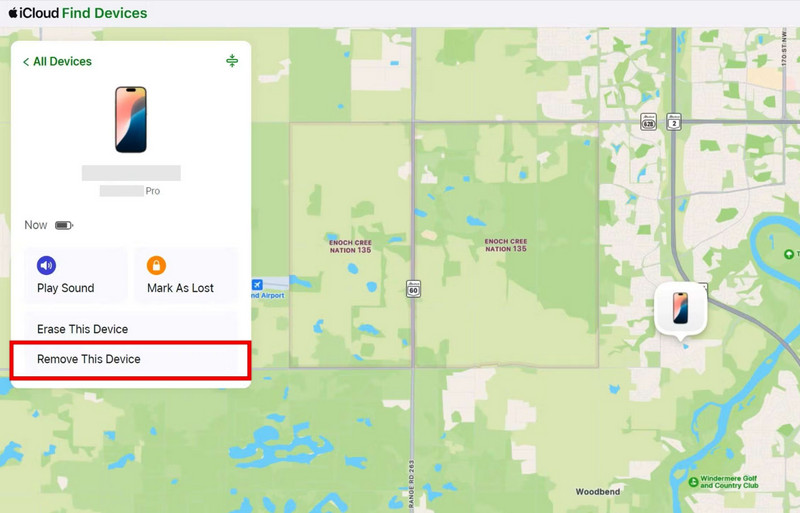
If you can contact the previous owner, requesting the original owner to remove your iPad from his ID is the most effective way. The original owner can log into their iCloud account and remotely remove the device from their Apple Account.
Step 1. Ask the previous owner to visit iCloud.com and sign in with their Apple ID.
Step 2. Click the Find My option and select the iPad from the list of devices.
Step 3. Click Remove This Device, then confirm the removal.
Bypass iPad Locked to Owner via DNS
Best for: Advanced users with older iPad versions who need a temporary solution to access limited features.
Bypassing the Activation Lock using DNS is a workaround that only works in certain scenarios. It doesn't actually remove the Activation Lock, but it may give you access to some basic functions. This method only works on iPads running iOS 8 to iOS 10.3.3.
Note: This solution provides temporary and limited access only, and the success rate is relatively low.
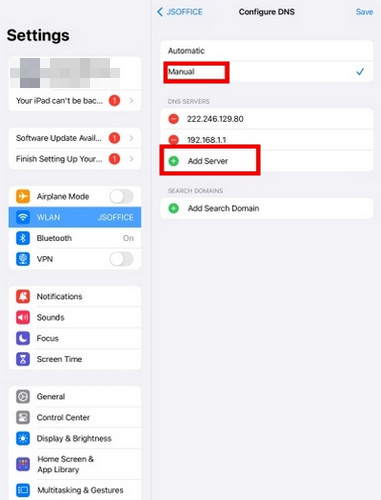
Step 1. Turn on your iPad and connect it to a Wi-Fi network.
Step 2. Navigate to the Wi-Fi settings screen, then click the "i" symbol next to your Wi-Fi network.
Step 3. Scroll down and tap configure DNS. Enter the DNS server IP address in your region.
- USA: 104.154.51.7
- Europe: 104.155.28.90
- Asia: 104.155.220.58
- South America: 35.199.88.219
- Australia and Oceania: 35.189.47.23
- Other continents: 78.100.17.60
Step 4. Hit the Back button, turn on Wi-Fi again, and enter your password. Then, you will see the Activate iPad screen. Follow the on-screen instructions to set up your iPad.
Remove iPad Locked to Owner via Apple Support
Best for: Users who prefer an official and secure method with valid proof of purchase.
If none of the previous methods worked, your best option is to reach out to Apple Support for assistance. You can submit a request through getsupport.apple.com or go to an Apple store.
This is the most secure way to remove the Activation Lock, but Apple will require your purchase receipt or other valid proof of ownership to verify that the device belongs to you. Make sure your documentation clearly shows the device details before submitting your request. After the request is reviewed, the process may take several days. If the verification is successful, Apple will help you unlock the device.
Part 4: FAQs about iPad Locked to Owner Bypass
How to unlock iPad locked to owner without Apple ID?
The professional tool Apeaksoft iFoneKit can remove the previous owner's Apple ID from your iPad without a password. It supports most iOS devices and versions, including the latest iOS 26/27, iPadOS 26/27.
Does a factory reset remove Apple ID on an iPad locked to owner?
No. A factory reset does not remove the Apple ID from an iPad. After resetting, the device will still display iPad Locked to Owner and require the original Apple ID credentials.
How to bypass iPad locked to owner for free?
The most reliable free way to bypass iPad Locked to Owner is to ask the previous owner to remove the device from their iCloud account. You can also contact Apple Support with valid proof of purchase for official assistance. DNS bypass is another free workaround, but it only provides temporary and limited access and mainly works on older iPadOS versions.
Conclusion
If you are wondering how to unlock iPad Locked to Owner, the quickest way is to enter the original Apple ID password or use the previous screen passcode if available. If not, you can ask the previous owner to remove the device remotely through iCloud or contact Apple Support with proof of purchase. When these options are unavailable, a professional tool like Apeaksoft iFoneKit may still help you unlock your disabled iPad.
 Apeaksoft iFoneKit
 Unlock all types of iOS passwords from iPhone, iPad and iPod.
Secure Download
Secure Download
Related Articles




