


How to Restore an iPad Without iTunes (Works for Different Situations)

Restoring an iPad without iTunes is not as difficult as you might think. Whether your iPad is working normally, stuck on the Apple logo, or even disabled, there are still reliable ways to get it back to normal. This tutorial shares 3 proven ways to restore an iPad without iTunes step by step for different scenarios. Read more!
PAGE CONTENT:
Part 1: At a Glance - iPad Restore Methods Without iTunes
| Method | Best For | Device Required | Internet Required | Limits |
| iPad Settings | Normal reset when iPad works | iPad only | No | iPad can be unlocked |
| iCloud.com | Lost, locked, or remote restore | Any device | Yes | Enabled Find My before |
| Finder on Mac | System errors like crash, stuck Apple logo, and more | Mac | No | Require technical steps |
Part 2: What Does Restoring an iPad Mean
Restoring an iPad usually has two meanings: one is resetting the iPad to factory settings, which erases all content and settings to resolve system issues or clear the iPad data. The other refers to restoring iPad data from a backup from iCloud or other places. However, in daily life, when it comes to restoring an iPad, it refers to the operation of factory resetting your iPad most of the time.
Many people will encounter issues such as the iPad keeps crashing or restarting, or being stuck on a white screen or black screen. Or, they are locked out of the iPad due to multiple incorrect password attempts. In such cases, restoring the iPad is often the most effective solution. Moreover, if you want to clear all personal data, restoring the iPad is also necessary.
To restore an iPad, people usually think of using iTunes first. However, just as Reddit users reflected, "iPad Unavailable Won't Connect to iTunes or Apple Devices App", iTunes is not always reliable. Many users report issues such as the device not being detected or the firmware download failing. That's why many people will search for how to restore an iPad without iTunes.
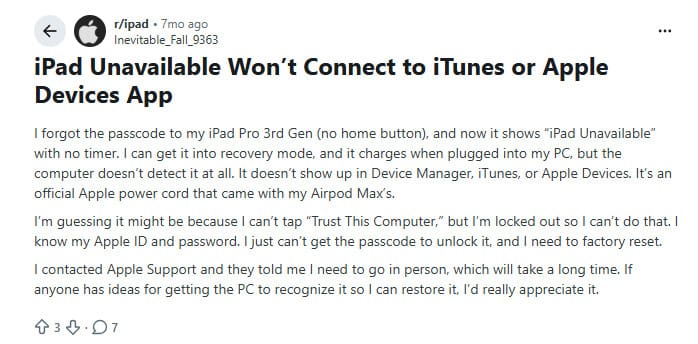
Therefore, in the following part, we will share 3 practical ways to help you restore an iPad without iTunes for different situations.
Part 3: Precautions Before Restoring iPad Without iTunes
As it will erase all your iPad data to restore it, please read the following precautions first before moving on:
- Back up iPad data in advance.
- Make sure you remember the Apple ID and password associated with your device, as activation lock verification is required after restoration.
- Keep battery level above 50%.
Part 4: How to Restore an iPad Without iTunes
Method 1: Restore to Factory Settings Directly in the Settings
Use Case: The device can power on and unlock normally.
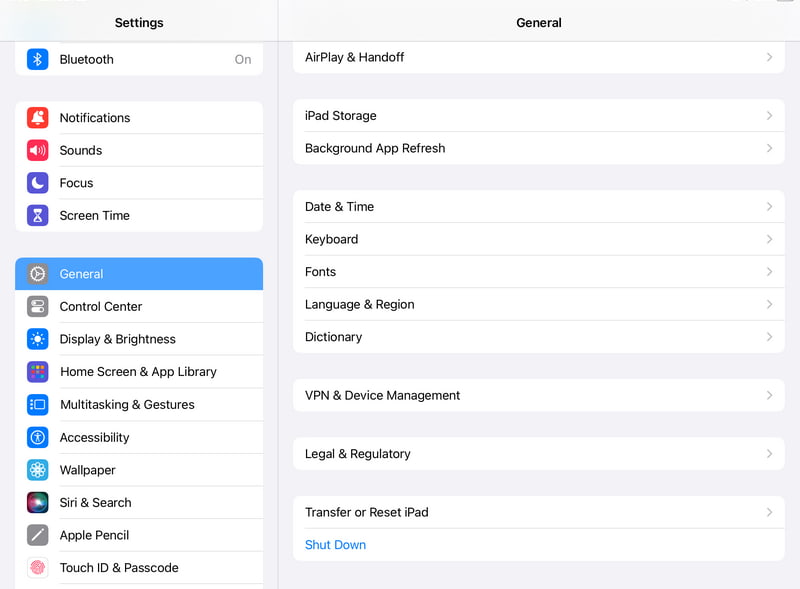
Step 1. Go to Settings, and click General > Transfer or Restore iPad > Erase All Content and Settings.
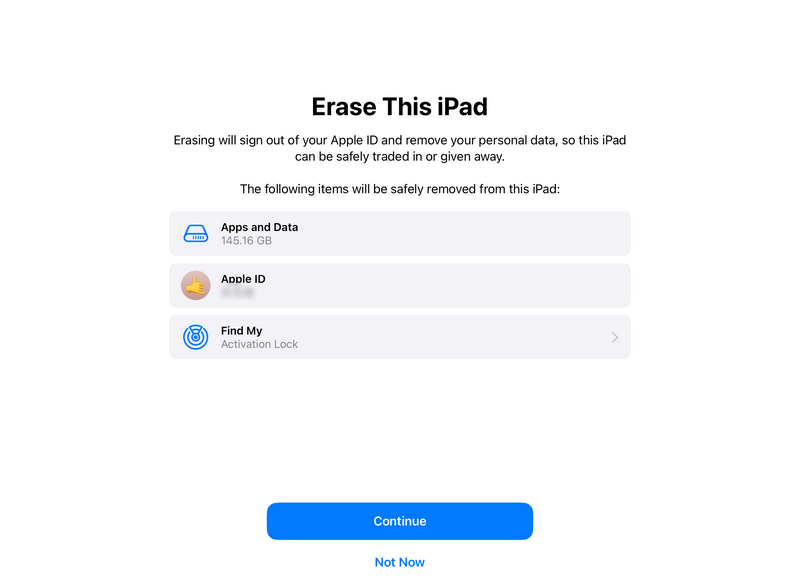
Step 2. Click Continue, and enter the password to confirm.
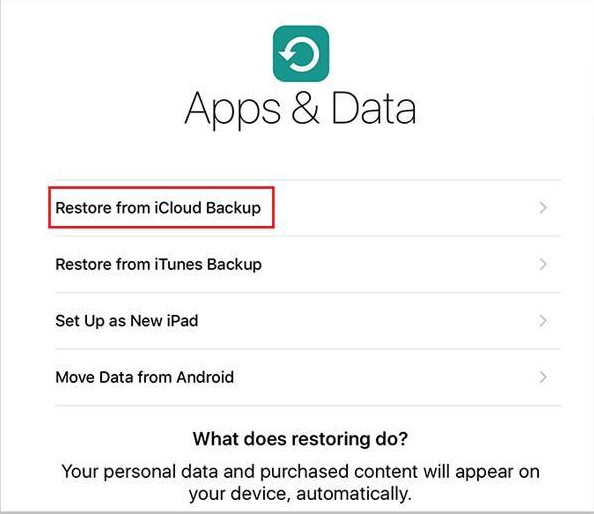
Step 3. After restarting, activate the device and sign in with your Apple ID, then choose to restore data from an iCloud backup.
Method 2: Restore a Disabled iPad Without iTunes via iCloud Online
Use Case: When the device is locked or not nearby
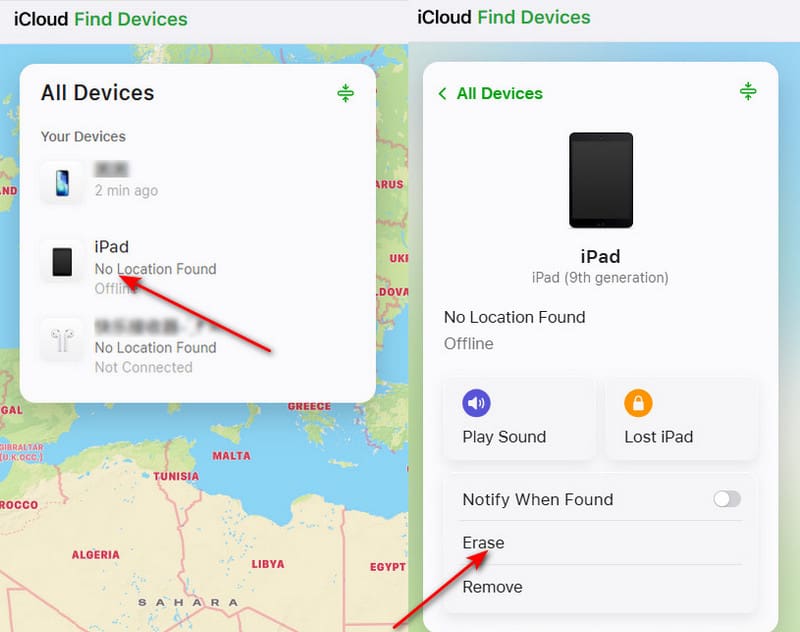
Step 1. Visit iCloud.com and sign in with your Apple ID and password.
Step 2. Click Find My.
Step 3. Choose your iPad and click Erase. Then, set up your iPad as instructed.
Method 3: Restore a Disabled iPad Without iTunes via Mac Finder
Use Case: macOS Catalina and later, for system crashes, boot issues, and other system issues
Step 1. Connect your iPad to your Mac using the original cable
Step 2. Open Finder and choose iPad from the left sidebar.
Step 3. Power off your iPad and enter recovery mode.
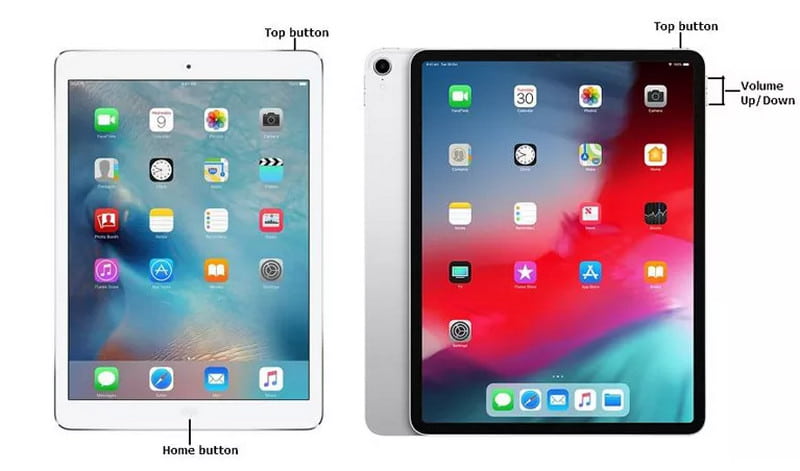
For iPad with a Home button:
Press and hold the Home button and the top button together. When the icon appears, release both buttons.
For iPad without a Home button:
Quickly press and release the Volume Up and Volume Down buttons, then hold down the top button until the computer connection icon appears.
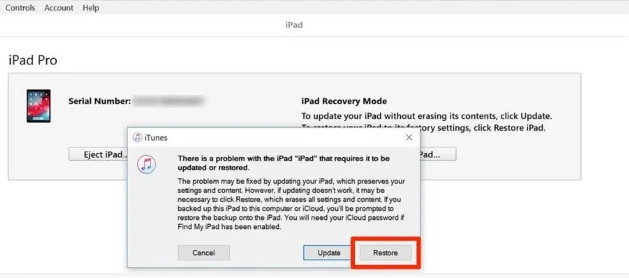
Step 4. Click Restore when a prompt appears on the interface to automatically download the firmware to complete the repair and reset.
Bonus: Restore iPad Data Without Backup Using Apeaksoft iPhone Data Recovery
Most users will recover iPad data from an iCloud backup after restoring an iPad. However, if you didn't back up your iPad beforehand, your files may seem permanently lost.
In this case, you need professional third-party tools such as Apeaksoft iPhone Data Recovery.

Downloaded by over 1,000,000 users
- Restore iPad data without an iTunes or iCloud backup.
- 3 steps to finish the whole iPad recovery.
- Compatible with all popular iPad models and the latest iPadOS versions.
- Support restoring iPad data, including photos, videos, music, etc.
Secure Download
Secure Download

Part 5: FAQs About Restoring iPad Without iTunes
Can iPad be restored without iTunes or a computer?
Yes, you can restore an iPad using device settings, iCloud remote erase, or Finder on Mac instead of iTunes.
Will restoring iPad without iTunes delete all data?
Yes. All the methods introduced in this post will erase local data, so please back up your data in advance.
Is restoring an iPad the same as factory resetting an iPad?
Not exactly. A factory reset erases all data and settings, while restoring an iPad can also include setting it up again and recovering data from a backup.
Conclusion
All in all, this post shares how to restore an iPad without iTunes in 3 proven ways, including iPad Settings, iCloud, and Finder. We also provide a useful tool - Apeaksoft iPhone Data Recovery to restore iPad data if you don't have a backup before.
 Apeaksoft iPhone Data Recovery
 Recover deleted or lost data from iOS Devices, iTunes, and iCloud backup.
Secure Download
Secure Download
Related Articles




