


How to Restore an iPhone from iCloud/iTunes/Finder Backup

The backup and restore feature for iOS devices is useful for protecting your data from loss, transferring data, and migrating data from one iOS device to another. A backup stores your contacts, settings, app data, conversations, photos, videos, music, and more. If you already have an iCloud backup or a backup on your computer, you can restore your iPhone or iPad from a backup quickly. This guide shares the proven methods.
PAGE CONTENT:
Part 1: What Does Restoring iPhone from Backup Mean
An iPhone backup is a copy of the data on your iOS device, which can be stored on your computer or in iCloud. The data in a backup may include contacts, calendar events, photos and videos, music and other media content, apps and app data, settings and preferences, messages and attachments, Siri bookmarks, and more.
Restoring an iPhone from a backup means restoring the data from the backup to your device. Bear in mind that restoring an iPhone from a previous backup will erase current data on your device.
Part 2: How to Restore iPhone from iCloud Backup
Apple gives each user 5GB of free storage to back up their iPhone data. With proper settings, you can back up your iPhone to iCloud automatically or manually. If you accidentally delete important data, you can restore your iPhone from iCloud backup.
Prerequisites:
- 1.You have an iCloud backup. If you are not sure, go to the Settings app, tap on your profile, navigate to iCloud, then iCloud Backup, and tap Back Up Now.
- 2.Your Apple ID and password.
- 3.You have erased your device, so you need to restore iPhone from a backup after setup.
- 4.A stable internet connection.
How to Erase Your Device Before Restoring iPhone from iCloud Backup
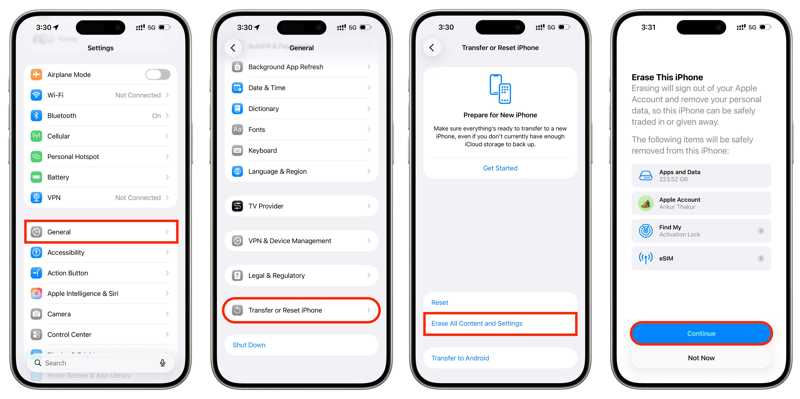
Step 1. Open the Settings app on your iPhone.
Step 2. Go to General, and Transfer or Reset iPhone.
Step 3. Tap the Erase All Content and Settings button.
Step 4. Read the warning and tap Continue.
Step 5. Next, choose Erase iPhone, Keep eSIM and Erase Data, or Delete eSIM and Erase Data as needed.
Step 6. Enter your iPhone passcode to begin erasing your device.
How to Restore iPhone from iCloud Backup
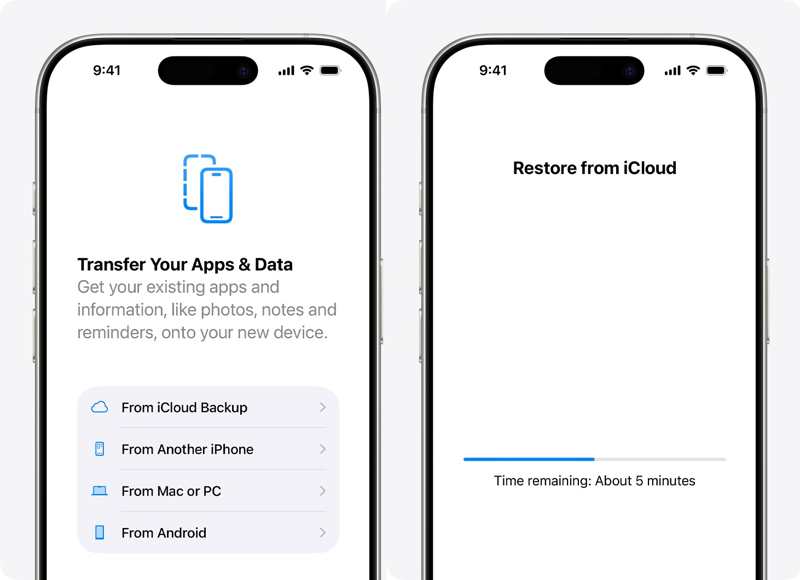
Step 1. Turn on your iPhone and set it up.
Step 2. Make sure it's connected to a Wi-Fi network.
Step 3. When you reach the Transfer Your Apps & Data screen, choose From iCloud Backup.
Step 4. Sign in to your Apple Account.
Step 5. Pick a relevant backup according to date and size.
Step 6. If prompted, sign in to your Apple Account again.
Step 7. Wait for the process to finish, then complete the remaining setup steps.
Note: There is no way to restore an iPhone from iCloud backup after setup.
Part 3: How to Restore iPhone from Computer Backup
iCloud storage is limited, so more iPhone users back up their devices to computers. It means that you can restore an iPhone from a computer backup. While this way won't ask you to erase your iPhone, the backup will overwrite the current data on your device.
Prerequisites:
- 1.A backup on your computer.
- 2.The latest version of iTunes.
- 3.A compatible USB cable.
- 4.The backup password (if you have ever encrypted your iPhone backup).
Step 1. Connect your iPhone to your PC with a USB cable.
Step 2. Run iTunes from your desktop.
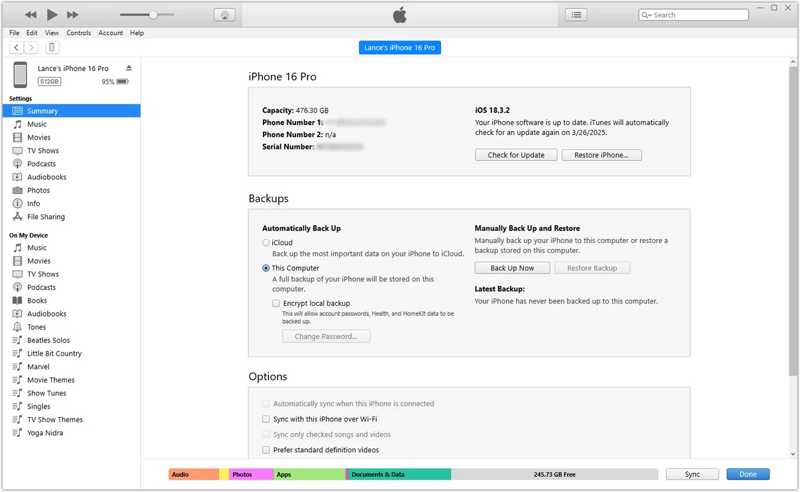
Step 3. Click the Phone button in the top-left corner after your iPhone is detected.
Step 4. Go to the Summary tab and locate the Backups heading.
Step 5. Click the Restore Backup button.
Step 6. Select the most relevant backup.
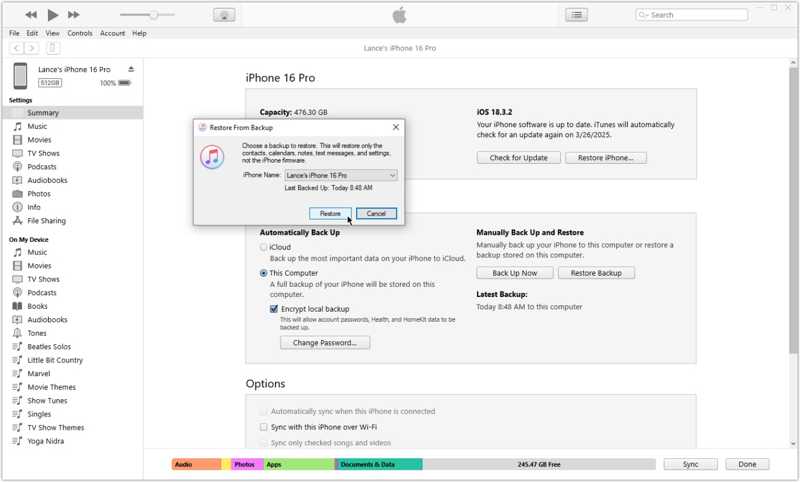
Step 7. Click the Restore button to begin restoring your iPhone from computer backup.
Note: If you have turned on Find My iPhone on your device, disable it in the Settings app before the process.
Part 4: How to Restore iPhone from Backup on Mac
Apple has stopped iTunes when releasing macOS Catalina. Instead, you can restore an iPhone from a backup on a Mac using the built-in Finder app. If you are running macOS Mojave or earlier, you still need to restore your iPhone using iTunes.
Prerequisites:
- 1.The Finder app.
- 2.A USB cable or Wi-Fi.
- 3.The password for the encrypted backup.
- 4.A backup on your Mac.
Step 1. Open the Finder app.
Step 2. Link your iPhone to your Mac via USB or Wi-Fi.
Step 3. Enter your passcode and trust this computer.
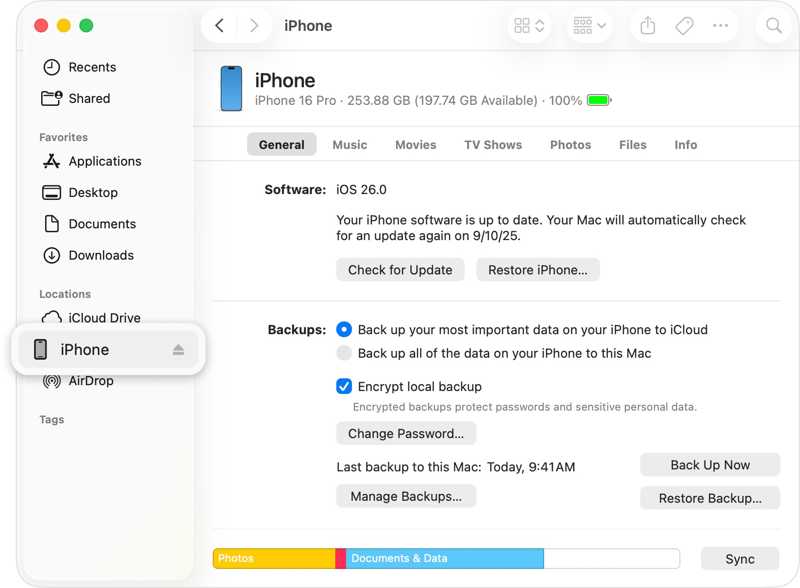
Step 4. Select your iPhone in the sidebar, then head to the General tab.
Step 5. Click the Restore Backup button under the Backups section. Here, you can access your iPhone backup.
Step 6. Select the relevant backup and enter the password if it's encrypted.
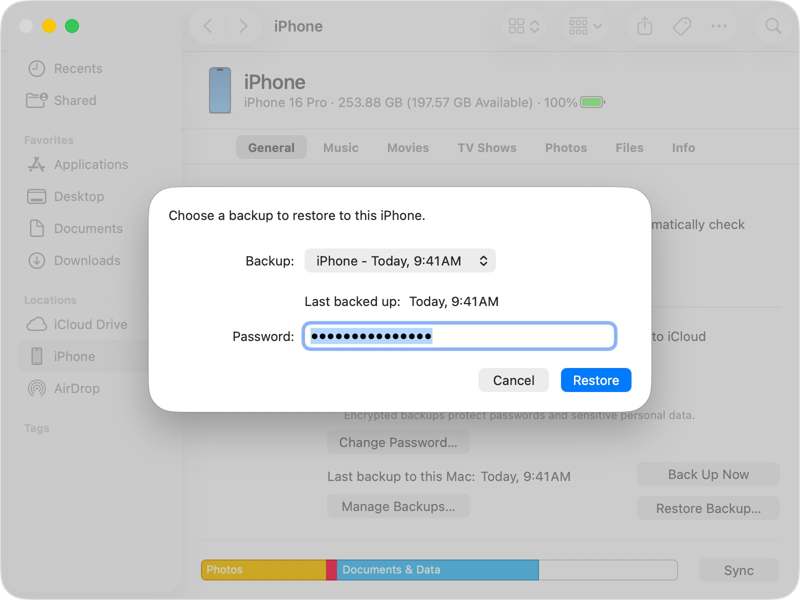
Step 7. Finally, click the Restore button to begin restoring the iPhone from an old backup.
Note: When the process completes, disconnect your iPhone and turn it on. Now, the data, apps, and settings will be back on your iPhone.
Part 5: How to Restore iPhone from Backup Without Erasing It
Apple encodes iPhone backups, including iCloud backups and computer backups. As a result, you cannot open an old backup and extract specific files. Fortunately, Apeaksoft iPhone Data Recovery lets you restore your iPhone from a backup without erasing it.

Downloaded by over 1,000,000 users
- Recover data on iPhone with or without a backup.
- Extract data from iCloud and iTunes backup.
- Preview iPhone backups for selective data recovery.
- Restore iPhone from backup without interrupting existing data.
- Support the latest models of iPhone and iPad.
Secure Download
Secure Download

How to Restore iPhone from iTunes Backup
Step 1. Install iPhone Data Recovery
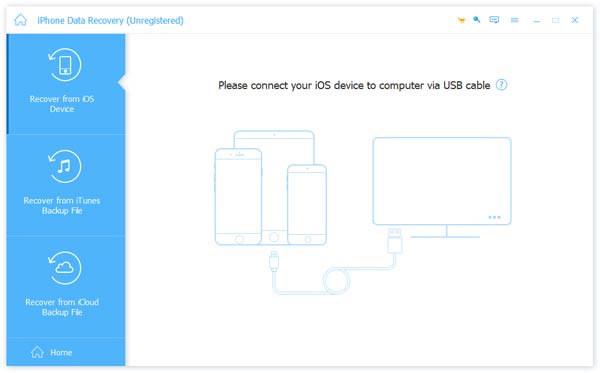
Launch the data recovery software once you install it on your PC. There is another version for Mac. Connect your iPhone to your PC with a Lightning cable.
Step 2. Download iTunes backup
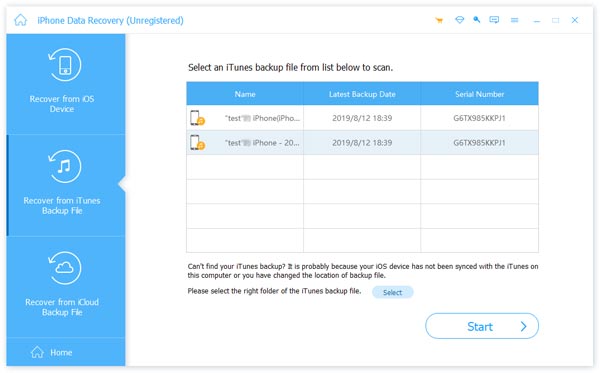
Go to the Recover from iTunes Backup File tab. Select the most relevant backup, then click the Start button to scan it.
Step 3. Recover iPhone data
After scanning, you will see all the data in the backup by type. If you want to recover photos, for example, select Camera Roll. Select all files you want to retrieve and click the Recover button. Set an output folder and hit Recover again.
How to Restore iPhone from iCloud Backup
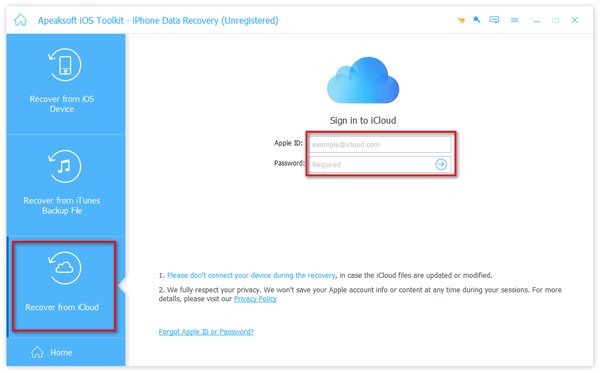
Step 1. Log in to iCloud
Head to the Recover from iCloud Backup File tab in the iPhone recovery software if you want to restore your iPhone from iCloud backup. Sign in with your Apple ID and password.
Step 2. Recover iCloud backup
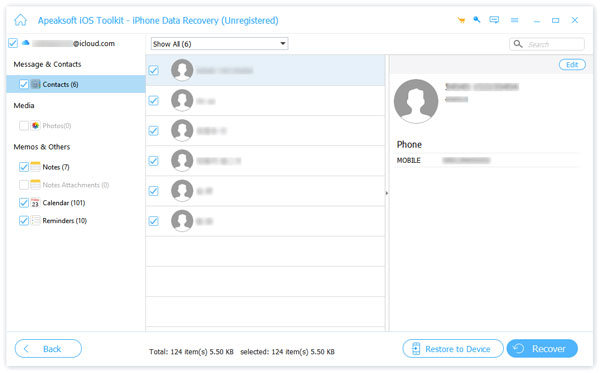
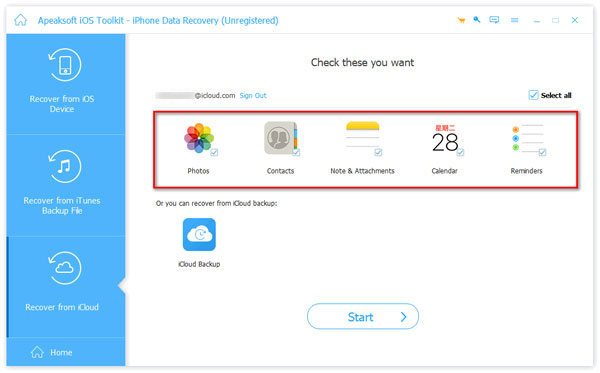
Select the data types you want to recover from your iCloud backup, like Contacts, Photos, and more. Click the Start button to extract data from the backup. Select the desired files, then click Recover to restore the lost data.
Conclusion
This guide explained how to restore an iPhone from backup if you lose important files on your device or get a new iOS device. Without a computer, you can restore an iCloud backup to your device through an internet connection. iTunes and Finder help you to overwrite the computer backup to your iOS device. Apeaksoft iPhone Data Recovery is a simple way to extract data from your iTunes or iCloud backup and retrieve files without restoring your device.
 Apeaksoft iPhone Data Recovery
 Recover deleted or lost data from iOS Devices, iTunes, and iCloud backup.
Secure Download
Secure Download
Related Articles




