

How to Factory Restore iPhone With or Without Passcode

There are some scenarios when you have to restore an iPhone or iPad to factory settings. Before you sell your used device on the second-hand market, for example, you’d better remove all data and settings on your iPhone or iPad to protect your information and privacy. Moreover, factory restoring is a significant solution to fix a variety of software glitches, such as a frozen screen. Here you can learn the proven methods.
PAGE CONTENT:
- Part 1: What Restoring an iPhone to Factory Means?
- Part 2: How to Back up iPhone Before Factory Restore
- Part 3: How to Restore an Accessible iPhone to Factory Settings
- Part 4: How to Restore an iPhone to Factory in Recovery Mode
- Part 5: How to Restore a Disabled iPhone to Factory Settings
- Part 6: Comparison of Factory Restore Methods
Part 1: What Restoring an iPhone to Factory Means?
Restoring iPhone to factory settings means bringing your device to the factory status. All your data and settings will be erased from your iPhone or iPad. After factory restoring your iPhone or iPad:
1. All your data will be erased, including Face ID and Touch ID, digital passcode, messages, photos, etc.
2. All apps and app data will be removed, including apps you installed and preinstalled.
3. Your privacy settings will be reset.
4. The latest version of iOS will be installed on your device.
Part 2: How to Back up iPhone Before Factory Restore
As mentioned, all your data and settings will be deleted after restoring factory settings on your iPhone, iPad, or iPod. To avoid data loss, you need to back up your device to iCloud or a computer.
How to Back up iPhone to iCloud
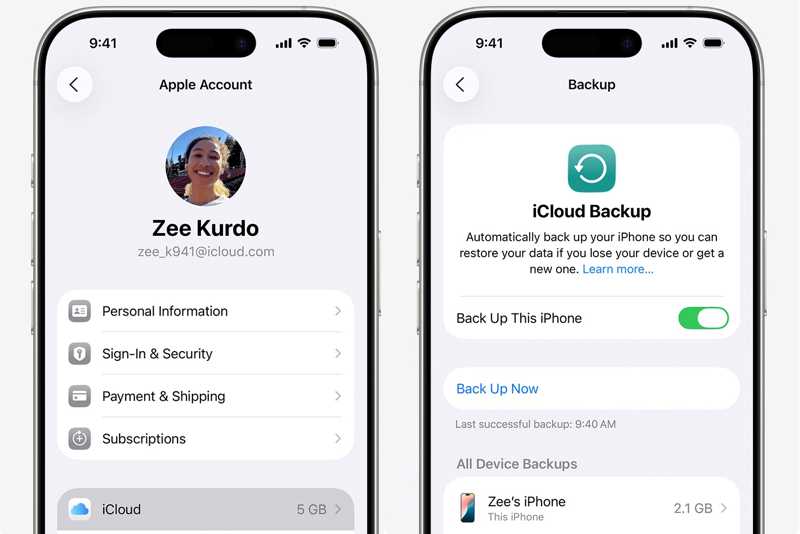
Step 1. Connect your device to a Wi-Fi network.
Step 2. Run your Settings app, and tap on your name.
Step 3. Choose iCloud, tap iCloud Backup, and hit Back Up Now.
How to Back up an iPhone to a Computer
Step 1. Connect your iPhone or iPad to your computer with a USB cable.
Step 2. Run iTunes or Finder, depending on your operating system.
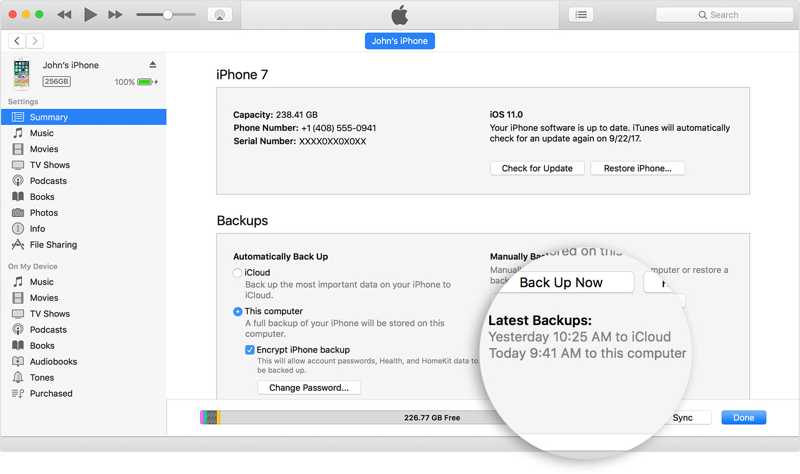
Step 3. Click the Phone button or your device name.
Step 4. Go to the Summary or General tab.
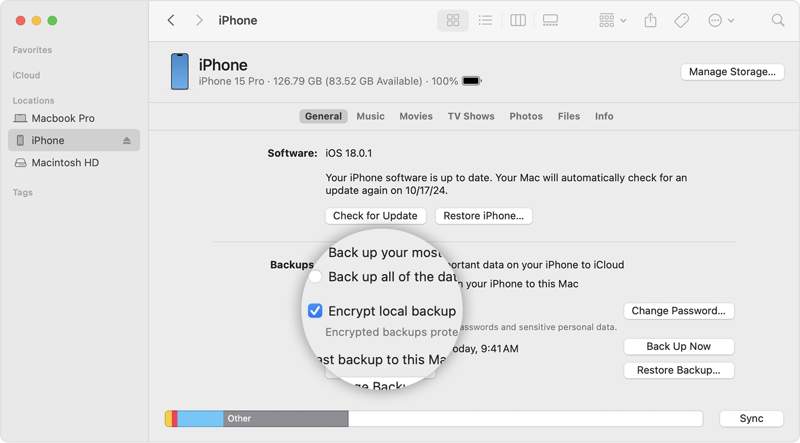
Step 5. Select This computer or Backup all of the data on your iPhone to this Mac in the Backups section.
Step 6. Click the Back Up Now button.
Part 3: How to Restore an Accessible iPhone to Factory Settings
How to Restore an iPhone to Factory in Settings
The easiest way to factory restore an iPad or iPhone is the Settings app. The prerequisite is that your device is still accessible and you still remember your Apple ID password. This method doesn’t require an extra app or hardware.
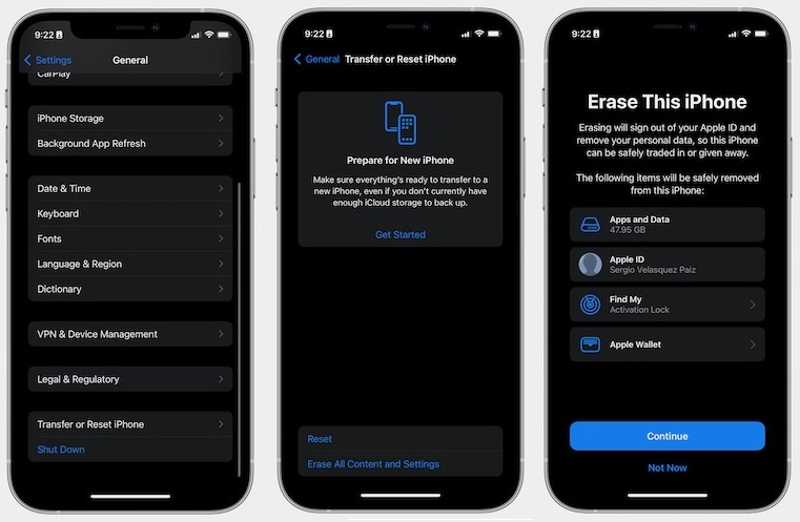
Step 1. Run the Settings app on your device.
Step 2. Go to the General tab, and choose Transfer or Reset iPhone.
Step 3. Tap Erase All Content and Settings. This process will factory reset your device. It will be better if you have ever backed up your iPhone.
Step 4. If prompted, enter your iPhone passcode or Apple ID password.
Step 5. Read the alert and tap Continue to confirm it.
How to Factory Restore iPhone with iTunes
If you have a computer, you can factory restore an iPhone or iPad with iTunes. In fact, some users still manage their devices with iTunes. It allows you to bring your device to the factory settings on Windows and macOS Mojave or earlier.
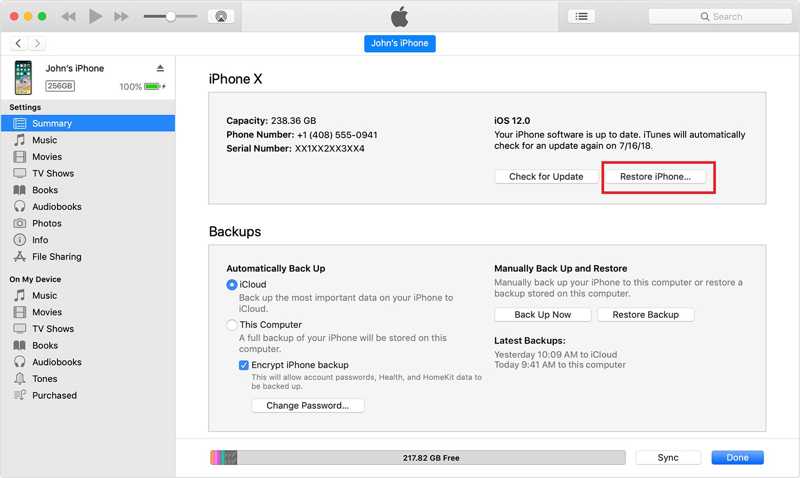
Step 1. Connect your device to your computer with a USB cable.
Step 2. Open the latest version of iTunes.
Step 3. Click the Phone button after your device is detected.
Step 4. Head to the Summary tab on the sidebar and click the Restore iPhone button.
Step 5. Once it is done, your device will restart in the Hello screen.
How to Factory Restore an iPhone through a Mac
Apple had stopped iTunes on macOS Catalina. Alternatively, you can manage and factory reset iPod and other iOS devices using the built-in Finder app. This method requires the latest version of Finder.
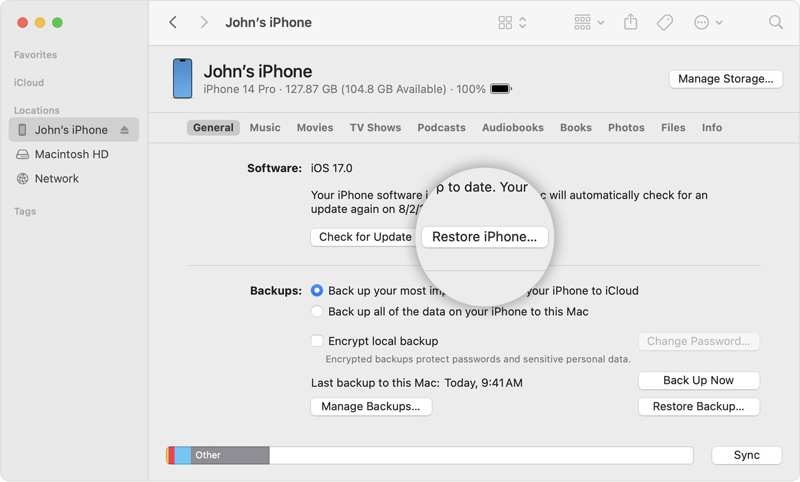
Step 1. Run the Finder app.
Step 2. Plug your device into your Mac with a USB cable.
Step 3. Click your device name on the sidebar after your handset is recognized.
Step 4. Go to the General tab and click the Restore iPhone button to factory restore your iPhone through a Mac.
Part 4: How to Restore an iPhone to Factory in Recovery Mode
If the methods above are unavailable to your device, you can restore an iPad or iPhone to factory settings in Recovery Mode. This method requires a computer and the latest version of iTunes or Finder, depending on your operating system.
Step 1. Open the latest version of iTunes or Finder, depending on your operating system.
Step 2. Connect your iPhone, iPad, or iPod to your computer with a USB cable.
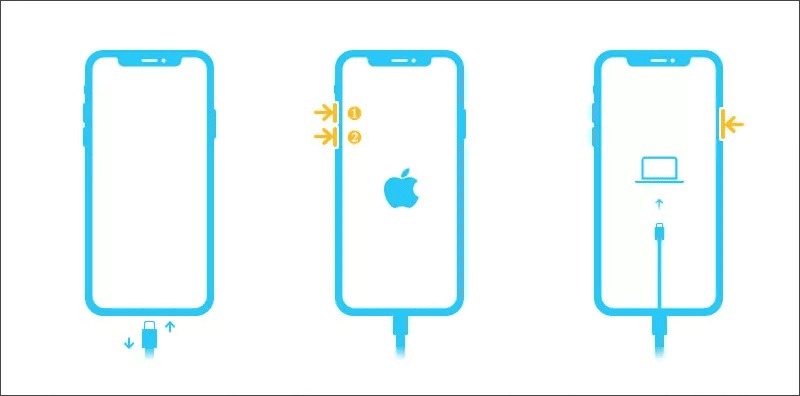
Step 3. Put your device in Recovery Mode:
On an iPhone 8 or later, iPad without Home button
Quickly press the Volume Up button and release it.
Quickly press the Volume Down button and release it.
Hold the Side button until you see the Recovery Mode screen.
On an iPhone 7/7 Plus, iPod Touch 7th Gen
Hold down the Volume Down + Side buttons
Release them when the Recovery Mode screen appears.
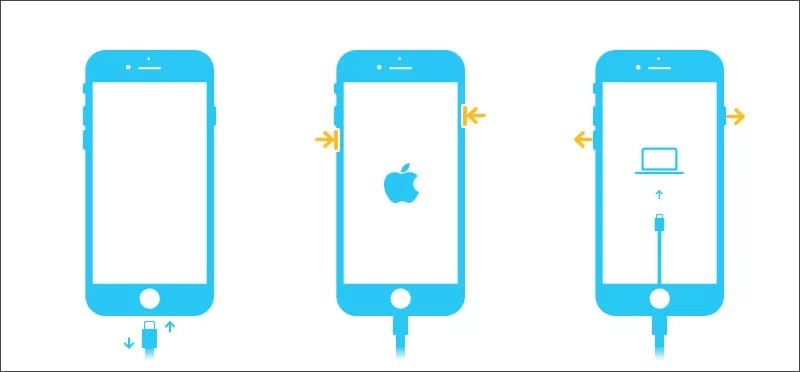
On an iPhone 6s and iPod Touch 6th Gen or earlier, an iPad with a Home button
Hold down the Home + Sleep/Wake buttons together.
Release the buttons once the Recovery Mode screen pops up.
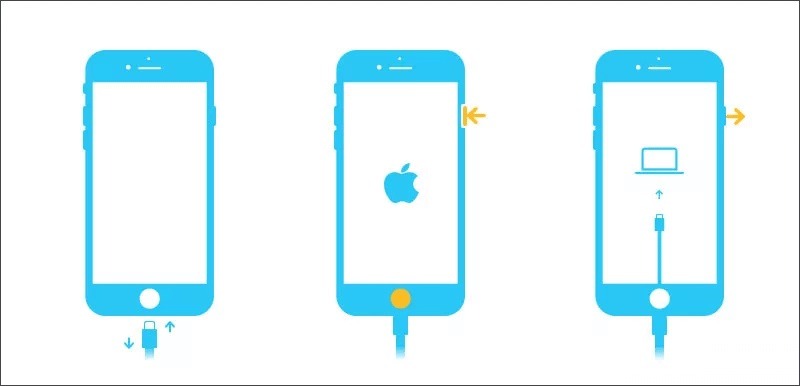
Step 4. Once iTunes or Finder detects your device in Recovery Mode, and a pop-up dialog will appear.
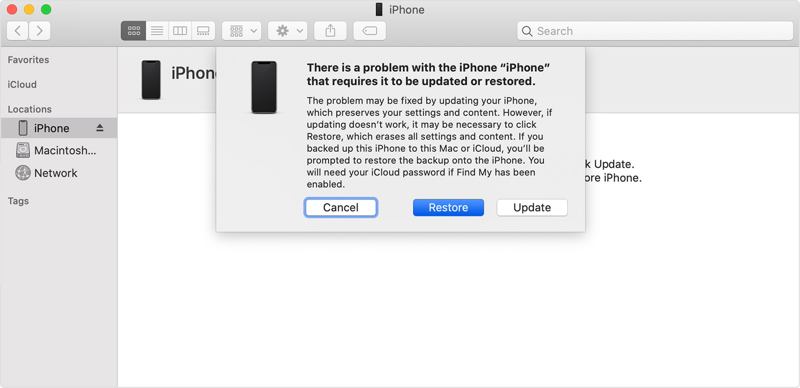
Step 5. Click the Restore button.
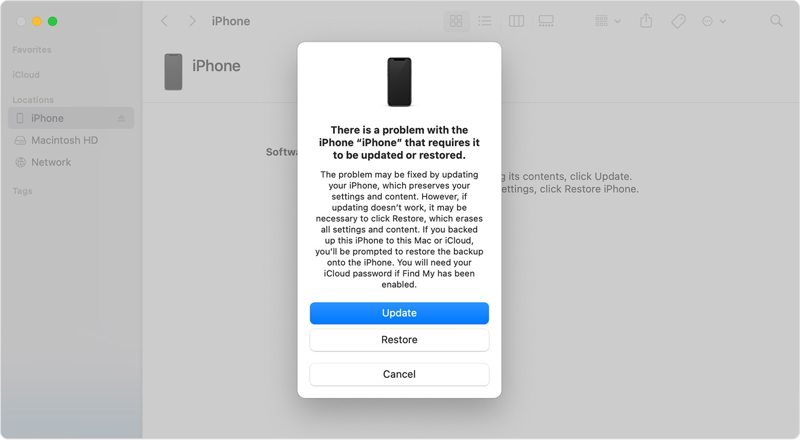
Step 6. Then, follow the onscreen instructions to restore the iPad to factory settings without a password.
Part 5: How to Restore a Disabled iPhone to Factory Settings
Even if you forgot your lock screen passcode and your device is disabled, you can still factory restore a locked iPhone or iPad to the factory settings. The workflow is different, depending on your situation and version of iOS.
How to Restore an iPhone to Factory Settings on iOS 17
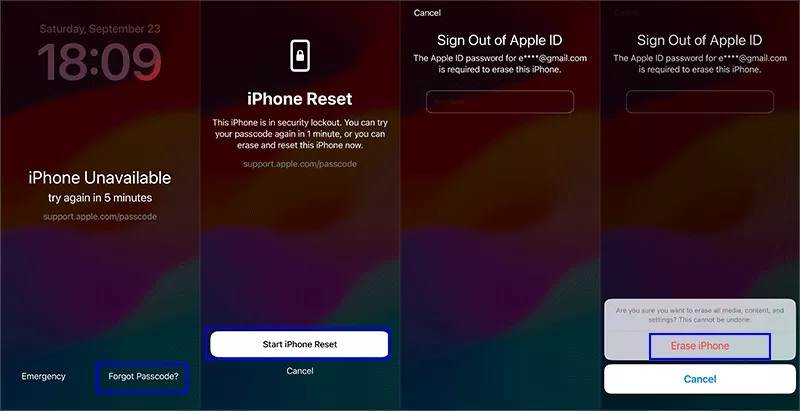
Step 1. Repeatedly enter a wrong passcode until the iPhone Unavailable or Security Lockout screen appears.
Step 2. Click the Forgot Passcode option at the bottom right corner.
Step 3. Read the alert and click the Start iPhone Reset button to proceed.
Step 4. Input your Apple ID password.
Step 5. Next, tap the Erase iPhone button to begin factory restoring your iPhone.
How to Factory Restore an iPad on iPadOS 15.2 to 16
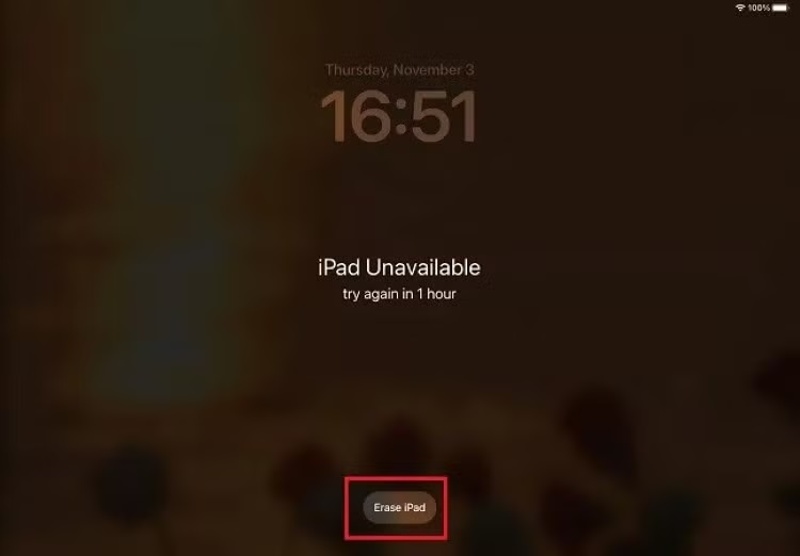
Step 1. When you enter the iPad Unavailable or Security Lockout screen, click the Erase iPad button.
Step 2. Read the alert and tap the Erase iPhone button to confirm it.
Step 3. Enter your Apple ID password and start factory restoring your iPad Air or other model.
Step 4. When it finishes, your device will restart in the Hello screen. You can set it up as a new device or restore a backup.
How to Factory Restore an iPhone Remotely
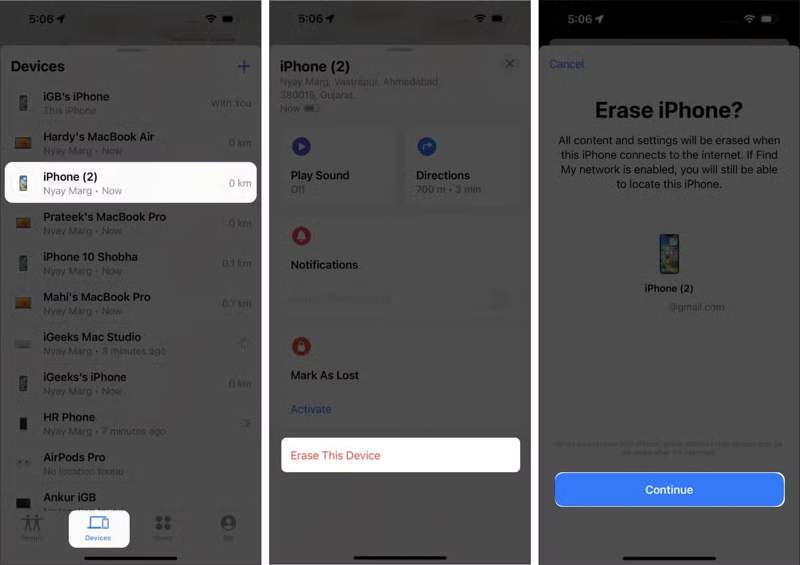
Step 1. If Find My iPhone is enabled on your device, open the Find My app on another Apple device, like borrowing an iPhone, iPad, or MacBook.
Tips: Tip: You can download Find My from the App Store for free. If you forgot your Apple ID password, you cannot use this method.
Step 2. Go to the Devices tab at the bottom and choose your device from the list.
Tips: Tip: If you cannot find your device, tap the Add button next to Devices, and choose Add AirTag or Add New Item. When Find My discovers your device, enter your Apple ID and password.
Step 3. Tap and expand the toolbar and choose Erase This Device.
Step 4. Read the alert and tap Continue.
Step 5. If prompted, enter your Apple ID password again to confirm restoring your device.
How to Factory Restore an iPhone Online
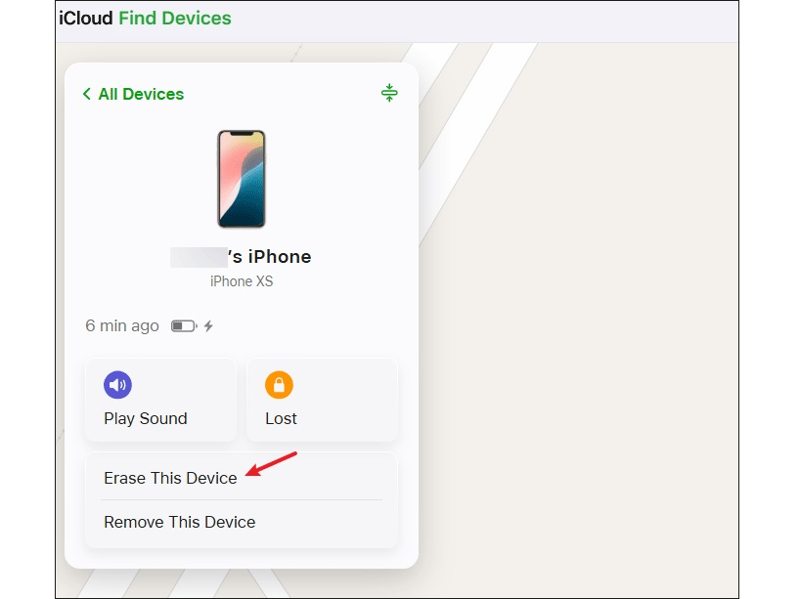
Step 1. Go to www.icloud.com/find/ if you don’t have another Apple device.
Step 2. Sign in with your Apple ID and password associated with the locked device.
Tips: Tip: If 2FA is turned on, enter the verification code that appears on your screen.
Step 3. Once Find My tracks your device on the map, click the Erase This Device button on the dialog.
Step 4. Click Continue and move on.
Step 5. Type your Apple ID password and begin restoring your iPhone to factory settings.
Part 6: Comparison of Factory Restore Methods
| Prerequisites | |
| Settings | Your iPhone, iPad, or iPod is accessible You remember your Apple ID password |
| iTunes | A computer runs Windows, macOS Mojave or earlier A USB cable The latest version of iTunes |
| Finder | A computer runs macOS Catalina or later A USB cable The latest version of Finder |
| Recovery Mode | A computer A USB cable The latest version of iTunes or Finder |
| iOS 17 | Your iPhone or iPad is disabled Your Apple ID password Your iPhone or iPad updates to iOS 17 or iPadOS 17 and later |
| iOS 15.2 to 16 | Your iPhone or iPad is disabled Your Apple ID password Your iPhone or iPad updates to iOS 15.2 to 16 |
| Find My | Find My iPhone or Find My iPad is turned on You have another Apple device A Wi-Fi network |
| iCloud | Find My iPhone or Find My iPad is turned on A computer and a web browser A Wi-Fi network |
Bonus Tip: How to Recover Data after Restoring iPhone to Factory Settings
After restoring your iPhone or iPad, you can restore an iCloud or iTunes backup to get back your data. If you don’t have a backup, Apeaksoft iPhone Data Recovery can help you retrieve your data. Even if you perform a factory restore on your iPhone or iPad, all your data is still in your memory before it is overwritten by new files. That gives you a chance to recover your data.
The Best Way to Recover Data After Restoring iPhone/iPad/iPod to Factory Settings
- Recover data from memory without backup.
- Open iTunes or iCloud backup and extract data.
- Preview lost data before recovery.
- Available to a wide range of file types.
- Support the latest versions of iOS and iPadOS.
Secure Download
Secure Download

How to Recover Data After Restoring iPhone to Factory Settings
Step 1. Connect to your iPhone
Launch the best data recovery software after you install it on your computer. The software is compatible with Windows 11/10/8/7/XP/Vista and macOS 10.7 or above. Link your iPhone and computer with a Lightning cable. If you link the two devices for the first time, tap Trust on your screen.

Step 2. Preview lost data
Choose Recover from iOS Device tab on the sidebar. Click the Start Scan button when your device is recognized. When the data scan is complete, you can preview all data on your device by type.
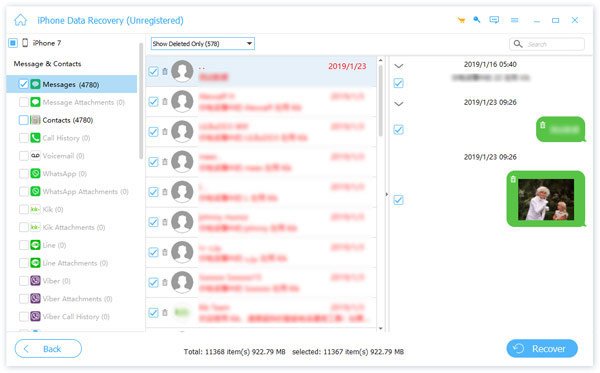
Step 3. Recover data from your device
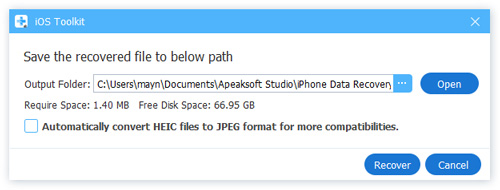
Finally, select the items and files you want to get back and click the Recover button. Select an output folder and hit Recover.
Conclusion
This guide shared multiple ways to restore an iPhone, iPad, or iPod to factory settings. If your device is accessible, you can restore it in the Settings app or using iTunes/Finder. Of course, you can restore your device even if it is disabled or locked with or without a computer. You can pick an appropriate method based on your situation. Apeaksoft iPhone Data Recovery is able to get back lost data after you factory restore your device without a backup.
Related Articles
Your iPhone contacts cannot be syncing to iCloud or Mac? Here you can learn multiple solutions to fix this problem quickly.
Your iPhone contacts cannot be syncing to iCloud or Mac? Here you can learn multiple solutions to fix this problem quickly.
When you delete your iPhone call history accidentally, you can recover it on iPhone using iCloud, iTunes, third-party software, or via the carrier.
Learn what an iPhone backup password is, how to enable/disable it, recover/reset a forgotten backup password, and explore the best iPhone backup alternative.



