


How to Retrieve Downloads on Your Android Phone or Tablet

Unlike iPhones, you can download photos, videos, documents, and more directly on your Android device from a browser. However, it is a heart-sinking moment when you accidentally delete a downloaded file. All is not lost, though, as there may be multiple ways to retrieve your lost downloads. Depending on the nature of the file and how long you deleted it, you can retrieve downloaded files on your Android device with the right method.
PAGE CONTENT:
Part 1. How to Retrieve Downloads on Android from Files
Downloaded files are stored in the Download folder on your Android device. You can access them in the built-in or third-party File Manager app. The Trash, Recycle Bin, or Recently deleted folder enables you to retrieve downloads on your Android phone before they are permanently removed.
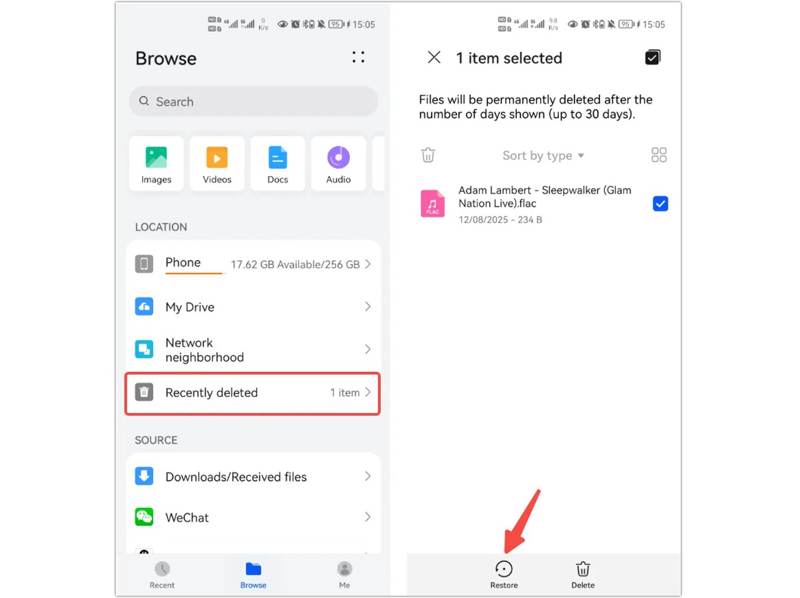
Step 1. Open the File Manager app from your app drawer.
Step 2. Tap the Recently deleted, Trash, or Recycle bin folder.
Step 3. Then, view the deleted downloads on your phone.
Step 4. Select the downloaded files you want to recover.
Step 5. Tap the Restore or Recover button.
Step 6. Next, go to the Download folder in the File Manager app to check if your files have been restored.
Part 2. How to Retrieve Downloads on Android from Google Drive
If you use Google Drive on your Android phone to back up downloaded files, you can retrieve downloads on Android easily. This method requires a stable internet connection and your Google account credentials.
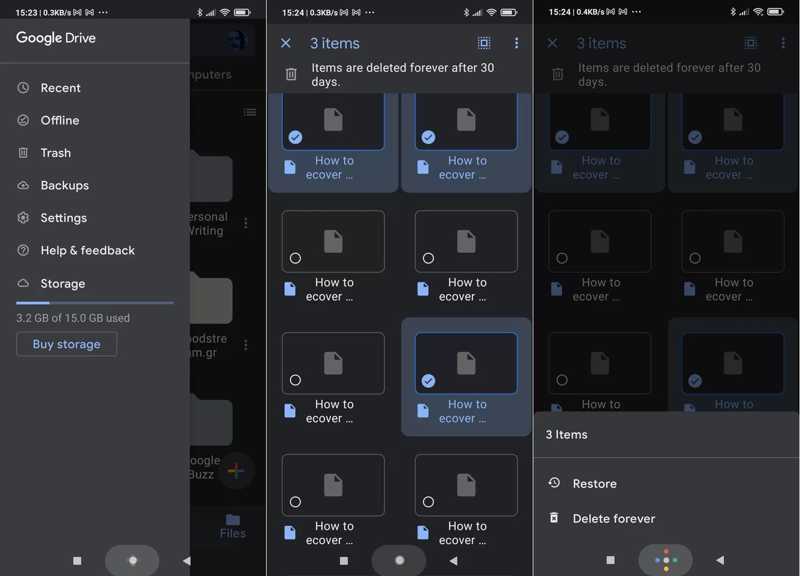
Step 1. Run the Google Drive app on your device.
Step 2. Log in with your Google account and password.
Step 3. Slide from the left to display the menu bar and choose Trash.
Step 4. Browse the downloaded files inside the Trash folder.
Step 5. Select the deleted files you want to retrieve.
Step 6. Tap the More button with a three-dot icon and hit Restore.
Part 3. How to Retrieve Downloads on Android from Backup
If your downloaded files are permanently deleted, you have to retrieve them from a backup. Of course, the prerequisite is that you have backed up your phone to Google. Plus, the process requires you to factory reset your device.
Step 1. Run the Settings app on your phone.
Step 2. Go to General management, and then Reset.
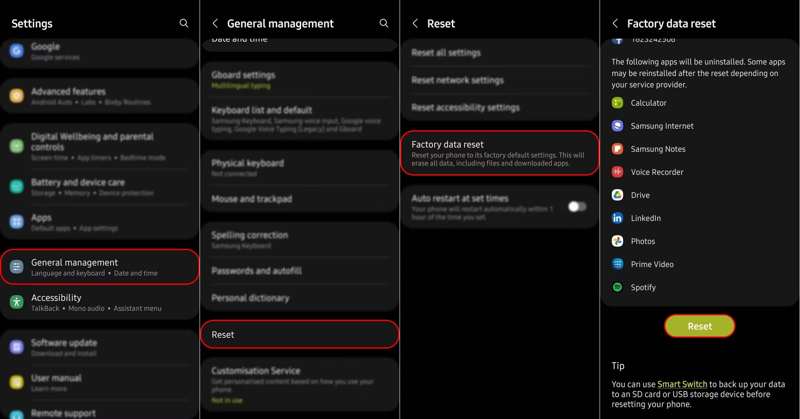
Step 3. Tap Factory data reset or a similar option, and hit Reset.
Step 4. Next, follow the onscreen instructions to factory reset your phone.
Step 5. Once your phone restarts, set it up as a new device.
Step 6. When you reach the Copy apps & data screen, tap Next.
Step 7. Press the Can't use old device link and enter your Google account.
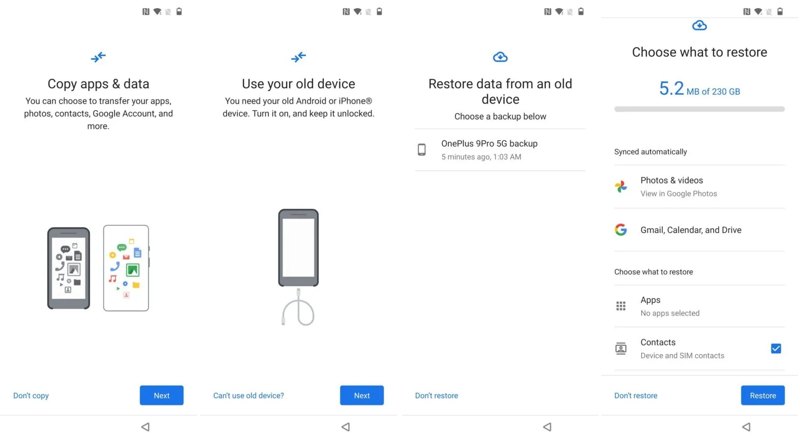
Step 8. Select a backup file and select the desired data types.
Step 9. Finally, tap the Restore button to begin recovering deleted downloads on your Android device.
Part 4. How to Retrieve Downloads on Android Without Backup
If the methods above are unavailable, you have to retrieve download files on your Android device with an Android data recovery program, such as Apeaksoft Android Data Recovery. It is able to read your phone memory or SD card and look for deleted files. More importantly, the user-friendly design simplifies the process of data recovery.

Downloaded by over 1,000,000 users
- Recover deleted downloads on Android without backup.
- Easy to use and don't require technical skills.
- Preview deleted files for selective recovery.
- Compatible with a variety of data types.
- Support almost all Android brands and models.
Secure Download
Secure Download

How to Retrieve Deleted Downloads on Android Without Backup
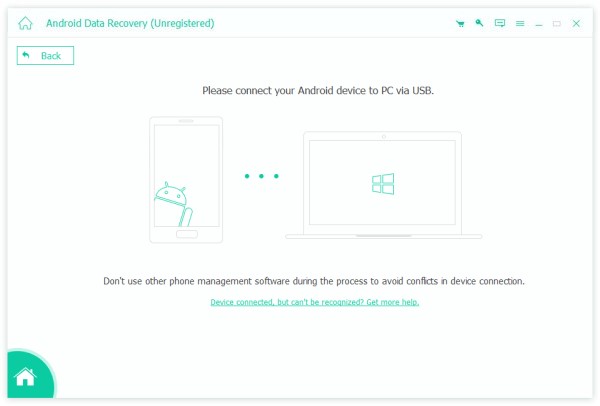
Step 1. Connect to your phone
Launch the Android Data Recovery software after you install it on your PC. There is another version for Mac.
Make sure to turn on the USB Debugging mode on your phone. Connect it to your PC with a USB cable. Choose Transfer files if prompted. Then, the software will detect your device.
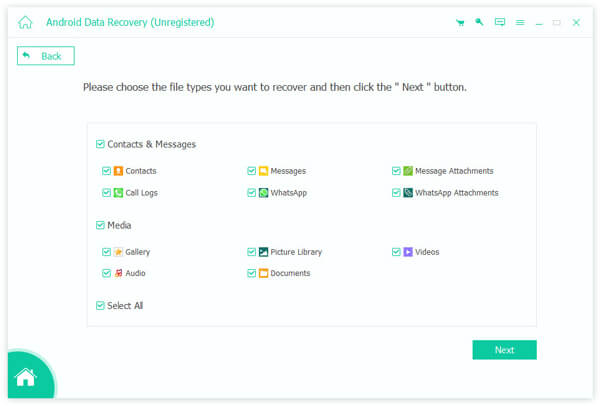
Step 2. Scan your phone
When the data type window pops up, select what you want to recover, such as Documents. If you are not sure, check Select All. Click the Next button to start scanning data on your device.
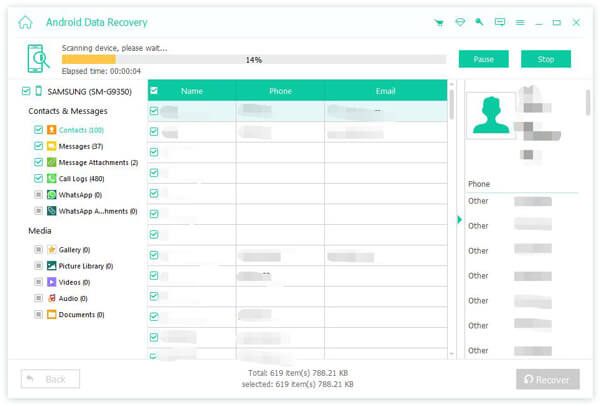
Step 3. Retrieve deleted downloads
Once data scanning finishes, you can preview the recoverable files. Toggle on Only display the deleted items to view deleted downloads. Select the downloaded files you wish to retrieve and click the Recover button. Navigate to the destination folder and confirm file recovery.
Further Reading
Conclusion
Following our concrete guide, you should understand how to retrieve downloaded files on Android devices. The Trash or Recycle Bin folder enables you to find the lost files in the File Manager or Google Drive app directly. If you have backed up your device before deleting your files, you can restore them through your account. Apeaksoft Android Data Recovery is an ultimate way to get back deleted files without a backup.
Related Articles




