

How to Restore Missing Apps on Android Samsung Devices

"I recently deleted some apps by mistake on my phone. How to find deleted apps on my Samsung phone?" Samsung phones and tablets are popular, partly because of the diverse apps. However, it is a big problem if you lose important apps on your device. The good news is that you can get back the deleted and missing apps on your device in various situations. Let’s start the guide.
PAGE CONTENT:
Part 1: How to Find Deleted Apps on Samsung from Google Play
Even if you delete apps on your Samsung, your Google Play Store can record your downloaded apps. Therefore, you can reinstall deleted apps on your Samsung device from the Google Play Store.
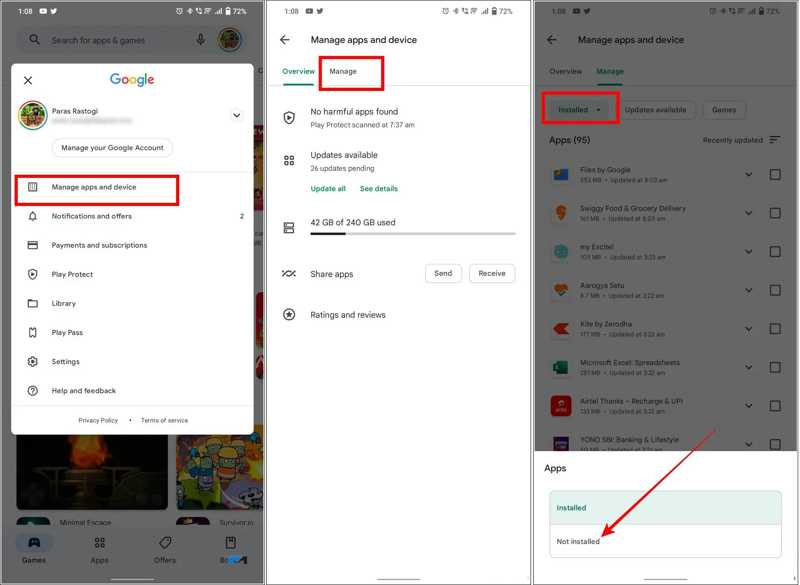
Step 1. Run your Play Store on the app tray.
Step 2. Tap on your profile and choose Manage Apps and device.
Step 3. Switch to the Manage tab.
Step 4. Pick the Not Installed filter to view all deleted apps.
Step 5. Find the deleted apps you want to get back and tick the checkboxes.
Step 6. Tap the Download button to reinstall them.
Part 2: How to Restore Deleted Samsung Apps by Google MyActivity
If you cannot find the deleted Samsung apps in the Google Play Store, visit My Activity. It maintains the entire log of activities through your Google account, including the apps you have installed on your phone.
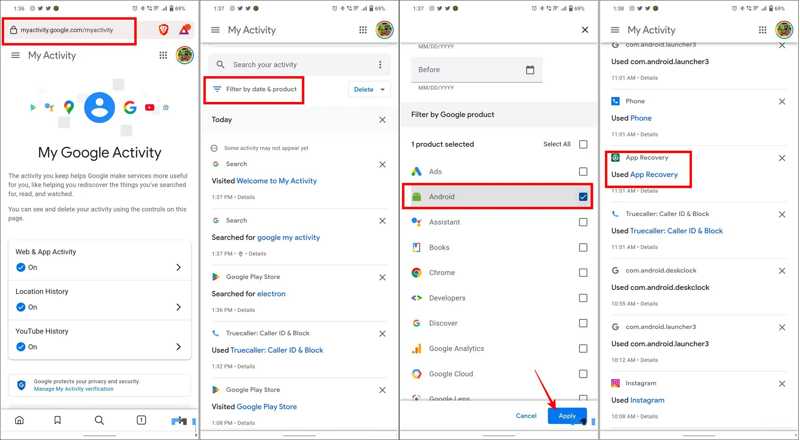
Step 1. Go to https://myactivity.google.com/ in a browser.
Step 2. Sign in with the Google account associated with your phone.
Step 3. Choose Delete and select a proper filter.
Step 4. Check Android, and tap Apply.
Step 5. Then, you will see the entire activity on your Samsung device.
Step 6. Find the missing app to restore on your Samsung Android.
Step 7. Next, reinstall it from an app store.
Part 3: How to Find Deleted Apps on Samsung from Galaxy Store
In addition to the Google Play Store, some people prefer to use Galaxy Store on their devices. That is the built-in app store on most Samsung devices. It allows you to find deleted apps on Samsung, too.
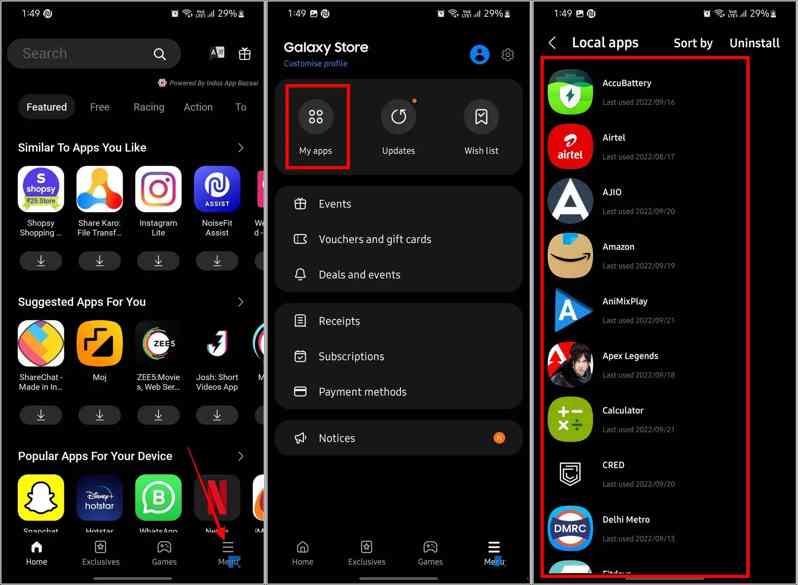
Step 1. Run the Galaxy Store app on your device.
Step 2. Tap the Menu button at the bottom.
Step 3. Choose the My Apps tab to view all apps that you have installed on your Samsung, including the deleted items.
Step 4. Find the desired one and reinstall it.
Part 4: How to Restore Missing Apps on Samsung from Backup
If you have backed up your phone to a computer before deleting apps, that gives you a chance to restore missing apps on your Samsung Android device. This method requires a Smart Switch backup, a computer, and a USB cable.
Step 1. Connect your phone to your computer with a compatible cable.
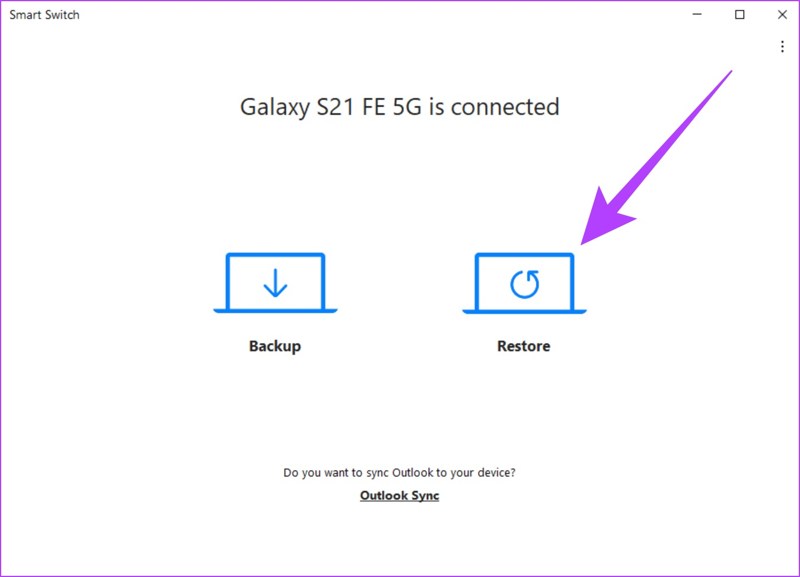
Step 2. Open the Smart Switch software on your desktop.
Step 3. Click the Restore button after your device is detected.
Step 4. Choose the backup that includes the deleted app.
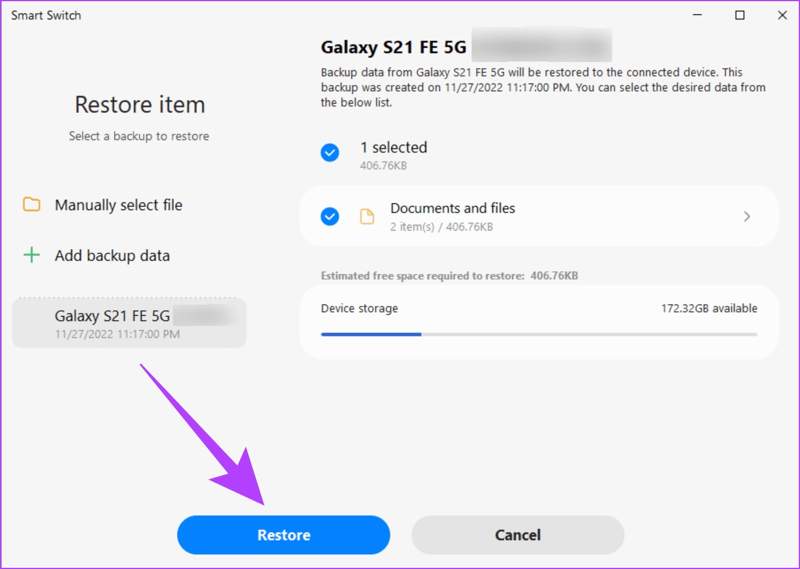
Step 5. Click the Restore button.
Step 6. When it is done, click OK and disconnect your device.
Bonus Tip: Best App Data Recovery Tool for Android
Google Play Store and Samsung Galaxy Store only allow you to find deleted apps on Samsung and reinstall them. They cannot bring your app data back. On the other hand, Apeaksoft Android Data Recovery can meet your needs. It is able to restore app data on Samsung phones and tablets without backup.
The Best Way to Restore App Data on Samsung Devices Without Backup
- Recover app data on Samsung devices without Android backup.
- Available to a wide range of data types, like photos, videos, music, etc.
- Preview Samsung app data for selective recovery.
- Support almost all Samsung phone and tablet models.
Secure Download
Secure Download

How to Recover App Data on Samsung Without Backup
Step 1. Detect your device
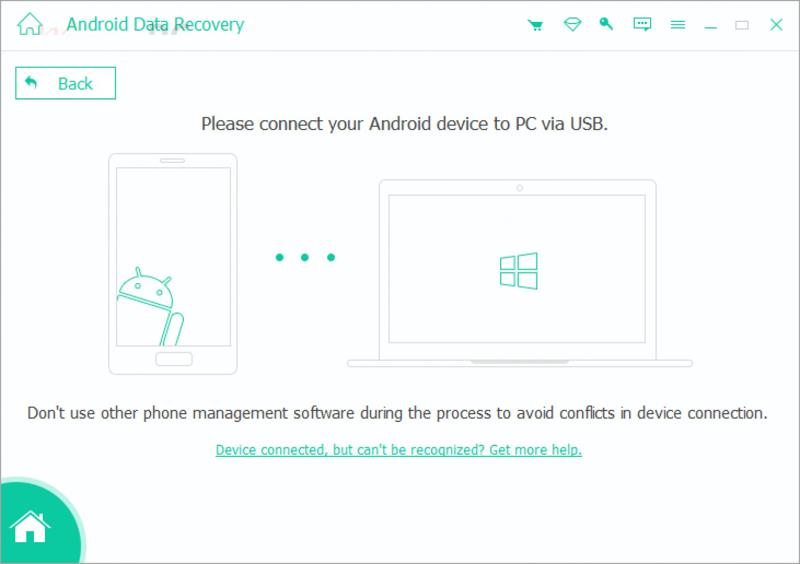
Launch the best app recovery software for Samsung once you install it on your computer. Plug your Samsung device into your computer with a USB cable. Turn on your device, and enable the USB Debugging mode. If prompted, choose Transfer files.
Step 2. Scan lost data
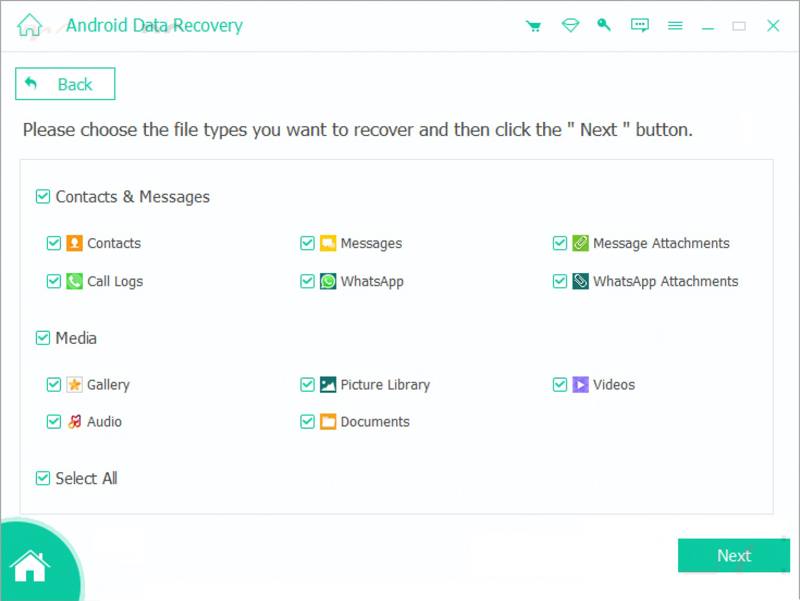
Select the data types you want to restore after your device is detected, like WhatsApp, Documents, and more. Click the Next button to begin scanning your device. Unlike Samsung Smart Switch, Apeaksoft Android Data Recovery can scan and recover files without an internet connection or account login.
Step 3. Restore app data on Samsung
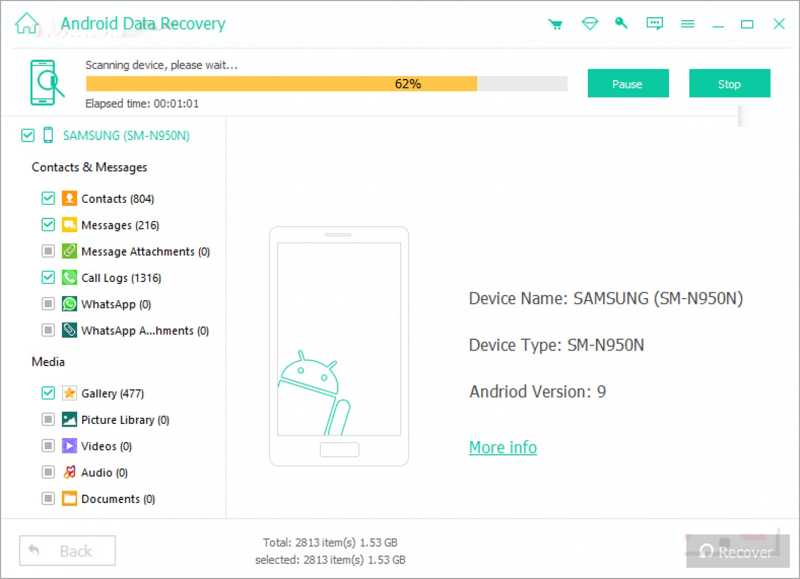
After scanning, preview the lost app data on your device. Then, select the items and files you want to retrieve. Click the Recover button, set an output folder, and hit Recover.
Conclusion
This guide explained how to restore missing apps on Samsung Android devices from the Google Play Store or Samsung Galaxy Store. If you have created a backup using Smart Switch, you can get back lost apps and app data quickly. The downside is that all existing data will be overwritten. Apeaksoft Android Data Recovery allows you to get back app data after you reinstall apps on your Samsung device.
Related Articles
If you need to effectively remove your Google account on your Samsung Galaxy device, you are lucky since this is a complete tutorial.
This tutorial helps you recover Samsung account when you forgot Samsung account ID or password on your Samsung device and computer quickly and effectively.
When you switch from Samsung to iPhone, you can transfer data using the Move to iOS app, computer, cloud service, and third-party software.
This post will offer a deep explanation of the Samsung lock screen. You can learn how to set up, customize, and remove it easily.



