
How to Remove Google Account and Bypass FRP on Samsung

Methods to remove a Google account on Samsung devices are different depending on your situation. If you can still access the phone, you can remove the account from Settings. If your phone has already been factory reset and is stuck on the FRP lock, asking you to verify a previously used Google Account, you need to remove the FRP first.
Removing a Google Account from Settings and bypassing FRP are not the same thing. This guide explains how to remove the Google account on Samsung devices.
PAGE CONTENT:
Part 1: Before Removing Google Lock on Samsung
Check Which Situation You Are In
| Your situation | What you need | Recommended approach |
| You can access the Samsung phone and know the Google account | Remove the Google account | Settings > Accounts and backup > Manage accounts |
| You want to sell or give away the phone | Remove the Google account before resetting | Remove the Google account, then factory reset from Settings |
| You reset the phone and see Google account verification | Remove Google account device Protection (FRP) | Sign in with the previously used Google account or follow Samsung’s ownership-verification options |
| You forgot the Google account password | Recover the account first | Use Google Account Recovery |
| You bought a used Samsung that is still FRP-locked | Verify ownership | Ask the previous owner to remove the account or contact Samsung Support for help |
Back Up Important Data Before Removing the Account
Before removing a Google account from your Samsung phone, you also need to make sure your important data is backed up or synced. Although removing the account from the Samsung device does not necessarily delete your data from your Google account, you should still check that important data has been successfully synced. Download contacts, emails, and files from Google. If you have synced your data, download them before removing your Google account on Samsung. Navigate to Accounts, and then Google in your Settings app, and toggle on the data types.

Part 2: How to Remove Google Account on Samsung - 3 Official Ways
Almost everything you do on Samsung revolves around having your Google account always signed in. Of course, you can have a Google account on your Samsung phone. Plus, you can do the job on Google Find Hub and Samsung SmartThings Find remotely.
How to Remove Google Account on Samsung in Settings
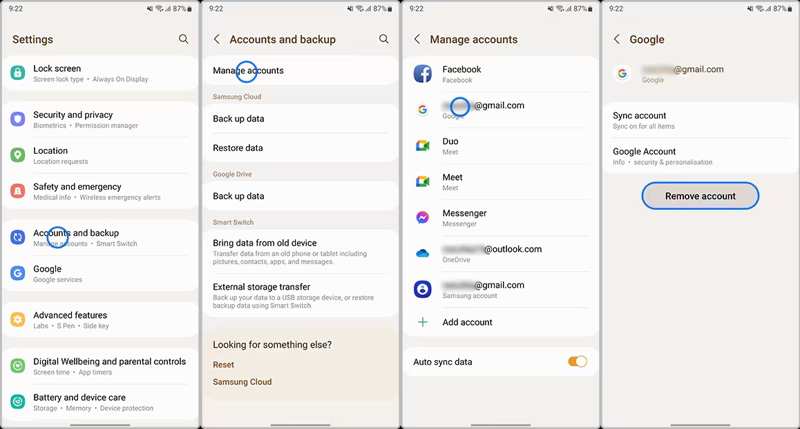
Step 1. Run the Settings app.
Step 2. Navigate to Accounts and backup, Manage accounts, and tap the Google account that you would like to remove.
Step 3. Tap Remove account, and press Remove account if prompted.
How to Bypass Google Lock on Samsung on Find Hub
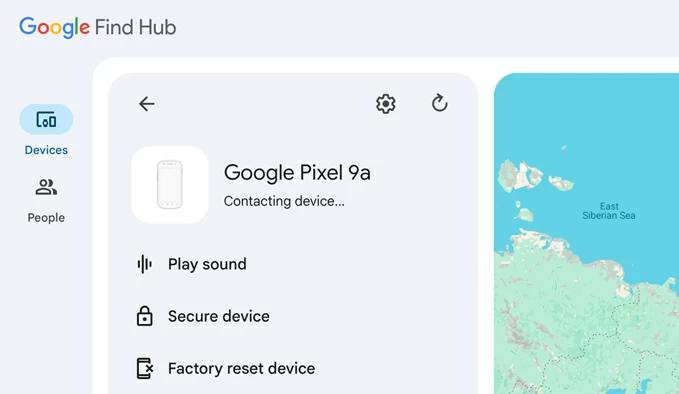
Step 1. Open Google Find Hub in a browser.
Step 2. Sign in to the Google account associated with your phone, and choose your device.
Step 3. Click Devices - Factory reset device to remotely erase your Samsung phone. Authenticate your Google account again. After the factory reset, your Google account will be removed from your Samsung phone.
How to Bypass Google Account on Samsung SmartThings Find
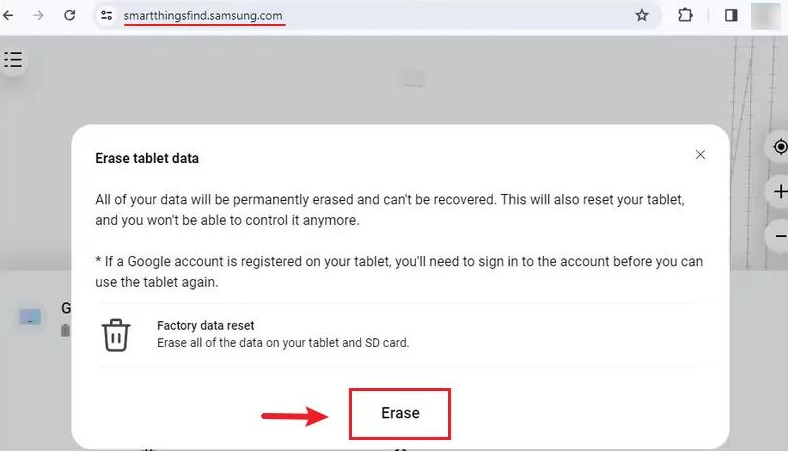
Step 1. Go to the SmartThings Find website in a browser and log in to your Samsung account.
Step 2. Choose your Samsung phone on the left side to track your device.
Step 3. Next, click Erase data in the toolbox, and hit Erase on the pop-up dialog to confirm the action. When it is done, your Google account is removed from Samsung.
Part 3: How to Bypass Google Account on Samsung in Recovery Mode
Sometimes, the standard factory reset or hard resetting your Android cannot bypass Google Lock on Samsung devices. You need to put your phone in the Recovery Mode and reset your device. This way can remove all data and settings on your phone including your Google account.
Step 1. Long press the Power key until the power-off screen pops up, and tap Power off.
Step 2. When your screen turns black, press and hold the Power + Volume Up keys at the same time. If your phone comes with a Home button, hold down the Power + Volume Up + Home keys simultaneously.

Step 3. When your phone enters the Recovery Mode screen, release the key combination.
Step 4. Next, press the Volume Down or Volume Up key to highlight the Wipe data/factory reset option. Then press the Power key to execute the command.
Step 5. Then use the Volume keys to select Yes, and hit the Power key to begin factory resetting your phone and bypass the Google account on your Samsung.
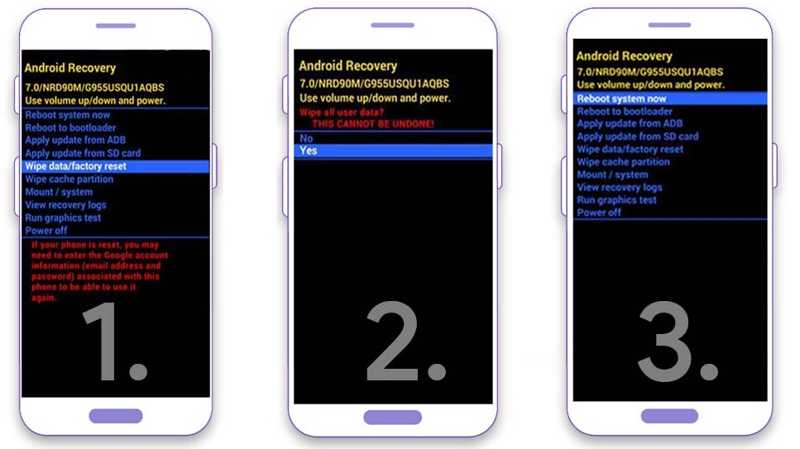
Step 6. Wait for the process to finish, highlight the Reboot system now option with the Volume keys, and hit the Power key to restart your phone immediately. Now, you can access your device without any restrictions.
Part 4: How to Bypass Google Account Lock on Samsung
If you want to remove the Google account after a factory reset, you're dealing with FRP, which is different from simply removing a Google Account from the phone.
If the Samsung device is yours, you can sign in with a Google Account that was previously synced to the device to complete the verification. If you forgot the password, you can recover your Google account first.
If you bought a second-hand Samsung device, ask the previous owner to help remove the Google Account first. If you cannot contact the previous owner, then you may need a dedicated FRP removal tool, such as Apeaksoft DroidAide Android Unlocker, to help you remove the Google account verification lock.

Downloaded by over 1,000,000 users
- Bypass the Google account on Samsung easily.
- Supports Samsung Galaxy S, Note, A, M, and other popular series.
- Compatible with Android 5.0 and above.
- Provides a clear and step-by-step guide.
Secure Download
How to Bypass Google Lock on Your Samsung Phone
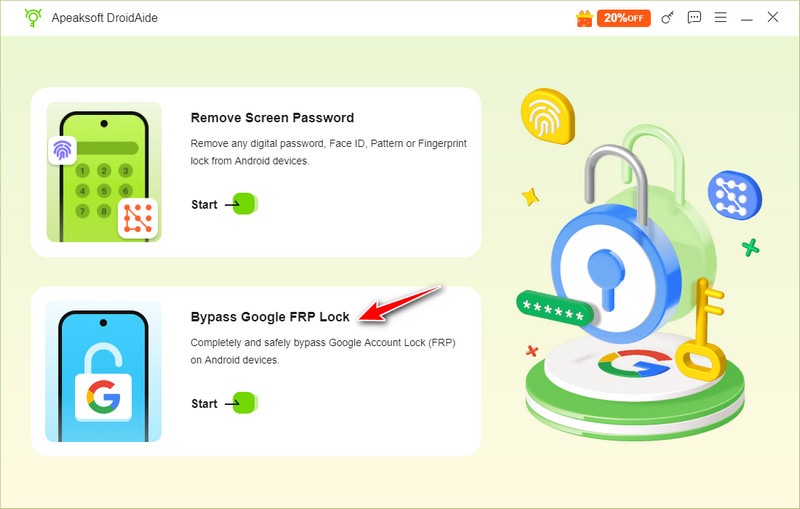
Step 1. Install the Google account removal software, which is an FRP bypass tool on your computer, and launch it. Choose Bypass Google FRP Lock, and connect your Samsung phone to your computer with a USB cable.
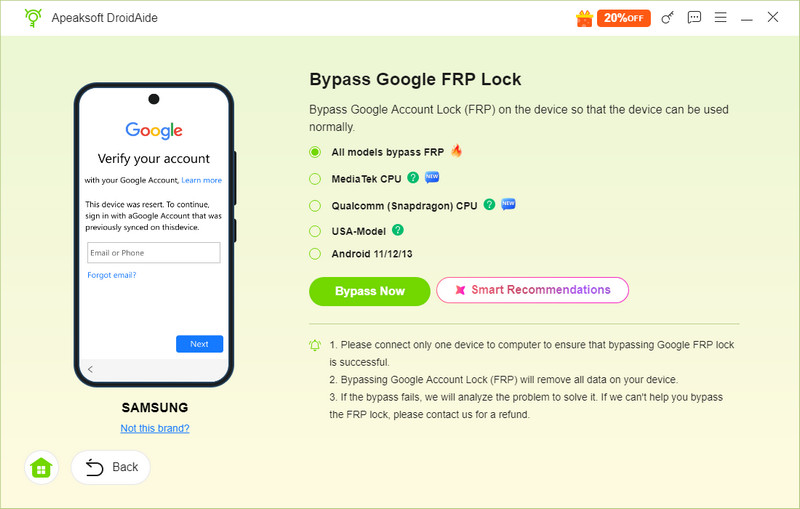
Step 2. Then select the Samsung brand. Click the Bypass Now button to move on.
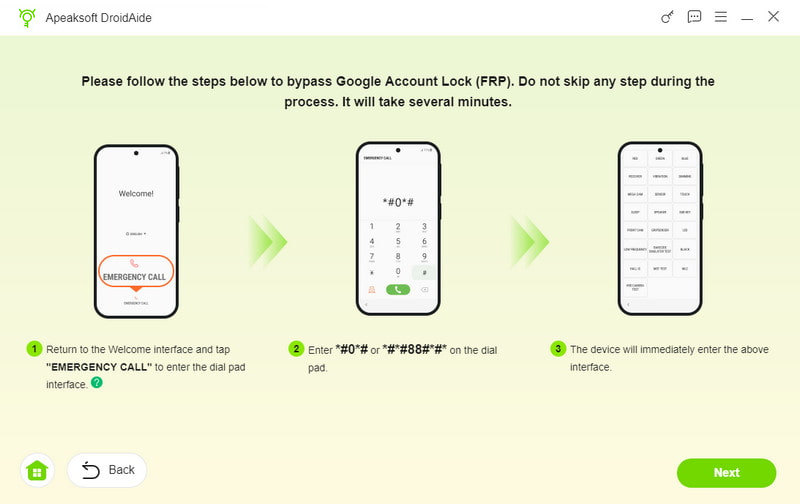
Step 3. Next, follow the on-screen instructions to enter the diagnostic menu on your phone. Click on the Next button to begin bypassing the Google lock on Samsung immediately.
Step 4. When the process finishes, your Samsung phone will reboot automatically. Disconnect your phone and set it up as a new device. You won't be blocked by Google Lock.
Tips: The software will erase all data and settings on your phone. You'd better back up your data before removing Google Lock on Samsung.
Conclusion
This guide told you several ways to remove Google account on Samsung Galaxy by factory reset and more for different situations. You can remove the account in the Settings app if you still have access to your phone. The Find Hub and Samsung SmartThings Find are other options to erase your Google account from your device. Or you can put your phone in Recovery Mode and perform a factory reset. If you want to remove the Google account verification lock, third-party tools like Apeaksoft DroidAide Android Unlocker are another option to try.
 Apeaksoft DroidAide
Unlock your Android passwords and bypass the FRP lock easily.
Secure Download
Related Articles