


How to Recover Deleted Photos on Samsung Galaxy Devices

Samsung is a famous smartphone brand. It releases Galaxy phones and tablets every year. Similar to other digital devices, losing precious photos on your Samsung phone can be stressful. The good news is that in most cases, photo recovery is possible. This guide shares where Samsung photos are stored, explains the proven methods to get Samsung photo recovery, and demonstrates detailed steps.
PAGE CONTENT:
- Part 1: How to Recover Recently Deleted Photos on Samsung
- Part 2: How to Recover Deleted Photos from Samsung Cloud
- Part 3: How to Recover Deleted Samsung Photos from Google Photos
- Part 4: How to Recover Deleted Photos with Samsung Smart Switch
- Part 5: How to Recover Permanently Deleted Photos on Samsung Without Backup
Part 1: How to Recover Recently Deleted Photos on Samsung
If you just removed photos on your phone, the Recycle Bin is a quick way to recover deleted photos on your Samsung phone. As long as you delete a photo in the Samsung Gallery app, it will be stored in the Recycle bin album for 30 days. Before it is permanently deleted, you can restore it directly.
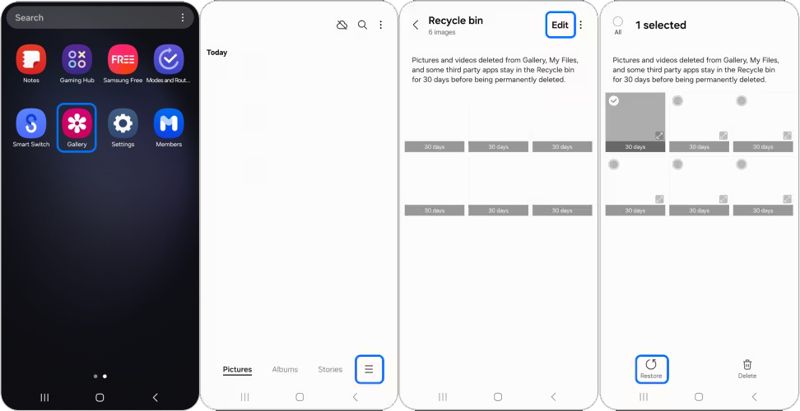
Step 1. Open the Gallery app on your phone.
Step 2. Tap the Menu button and choose Recycle Bin.
Step 3. Tap the Edit button.
Step 4. Select the deleted photos you want to recover.
Step 5. Tap the Restore button.
Step 6. Then, go to the original album to check if the photos are recovered.
Part 2: How to Recover Deleted Photos from Samsung Cloud
Samsung users are asked to activate their devices with a Samsung account. At the same time, they are applied with the Samsung Cloud backup service for device backup. It gives you a chance to recover permanently deleted photos on Samsung if you have turned on Samsung Cloud backup.
Step 1. Go to https://www.samsungcloud.com/#/login in a web browser.
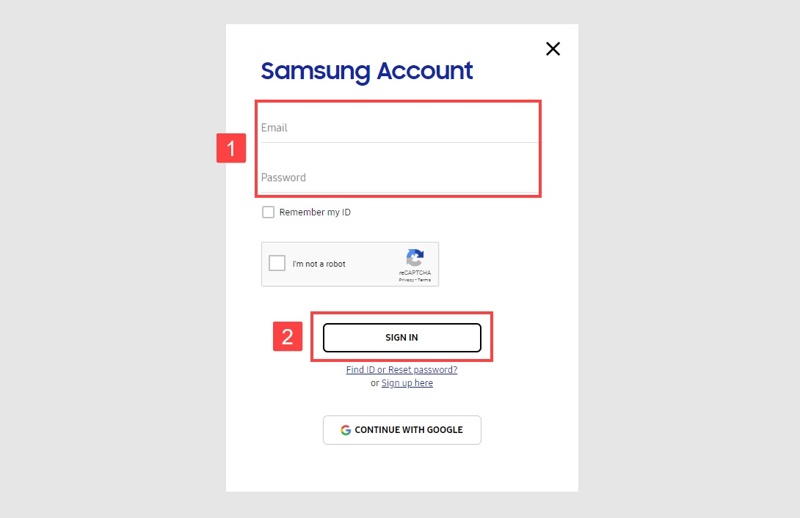
Step 2. Log in with your Samsung account and password.
Step 3. Choose the Gallery option under the SYNCED DATA section.
Step 4. Select the photos you wish to retrieve.
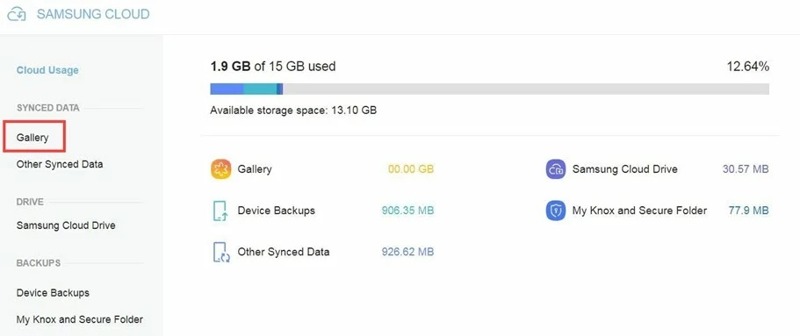
Step 5. Click the Download button to recover your photos.
Note: If you want to retrieve the photos on your phone, transfer them from the computer wirelessly or with a USB cable.
Part 3: How to Recover Deleted Samsung Photos from Google Photos
Some people use Google Photos to save and back up photos on their Galaxy devices. The built-in Bin album saves the deleted photos for 60 days before being permanently deleted.
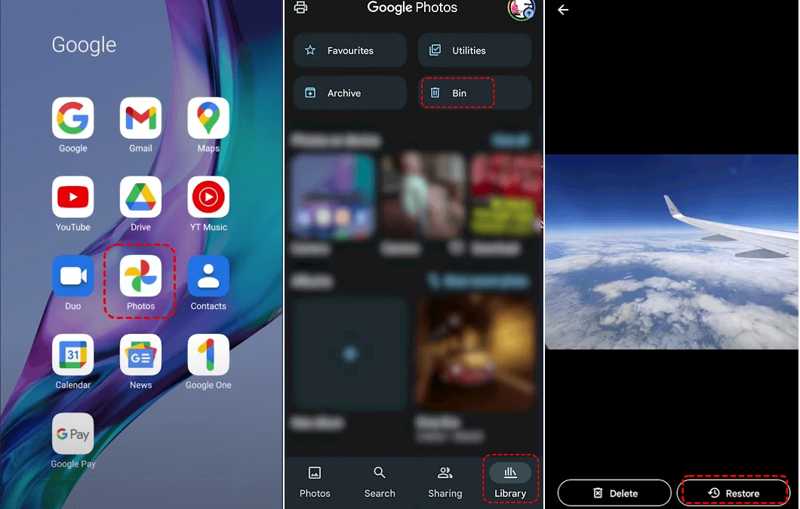
Step 1. Run the Google Photos app on your Samsung device.
Step 2. Go to the Library tab and choose Bin.
Step 3. Browse the deleted photos and select the desired items.
Step 4. Tap the Restore button.
Part 4: How to Recover Deleted Photos with Samsung Smart Switch
Smart Switch is the official toolkit released by Samsung for Galaxy devices. It allows users to back up their data from Samsung devices to computers. You can recover permanently deleted photos from Samsung Smart Switch.
Step 1. Connect your phone to your computer using a USB cable.
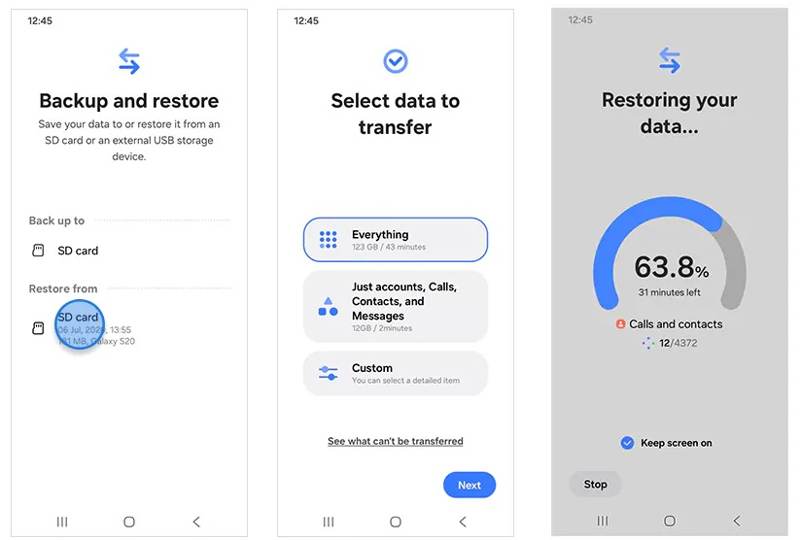
Step 2. Open the Smart Switch program on your computer.
Step 3. Click Restore after your phone is detected.
Step 4. Choose the backup file you want to restore.
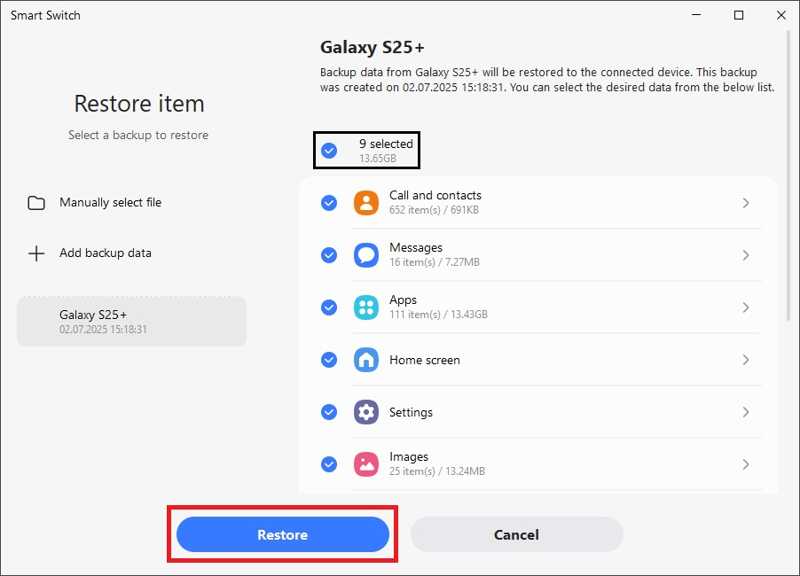
Step 5. Select the desired data types, like Images.
Step 6. Click the Restore button to start the recovery process.
Step 7. Once complete, disconnect your device from the computer.
Part 5: How to Recover Permanently Deleted Photos on Samsung Without Backup

Downloaded by over 1,000,000 users
- Recover deleted photos from Samsung in 3 steps.
- Work for a wide range of situations, like factory resetting.
- Compatible with almost all image formats.
- Preview all photos recoverable on your device.
- Support devices from Samsung and other brands.
Secure Download
Secure Download

How to Recover Permanently Deleted Photos on Samsung Without Backup
Step 1. Connect to your phone
Launch the photo recovery software for Samsung Galaxy after installing it on your computer. It is available on Windows 11/10/8/7/XP/Vista and Mac OS X 10.6 or above.
Turn on your phone and enable USB Debugging mode in the Settings app. Next, plug your Samsung phone into your computer with a compatible cable. If prompted, select Transfer files for USB using.
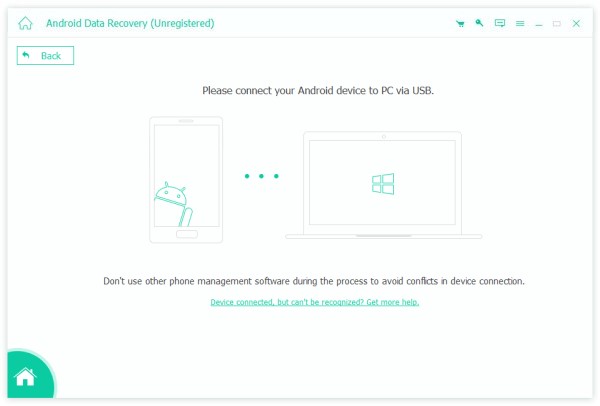
Step 2. Preview deleted photos
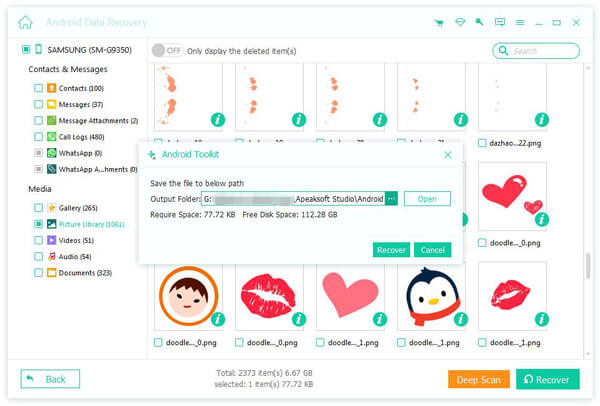
Once your phone is detected, select the data types you want to retrieve. To recover photos, select Gallery, Picture Library, and more. Click the Next button to begin scanning your phone. Then, toggle on Only display the deleted items to view deleted photos.
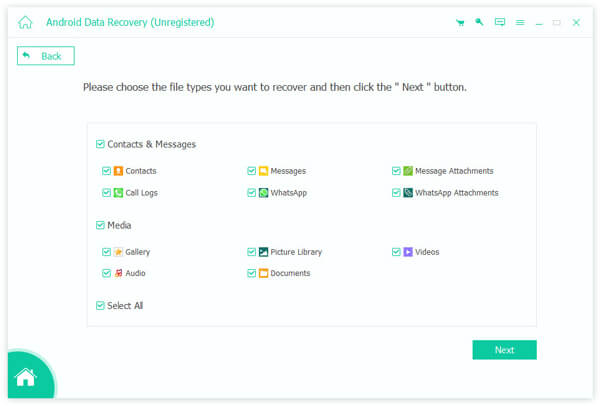
Step 3. Recover deleted Samsung photos
After data scanning, select the desired photos and click the Recover button. Then, select the output location and begin recovering permanently deleted photos on Samsung without a backup.
Conclusion
This guide shared five ways of Samsung photo recovery in various situations. The Recycle bin or Trash album enables you to get back recently deleted pictures in the built-in Gallery or Google Photos app. With a cloud or computer backup, you can find lost photos after restoring the backup. Apeaksoft Android Data Recovery is a quick way to restore lost images on Samsung without a backup.
 Apeaksoft Android Data Recovery
 Recover various deleted or lost data from all popular Android devices.
Secure Download
Secure Download
Related Articles




