How to Repair Corrupted SD Card and Recover Your Data

The SD card is widely used to expand storage on smartphones, digital cameras, and other digital devices. Many people also back up their files and information using SD cards. However, it is very awful when you face a corrupted or damaged SD card. The easy way to fix an SD card is formatting it, but it is unable to address serious problems. This tutorial shares how to repair corrupted SD cards without data loss.
PAGE CONTENT:
Part 1: How to Repair an SD Card on Windows
How to fix a corrupted SD card on Windows? The built-in CHKDSK command can scan and repair corrupted file systems on any storage drives, including local disks and external hard drives. Plus, the Troubleshooter feature can fix problems with hardware quickly.
How to Repair a Corrupted SD Card with CHKDSK
Step 1. Insert the corrupted SD card into your PC.
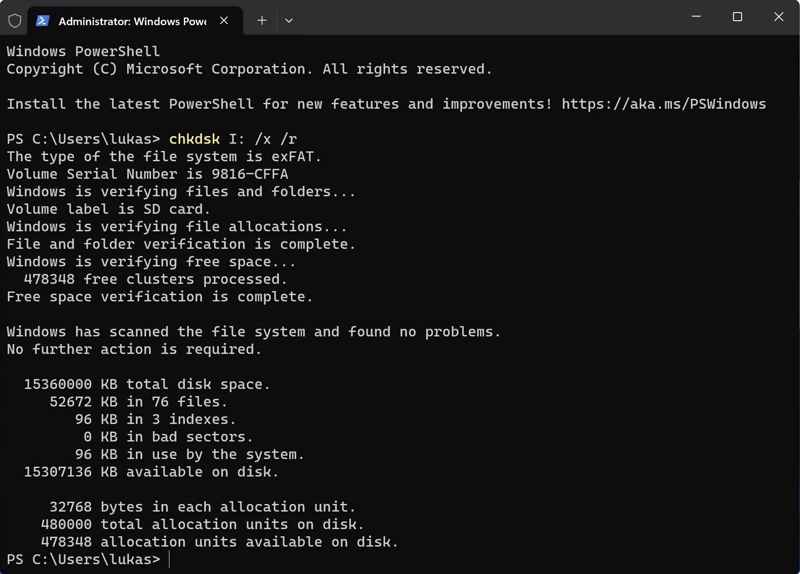
Step 2. Right-click on the Start menu and choose Command Prompt as Administrator or Windows PowerShell as Administrator.
Step 3. Type the command: chkdsk E: /f /r. Replace E: with the letter of your SD card.
Step 4. Press the Enter key on your keyboard to repair the corrupted SD memory card.
How to Repair a Damaged SD Card Using the Troubleshooter
Step 1. Choose Settings from the Start menu on Windows 11/10.
Step 2. Insert the damaged SD card into your PC.
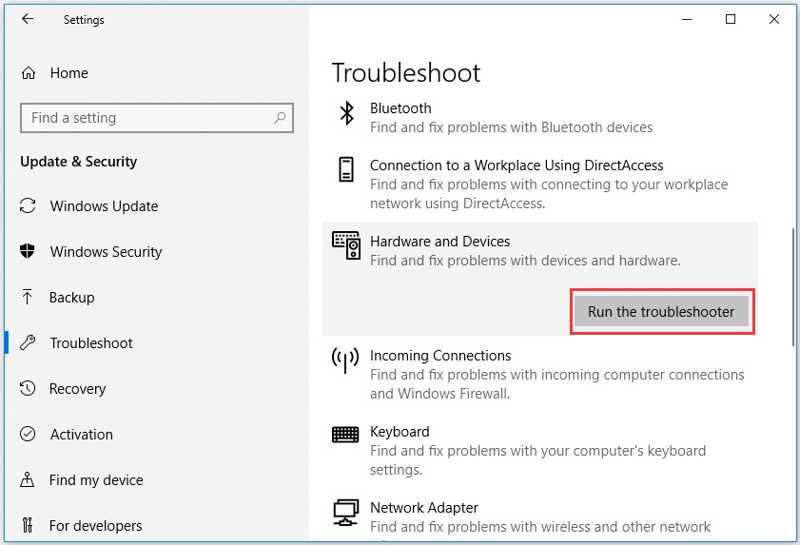
Step 3. Click and expand Update & Security and choose Troubleshoot.
Step 4. Pick Hardware and Devices and click Run the troubleshooter.
Step 5. Follow the onscreen instructions and repair the MicroSD card.
Part 2: How to Repair an SD Card on a Mac
In addition to the SD card repairing store near me, you can resolve this problem on your own with a MacBook. The built-in Disk Utility enables you to fix disk errors on storage devices, including SD cards.
Step 1. Connect your SD card to your Mac with a card reader.
Step 2. Open the Finder app from the Dock bar.
Step 3. Go to Applications and Utilities.
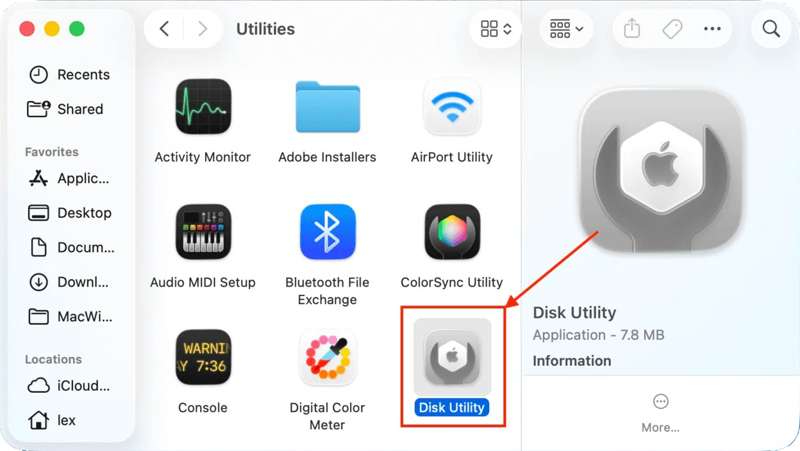
Step 4. Click Disk Utility to open it.
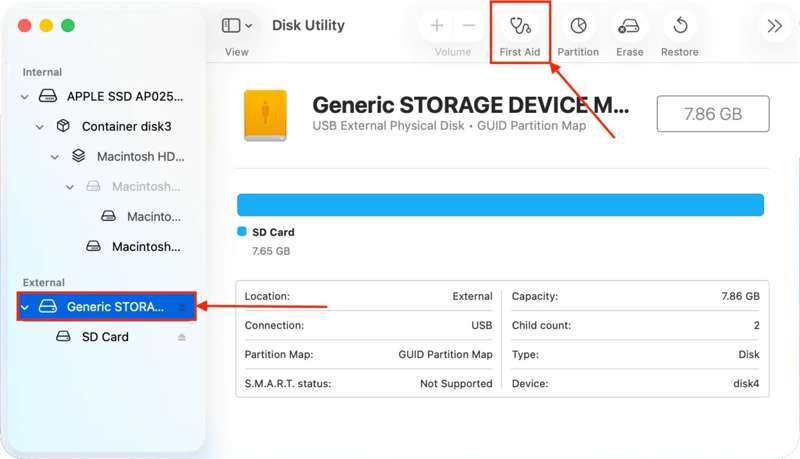
Step 5. Hit the View button on the top ribbon and choose Show All Devices.
Step 6. Pick the SD card under External on the sidebar.
Step 7. Click the First Aid button on the top menu bar.
Step 8. When prompted, click the Run button on the pop-up dialog.
Step 9. After SD card repair, eject it, and reboot your Mac.
Step 10. Reconnect your card to see if it works.
Part 3: How to Recover Data from a Corrupted SD Card
Either CHKDSK or First Aid can fix corrupted storage. However, they cannot recover lost data from your SD card or may interrupt existing data on your device. With the SD card repair software, such as Apeaksoft Data Recovery, you can get back lost data quickly. It is able to scan your SD card before or after repairing and retrieve your data.
A Quick Way to Recover Data from a Corrupted SD Card
- Retrieve lost data from SD cards with one click.
- Work for a wide range of situations.
- Support hundreds of file types and formats.
- Preview lost files for selective recovery.
- Available on Windows and macOS.
Secure Download
Secure Download

How to Recover Data from a Corrupted SD Card
Step 1. Scan your SD card
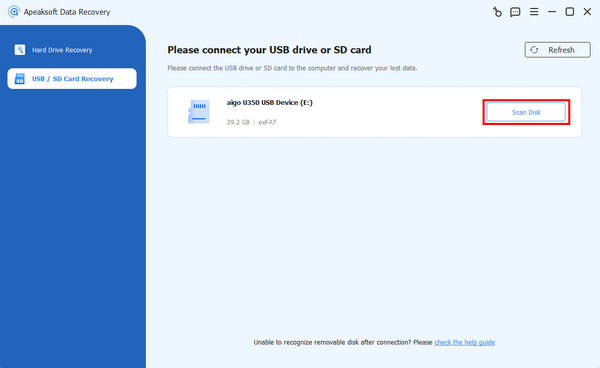
Download and install the SD card repair tool on your computer and launch it from your desktop. Connect the corrupted SD card to your computer, and the software will detect it automatically. Go to the USB / SD Card Recovery tab on the sidebar. Pick the correct type from the Type option and click the Scan Disk button to initiate scanning your card.
Step 2. Preview lost files
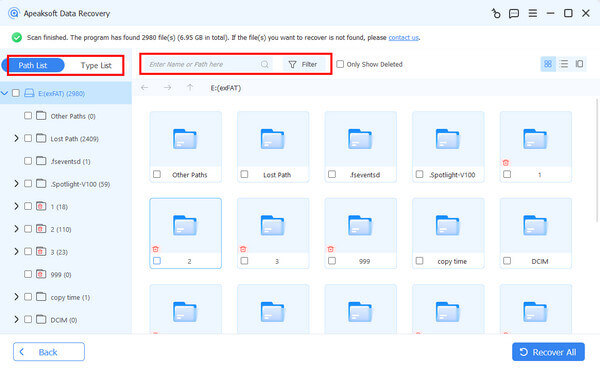
Once the quick scan finishes, the software will begin a deep scan immediately. When it is complete, you can view all files on your card by type or path. Go to the Type List tab, for example, and browse image, video, document, and more. You can also quickly locate specific files with the Filter option.
Step 3. Recover corrupted SD card
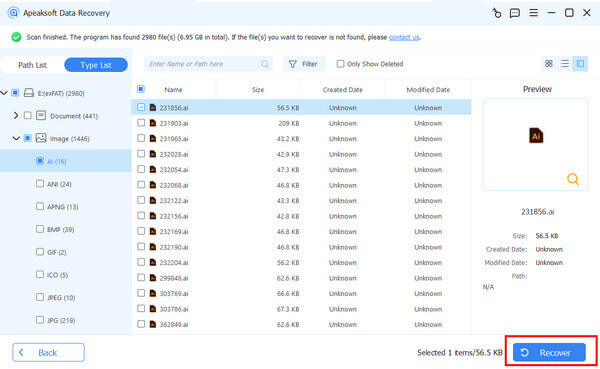
Make sure to select all files you want to retrieve and click the Recover button. Set an output folder and confirm data recovery. You’d better set a local hard drive instead of your SD card. As long as it finishes, you can find and check your files in the destination.
You May Also Like:
Conclusion
This guide shared three ways to fix a corrupted SD card on Windows and macOS. The built-in disk repairing features, such as CHKDSK, Troubleshooter, and First Aid, allow you to fix external storage on a computer. They don’t require extra software or hardware. Furthermore, we recommended Apeaksoft Data Recovery to help you recover lost data from a corrupted or damaged SD card. It is easy to use and doesn’t require technical skills.
Related Articles