


How to Fix iPad Showing support.apple.com/ipad/restore Screen

If your iPad suddenly shows the support.apple.com/ipad/restore screen, it usually means a software update or restore failed. How can you get out of the restore page? In this guide, we'll show you how to troubleshoot your iPad stuck on the support.apple.com/ipad/restore page step by step and how to recover lost data after a factory restore.
PAGE CONTENT:
Part 1: Why Does My iPad Say support.apple.com/ipad/restore
When your iPad shows the "support.apple.com/ipad/restore" screen, it means your iPad is stuck in Recovery Mode. This special mode is built into Apple devices to help troubleshoot serious software issues. A failed update, system corruption, or other software problems can trigger your iPad to enter Recovery Mode and display the "support.apple.com/ipad/restore" page, indicating that it needs assistance from a computer to reinstall iPadOS.
Part 2: How to Fix iPad Stuck on support.apple.com/ipad/restore
If your iPad is stuck on the "support.apple.com/ipad/restore" screen, try these 4 methods to get your iPad back to normal.
Fix 1: Force Restart Your iPad
Force restarting your iPad is the fastest way to fix this issue. A force restart can refresh your system and repair software glitches. Check your iPad model to force restart it correctly.
iPad with Home Button: Press and hold the Home and Power buttons simultaneously until the Apple logo appears.
iPad without Home Button: Quickly press and release the Volume Up button, then the Volume Down button, and finally press and hold the Power button until the Apple logo shows up.
Fix 2: Update Your iPad Via iTunes
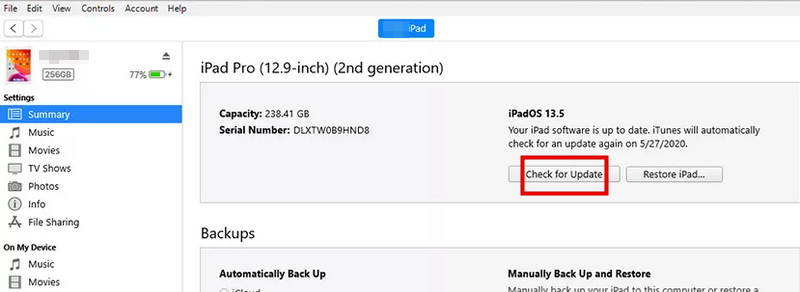
Sometimes, your iPad shows a support.apple.com/ipad/restore error because it needs a software update. Updating it via a computer can fix the issue without erasing your data.
Step 1. Connect your iPad to a computer and open iTunes.
Step 2. Click Check for Update in the Summary tab.
Step 3. If an update is available, click Download and Update to install the latest iPadOS version.
Fix 3: Restore Your iPad to Factory Settings
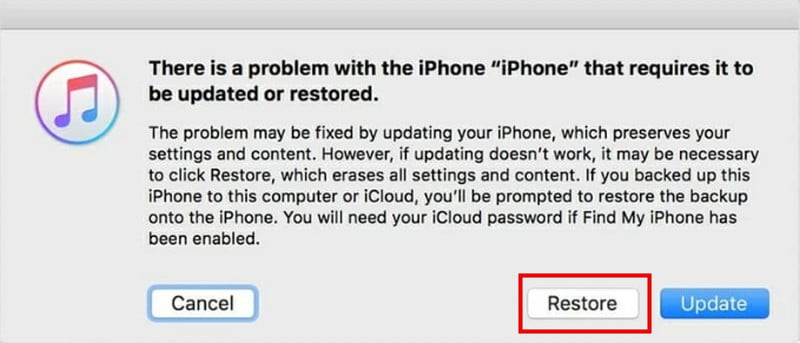
If your iPad is stuck in recovery mode, you can restore it via iTunes or Finder. However, this method will erase all your data on your device, so back up your iPad in advance!
Step 1. Connect your iPad to a computer and open Finder or iTunes.
Step 2. Select your iPad from the list, then click Restore iPad.
Step 3. After restoration, you can set up your iPad or restore from a backup.
Fix 4: Contact Apple Support
If none of the above methods work, there may be a deeper software or hardware problem. Contact Apple Support for professional assistance. They can help diagnose the issue, guide you through advanced troubleshooting, or arrange a repair if necessary.
Part 3: How to Recover Data from iPad After a Factory Restore
However, after performing a factory restore to fix the support.apple.com/ipad/restore error, all data on your iPad has been erased. So, how can you get your data back? Apeaksoft iPhone Data Recovery can help you retrieve lost data safely and efficiently. It can recover data caused by a factory reset, accidental deletion, system errors, and other situations.

Downloaded by over 1,000,000 users
- Recover deleted and lost data from iPhone, iPad, and iPod.
- Recover iOS data after a factory reset.
- Recover messages, photos, documents, and all types of iOS data.
- Recover from a damaged or stolen iOS device.
Secure Download
Secure Download

How to recover data from an iPad:
Step 1. Launch the program and select iPhone Data Recovery. Connect your iPad via a USB cable and tap Trust on your iPad.
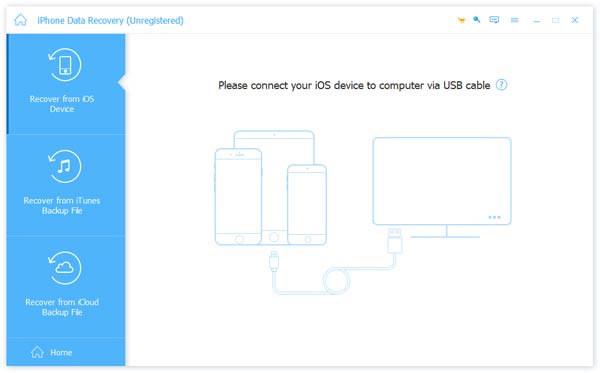
Step 2. Click the Start Scan button to allow this software to scan all your data on your iPad.

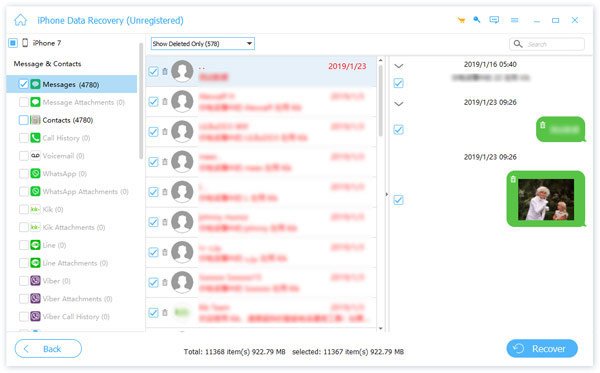
Step 3. You can now preview the recoverable data. Select the data you want to recover. Then, click the Recover button in the bottom-right corner to start the restore.
Part 4: FAQs About support.apple.com/ipad/restore
Can I fix support.apple.com/ipad/restore without a computer?
Unfortunately, most fixes require a computer. The support.apple.com/ipad/restore screen usually means your iPad cannot complete an update or restore on its own. You can try a force restart to fix glitches, but if that doesn't work, you'll need a computer with Finder or iTunes to update or restore your iPad.
How do I manually enter iPad recovery mode?
For iPads with Face ID: Quickly press the Volume Up button, then the Volume Down button. Hold the Top button until the recovery mode screen appears.
For iPads with Home button: Press and hold Home and Top/Side buttons together until the recovery mode screen appears.
How do I get my iPad out of support.apple.com/iPad/restore?
To get your iPad out of the support.apple.com/iPad/restore screen, try force restarting it first. If that doesn't work, connect your iPad to iTunes or Finder and choose to update or restore your device. If the issue persists, contact Apple Support for assistance.
Conclusion
Most iPads stuck on the support apple com iPad restore page can be fixed by a force restart, updating via Finder or iTunes, or performing a factory restore. If you lost data during the process, tools like Apeaksoft iPhone Data Recovery can help you recover your photos, messages, and documents. Remember to back up your iPad regularly to avoid data loss headaches!
 Apeaksoft iPhone Data Recovery
 Recover deleted or lost data from iOS Devices, iTunes, and iCloud backup.
Secure Download
Secure Download
Related Articles




