


How to Effectively Recover Unsaved Text Files in Sublime

"I am using Sublime Text as a notepad, and I have plenty of unsaved files that usually reopen after reboot or crash, but I lose some of them. How can I get unsaved Sublime Text files?" As a powerful text, code, and markup tool, many people use Sublime Text on their Windows, Mac, and Linux due to its standout speed, stability, and cross-platform customization. If you forgot to save your files, here is how to retrieve them.
PAGE CONTENT:
Part 1: Find and Recover Unsaved Sublime Text Files
By default, Sublime Text saves session data, including unsaved changes. If Sublime Text crashed, you accidentally closed an unsaved tab, or your previous session was not restored after restarting the program, you may still be able to recover your unsaved content from Sublime Text's session or workspace files.
Step 1. Stop using Sublime.
Step 2. Open File Explorer or Finder on your computer or laptop.
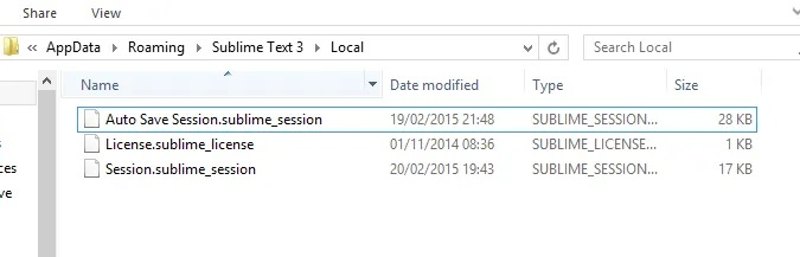
Step 3. Open the location for unsaved Sublime Text files. Below are the locations where Sublime Text stores unsaved files
For Mac: ~/Library/Application Support/Sublime Text/Local/
For Windows: %APPDATA%Sublime TextLocal\
For Linux: ~/.config/sublime-text/Local/
If you use a Sublime Text project or workspace, also check the corresponding .sublime-workspace file.
Step 4. Find the right file and version:
| Your Sublime Setup | Where to Look |
| Regular window | Session.sublime_session |
| Workspace | .sublime-workspace |
| Project | Project’s .sublime-workspace |
| Session backup available | Auto Save Session.sublime_session |
The session files can contain information about open files and unsaved content, while workspace files can store the state of a specific project or workspace.
Step 5. Make a copy of the relevant session or workspace file before editing it. Open the unsaved file, and you can find the content inside the contents section.If Sublime Text can restore the previous session normally, you may also be able to recover the unsaved file simply by reopening the program.
Step 6. Make sure to save it as a new file to avoid replacing the content.
Part 2: Restore Sublime Text Files from Windows or Mac Backups
The built-in backup features on Windows and Mac allow you to restore unsaved Sublime Text files if you have previously backed up your Sublime Text files or their session and workspace data. These methods are mainly useful when the relevant file or Sublime Text data was included in the backup. If the content was never saved as a file and the Sublime Text session data was not backed up, these methods may not be able to recover it.
How to Restore Unsaved Sublime Text Files on a PC
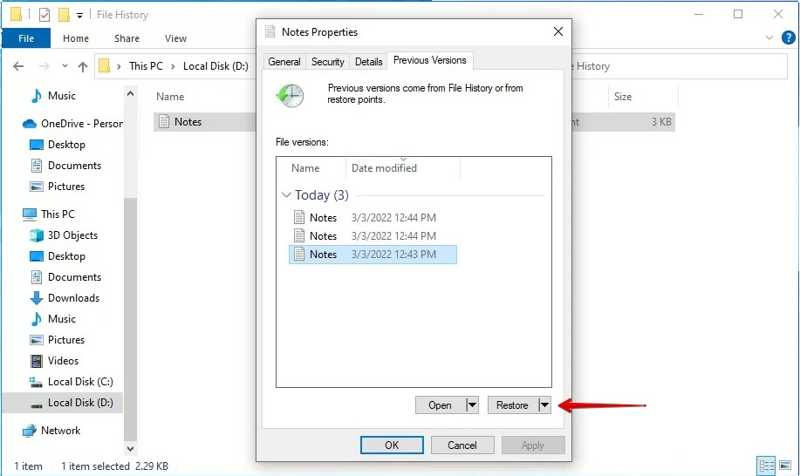
Step 1. Locate the Sublime Text folder in a File Explorer.
Step 2. Right-click on the folder and choose Properties.
Step 3. Go to the Previous Versions tab.
Step 4. Pick the version that includes the unsaved file and click Restore.
How to Recover Unsaved Sublime Text Files on Mac
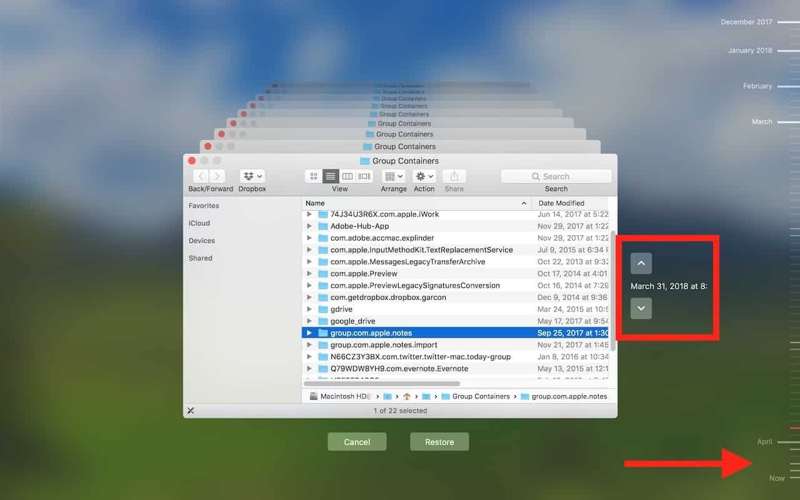
Step 1. Navigate to the Sublime Text folder in Finder.
Step 2. Click the Time Machine button on the top menu bar.
Step 3. Press the Up and Down arrows to find the unsaved file.
Step 4. Finally, click the Restore button.
Part 3: Recover Lost or Deleted Sublime Text Files with Deep Scan
If Sublime Text's session or workspace files are missing or corrupted, or a saved text file has been deleted or lost, Apeaksoft Data Recovery can help you scan your drive for unsaved Sublime Text files. It is able to scan your hard drives deeply for files that were lost due to various factors. More importantly, the intuitive interface simplifies the workflow of file recovery.

Downloaded by over 1,000,000 users
- Recover unsaved files from Sublime Text in three steps.
- Support all file types, including text files.
- Restore files from the emptied Recycle Bin, hard drives, memory cards, etc.
- Offer a high success rate and fast recovery speed.
- Available for unsaved, corrupted, deleted, and other situations.
Secure Download
Secure Download

How to Recover Unsaved Sublime Text Files
Step 1. Scan your drive
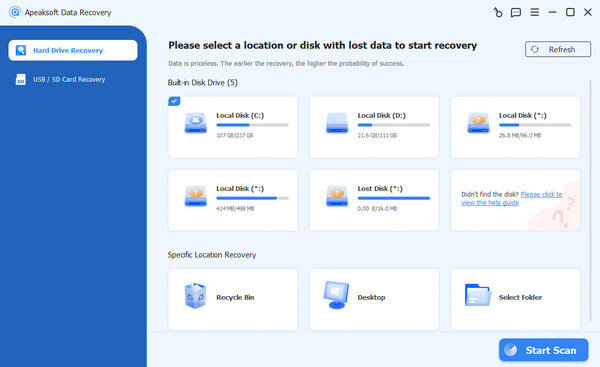
Launch this tool on your computer. Choose the Hard Drive Recovery tab and click the disk where your files are stored. Click the Start Scan button to begin scanning your drive.
Step 2. Preview text files
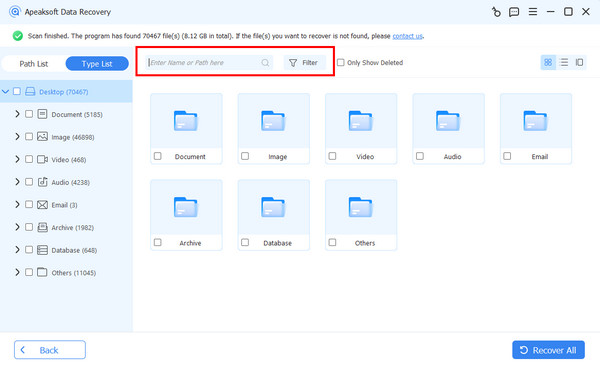
After the quick scan, the software will automatically perform a deep scan. When it finishes, switch to the Type List tab and select the target file type. Or head to Path List and choose the right location. Then, preview lost Sublime Text files. You can quickly locate it with the Filter and Search Bar.
Step 3. Recover Sublime Text files
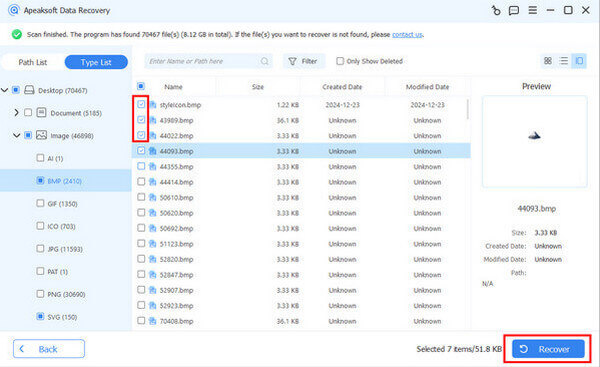
Tick the checkbox next to each recoverable file and click the Recover button. Then, set an output folder and confirm file recovery. You can also recover deleted videos with it
Part 4: How to Automatically Save Changes in Sublime Text
Sublime Text has an automatic save feature that saves your changes when the current file loses focus, such as when you switch to another file or window. But this feature is different from Sublime Text's session recovery feature which we introduced in Part 1, which preserves unsaved changes for recovery after the program is closed or crashes.
To prevent you from losing recent changes if Sublime Text crashes or you accidentally close the file without saving it manually, it is necessary to enable this feature. Here are the steps:
Step 1. Open the Sublime Text program on your desktop.
Step 2. Access Settings - User:
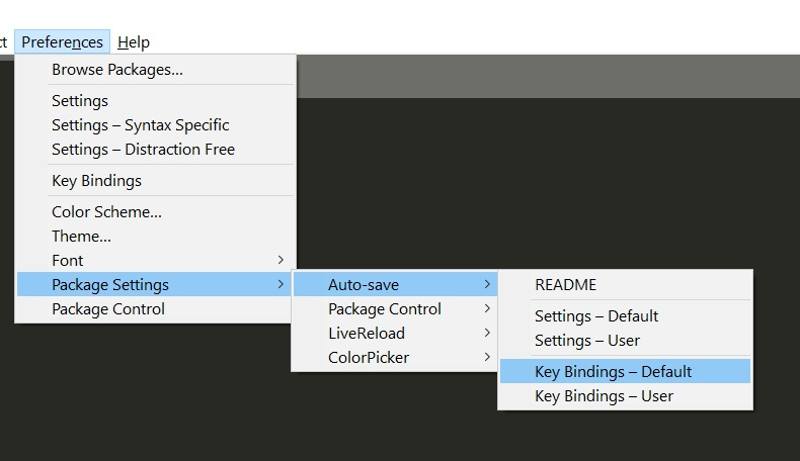
On Mac: Click Sublime Text on the menu bar, choose Preferences, and click Settings - User.
On PC: Click Preferences and choose Settings – User.
Step 3. Type {"save_on_focus_lost": true}.
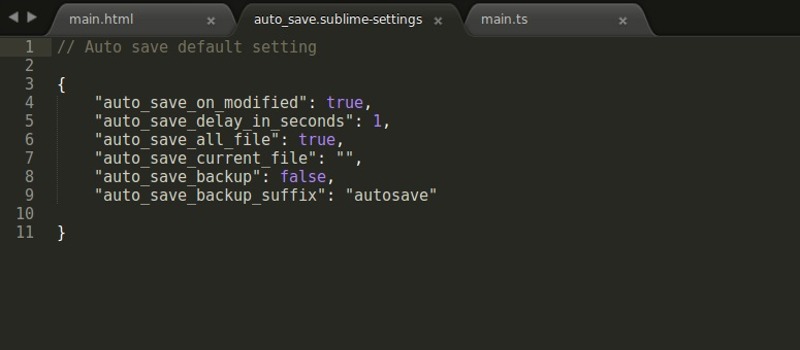
Step 4. Save the file and close it. Once enabled, Sublime Text will save changes when the file loses focus.
Conclusion
This article shared multiple methods to recover unsaved Sublime Text files on macOS, Windows, and Linux. You can follow our steps to get back your lost files quickly. If Sublime's built-in recovery and backup options don't work, Apeaksoft Data Recovery can help you recover lost or deleted files from your drive.
 Apeaksoft Data Recovery
 Recover deleted or lost data on Windows and Mac computer.
Secure Download
Secure Download
Related Articles




