


What Is Wise Data Recovery and How to Use the Software

The digital world makes our daily life and work convenient. For example, digital files and photos are easy to create, edit, and share. Every coin has two sides. So do digital files. Losing files is one of the challenges that rears its ugly head every so often. The good news is that there are data recovery programs on the market. Wise Data Recovery, for example, is a safe option to get back lost data from hard drives.
PAGE CONTENT:
Part 1: In-depth Review of Wise Data Recovery
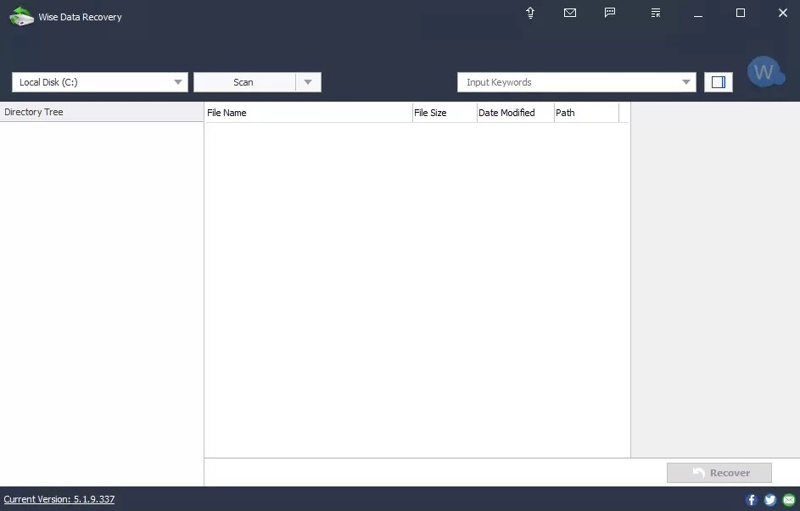
Wise Data Recovery is one of the best data recovery software programs for Windows and Mac. It allows users to easily find deleted and lost files anywhere, including the internal and external hard drives.
Main Features of Wise Data Recovery
- Recover data from common data loss scenarios.
- Work for an empty Recycle Bin, a formatted drive, and corrupted files.
- Support file systems, like NTFS, FAT32, exFAT, HFS, HFS+, HFSX, Ext2, and Ext3.
- Support for over 1,000 file types.
- Offer a portable version and don't require installation.
- Available on Windows and macOS.
- Handle local drives, external drives, USB drives, SD cards, etc.
- Provide a limited free version and pro editions.
Wise Data Recovery Review
- It works with most file systems.
- Wise Data Recovery integrates a clean interface.
- Users can preview recoverable files.
- The portable version is convenient.
- It provides a free version and a few pro versions.
- Wise Data Recovery doesn't offer advanced features, like file reconstruction.
- Users cannot choose between a quick and a deep scan.
- It cannot create byte-to-byte disk imaging.
- The free version can only recover up to 2GB of data.
Price of Wise Data Recovery
Wise Data Recovery comes with a free version for restoring recently deleted files up to 2GB. If you want to get the core features and unlock all limitations, upgrade to a pro version. The one-month plan costs $44.96, and the one-year plan costs $67.46.
Part 2: How to Use Wise Data Recovery
While Wise Data Recovery is portable, you need to download the software onto your hard drive. We share the workflow for recovering JPG images on internal hard drives. The success rate is different, depending on your situation.
Step 1. Download Wise Data Recovery for free from the official website.
Tips: Don't download Wise Data Recovery crack from third-party sources to avoid risks.
Step 2. Open it from your desktop.
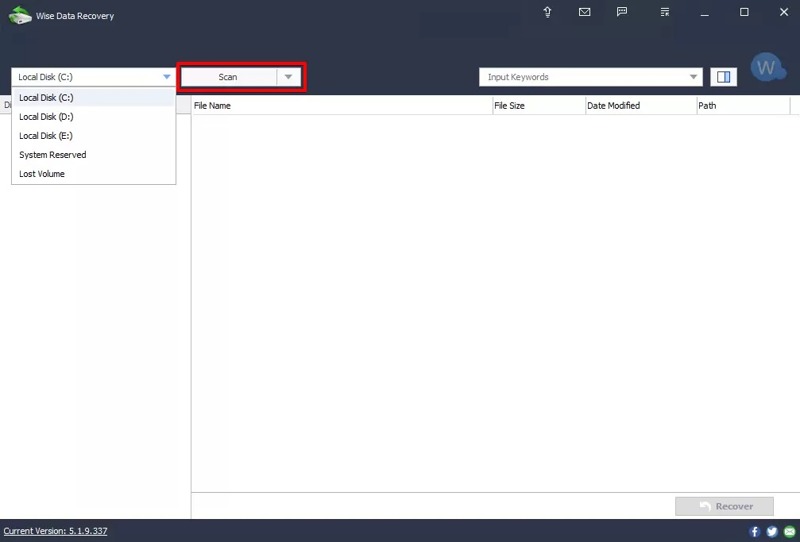
Step 3. Click and expand the disk option and choose the disk you want to recover.
Step 4. Click the Scan button to begin scanning the disk.
Step 5. Once disk scanning is complete, search for the desired file types, like *.jpg.
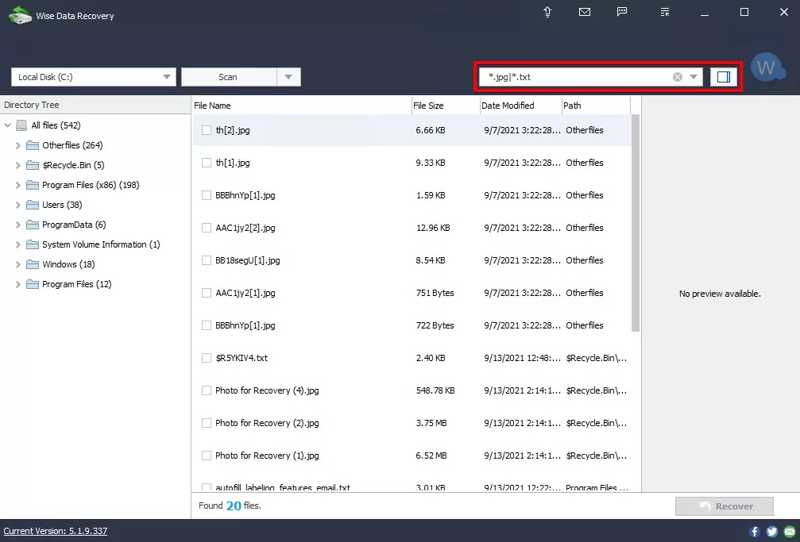
Step 6. Next, tick the checkboxes next to the files you'd like to recover.
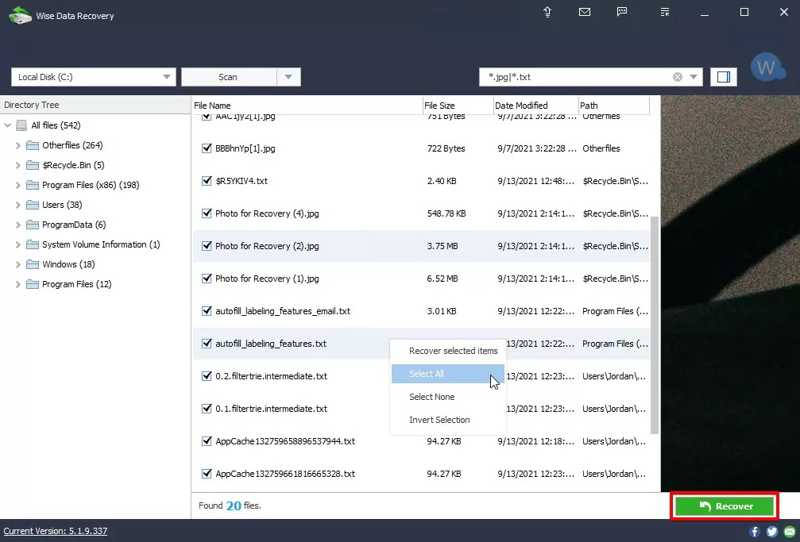
Step 7. Click the Recover button at the bottom right corner.
Step 8. Select a folder to save your data and click OK.
Further Reading
Part 3: An Ideal Alternative to Wise Data Recovery
If Wise Data Recovery cannot find your lost files, you'd better look for an alternative, such as Apeaksoft Data Recovery. It is much easier to use and delivers a higher success rate. More importantly, it is available to a wide range of data loss situations.

Downloaded by over 1,000,000 users
- Recover all file types, like images, documents, emails, etc.
- Work for hard drives, SD cards, HDDs, SSDs, USBs, and more.
- Preview lost files for selectively recovering.
- Available to accidental deletion, formatting disks, and more.
- Integrate fast recovery speed.
Secure Download
Secure Download

How to Use Wise Data Recovery Alternative
Step 1. Scan your disk
Start the ideal alternative to Wise Data Recovery once you install it on your PC. There is another version for Mac users. Go to the Hard Drive Recovery tab, choose the desired disk, and click Start Scan. If you need to recover data from an external hard drive, choose the USB / SD Card Recovery instead.

Step 2. Preview lost files
After data scans, you will be presented with the preview window. Go to the Type List tab and choose the data type you want to recover, like Image. To find lost files by directory, go to the Path List tab.
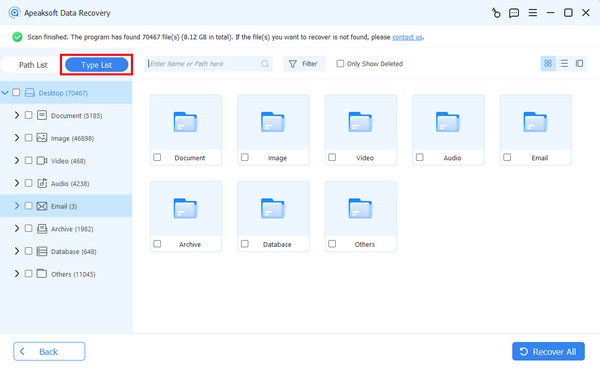
Step 3. Recover lost files
Select all files you want to get back and click the Recover button. Set an output folder and confirm data recovery with the Wise Data Recovery alternative.

Conclusion
This article reviewed one of the best data recovery software programs, Wise Data Recovery. It is able to scan your hard drive, look for lost files, and recover them quickly. However, it is not working in all scenarios. Plus, we recommended an alternative solution, Apeaksoft Data Recovery. Our share and review can help you make a better decision before opening your wallet.
 Apeaksoft Data Recovery
 Recover deleted or lost data on Windows and Mac computer.
Secure Download
Secure Download
Related Articles




