

More Than 3 Feasible Ways to Repair MP4 Videos in No Time

MP4 recovery can be said to be an essential skill when you find a broken MP4 video, especially if it contains valuable memories or meaningful content. Fortunately, it is entirely possible to recover MP4 files using the correct tools and methods. This guide will help you understand the reasons for MP4 damage and provide concentrated practical methods to quickly repair and restore MP4 videos, whether they are damaged, truncated, or unplayable.
PAGE CONTENT:
Part 1: Possible Causes of Broken MP4 Files
Before attempting to recover a broken MP4 video, it’s essential to understand why the file became corrupted. Identifying the cause can help you choose the most effective repair method. MP4 files can get damaged for a variety of reasons, from software issues to hardware failures. Below are the most common reasons that lead to unplayable or broken MP4 videos.
Interrupted Download/Transfer
A video file may become corrupted if its download or transfer is interrupted. Incomplete data can result in missing headers or broken frames, making the MP4 unplayable. Ensuring a stable connection during transfers helps prevent this issue.
Improper Video Conversion
If your MP4 file is obtained through conversion, the video was likely damaged during this process, leading to issues like the MP4 having no sound. Therefore, it needs to be repaired to play correctly.
Hardware Malfunctions
Storage devices such as SD cards, USB drives, hard disks, etc., if they malfunction or suddenly disconnect, may damage MP4 files.
Part 2: The Easiest Solution to Recover MP4 Files
When it comes to repairing and recovering broken MP4 videos effortlessly, Apeaksoft Video Fixer stands out as a professional and reliable solution. Designed to handle various types of video corruption, this tool can restore MP4 files that are truncated, unplayable, or damaged due to transfer errors, software glitches, or hardware failures. Its simple operation makes it easy for even beginners to recover videos without technical expertise, making it the easiest solution for MP4 recovery.
Apeaksoft Video Fixer works by analyzing the file structure, repairing damaged frames, and reconstructing essential headers to make your videos playable again. You can preview the repaired video before saving, ensuring that the quality meets expectations. Apeaksoft Video Fixer delivers a fast, reliable, and hassle-free method to recover your MP4 files, restoring them to a watchable state with minimal effort.
Step 1. Download and install Apeaksoft Video Fixer from the official website. Once you finish the downloading process, set up and install it.
Secure Download
Secure Download
Step 2. Launch Apeaksoft Video Fixer and click to import two MP4 video files, one that needs to be repaired and the other one that can be played normally as a reference for MP4 recovery.
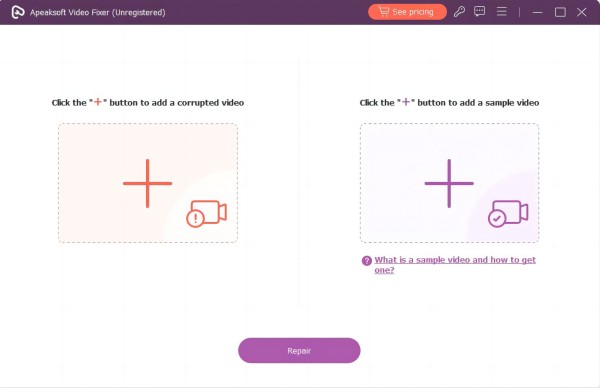
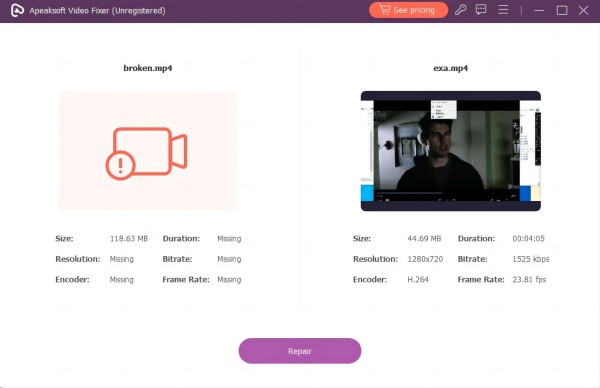
Step 3. Once you import your MP4 files, you can see the details to check if they’re exactly the file you want to upload. Then, click Repair.
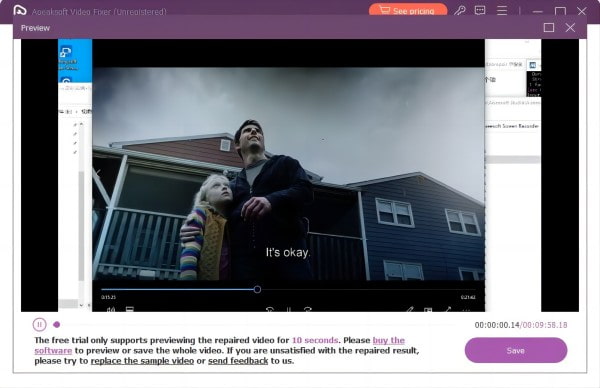
Step 4. The process of MP4 recovery will start automatically. After a short time of waiting, your MP4 will be repaired. Click Save to save the MP4 file recovered.
Part 3: How to Repair MP4 When Watching via VLC
If you encounter a broken MP4 video while trying to watch it on VLC media player, then you can use the built-in tool to fix minor corruption issues without additional software. VLC can analyze the damaged file and rebuild missing or corrupted headers, allowing you to play choppy videos smoothly in VLC. While it may not handle severe damage, VLC provides a quick, convenient, and free solution for troubleshooting playback problems and recovering videos in real time directly during viewing.
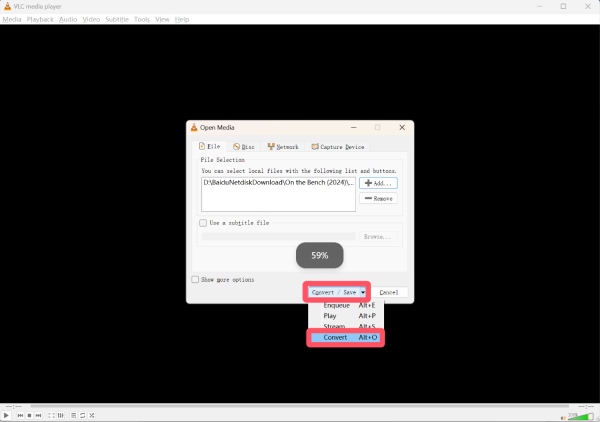
Step 1. Launch VLC media player on your device and click Convert / Save... under the Media tab.
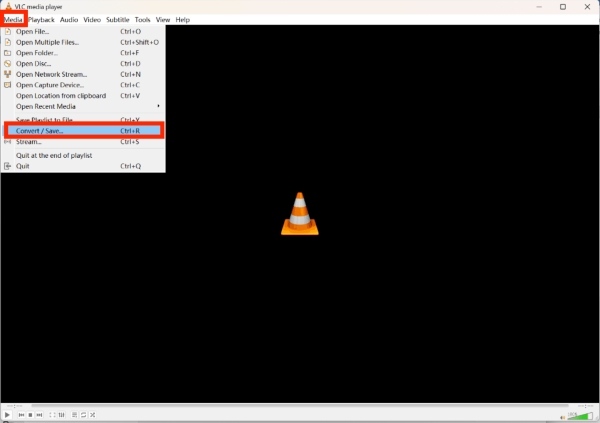
Step 2. Click Add... to search your file folder and find the broken MP4 file that needs repair. Click Convert / Save... and then click Convert.
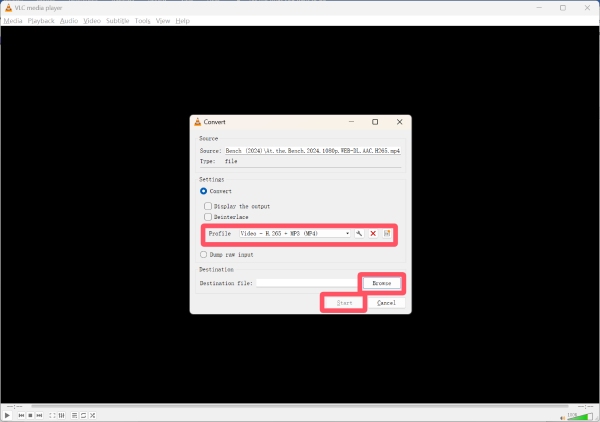
Step 3. Under the Convert tab, click Profile to select the MP4 format for recovery. Then, click Browse to choose a destination folder to save the MP4 file that will be repaired. Finally, click Start to start the process of MP4 recovery.
Part 4: An Online Solution for MP4 Recovery
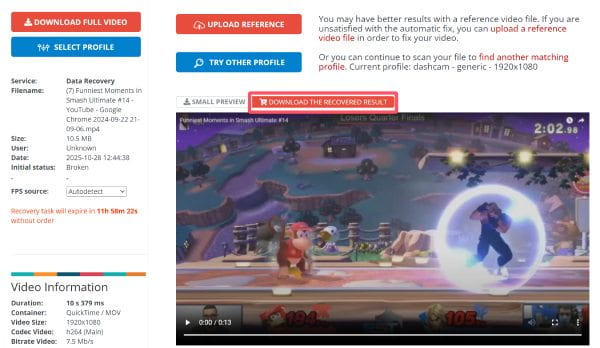
For those who prefer a quick method to repair broken MP4 videos without installing software, Fix.Video is an excellent online solution. Although it only supports small files, this browser-based tool allows you to upload corrupted MP4 files and repair them directly on the web. Fix.Video is designed to fix common video corruption issues, such as missing headers, broken frames, or incomplete downloads, restoring your MP4 files to a playable state in just a few steps.
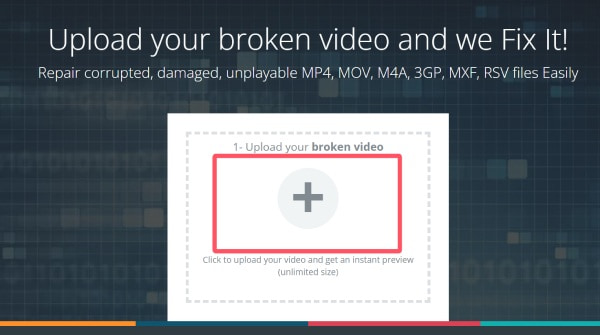
Step 1. Navigate to the official website of Fix.Video. Click Upload to import the broken MP4 file.
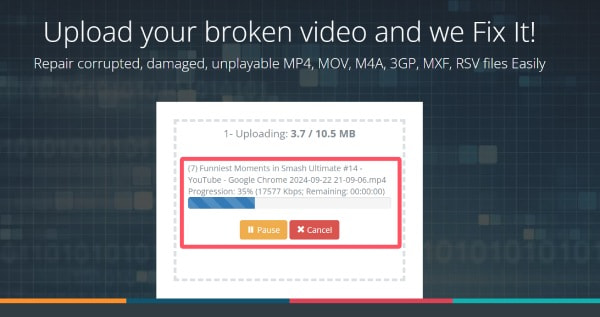
Step 2. And the process of MP4 recovery will start automatically on Fix.Video. It might take a little bit longer to finish the process.
Step 3. Once finished, you can preview to check if the video is fixed correctly. If it can be played smoothly, click DOWNLOAD THE RECOVERED RESULT to download the MP4 repaired and save it on your device.
Conclusion
Corrupted MP4 recovery is actually not complicated as long as you have the right tools. This article offers you a variety of feasible solutions for repairing MP4 videos. You can choose according to your own needs. Among them, if you want to fix your MP4 and other video formats most efficiently and effectively, Apeaksoft Video Fixer is the most reliable option.
Related Articles




