


Hur man stänger av Face ID på iPhone tillfälligt och permanent

Face ID är ett bekvämt sätt att låsa upp din iPhone, logga in på viktiga plattformar och slutföra betalningar. Av säkerhetsskäl kan du dock vilja stäng av Face ID på iPhone.
Den här bloggen ger den mest omfattande guiden för att tillfälligt eller permanent inaktivera Face ID på iPhone under olika scenarier.
SIDINNEHÅLL:
Del 1: Vad är Face ID
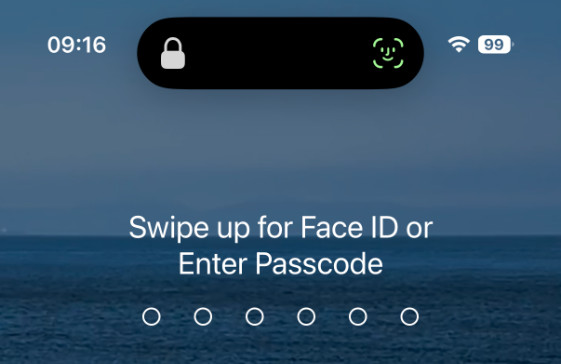
Ansikts-ID är Apples officiella biometriska säkerhetsfunktion för ansiktet. Det är ett alternativt sätt att låsa upp skärmen förutom traditionella skärmlösenord. Enligt Apple använder TrueDepth-kamerasystemet avancerad ansiktsigenkänningsteknik för att låsa upp skärmlåset, autentisera appar, auktorisera betalningar och aktivera automatisk lösenordsfyllning. Jämfört med traditionella lösenord erbjuder Face ID ett snabbare och bekvämare sätt att säkerställa din enhets säkerhet.
Del 2: Varför ska du stänga av Face ID
Face ID är bekvämt och effektivt att använda, men i vissa speciella situationer kan det hjälpa att undvika problem och skydda den personliga integriteten genom att stänga av den här funktionen.
- 1.Skydda den personliga integriteten: När du lånar ut din telefon till någon annan, eller när andra personer får tag på din iPhone på ett olagligt sätt, kan du förhindra att de låser upp den direkt genom att skanna ditt ansikte, och därmed bättre skydda privat innehåll.
- 2.Förhindra upplåsning med liknande ansikten: Även om Apple uppger att sannolikheten för att en slumpmässig person låser upp din iPhone med Face ID är mindre än 1 på 1 000 000, finns det fortfarande en risk för en falsk matchning i vissa situationer, till exempel med identiska tvillingar, syskon med mycket lika ansiktsdrag eller barn under 13 år vars ansiktsdrag fortfarande är under utveckling.
- 3.Undvik oavsiktlig Face ID-autentisering för betalningar: De flesta av oss kan uppleva ett sådant fall, när vi gör ett köp kan Face ID slutföra autentiseringen omedelbart innan du märker att du valt fel vara. Att inaktivera Face ID kan hjälpa till att förhindra oavsiktliga betalningar och undvika sådana besvär.
- 4.Föredra lösenordsautentisering framför Face ID: Vissa användare kan föredra traditionell lösenordsautentisering framför Face ID på grund av personliga preferenser eller integritetsproblem.
- 5.Face ID fungerar inte.
Del 3: Hur man stänger av Face ID på iPhone
Scenario 1: Så här inaktiverar du tillfälligt Face ID på din iPhone
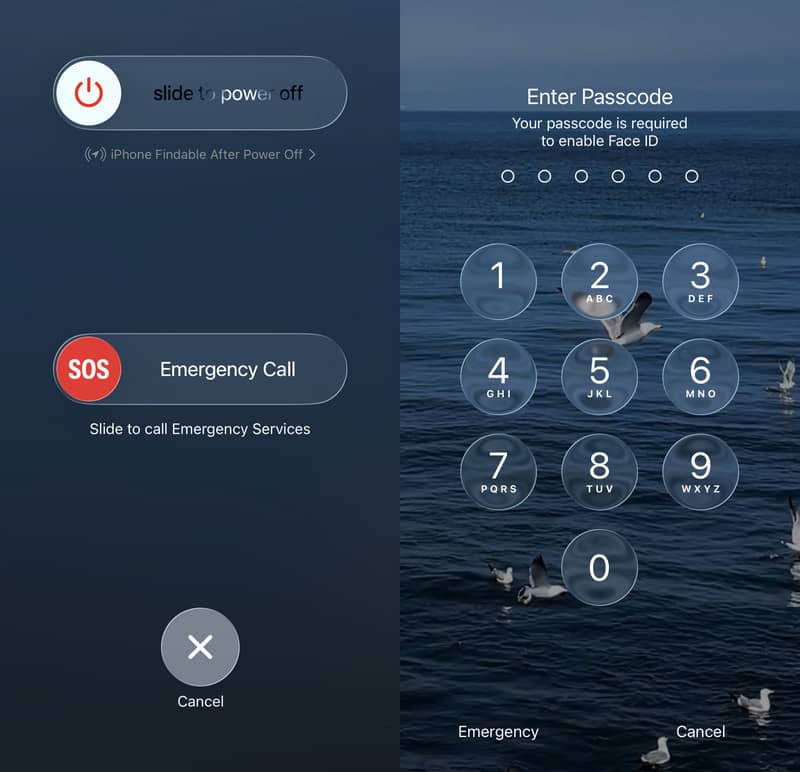
Att tillfälligt inaktivera Face ID är en inbyggd systemsekretessfunktion som låter dig snabbt förhindra Face ID-autentisering. Du behöver inte göra några manuella justeringar av några inställningar eller återställa data. När du har låst upp din iPhone med ett lösenord kommer Face ID att aktiveras igen.
Steg 1. Tryck och håll ner valfri volymknapp tillsammans med strömbrytaren för att väcka avstängningsreglaget.
Steg 2. Klicka Annullera för att avsluta avstängningsskärmen.
Steg 3. Sedan återgår du till låsskärmen med Face ID inaktiverat. Nu kan du bara låsa upp enheten med hjälp av lösenordet för låsskärmen.
Scenario 2: Hur man permanent inaktiverar Face ID för skärmlås
Att permanent inaktivera Face ID på iPhone kommer att omfatta scenarier som upplåsning, nedladdning, betalningar, automatisk ifyllning av lösenord och appåtkomst. Denna ändring kan inte återställas automatiskt och är lämplig för användare som inte vill använda Face ID på lång sikt.
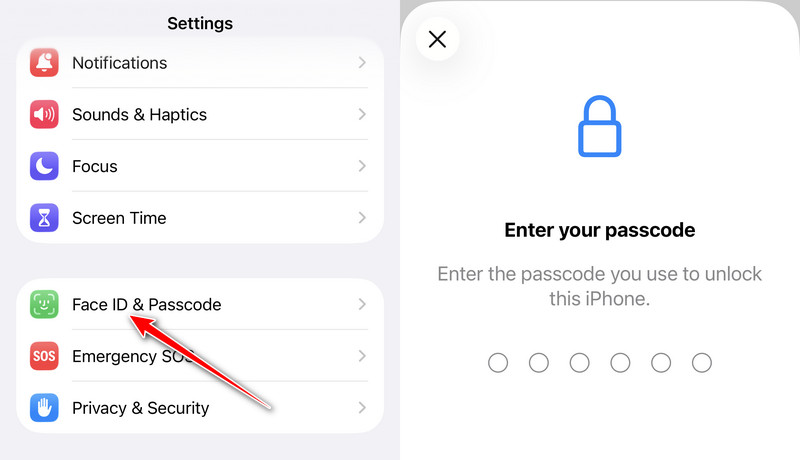
Steg 1. Öppet Inställningar på din telefon och gå till Ansikts-ID och lösenord.
Steg 2. Ange ditt lösenord för att slutföra identitetsverifieringen.
Steg 3. Stäng av alla Face ID-relaterade alternativ baserat på dina behov här, inklusive iPhone låsa upp, iTunes & App Store, Kontaktlös betalningoch Lösenord Autofyll.
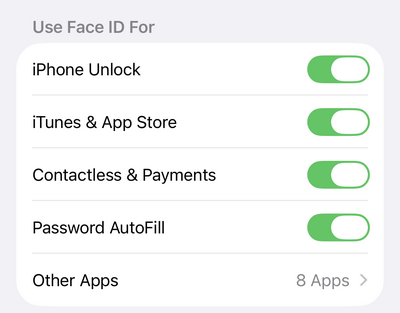
Steg 4. Om du vill stänga av Face ID eller appar kan du klicka på Andra appar här. Sedan kan du välja den specifika appen och stänga av den på nästa sida.
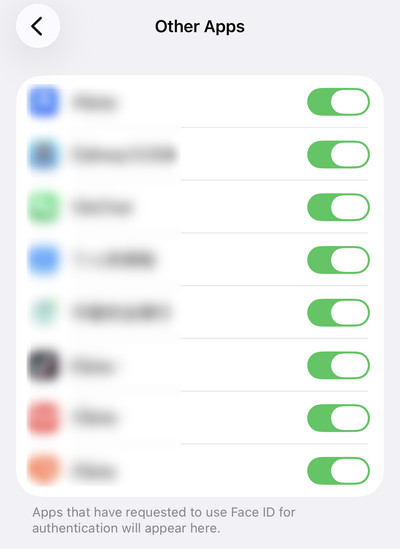
När installationen är klar inaktiveras alla Face ID-funktioner och du kan bara låsa upp enheten med ett lösenord.
Scenario 3: Så här stänger du av Face ID för specifika foton och Safari
Vissa appar kräver Face ID för ett extra lager av integritetsskydd, till exempel det dolda albumet i Bilder, privat surfning i Safari med mera. Om du föredrar att komma åt dessa funktioner utan Face ID kan du följa guiden nedan för att enkelt stänga av Face ID.
Stäng av Face ID för foton
Steg 1. Öppna Inställningar och svep ner till botten. Klicka. appar.
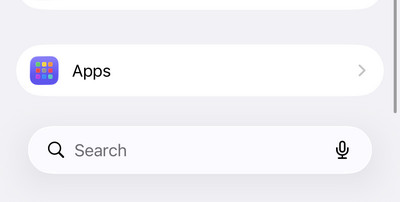
Steg 2. Hitta Fotogalleri från applistan.
Steg 3. Växla av Använd Face ID på nästa sida.
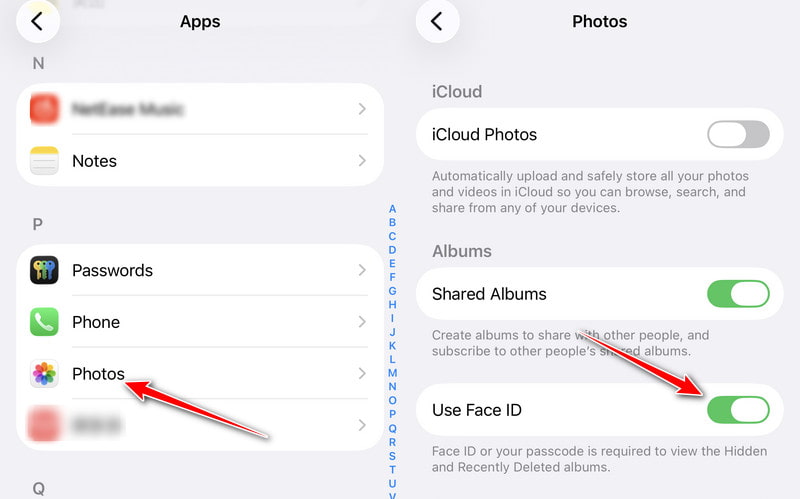
Steg 4. Sedan kan du visa ditt dolda album eller raderade foton utan Face ID-autentisering.
Stäng av Face ID för Safari
Steg 1. Öppet Inställningar, klicka på appar, och hitta Safari.
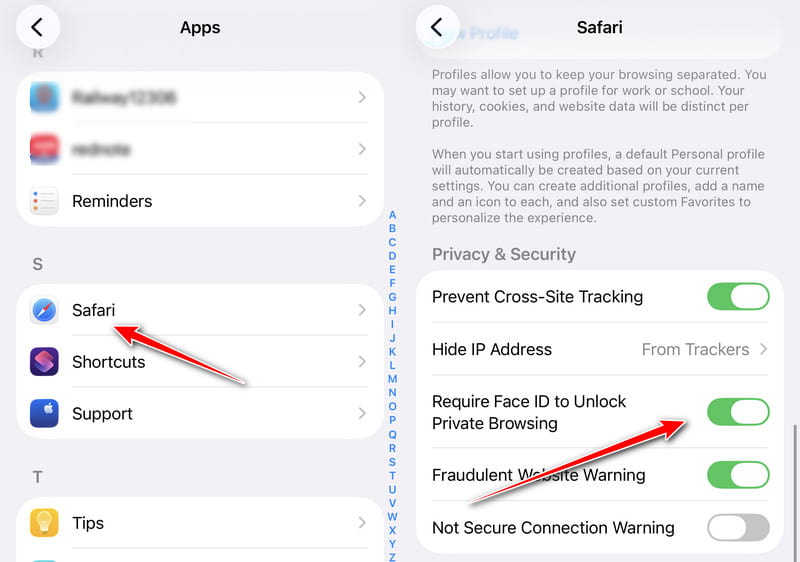
Steg 2. Växla av Kräv Face ID för att låsa upp privat surfning för att stänga av Face ID för privat surfning.
Steg 3. Sedan, när du öppnar en privat surfsida i Safari, behöver du inte verifiera ditt Face ID.
Del 4: Vad händer efter att Face ID har inaktiverats
Att inaktivera Face ID raderar inte ansiktsdata som redan lagrats på din iPhone och påverkar inte heller den normala användningen av din enhet. Det ändrar bara verifieringsmetoden. Alla aktiviteter, som att låsa upp telefonen, ladda ner appar, göra onlinebetalningar och automatiskt fylla i lösenord, som tidigare förlitade sig på Face ID för automatisk verifiering, kräver nu manuell lösenordsinmatning. Ändringarna inkluderar:
- Du måste ange ditt lösenord för att låsa upp din iPhone.
- Appar som stöder Face ID-autentisering, till exempel bankappar och lösenordshanterare, kräver att du anger ditt lösenord manuellt eller använder en annan verifieringsmetod.
- Efter att du har stängt av Face ID kan du inte bekräfta Apple Pay-betalningar med Face ID.
- .

Nedladdad av över 1,000,000 användare
- Lås upp din iPhone när Face ID inte fungerar.
- Få tillgång till din iPhone när du glömmer lösenordet.
- Få åtkomst till en inaktiverad iPhone efter flera felaktiga lösenordsförsök.
- Stäng av Face ID utan Face ID.
- Stödjer alla populära iPhone-modeller och iOS-versioner.

Slutsats
Lärande hur man stänger av Face ID på iPhone kan hjälpa dig att justera verifieringsmetoden efter dina egna behov. Oavsett om du tillfälligt eller permanent stänger av Face ID, eller inaktiverar Face ID i en specifik funktion, kan du enkelt slutföra dem via systeminställningarna.
Om du dessutom inte kan stänga av Face ID och glömmer ditt lösenord för skärmen kan du använda Apeaksoft iFoneKit iOS-upplåsare för att återfå åtkomst till din enhet.

Relaterade artiklar




