


Hur man effektivt återställer raderade anteckningar på din iPad

Enligt vår forskning är den inbyggda Anteckningar-appen en av de mest användbara apparna på iPad-enheter. Användare lagrar massor av viktiga saker, från shoppinglistor till kreativa idéer, från lösenord till inloggningsinformation. Att förlora anteckningar är dock en stor utmaning för vissa iPad-användare, till exempel att av misstag radera en anteckning eller rensa Anteckningar-appen. Den här guiden delar fem sätt att återställa raderade anteckningar på din iPad och demonstrerar arbetsflödena.
SIDINNEHÅLL:
- Del 1: Hur man återställer nyligen raderade anteckningar på iPad
- Del 2: Hur man återställer raderade anteckningar på iPad från iCloud
- Del 3: Hur man återställer raderade anteckningar på iPad från Mail
- Del 4: Hur man återställer raderade anteckningar på iPad från säkerhetskopia
- Del 5: Hur man återställer raderade anteckningar på iPad utan säkerhetskopiering
Del 1: Hur man återställer nyligen raderade anteckningar på iPad
Apple har lagt till mappen Nyligen raderade i appen Anteckningar på iPad-enheter. Med andra ord sparas anteckningar som raderas inom 30 dagar i den här mappen. Innan de tas bort kan du snabbt återställa raderade anteckningar på din iPad.
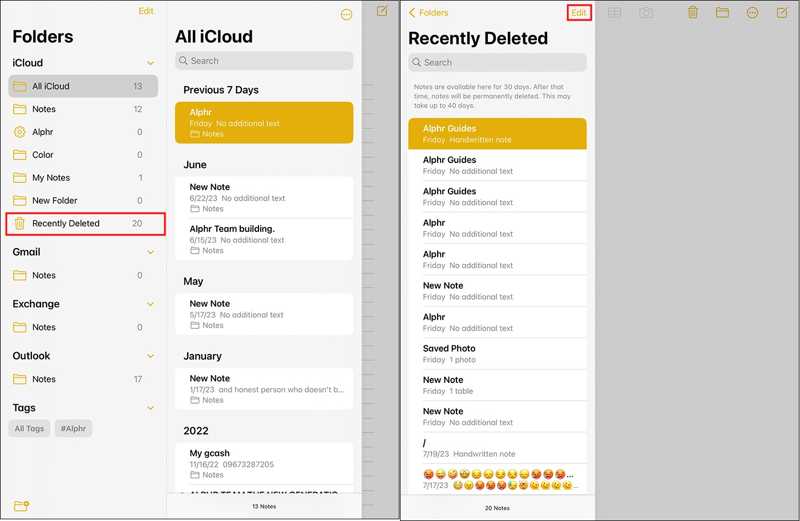
Steg 1. Öppna Anmärkningar app på din iPad.
Steg 2. Tryck på mappar menyn och välj Nyligen raderad.
Steg 3. Här kan du se alla nyligen raderade anteckningar.
Steg 4. Tryck på Redigera -knappen i det övre högra hörnet.
Steg 5. Markera de anteckningar du vill återställa.
Steg 6. Tryck på Flytta knappen längst ner och välj målmappen.
Del 2: Hur man återställer raderade anteckningar på iPad från iCloud
Så länge du synkroniserar anteckningar till iCloud från din iPad sparas dina anteckningar i molnlagringen. Innan raderingen synkroniseras till iCloud kan du återställa raderade anteckningar på din iPad via det länkade Apple-kontot.
Steg 1. Slå på din iPad och öppna Inställningar app.
Steg 2. Tryck på din profil, gå till icloud, och välj Anmärkningar.
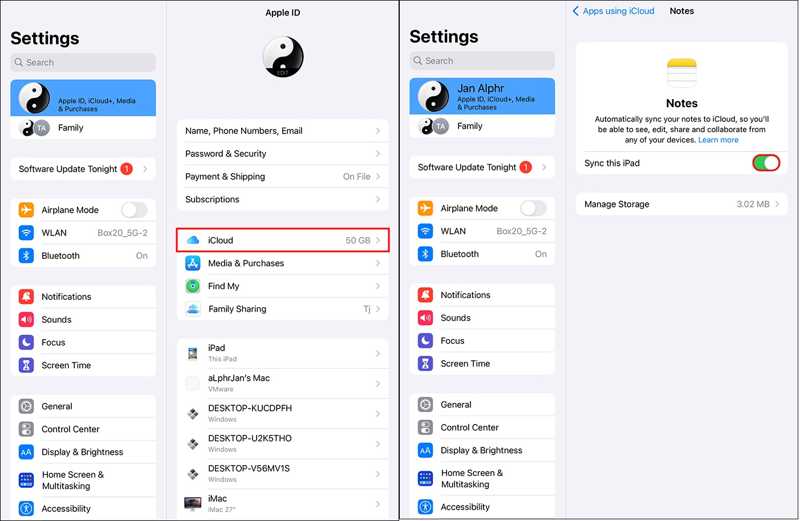
Steg 3. Se till att du har aktiverat Synkronisera denna iPad.
Steg 4. Besök www.icloud.com i en webbläsare.
Steg 5. Logga in med det länkade Apple-kontot och lösenordet.
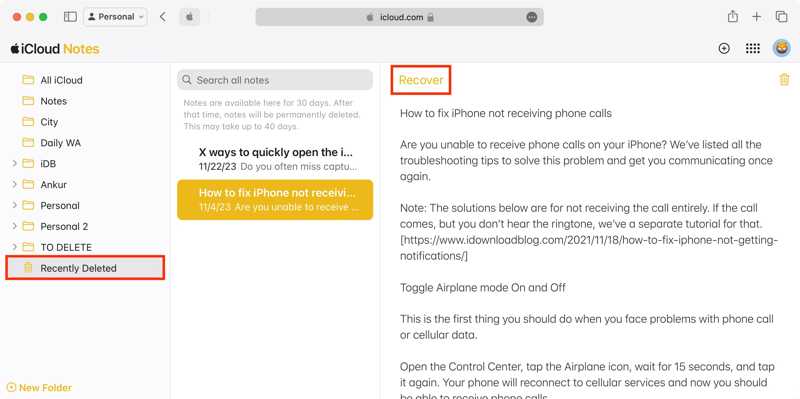
Steg 6. Välj Anmärkningar app för att komma åt iCloud-anteckningar.
Steg 7. Gå till rätt mapp och återställ den förlorade anteckningen.
Del 3: Hur man återställer raderade anteckningar på iPad från Mail
Om du har säkerhetskopierat anteckningar till andra konton, till exempel Gmail, kan du återställa raderade anteckningar på din iPad via en internetanslutning. Vi använder Gmail som exempel, men arbetsflödet för Outlook-konton och mer är liknande.
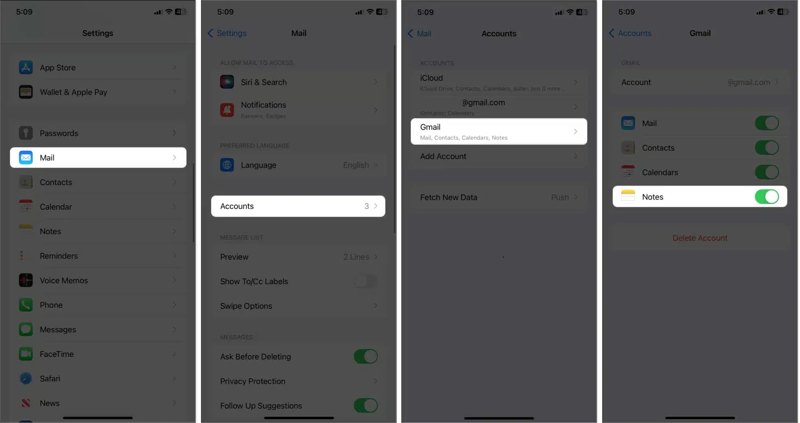
Steg 1. Kör Inställningar app på din iPad.
Steg 2. Scrolla ner och välj Post alternativ.
Steg 3. Tryck konton Och välj gmail.
Steg 4. Stäng av Anmärkningar alternativet om du har aktiverat det.
Steg 5. Slå sedan på Anmärkningar igen för att ladda ner dina anteckningar.
Obs: Det här sättet är bara tillgängligt om borttagningen inte har synkroniserats med ditt konto.
Del 4: Hur man återställer raderade anteckningar på iPad från säkerhetskopia
Ett annat sätt att återställa raderade anteckningar på din iPad är att säkerhetskopiera till din dator. Förutsättningen är naturligtvis att du har säkerhetskopierat din enhet till din dator innan du raderar anteckningarna.
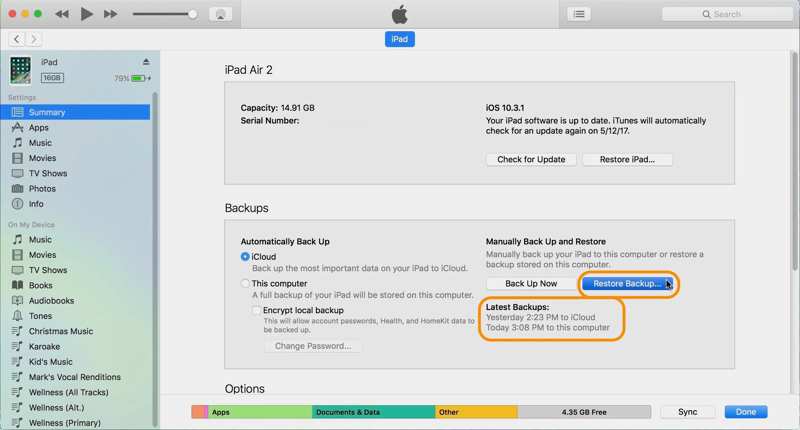
Steg 1. Anslut din iPad till datorn med en USB-kabel.
Steg 2. Öppna iTunes i Windows och macOS Mojave eller tidigare. Kör Finder i macOS Catalina eller senare.
Steg 3. Klicka på Hela enheter -knappen i iTunes efter att din enhet har upptäckts och gå till SammanfattningI Finder klickar du på ditt iPad-namn och går till Allmänt.
Steg 4. Klicka på Återställa Backup knapp i Säkerhetskopior sektion.
Steg 5. Välj rätt säkerhetskopia och klicka återställa.
Del 5: Hur man återställer raderade anteckningar på iPad utan säkerhetskopiering

Nedladdad av över 1,000,000 användare
- Återställa raderade anteckningar på en iPad utan säkerhetskopiera din iPad.
- Extrahera anteckningar från iCloud- eller iTunes-säkerhetskopia utan att återställa iPaden.
- Förhandsgranska förlorade anteckningar och återställ valda objekt.
- Arbeta med de senaste versionerna av iPadOS.

Hur man återställer raderade anteckningar på en iPad utan säkerhetskopiering
Steg 1. Anslut till din iPad
Installera iPhone-dataåterställningsprogramvaran på din dator och starta den. Det finns en annan version för Mac. Välj Återställ från iOS-enheten klicka på fliken för att fortsätta. Anslut din iPad till datorn med en Lightning-kabel. Lita på den här datorn och autentisera med ditt iPad-lösenord.
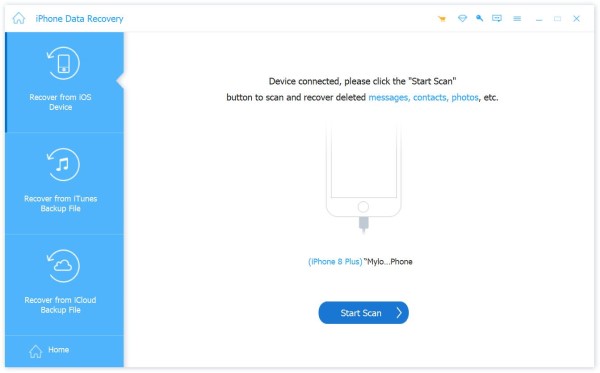
Steg 2. Förhandsgranska anteckningar på din iPad
När din enhet har upptäckts klickar du på Starta Scan knappen för att skanna förlorad data på din iPad. Välj sedan Anmärkningar under Anteckningar och andra rubrik. Nu kan du förhandsgranska anteckningar i din iPads minne.
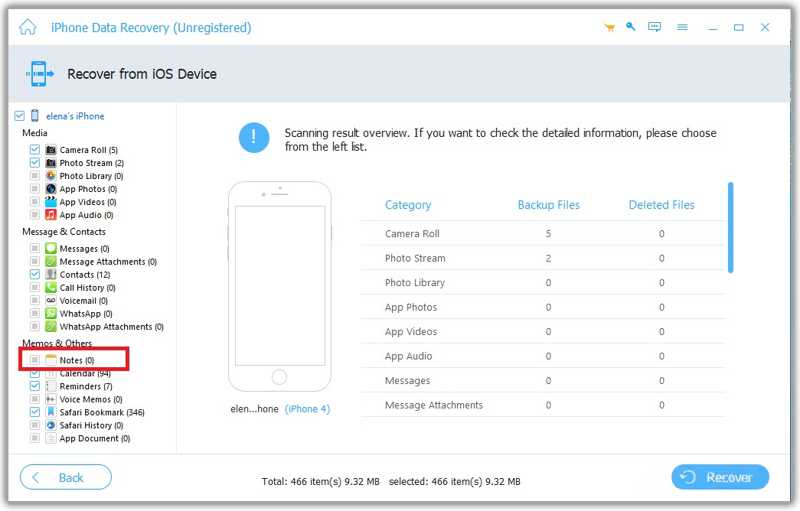
Steg 3. Återställa raderade anteckningar
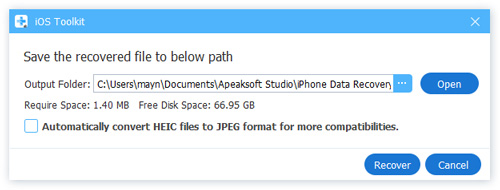
Markera önskade anteckningar och klicka på Recover knappen längst ner. Välj en utdatamapp och tryck på Återställ igen för att bekräfta.
Ytterligare läsning
Slutsats
Nu borde du förstå hur du gör återställa raderade anteckningar på din iPadMed mappen Senast raderade kan du snabbt hitta nyligen raderade anteckningar. Med iCloud och andra konton kan du hämta borttappade anteckningar via ett nätverk. Dessutom kan du prova säkerhetskopian på din dator. Apeaksoft iPhone Data Recovery är det ultimata alternativet för att få tillbaka raderade anteckningar på din iPad.
 Apeaksoft iPhone Data Recovery
 Återställ raderad eller förlorad data från iOS-enheter, iTunes och iCloud-säkerhetskopia.
Relaterade artiklar




