How to Take Screenshot on Toshiba Laptop on Windows

Key Takeaways
There are many methods to take a screenshot on Toshiba laptop:
- To capture the entire screen, press PrtSc, Fn + PrtSc, or Windows + PrtSc to save the screenshot automatically.
- To capture a current window, use Alt + PrtSc.
- To screenshot a certain part of the screen, use Windows + Shift + S.
- If you need more editing features or flexible capture options, use a screenshot tool like Apeaksoft Screen Recorder.
"How do you screenshot on a Toshiba laptop?"
"Where is the Print Screen key on a Toshiba laptop?"
"Where are screenshots saved after using Print Screen on a Toshiba laptop?"
Well, if you have the same question, you are lucky to find this article.
Here are several ways for you to learn how to take a screenshot on Toshiba Satellite laptop with keyboard shortcuts, screenshot software, and online tools. You can read and get your best solution here.
PAGE CONTENT:
Part 1. How to Screenshot on Toshiba with Key Combos
From this section, you can learn how to take a screenshot on a Toshiba laptop with the default key combination step by step. Just read and check if you omit a certain key or step.
| Shortcut | Best for |
| PrtSc / Fn + PrtSc | Capture entire screen |
| Alt + PrtSc | Capture current window |
| Windows + Shift + S | Capture part of the screen |
Before You Start - Boot up Toshiba with Enough Power
Before taking a screenshot on a Toshiba computer, power on your Toshiba laptop and make sure there is sufficient power to take a screenshot on a Toshiba laptop. Avoid using your laptop in power-saving mode, as the screen may dim or turn off automatically. Then, open the screen you want to capture and adjust the window or content position for a better screenshot.
Method 1: Screenshot Full Screen on a Toshiba Laptop with PrtSc
Step 1. Press the PrtSc button
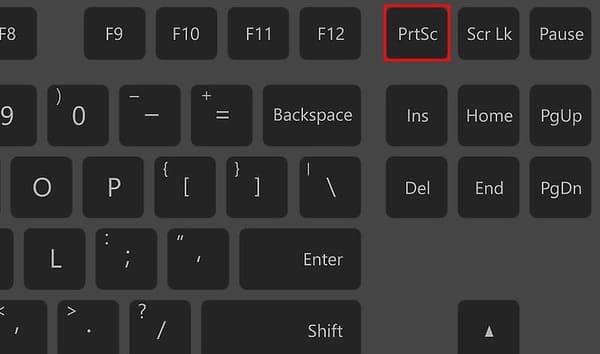
Press PrtSc to capture the entire screen. On some older Toshiba Satellite models, you may need to press Fn + PrtSc or Fn + Windows + End if the Print Screen function is combined with another key.
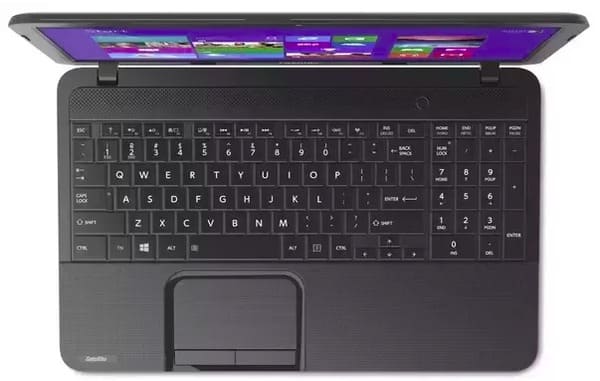
Tips: To make it clearer, PrtSc is the abbreviation of Print Screen. Not all laptops have a key labeled Print Screen. On Toshiba keyboards, this key is usually located in the upper-right corner and may appear as PrtSc, PrtScn, or Print Scr.
Step 2. Paste the screenshot into Paint and export
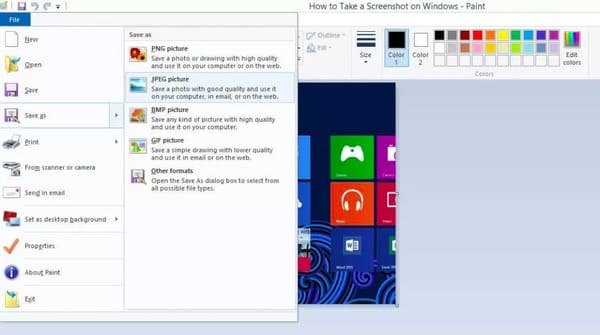
You need to open a photo editor to save the screenshot from the clipboard. Well, Paint is a hot choice for saving a Toshiba screenshot. search and open Paint from the start menu.
There is an empty canvas in Paint. Press Ctrl + V together to paste a Toshiba screenshot into Paint. Then choose Save as from the drop-down File menu. Select JPEG picture or other image formats to export the screenshot picture.
Method 2: Screenshot an Active Window on a Toshiba Laptop with Alt + PrtSc
Step 1. Press Alt + PrtSc to capture the currently active window. The screenshot will be copied to the clipboard.
Step 2. Paste the screenshot into an image editor and save it.
Method 3: Capture a Selected Area on a Toshiba Laptop with Windows Shortcut
Step 1. Press Windows + Shift + S to open the Snipping Tool. Your screen will become dimmed, and your cursor will turn into a crosshair, and you can drag it to select the area you want to capture.
Step 2. Edit and save the screenshot after capturing.
Method 4: Automatically Save Screenshots on Toshiba Laptop with Windows + PrtSc
If you cannot find your screenshot after using the previous methods and want to save screenshots directly to a folder instead of copying them to the clipboard, press Windows + PrtSc. Windows will capture the entire screen and save the image automatically in File Explorer > Pictures > Screenshots.
This method works on most Toshiba laptops running Windows 10 and Windows 11.
Tips: All the methods above are applicable when you want to take a screenshot of Windows Media Player.
Part 2. Flexible Screenshot Tools for Toshiba (Windows 11/10/8/7)
Windows shortcuts work well for basic screenshots on a Toshiba laptop. If you need advanced options like scrolling screenshots or want to add annotations after capturing, a dedicated screenshot tool such as Apeaksoft Screen Recorder can be a useful alternative.
It is one of the easiest ways to take a screenshot on a Toshiba computer and edit the screenshots directly. And there are 7 screen capture sections you can get, which provide users with recorders for videos, audio, games, windows, webcam, phone, and the last recorder in history.

Downloaded by over 1,000,000 users
- Take screenshots for free on your Toshiba laptop.
- Capture the full screen, a selected area, or scrolling pages with flexible screenshot options.
- Edit screenshots with annotations, texts, highlights, and more.
- Save, pin, or manage screenshots easily after capturing.
Secure Download
Secure Download
Step 1. Launch Apeaksoft Screen Recorder
Free download and install Apeaksoft Screen Recorder on your Toshiba laptop. Launch the screen capture software after the installation. If you only want to take a screenshot, you can locate yourself at the desired window of your Toshiba laptop and then choose Screen Capture from the drop-down list.
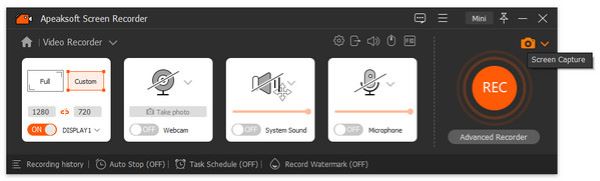
Tips: You can also click the Menu (three-line on top-left) button to find Preference> Hotkeys. Then you can edit the hotkeys based on your requirements.
Step 2. Take a screenshot on a Toshiba laptop
Now you can draw the screen area to capture with your mouse freely. When you release the mouse, you can get an editing toolbox. So you can draw and annotate your screenshot with lines, arrows, texts, and others.
Even though you apply the wrong photo effect, you can use "undo" or "redo" to fix the mistake easily.
Later, choose the Save option to export your screenshot to the Toshiba Satellite laptop.
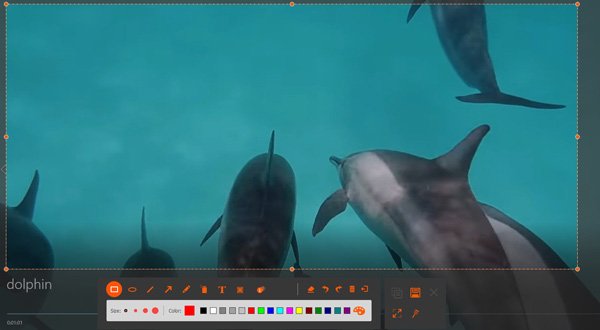
Well, you can quickly screenshot on a Toshiba laptop in two steps with Screen Recorder. The default screenshot output format is PNG. You can change other image formats if necessary. Moreover, you can also view the multiple recording functions with different access levels in the main interface. If you want to record the on-screen activities in videos, you can also learn how to record videos on a PC.
Part 3. How to Screenshot on Toshiba with Online Tools
If you don't want to install screenshot software, you can also use online screenshot tools to capture your Toshiba screen. These tools allow you to select the capture area, add simple annotations, and save screenshots directly from your browser. However, most of the online screenshot tools may require you to sign in with a Google account before using their features.
Step 1. Open an online screenshot tool
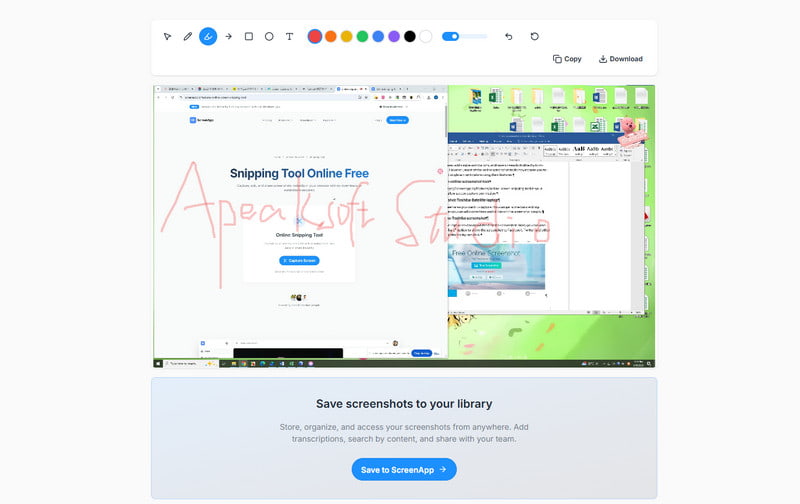
Locate the https://screenapp.io/features/online-screen-snipping-tool in your browser and allow screen capture permission.
Step 2. Take a screenshot on a Toshiba Satellite laptop
Select the screen area you want to capture. You can get some basic editing functions. Then you can add some lines and circles to the screenshot simply.
Step 3. Save the Toshiba screenshot
Click the Save to ScreenApp button to download the screenshot and save it to your Toshiba laptop.
Part 4: FAQs of Taking a Screenshot on Toshiba
Where are print screen pictures saved on a Toshiba laptop?
You can check your print screen pictures on the clipboard after you paste them into a graphic program and then print or save them.
Why can't I get my screenshot to work on my Toshiba laptop?
If the Windows logo key and PrtSc key don't work, or if you don't have the PrtSc key on your Toshiba laptop, you can try FN + Windows logo key + End/PrtSc, and it should be able to take a screenshot.
How do you take a screenshot of a video on your Toshiba laptop?
You can use the Print Screen button. Then, just press Ctrl+V to paste it into a program.
Conclusion
This page collects several easy ways take a screenshot on Toshiba computer. You can use the key combination to quickly capture and save screenshots, or try online screenshot tools to take and download screenshots. If you need more editing features and flexible screenshot options, Apeaksoft Screen Recorder can help you capture and edit screenshots easily on Windows 11/10/8/7 with effects.
 Apeaksoft Screen Recorder
 Record any video and audio on phone and computer screen.
Secure Download
Secure Download
Related Articles