


What Is Image Capture on Mac and How to Use it

Want to transfer pictures from digital cameras, scanners, iPhone, or iPad to your Mac? Actually, Mac has some pretty good pre-installed apps, among which Image Capture application is a persuasive example. What is Image Capture on Mac? How to find Image Capture on Mac? How to use it to transfer iPhone photos to Mac? Read this post, and you’ll find all the answers you want.
PAGE CONTENT:
Part 1 What Is Image Capture on Mac
Image Capture is a built-in macOS app that is designed for transferring and collating pictures on connected external devices, such as cameras, scanners, memory cards, and iOS devices. With this handy tool, you can control a scanner and configure the resolution, colors, size, and file format of the scanned document. Apart from the import feature, you are allowed to send images to another app.
Unlike the Photos app, Image Capture gives you more control over where your imported files are saved and does not add them to your Photos library automatically.
Image Capture vs Photos App
| Features | Image Capture | Photos App |
| Purpose | Import photos and videos from connected devices | Manage, organize, edit, and sync photos |
| Supported devices | iPhone, iPad, digital cameras, and scanners | Mainly Apple devices like iPhone, iPad, and Mac |
| Photo location | Saves photos to a selected folder | Saves photos in Photos Library |
| Photo management | No albums, editing, or organization features | Albums, editing tools, search, and iCloud sync |
| Delete photos | Supports “Delete after import” option | Can delete photos from devices |
| Best For | Quickly transferring photos from iPhone/cameras to Mac | Managing and syncing your photo library across Apple devices |
Part 2: Where Is Image Capture on Mac
Can't find Image Capture on your Mac? This section provides three basic ways to find and open Image Capture on Mac.
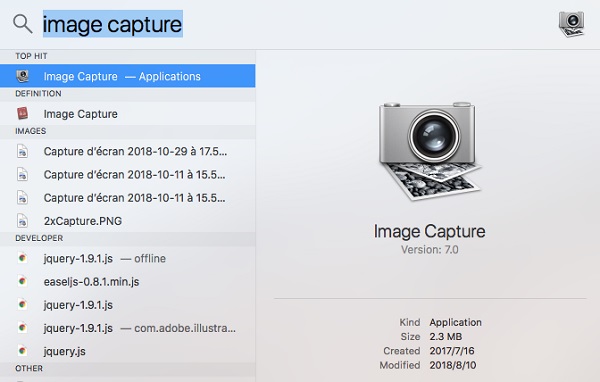
Way 1. Open Image Capture Using Spotlight
Step 1. Press Command + Space to open Spotlight Search. Then, type Image Capture in the search bar.
Step 2. Select the Image Capture app from the search results and press Enter.
Way 2. Open Image Capture via Finder
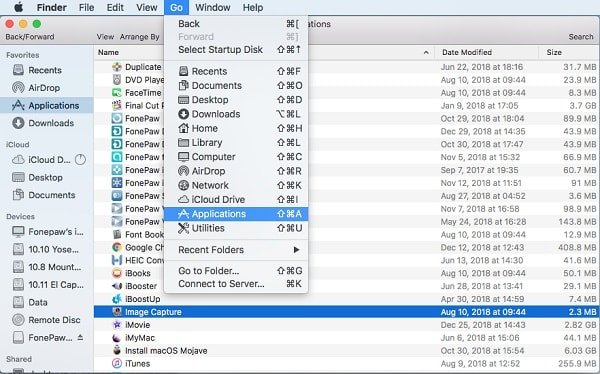
Step 1. Open Finder and choose Applications from the sidebar. Or, you can click the Go option on the Finder menu, and choose Applications from its drop-down menu.
Step 2. Find the Image Capture in the Applications folder. Double-click it to open.
Way 3. Open Image Capture via Launchpad
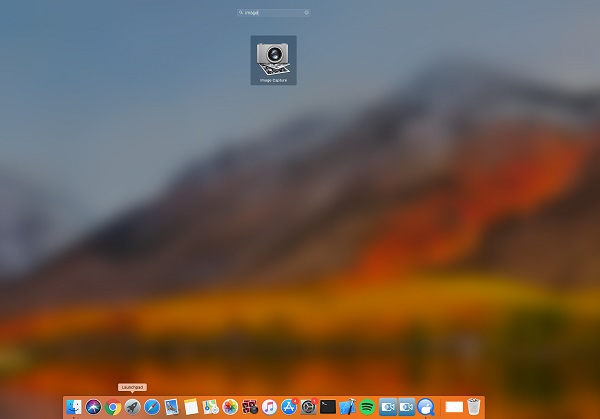
Step 1. Open Launchpad in the Dock.
Step 2. Search for Image Capture in Launchpad using the search bar at the top.
Step 3. Locate Image Capture and then click on it to open.
Part 3: How to Use Image Capture on Mac
How to use Image Capture on Mac to import photos? This section will show you a detailed guide. We tested Image Capture on macOS Sequoia with an iPhone 17 Pro and successfully imported 500+ photos via USB-C connection.
Step 1. If you want to import images from iPhone or iPad with Image Capture, you need to plug the source device into your Mac via USB firstly.
Step 2. Unlock your iPhone and trust this Mac. Run Image Capture on your Mac.
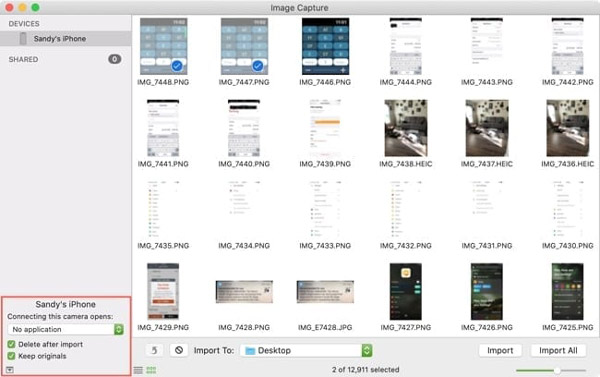
Step 3. Your iPhone or iPad photos will be automatically shown Under Devices.
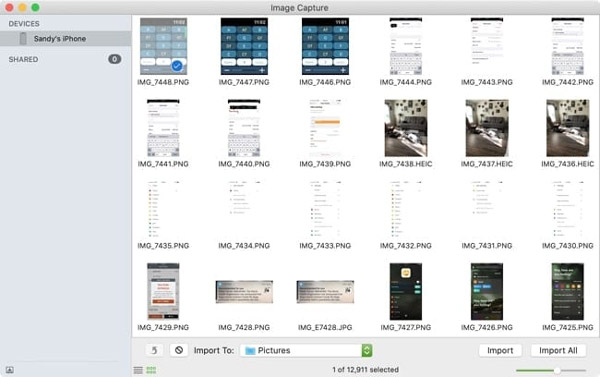
Step 4. To import your iPhone or iPad photos, you can click on the Import To option to select the location, which allows you to save your photos to any folder on your Mac as you like.
Step 5. Click the Import option to proceed. If you would like to transfer all photos to your Mac, you can click the Import All option to transfer iPhone photos to Mac.
After importing your photos to Mac, you can manage them freely. Additionally, there are some hidden features you should not miss. Just click the Show/Hide button in the lower-left corner of the app, and then you'll see that there are two device-connecting options: one is Delete after import, and the other is Keep originals.
Part 4: Alternative to Image Capture on Mac to Transfer Data
Since Image Capture only supports transferring photos from connected devices, you may need a more powerful alternative to manage and transfer different types of iPhone/iPad/iPod data on your Mac. Apeaksoft iPhone Transfer is a great alternative to transfer photos, videos, music, contacts, messages, and more between your iOS devices and Mac. Also, it performs well in photos managing. You can create, rename, delete, preview and check info or the image, as well as convert HEIC image to PNG or JPEG format.

Downloaded by over 1,000,000 users
- Great alternative to Image Capture to import photos.
- Transfer photos from iPhone/iPad/iPod to Mac in one click.
- Import photos from Mac to your iOS devices as well.
- Manage and organize photos like creating new albums on your device.
- Preview the picture without any hassle.
Secure Download
Secure Download
Part 5: FAQs About Image Capture on Mac
I can’t find Image Capture on my Mac, how to fix it?
If the above mentioned methods don’t work, the Image Capture application might have been accidentally deleted or erased from your Mac. On this occasion, you could try reinstalling macOS operating system.
How do I download Image Capture?
Image Capture is an Apple native app on Mac, there is no need and you're not able to download it.
Why is Image Capture on Mac not working?
Image Capture may not work on your Mac due to connection issues, outdated macOS, permission settings, or an unsupported device. You can fix it by reconnecting the device, using another USB cable, or restarting your Mac and device.
Why is my iPhone not showing in Image Capture?
Make sure your iPhone has already been unlocked and you've trusted your Mac. You can check whether the iPhone is recognized in Finder first. If not, try reconnecting your iPhone or changing a USB cable.
Why are my photos deleted after import?
You may turn on the Delete after import option in the bottom-left corner.
Conclusion
Hope that you can find Image Capture on your Mac successfully and know how to use Image Capture on Mac. To move photos from iPhone or iPad to your Mac, Image Capture and Apeaksoft iPhone Transfer are the great applications you could have a try.
 Apeaksoft iPhone Transfer
 Transfer iOS data among iOS devices, computer and iTunes.
Secure Download
Secure Download
Related Articles




