

[4 Ways] How to Transfer Photos from Samsung to Macbook

Many Samsung users often need to transfer Samsung photos to a MacBook, whether for backup, organization, or easier editing and sharing in their daily lives.
This post will introduce 5 common methods for sending photos from Samsung to Mac, and compare their strength and weaknesses in terms of speed, stability, and convenience to help users get the most suitable solution for effective and secure photo transfer.
PAGE CONTENT:
- Part 1: How to Transfer Pictures from a Samsung Galaxy to a Mac via USB
- Part 2: How to Import Samsung Photos to Mac with Samsung Smart Switch
- Part 3: How to Download Photos from Samsung Galaxy to Mac Using Google Photos
- Part 4: How to Get Photos from Samsung Phone to Mac via Bluetooth
- Bonus: The Best Way to Transfer Photos from Samsung to Mac [Preview & Select]
- Part 5: Common Issues When Transferring Samsung to Mac
Quick Overview
| Method | Best For | Pros | Cons |
| USB Cable | Large number of photos, pursue speed and stability | 1. Fast 2. No image loss 3. Work offline | Occasionally fails to recognize device, can only transfer by folders |
| Samsung Smart Switch | Official backup, basic transfer | 1. Reliable 2. Easy steps | Limited options for detailed management or selective transfer |
| Google Photos | Wireless sync, cross-device access | 1. No cable needed 2. Remote access | Depends on internet speed and cloud storage |
| Bluetooth | Small number of photos, transfer without USB cable | 1. Wireless 2. No additional software | Slow |
Part 1: How to Transfer Pictures from a Samsung Galaxy to a Mac via USB
Step 1. Connect your Samsung phone to your Mac. Ensure a stable connection.
Step 2. Select the File Transfer (MTP) mode on your device so that your Mac can access the device storage.
Step 3. Open the Android File Transfer app on your Mac.
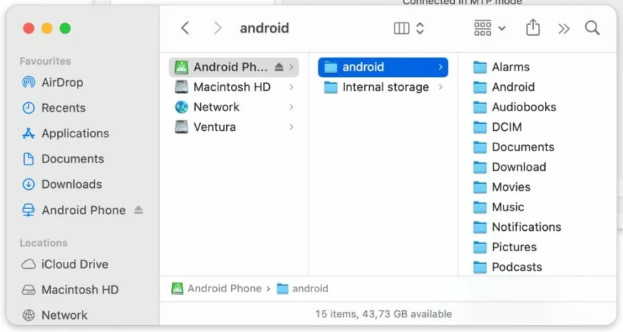
Step 4. Navigate to the DCIM/Camera folder.
Step 5. Copy the photos to your Mac.
Part 2: How to Import Samsung Photos to Mac with Samsung Smart Switch
Step 1. Install Samsung Smart Switch on your Mac.
Step 2. Connect your Samsung to your Mac with a USB cable.
Step 3. Select File Transfer (MTP) mode on your device.
Step 4. Launch the app on your Mac and choose the Backup option.
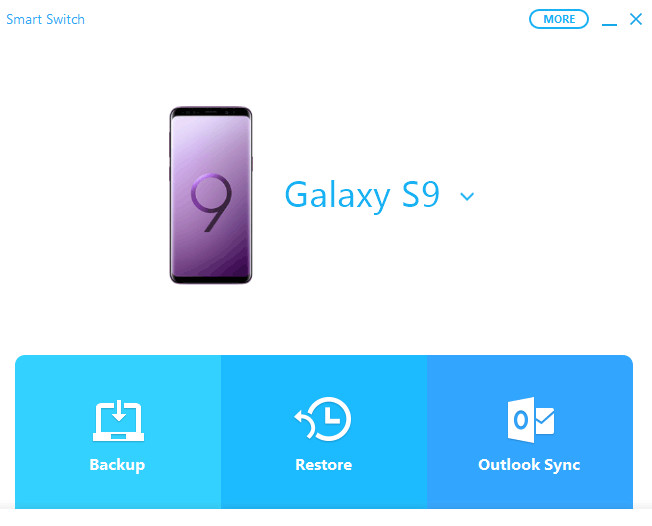
Step 5. Click Allow on the Allow Access dialog.
Step 6. Choose the photo type and click Backup.
Step 7. Your photo will be copied to your Mac. It may take a few minutes.
Tips:
This way is also applicable to transferring photos from Samsung to Samsung.
Part 3: How to Download Photos from Samsung Galaxy to Mac Using Google Photos
Step 1. Open Google Photos on your Samsung phone. If you don't have it installed, go to the Play Store first.
Step 2. Click the profile icon in the top-right corner, and choose Settings.
Step 3. Go to the Backup & Sync option and make sure it is enabled.
Step 4. Photos on your Samsung phone will be sent to the Google Photos cloud. You will see a cloud sync icon or the Backup complete message on the photos.
Step 5. Go to https://photos.google.com/ on your Mac, and log in to the same account as on Samsung.
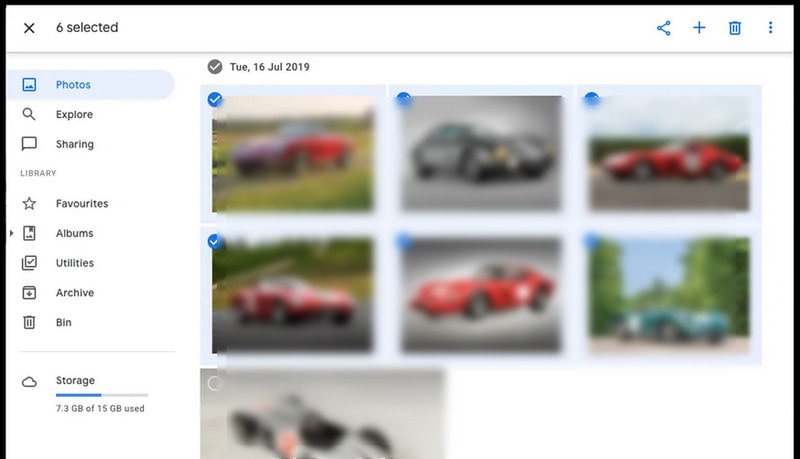
Step 6. Download the corresponding Samsung photos to your Mac. Google Photos will package the selected photos into a ZIP file.
Step 7. Extract the ZIP file, and then you can view and manage the Samsung photos on your Mac.
Part 4: How to Get Photos from Samsung Phone to Mac via Bluetooth
Step 1. Open the Bluetooth feature on both your Samsung phone and Mac.
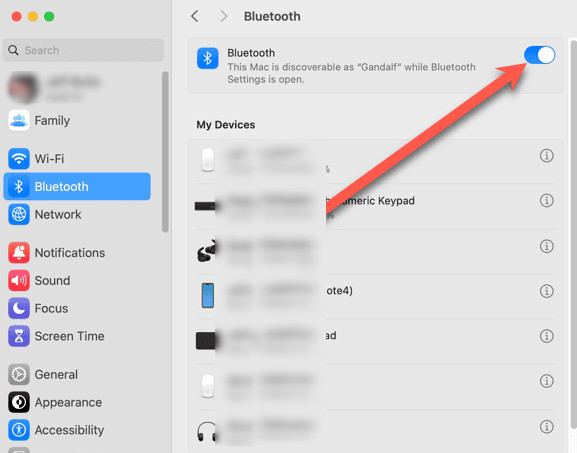
Tips:
Keep your Samsung phone close to your Mac during the transfer to ensure a stable Bluetooth connection.
Step 2. Pair the two devices.
Step 3. Select photos on the Samsung and send them to the Mac via Bluetooth.
Bonus: The Best Way to Transfer Photos from Samsung to PC [Preview & Select]
When it comes to transferring photos from Samsung to PC effectively and securely, Apeaksoft MobieTrans can always be your first choice. Unlike traditional methods that rely on manual file folder filter or slow wireless transfer, it allows users to preview and select photos before transferring, ensuring a fast and high-quality transferring process. What's more, it enables you to manage your Samsung photos freely on the desktop.
Transfer Samsung Photos to PC Effectively
- Transfer Samsung photos to PC in bulk swiftly.
- Preview the image detail before transferring.
- Move Samsung photos to PC without quality loss.
- Manage your Samsung photos efficiently, including organizing, renaming, and creating albums directly on PC.
Secure Download
Part 5: Common Issues When Transferring Samsung to Mac
Why can't my Samsung phone be recognized by my Mac?
You can try to change another USB cable and restart Android File Transfer.
Why is the photo transfer so slow?
It is recommended not to use Bluetooth to transfer Samsung photos to a Mac. USB is the preferred method.
Why can't I find the Samsung photos on Mac?
Check the DCIM/Camera folder and make sure the photos are not stored only in the cloud.
Conclusion
Until now, you've learned how to transfer photos from Samsung to Mac in multiple ways, from USB, Smart Switch, to Google Photos and Bluetooth, as well as a powerful bonus method - Apeaksoft MobieTrans with a preview feature. Try your preferred method now and download photos from Samsung to your computer!
Related Articles




