How to Quit and Restart Your MacBook When It Is Frozen

“When I use Chrome, my MacBook screen freezes. I can move the mouse, but nothing responds. Any suggestions?” Mac computers and laptops are generally reliable, but even the best machines freeze up sometimes. Once your screen freezes, you cannot continue your work processes or entertainment. The reasons are complicated, but this problem is usually due to software glitches. This article explains what you should do when your Mac screen is frozen.
PAGE CONTENT:
Part 1: Why Mac Is Frozen
Understanding why my Mac is frozen, and I cannot click anything, can help you resolve this problem quickly and perhaps avoid it in the future. The most common causes of frozen screen might include:
- 1.Insufficient RAM. If you open too many web pages or apps, they use a lot of memory, and your screen is too busy to respond.
- 2.A hung app. Sometimes, an app error may consume large amounts of memory or resources.
- 3.Outdated macOS.
- 4.Your macOS is full of system junk and cache.
- 5.Malware or viruses. One symptom of malware infection is a significantly increased load on the CPU and memory. That makes your Mac slow and frozen.
- 6.Hardware problems, such as a crashed disk.
Part 2: How to Restart a Mac When Frozen
Solution 1: Force Quit a Frozen App
An app error is one of the most common factors that lead to a Mac screen freezing. If your screen is unresponsive after you open or run an app, you'd better force quit on Mac when frozen, and your screen may work normally.
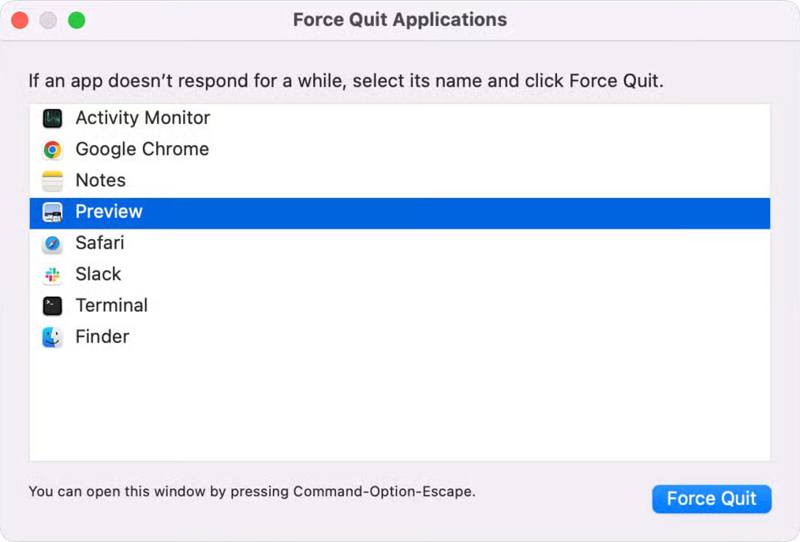
Step 1. Press Command + Option + Esc keys on your keyboard.
Step 2. Select the problematic app on the list.
Step 3. Click the Force Quit button to close it.
Solution 2: Restart Mac in Safe Mode
Restarting the Mac will close all apps running in the background. If you cannot identify the problematic app, you can restart the Mac when frozen and fix this problem. If you cannot enter the stand mode, boot your Mac in Safe Mode.
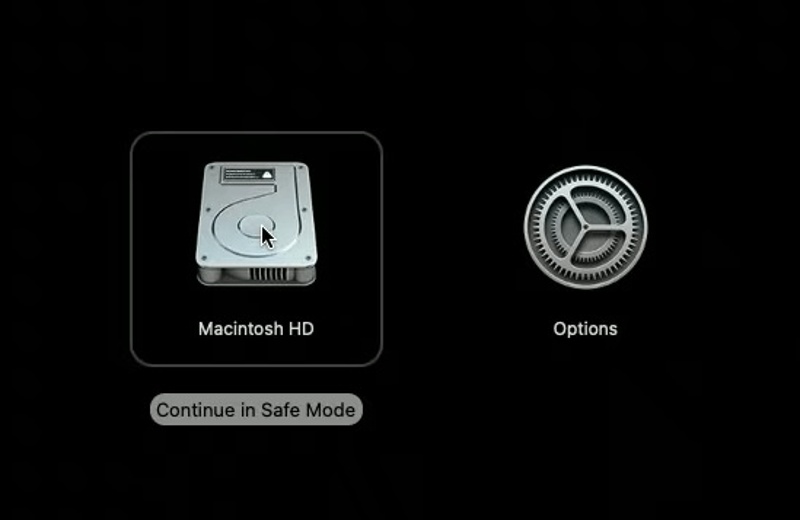
Step 1. Press and hold the Power button until your screen turns black.
Step 2. A few minutes later, hold the Power button to turn your Mac back on.
Step 3. If your screen is still unresponsive, restart it in Safe Mode:
Mac with Apple Silicon Chip
Select the startup volume on the Loading startup options screen.
Press and hold the Shift key on your keyboard and click Continue.
Next, click Continue in Safe Mode.
If prompted, enter your password.
Mac with Intel Processor
Hold the Shift key immediately after holding the Power button.
When the login screen appears, release the Shift key.
Log in to your Mac and boot in Safe Mode.
Solution 3: Uninstall Problematic App
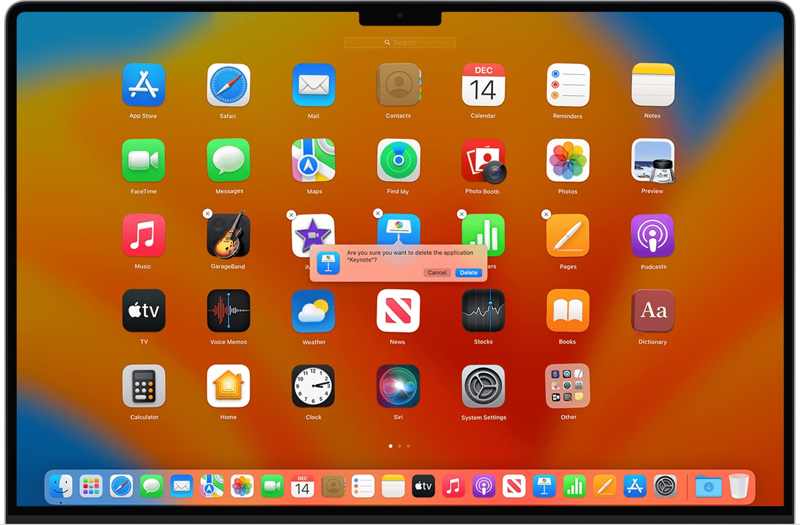
Every time you open an app and your Mac computer screen freezes, you'd better uninstall the problematic app. If the app is open currently, quit it. Go to the Applications folder in Finder, and locate the problematic app. If it doesn't come with a separate uninstaller, drag the app to Trash. Then, empty your Trash. Remember that this method leaves app files, which may clutter up your Mac. Maybe you've installed some cracked apps, and those apps may cause system glitches. You can uninstall apps on Mac to fix issues and free up space.
Solution 4: Update Mac
An outdated operating system can be responsible for an array of issues. If your Mac screen continues to freeze, you'd better keep your software up to date since Apple fixes bugs in each update.
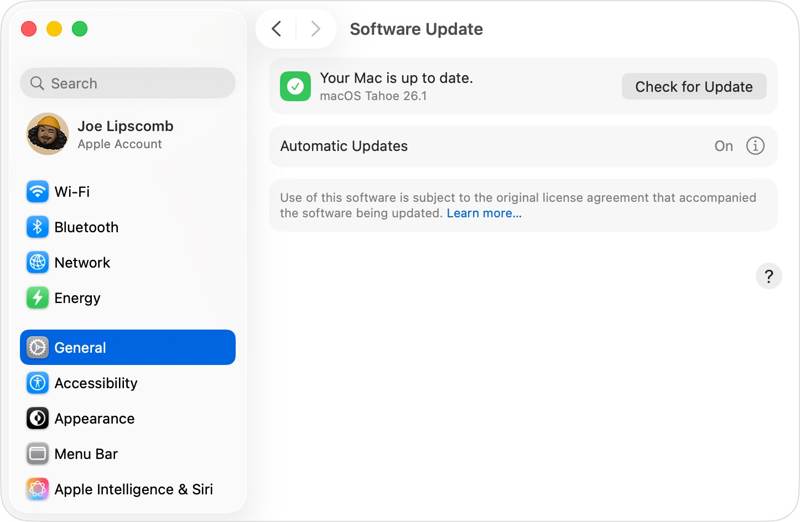
Step 1. Click the Apple menu and choose System Settings.
Step 2. Go to the General tab on the sidebar, and choose Software Update.
Step 3. Click the Check for Update button if macOS doesn't automatically search for updates.
Step 4. Hit Update Now and follow onscreen instructions to update macOS.
Solution 5: Repair Disk with Disk Utility
The built-in Disk Utility can repair errors on a Mac storage device. These errors can lead to unexpected behavior, including Mac screen freezes and your computer not shutting down or restarting.
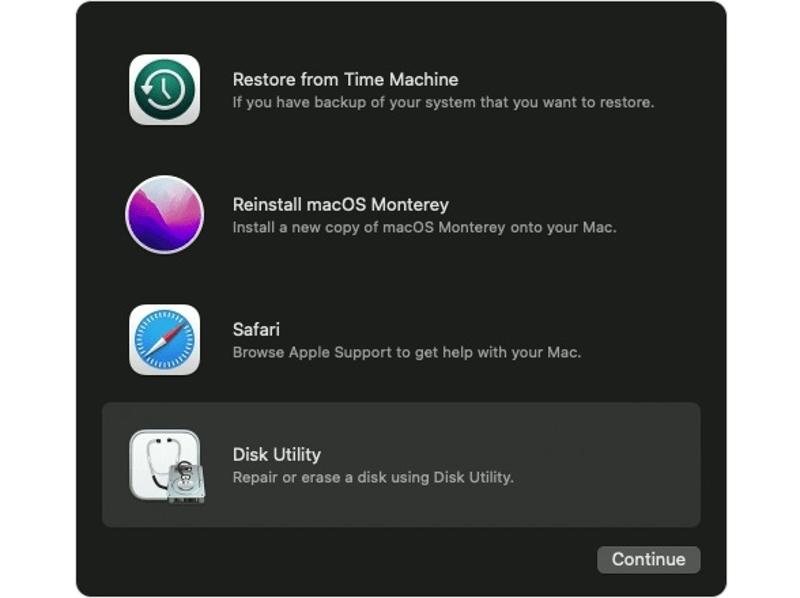
Step 1. Boot Mac in Recovery Mode:
Mac with Apple Silicon
Power off your Mac.
Next, hold the Power button until the Loading startup options or Options screen appears.
Click Options, hit Continue.
Select your startup disk, click Next to boot in Recovery Mode.
Intel-based Mac
Shut down your Mac.
Long-press the Power button while holding Command + R until you see the Apple logo.
Select your startup disk and hit Next.
Pick a user and click Next to enter Recovery Mode.
Step 2. Choose Disk Utility and click Continue.
Step 3. Click the View menu and choose Show All Devices.
Step 4. Select the corrupted disk, and click the First Aid button.
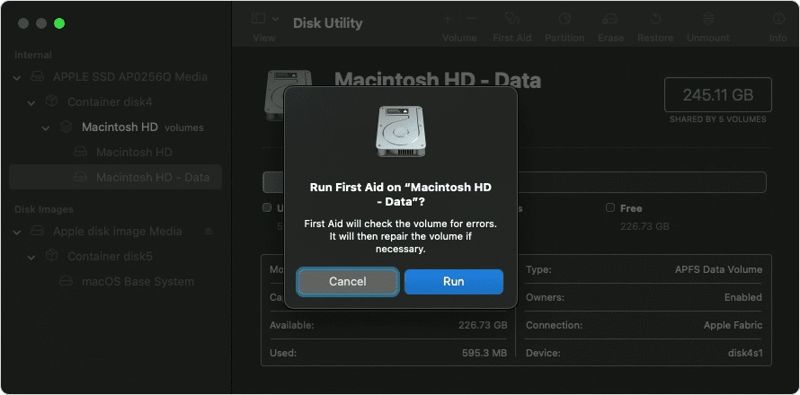
Step 5. Click Run on the confirmation dialog.
Step 6. Finally, restart your Mac, and your screen should work normally.
Part 3: One-stop Solution to Fix Frozen Mac Screen
Apeaksoft Mac Cleaner is a one-stop solution if your Mac screen is frozen. It is able to free up space and improve Mac performance. Moreover, you can force-uninstall any app on your Mac along with its app files.
A One-stop Solution to Fix a Frozen Mac Computer Screen
- Free up Mac and remove system junk.
- Uninstall problematic apps and app files.
- Improve Mac performance and fix frozen screen.
- Work on macOS 10.11 and above.
- https://downloads.apeaksoft.com/mac/mac-cleaner.dmg
Secure Download

How to Fix a Frozen Mac Screen
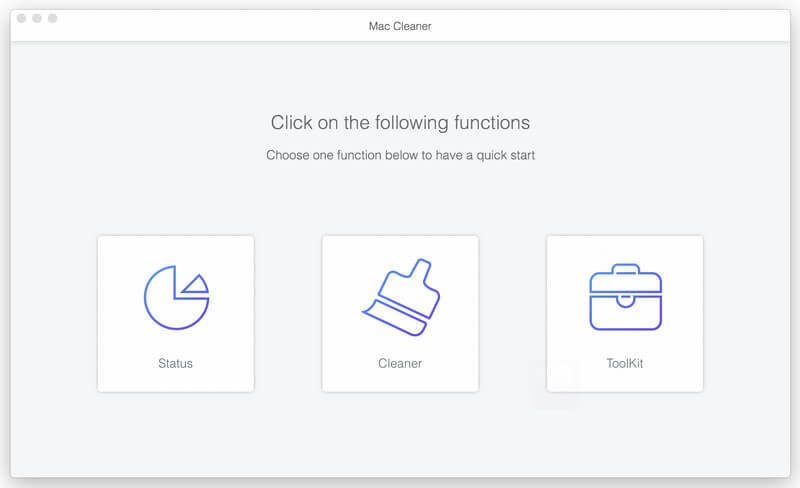
Step 1. Install Mac Cleaner
Download Mac Cleaner from the official website, and follow onscreen prompts to install it. Next, open it from Applications.
Step 2. Free up space
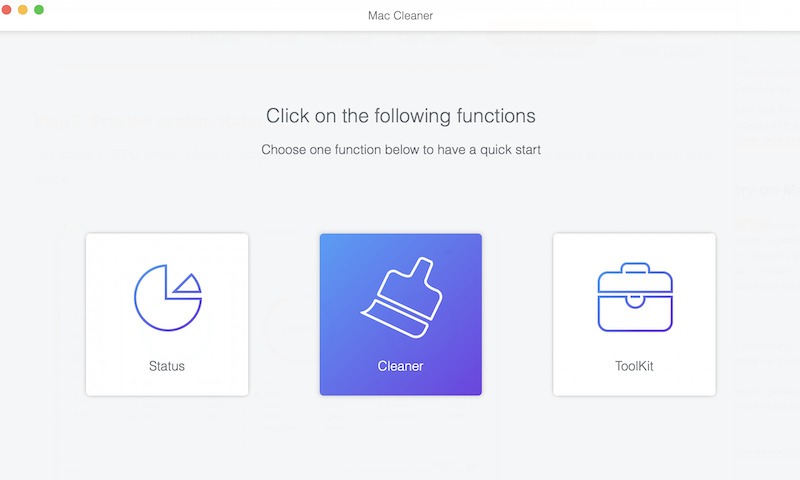
Choose Cleaner, pick System Junk, click Scan, and then hit View. Select System Cache, Application Cache, and other unwanted data types. Click the Clean button. You can also clean email junk, duplicate photos, and more.
Step 3. Uninstall the problematic app
Choose Toolkit, and pick Uninstall. Click Scan to scan apps on your Mac. Then, hit View, check unwanted apps and app files, and hit Clean.

Conclusion
This guide told you what you should do if your Mac screen is frozen. After learning the common reasons, you can follow our solutions one by one to fix this problem and bring your screen working again. Apeaksoft Mac Cleaner enables you to uninstall problematic apps with a single click.
Related Articles