


How to AirDrop Photos or Contacts from iPhone to iPhone: A Step-by-Step Guide

Key Takeaways
- Before you begin: take iPhones close, enable their Bluetooth & Wi-Fi, and activate AirDrop.
- Then you can transfer files through Share Sheet or by touching both phones top-to-top.
- When AirDrop doesn't work and you can't fix it, try Apeaksoft iPhone Transfer.
Want to send photos, contacts, music, or other items to another iPhone without data loss? AirDrop is a built-in feature of Apple to make sharing files easy, secure, and convenient. This article will give a deep dive on how to AirDrop from iPhone to iPhone, including how to enable AirDrop, transfer wirelessly via Share Sheet and NameDrop, and how to solve the potential problems you may have.
PAGE CONTENT:
- Part 1: What can you AirDrop from iPhone to iPhone?
- Part 2: Before You Start -- Get AirDrop Working
- Part 3: How to AirDrop from iPhone to iPhone via Share Sheet
- Part 4: How to AirDrop from iPhone to iPhone by Touching
- Part 5: AirDrop Not Working: How to Fix?
- Part 6: FAQs about AirDrop Between iPhones
Part 1: What can you AirDrop from iPhone to iPhone?
AirDrop works across almost all types of items. The supported file types include, but are not limited to:
- Images
- Videos
- Audio recordings and Music
- Contacts, Notes, Locations
- Documents
- Website Links
If you see the Share button on the item you want to send, it's likely AirDrop-enabled.
Part 2: Before You Start -- Get AirDrop Working
Before we begin, here are 3 things you should do to get AirDrop ready.
- 1.Take the two iPhones within 30 feet (10 meters) of each other.
- 2.Make sure both iPhones have their Bluetooth and Wi-Fi turned on, and their Personal Hotspots disabled.
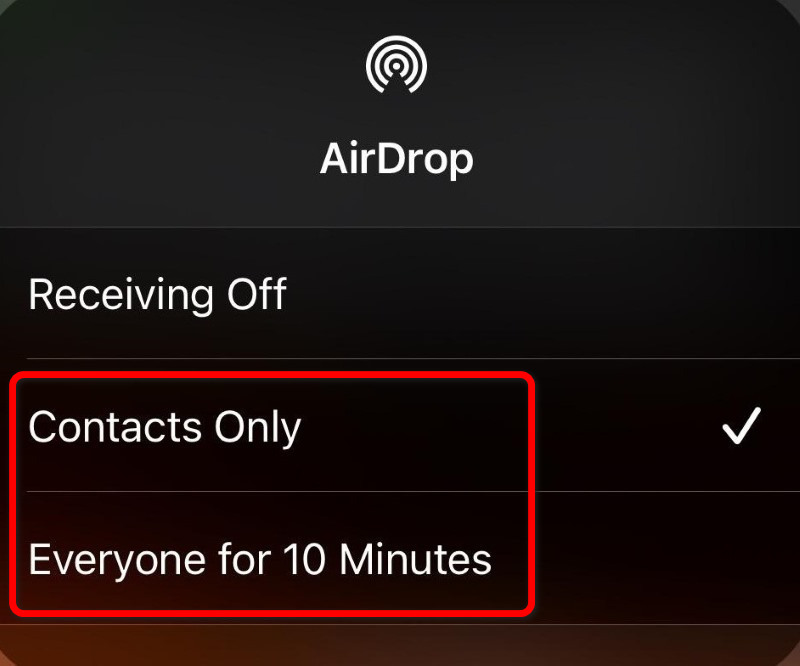
- 3.Open Control Center on both iPhones, press and hold the network setting card, then tap AirDrop. Select one of the following options:
Contacts Only. Select this option before you send to someone in your Contacts.
Everyone for 10 Minutes. If your receiver is not in your Contacts, select this option so that any nearby Apple device can discover your iPhone temporarily.
Part 3: How to AirDrop from iPhone to iPhone via Share Sheet
Share Sheet is the most prevalent way to do AirDrop from iPhone to iPhone.
Step 1. Open the app you want to share the content from. For example, if you want to AirDrop contacts from iPhone to iPhone, open the Contacts app.
Step 2. Tap the Share button to open the iPhone's Share Sheet.
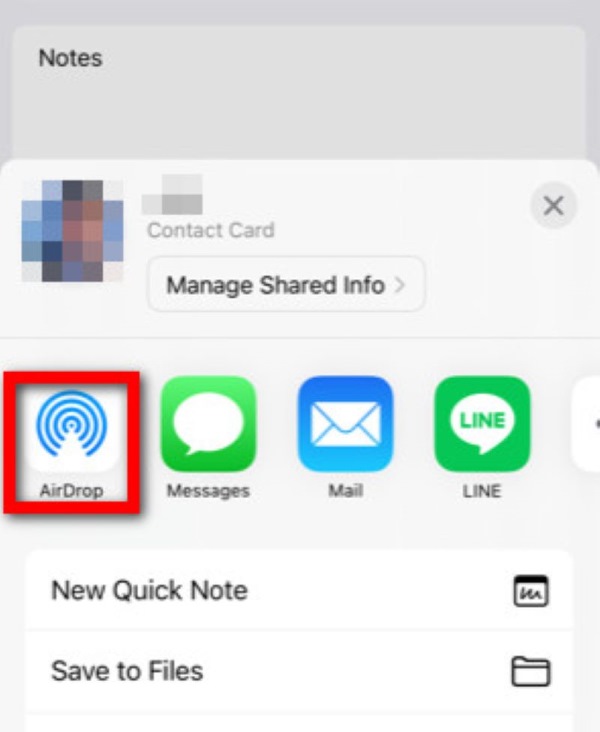
Step 3. On the Share Sheet, tap AirDrop. Your iPhone will then start searching for nearby AirDrop. When the target receiver's iPhone shows up on the screen, tap its name or profile picture.
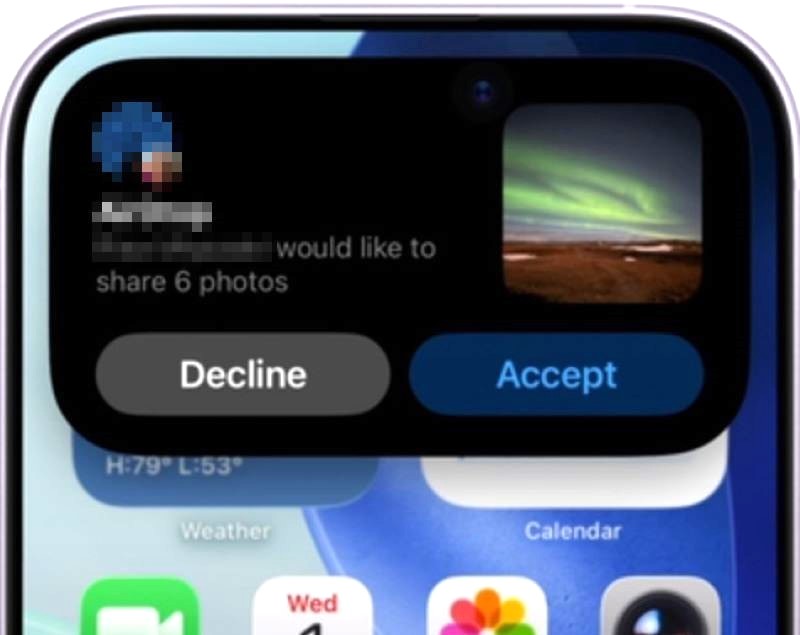
Step 4. A notification will appear on the receiving iPhone. Tap Accept to start the transfer. If both iPhones are signed in with the same Apple Account, the transfer may be accepted automatically.
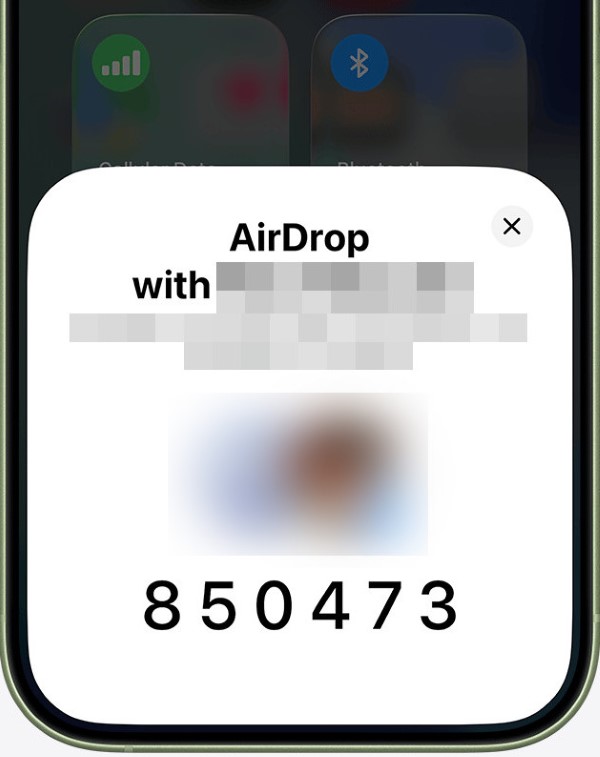
Note: If you’ve selected Everyone for 10 Minutes before, you may be asked for an extra AirDrop Code here. This happens when the receiver’s system is iOS 26.2 or later and the sender is not in their contacts, to prevent random strangers from easily sending something.
To get this code, the receiver should tap Get AirDrop Code on the notification to generate a 6-digit code and show it to the sender. After the sender enters the code, the transfer begins.
Step 5. Then all you have to do is wait. It can take a while, if the data is large. The receiving iPhone will let you know it's finished by opening the transferred file automatically.
Part 4: How to AirDrop from iPhone to iPhone by Touching
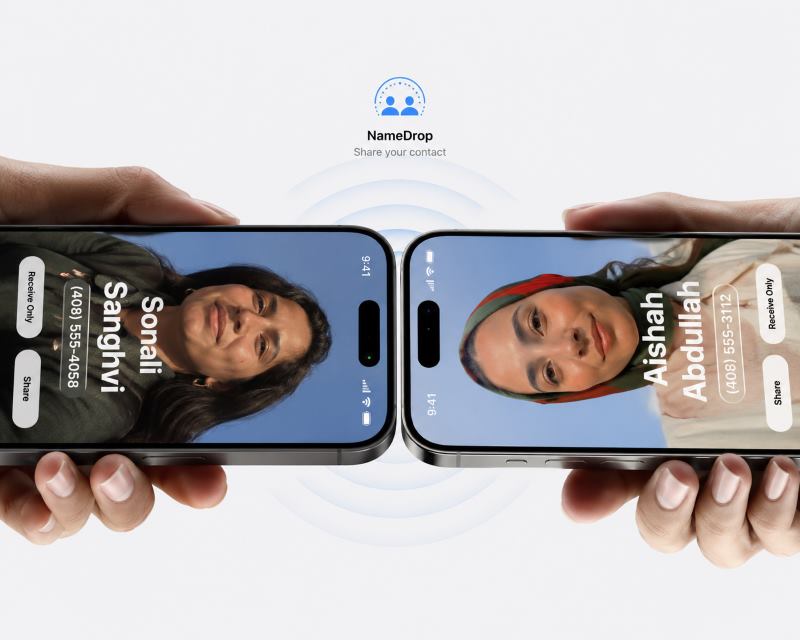
How do you AirDrop from iPhone to iPhone by simply bringing two iPhones close together? This is called NameDrop, which requires both devices to be on iOS 17 or later.
Step 1. Go to Settings > General > AirDrop > Start Sharing By to make sure the Bringing Devices Together is turned on.
Step 2. Open the photo, contact, or other item you plan to send, then tap Share.
Step 3. Do not tap AirDrop now – Instead, hold the two iPhones top-to-top, with the edges touching.
Step 4. The file is magically transferred to the other iPhone!
Part 5: AirDrop Not Working: How to Fix?
When the AirDrop from iPhone to iPhone is not working, you can take these actions to fix it:
Check on Settings
Fix 1. Take the two iPhones closer together.
Fix 2. Check if the Bluetooth and Wi-Fi are currently on and stable. Try toggling them off, waiting for 5 seconds, and toggling back on.
Fix 3. AirDrop will fail if either device is using a Personal Hotspot. Make sure that Personal Hotspot is off.
Fix 4. Go to Control Center to see if AirDrop is set up correctly. And if it is set to Contacts Only, make sure the receiving iPhone is saved in the sender's address book and logged in to iCloud.
Fix 5. If you are using a VPN, turn it off. Third-party VPNs can block AirDrop signals.
Use an Alternative Tool
None of the fixes work? It's okay, you can still transfer specific files between iPhones quickly and easily with Apeaksoft iPhone Transfer. What's better, it works even faster than AirDrop when you transfer large amounts of files.
Step 1. Get this easiest AirDrop alternative installed on your computer. Choose the right version of iPhone Transfer for your computer based on the operating system.
Secure Download
Secure Download
Step 2. Connect both the source and target iPhones to your computer using cables. Start the iOS transfer; it will automatically recognize the devices.
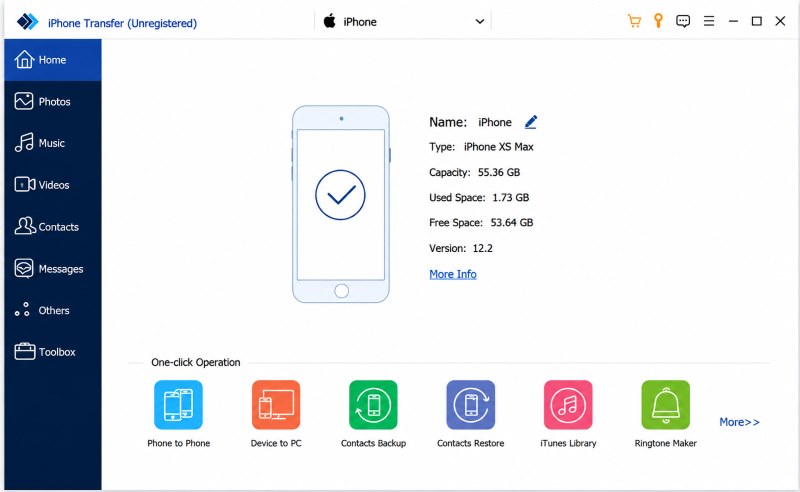
Step 3. Select the type of data you want to transfer from photos, music, videos, and more.
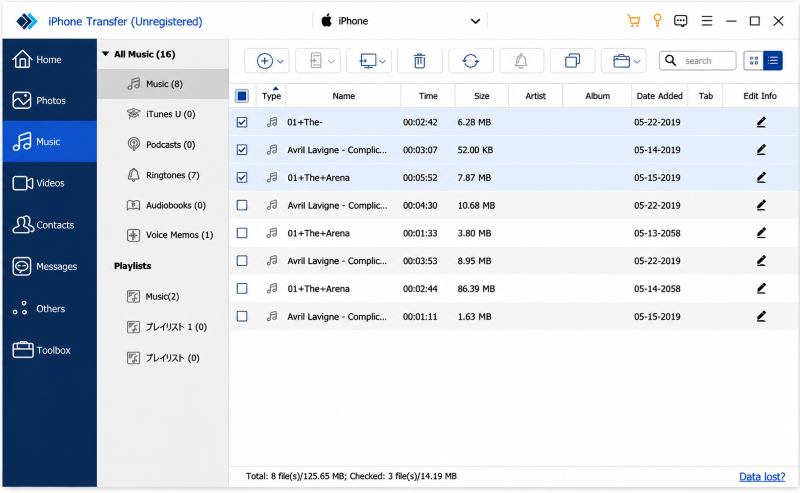
Suppose you plan to transfer music, click the name of the source iPhone on the left side, and then select Music to open all music on the source iPhone in a detailed window. Here you can preview the music and tick the checkbox in front of each song you'd like to transfer.
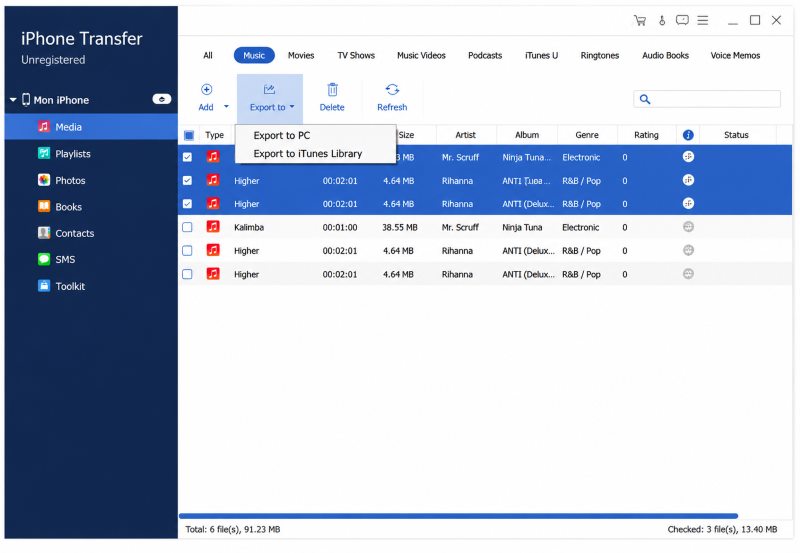
Step 4. After selecting, go to the Export To menu on top and select Export to [targeting device name] to start transferring desired music from iPhone to iPhone instantly.
Part 6: FAQs about AirDrop Between iPhones
What is AirDrop?
AirDrop is Apple's built-in feature for convenient wireless transfer of photos, videos, documents, and other files to nearby Apple devices, using Bluetooth and Wi-Fi to create a direct peer-to-peer connection.
Can I AirDrop all data from one iPhone to another?
AirDrop can send most data. It is designed to transfer content like photos, videos, documents and more, but can't access data like app databases, system data, settings, or account information. If you want to transfer all data from iPhone to iPhone, Quick Start, iCloud, and Apeaksoft can help you with it.
Does AirDrop work between iPhone and Mac/iPad?
Yes, you can AirDrop from iPhone to Mac or iPad seamlessly. Like between iPhones: Bluetooth, Wi-Fi, a close distance, and correct AirDrop settings are required.
How do I AirDrop photos from iPhone to iPhone in full quality?
AirDrop can send photos without compressing. Before selecting AirDrop at the Share Sheet, tap Options at the top. Then, scroll to the last option, All Photo Data, and switch it on (if it is not already on). After that, the photos you AirDropped are guaranteed to be of full quality.
Conclusion
In this tutorial, we shared how to AirDrop from iPhone to iPhone. AirDrop is a convenient service to transfer content between Apple devices. All you need to do is a few taps or hold the iPhones together. When AirDrop fails, check the Bluetooth, Wi-Fi, and AirDrop settings, or use Apeaksoft iPhone Transfer as an easy alternative. Give it a try on your iPhone!
 Apeaksoft iPhone Transfer
 Transfer iOS data among iOS devices, computer and iTunes.
Secure Download
Secure Download
Related Articles




