

How to Transfer Data from iPhone to iPhone – Best Ways in 2026

Key Takeaways
- New iPhone users → Quick Start
- Have iCloud storage and Wi-Fi → iCloud
- No iCloud storage or Wi-Fi → iTunes / Apple Devices / Finder / Apeaksoft iPhone Transfer
- Transfer specific files only → Apeaksoft / AirDrop
- Transfer after setup → Apeaksoft
Are you excited to get a brand-new iPhone but frustrated about transferring data from the old one? Maybe you have trouble backing up the old data, or you are annoyed by the slow transferring process? Don't worry, this article will help you by comparing 4 effective methods to transfer data from iPhone to iPhone, and you are free to choose one that is best for your situation.
PAGE CONTENT:
- Quick Comparison: Which method is Best for You?
- Part 1: Quick Start - The Easiest & Recommended Method
- Part 2: iCloud - No Computer, but Needs Wi-Fi & Storage
- Part 3: Using a Computer (Mac/PC) - No iCloud Required
- Part 4: Special Case - Transfer Data After New iPhone Is Already Set Up
- Part 5: Can AirDrop Transfer Everything?
- Part 6: Troubleshooting Common Transfer Issues
Quick Comparison: Which method is Best for You?
How to choose the best way that serves your needs? Here's a brief guide of situations that each method is suitable for:
| Quick Start | iCloud | Finder/iTunes/Apple Devices | Apeaksoft iPhone Transfer | Airdrop | |
| Computer Required | × | × | √ | √ | × |
| Internet Required | √ | √ | × | × | × |
| Transfer with cable | × | × | √ | × | × |
| Full iPhone Migration | √ | √ | √ | √ | × |
| Selective Transfer | × | × | × | √ | √ |
| Works after Setup | × | × | × | √ | √ |
| Works without Old iPhone | × | √ | √ if you already have a backup | × | × |
Part 1: Quick Start – The Easiest & Recommended Method
Quick Start is a built-in feature of iOS 11 and later devices, so you don't need to install any mobile app to transfer data from iPhone to iPhone. With Quick Start, all you have to do is put the two prepared devices close to each other and let it happen.
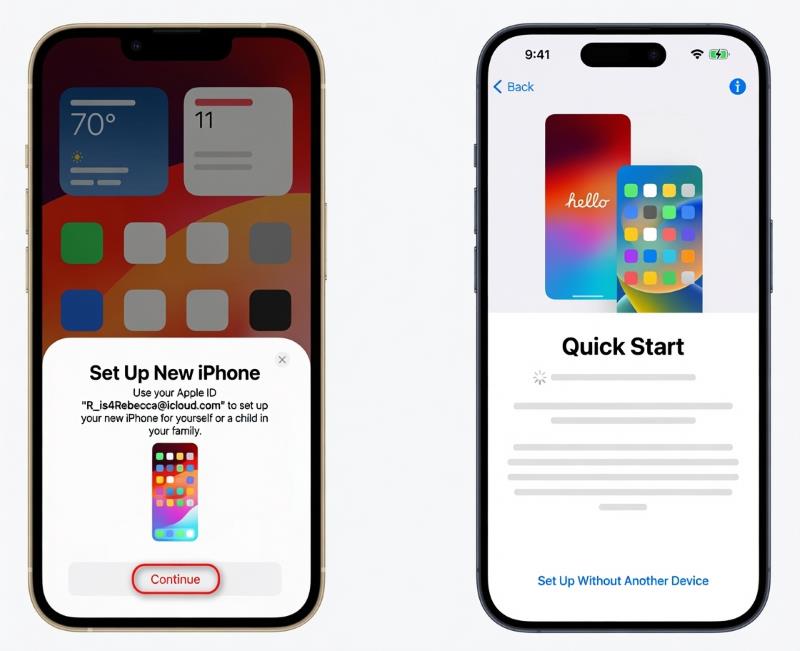
Step 1. After you unlock the new iPhone and place it near your old one, the Quick Start screen will pop up on your source iPhone. It provides the option of using your Apple ID to set up the new iPhone. Make sure the Apple ID is correct and tap Continue.
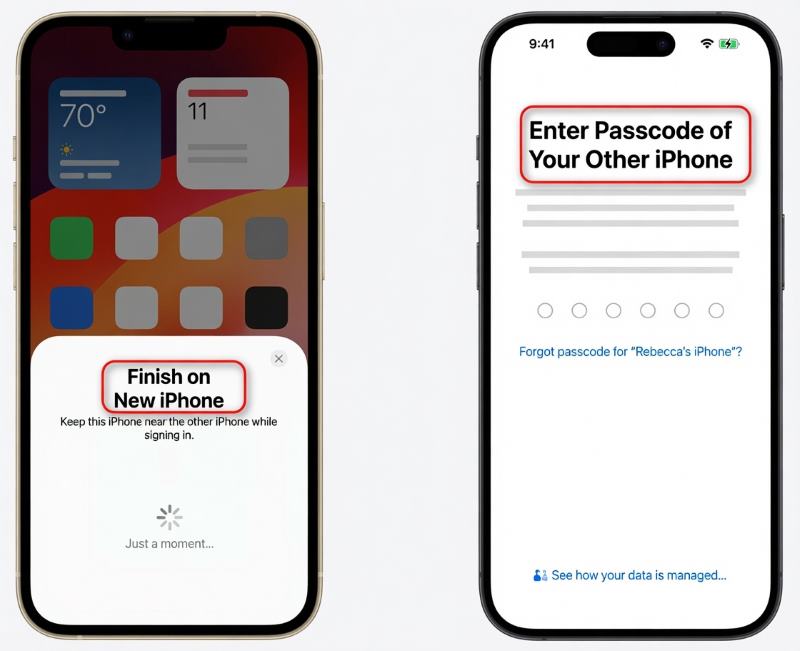
Step 2. Then follow the steps on your source iPhone to scan an animation with the camera. When Finish on New iPhone pops up, enter your old passcode.
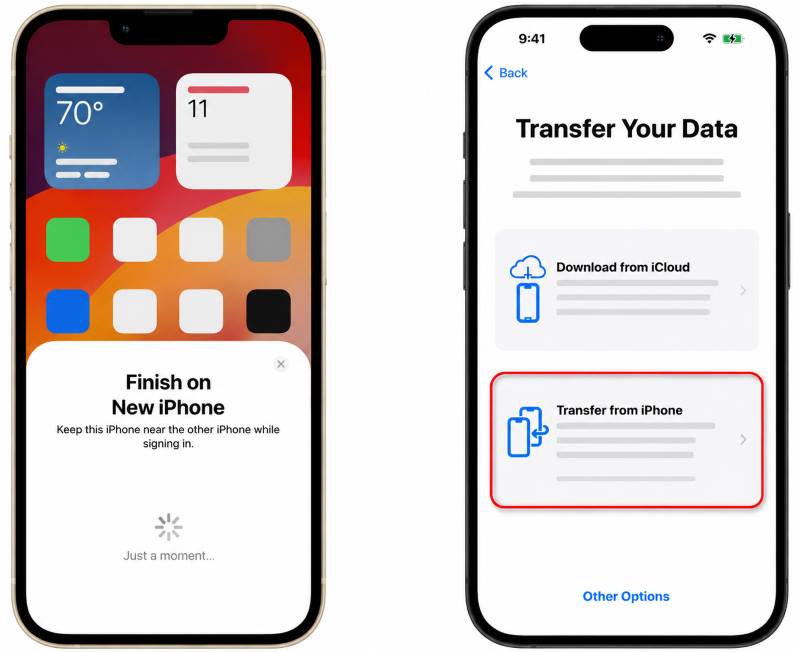
Step 3. Tap Transfer from iPhone. It might take a moment for your Apple ID to finish setting up and follow the remaining prompts.
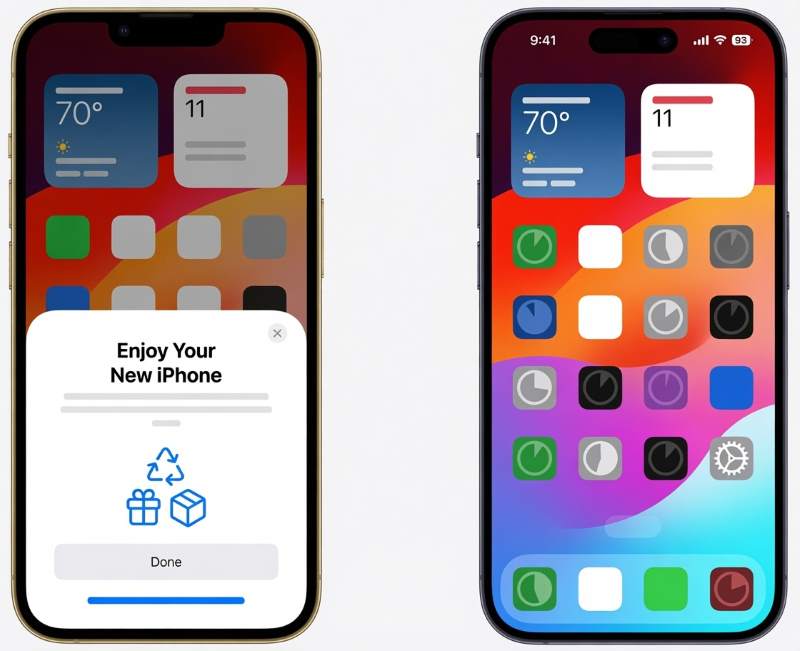
Step 4. When it's done, your new iPhone is ready; all your data will download in the background when you’re connected to Wi-Fi.
Quick Start transfer is easy but only suitable for small to medium data sizes. When there's a huge amount of data, Quick Start can be slow and unstable. So in this case, try other methods like using iCloud or a computer.
Part 2: Using iCloud – No Computer, But Needs Wi-Fi & Storage
Step 1. Connect your old iPhone to Wi-Fi and plug it in. Go to Settings > [Your Name] > iCloud > iCloud Backup. Switch it on, then tap Back Up Now.
Note: Free iCloud storage space is limited to only 5GB. But if you have just bought a new iPhone, Apple automatically offers free unlimited iCloud storage for transfer, available within 21 days.
Step 2. Turn on the new phone, follow the initial setup instructions until you reach Transfer Your Apps & Data.
Step 3. Tap From iCloud Backup, and sign in with the same Apple Account on the old iPhone.
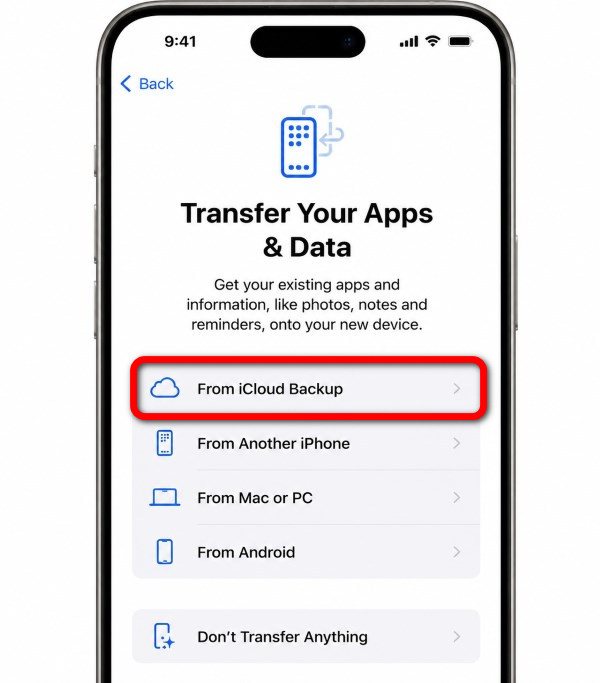
Step 4. Select the backup. Then the new iPhone will start downloading in the background. Remember to keep Wi-Fi connected and the phone charged.
Part 3: Using a Computer (Mac/PC) – No iCloud Required
What if there's not enough iCloud storage? How to transfer from iPhone to iPhone without iCloud? There is an alternative: you can transfer data from iPhone to iPhone with a cable on a computer.
1. Use Finder, iTunes, or Apple Devices (Official Apple Tools) for Full Transfer
Learn how to transfer data from iPhone to iPhone using iTunes (on Windows), Apple Devices (on Windows) and Finder (on Mac) step-by-step:
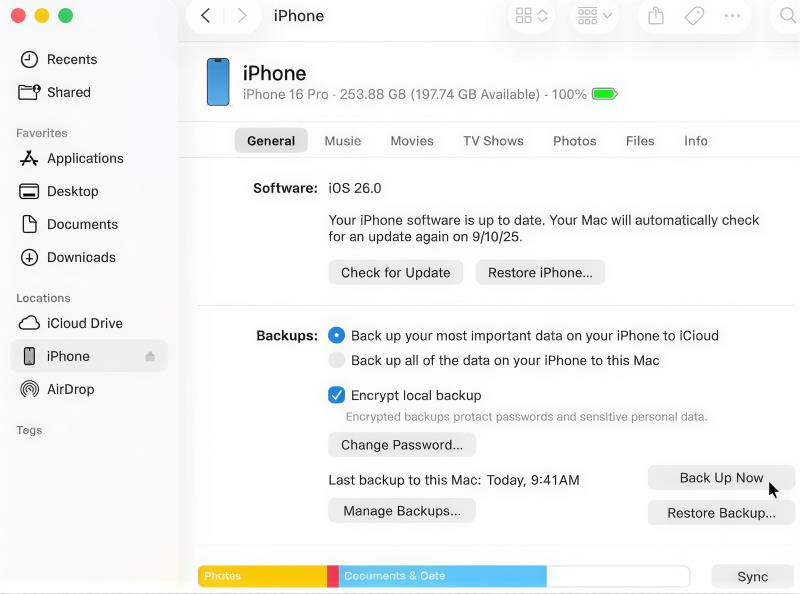
Step 1. Connect the old iPhone to a computer with a cable. Open Finder, iTunes or Apple Devices, click the Device button, and choose Back Up Now so that you create a backup on the computer. You can skip this step if you have backed up the old phone ahead of time.
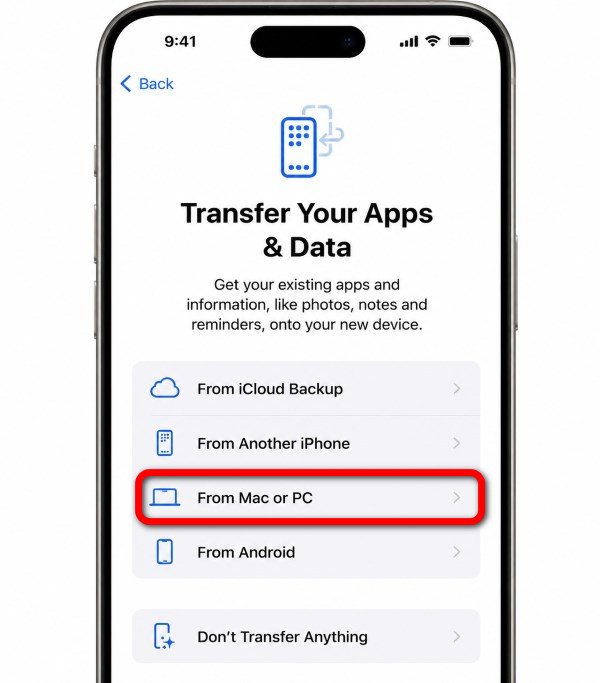
Step 2. Connect your new device to the computer and turn it on. Go through setup until Apps and Data. There, select Restore from Mac or PC.
Step 3. Select the device in Finder/iTunes/Apple Devices, and click Restore Backup.
Step 4. Choose the backup, then keep the iPhone connected and charged until it ends.
2. Use Apeaksoft iPhone Transfer for Selective Transfer
Apeaksoft iPhone Transfer is an excellent transfer tool that can scan your iOS devices in seconds and move all types of data to your new device in just a few clicks, without any backups or restores required.
When there's not enough space on your computer for the backup, or you want to select and preview the data before the transfer starts, Apeaksoft is a better alternative to the official tools.
Step 1. Download and install Apeaksoft iPhone Transfer on your computer, then launch it.
Secure Download
Secure Download
Step 2. Connect both of your iPhones to your computer using USB cables.
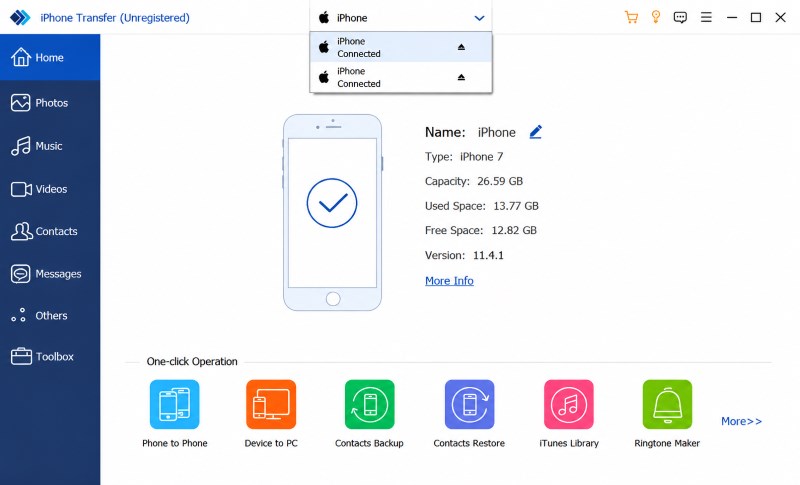
Step 3. Once the iPhones are detected, you can see a row of toolbars on the left side of the default page, and you can choose any data type you want to transfer.
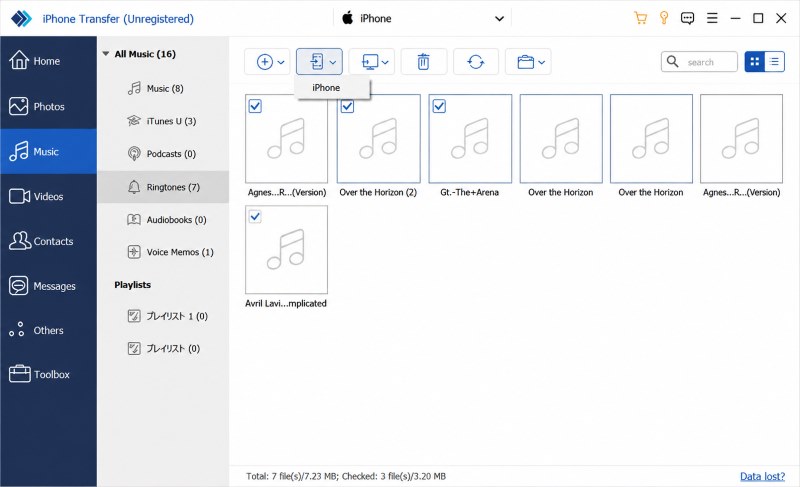
Data types not directly displayed can be found in Others, such as Notes, Calendar, Safari, etc.
Step 4. Next, you can manually select the files you want to transfer according to different categories. Once done, click the Export to Device button to start transferring your selected data from the source device to the destination device.
During the process, you can preview information about all the photos, music, videos, etc., and also edit contact information.
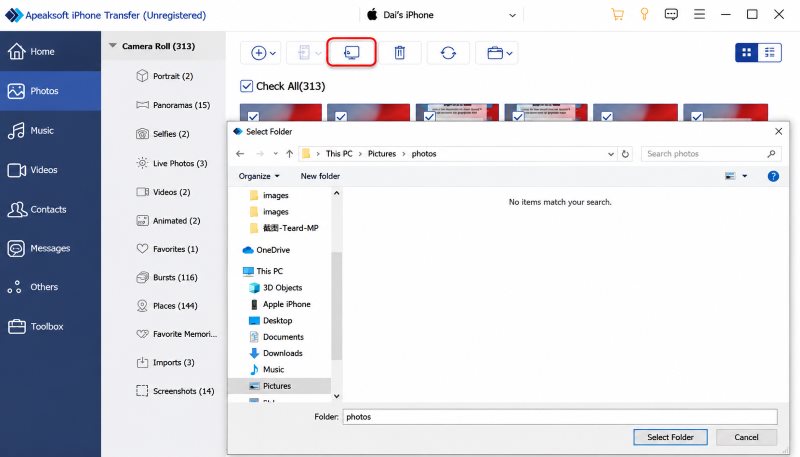
By the way, Apeaksoft also supports full transfer. To do this, select Device to Device at Step 3. Then you can transfer all the data with just one click without manually selecting it.
Part 4: Special Case – Transfer Data After New iPhone Is Already Set Up
Among the methods we introduced, only Apeaksoft supports perfect transfer of data from iPhone to iPhone after setup – it does not overwrite your data under any circumstances, but only puts what you want to transfer directly among the existing data.
Then, how to transfer data from iPhone to iPhone after setup, if you stick with Apple's official methods? To transfer the entire device, I'm afraid you have to erase all the contents and settings from the already-set-up new iPhone, and start the setup process all over again. But to transfer some specific data, AirDrop is also capable.
Part 5: Can AirDrop Transfer Everything?
No. If you want to transfer only some specific files, using AirDrop to transfer from iPhone to iPhone is excellent, but it cannot transfer an entire iPhone. A full iPhone transfer requires moving stuff like system data, app databases, settings, and account information, which AirDrop can't access.
Part 6: Troubleshooting Common Transfer Issues
1. Quick Start Not Appearing or Devices Not Detecting Each Other
Probably caused by Bluetooth or Wi-Fi issues, devices too far apart, or outdated iOS. Check these settings, and retry.
2. Transfer Stuck or Frozen Progress Bar
It's normal when you transfer very large amounts of data. But it can also be due to a weak internet connection if you are using Quick Start or iCloud, so make sure the Wi-Fi is perfectly stable before you start the transfer.
3. Transfer Fails Halfway
When this happens, try restarting both phones, plugging into power, or changing to a wired connection, to see if the transfer continues. If it fails to recover, though, you'll have to repeat the process from the very start. So make sure that your devices' batteries can last for the whole process, the connection is stable, and that the storage space of your iCloud / computer is enough for the backup, to prevent any accidents.
4. Saved Passwords Missing after iCloud Transfer
It may be because the iCloud Keychain is turned off. Go to Settings > [Your Name] > iCloud > Passwords & Keychain, and make sure syncing is enabled. Also, use an encrypted computer backup if you need passwords restored from a local backup.
Conclusion
Have you already found the best way to transfer from iPhone to iPhone for you? Quick Start is best for full iPhone-to-iPhone transfers with small-to-medium data sizes. iCloud works well when your old iPhone isn't available. Finder, Apple Devices, or iTunes are ideal for local backups, while Apeaksoft iPhone Transfer is great for transferring selected files without overwriting. And even if it's the first time that you change your mobile to an iPhone, you can still easily transfer data from Android to iPhone. Pick the way that fits you the best, and enjoy your new iPhone.
Related Articles




