


How to Export Android Chrome Bookmarks: A Step-by-Step Guide

Key Takeaways
- There's no "Export bookmarks" option on Android mobile Chrome directly, so you cannot export Android Chrome bookmarks directly.
- You can sync your Chrome bookmarks to your Google account, and export them from Chrome on the desktop.
- If you don't have a computer at hand, you can also use some bookmark manager apps to better export, organize, and back up Chrome bookmarks on your Android device.
When switching to a new Android phone or moving to another browser, you may want to keep your saved Chrome bookmarks instead of adding them manually one by one.
However, since Chrome for Android does not provide a built-in "Export bookmarks" option like the desktop version, sometimes users may need to export the bookmarks to have a sync on other devices or to share with others. That's why we wrote this guide to show you how to export Chrome bookmarks from Android using different methods, including Google Sync and bookmark manager apps.
PAGE CONTENT:
Part 1: Exporting Chrome Bookmarks from Android via Google Sync
As we mentioned in the beginning, there is no Export Bookmark option on Chrome Android unlike Chrome desktop. Therefore, the easiest way to export Chrome bookmarks from Android is to sync them with your Google account and export them as HTML files on the desktop. Follow our hands-on guide below to learn how to sync bookmarks in Chrome with a Google account and export Android Chrome bookmarks via it.
Step 1. Launch Google Chrome on your Android device
Step 2. Go to the bottom-right corner of the main interface and tap the menu button (three dots usually). Tap on Settings.
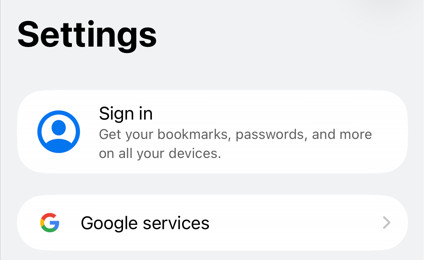
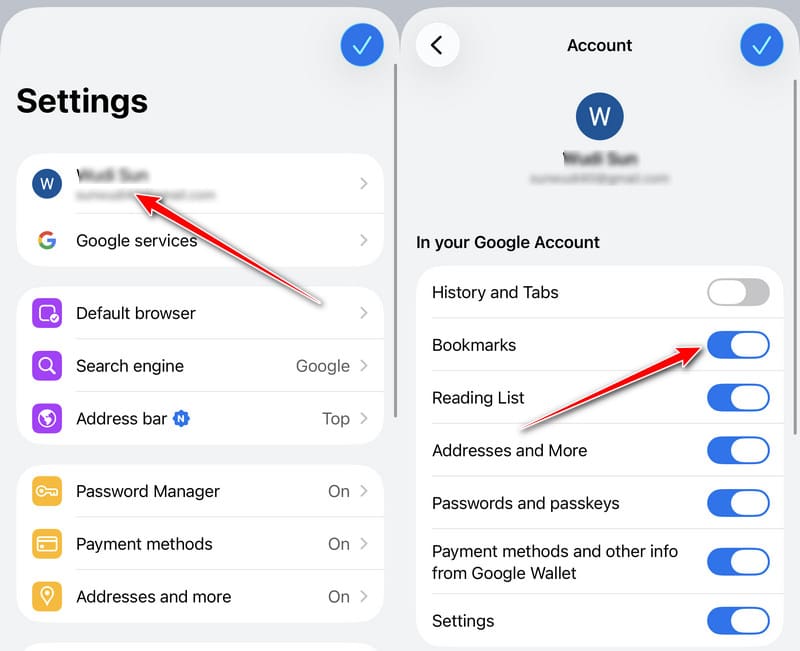
Step 3. If you haven't logged in with your Google account, you should choose Sign in first and then input your account address and password to sign in.
If you are in, just click your account, and then toggle on Bookmarks.
Step 4. Go to your computer and open the Chrome browser. Log in to the same Google account used on your Android device.
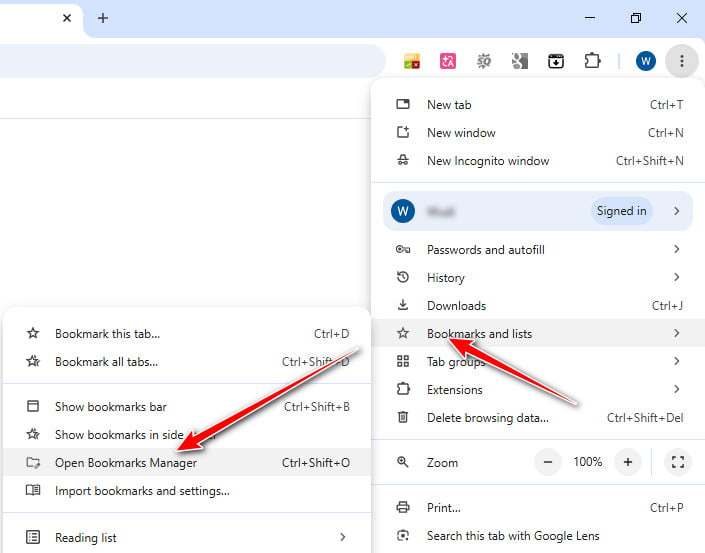
Step 5. Go to the upper-right corner of the page to find a three-dot menu bar. Click it and attach your mouse to Bookmarks and lists. Then, choose Open Bookmark manager. Then, on the following page, you will see all the Chrome bookmarks on your Android phone. You can have a check.
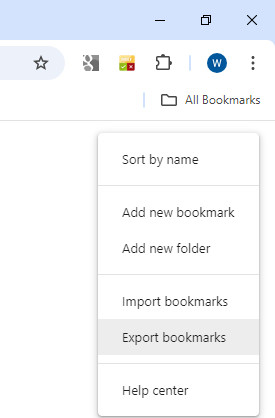
Step 6. If there is nothing wrong with your bookmarks, you can export them. Go to the top right and click on the menu bar (three dots).
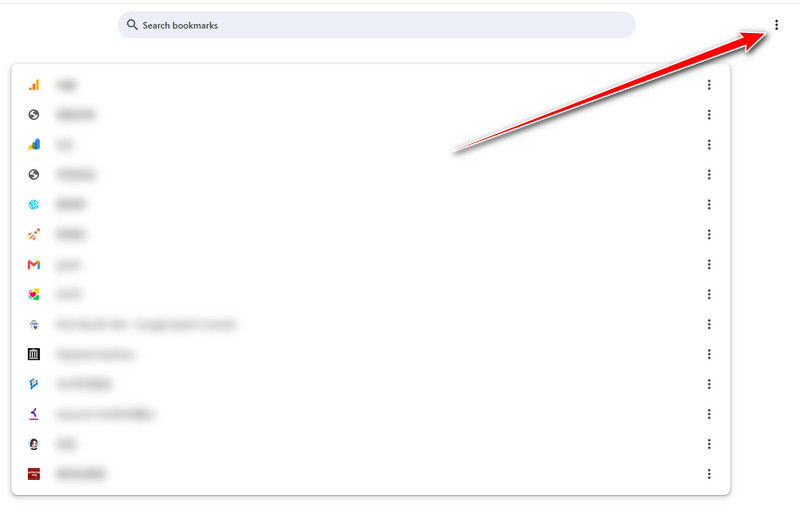
Tap on Export bookmarks in the following list. Choose a saving path for your bookmarks. Then, you can export Android Chrome bookmarks to HTML, which can be easily recognized by all browsers on your computer.
Part 2: Android Chrome Export Bookmarks Without Sync - 4 Useful Tools
| Tool | Export Format | Best For |
| Bookmark Folder | HTML | Exporting bookmarks locally |
| Raindrop.io | HTML, CSV, TXT | Syncing bookmarks across devices |
| Bookmark Manager | App-specific backup format | Local backup and restore |
| Diigo | HTML, CSV | Cloud-based bookmark management |
1. Bookmark Folder
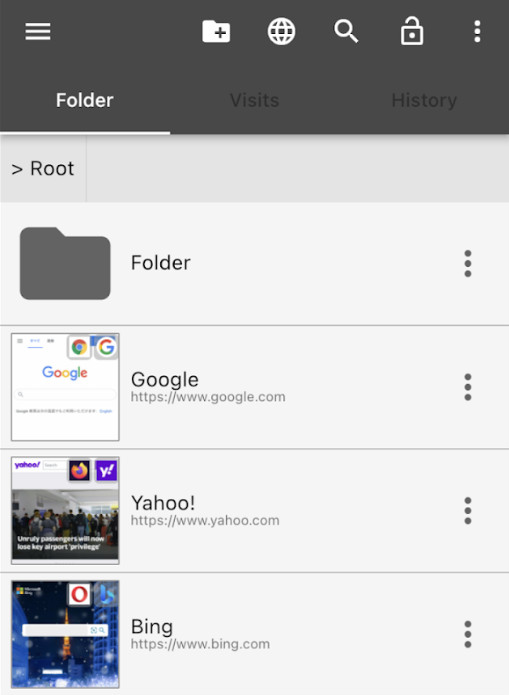
As a dedicated tool for bookmarks, Bookmark Folder not only enables you to export Android Chrome bookmarks but also lets you sort the bookmarks and customize the app's appearance as you like.
Step 1. Go to the Google Play Store to download and install Bookmark Folder.
Step 2. In Chrome, enter the website that you want to add as a bookmark. Directly share the website to the Bookmark Folder app you've just downloaded. You can manually manage and sort them in a specific folder.
Step 3. Then, go to the menu bar to choose Import/Export. Here, you can check the Auto backup to give your bookmarks a copy. To export Android Chrome bookmarks to HTML, you can merely tap Export HTML file under the Export option.
2. Raindrop.io
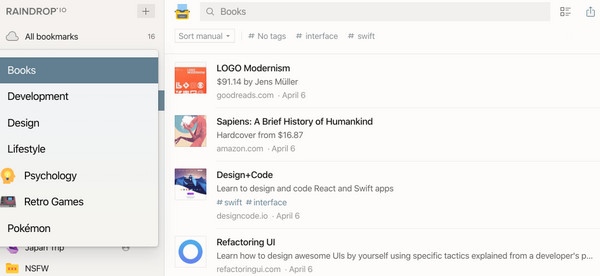
Raindrop.io is an all-in-one bookmark manager. You can download the app on your mobile phone or computer. Or, you can just use it as a browser extension. The steps to export Chrome bookmarks from Android to PC are as follows:
Step 1. Open Raindrop.io on your Android, log in to your account, and save Chrome bookmarks to the app.
Step 2. Then, open Raindrop.io on your PC. Sign in with the same account.
Step 3. Find all the wanted Chrome bookmarks and check them in the top left corner. Click Export on the top right and you can select the format of the bookmarks to be exported, like HTML, CSV and Text.
3. Bookmark Manager
As a versatile tool for managing bookmarks, Bookmark Manager allows you to not only organize and categorize your bookmarks efficiently but also export them with ease and back them up to an SD card for future use.
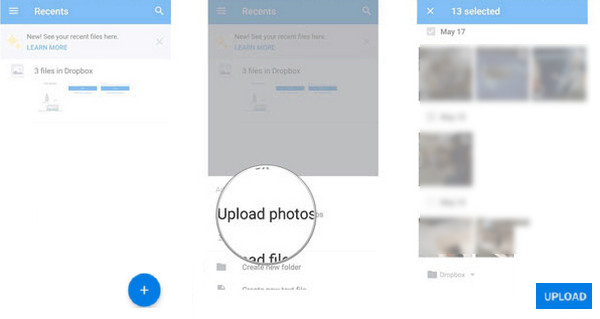
Step 1. Download and install Bookmark Manager from the Google Play Store. Launch it on your Android phone.
Step 2. Filter your bookmarks by date or title.
Step 3. Tap the Menu button and choose the backup option. Then, export Chrome bookmarks on Android to an SD card. Select the Restore option and choose the latest backup on your SD card if you want to restore your Android Chrome bookmarks.
4. Diigo
Diigo is a powerful cloud bookmarking tool that enables you to save your Chrome bookmarks to the cloud in one click. You can visit your bookmarks on any device, such as a computer, phone, or tablet. Moreover, you can add descriptions and remarks to bookmarks.
Follow the steps below to learn how to export bookmarks from Chrome on Android:
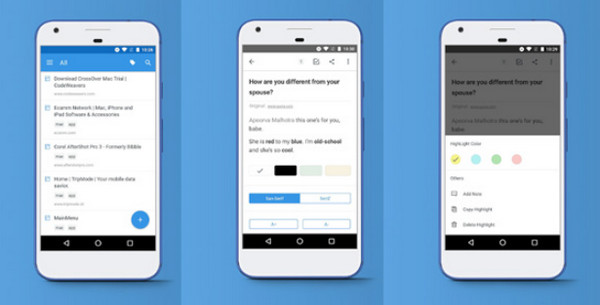
Step 1. Download Diigo to your device and sign up with your account.
Step 2. Import Chrome bookmarks to its cloud server.
Step 3. Visit https://www.diigo.com/ on another device and log in to the same account.
Step 4. Click Export and export Android Chrome bookmarks to HTML files.

Downloaded by over 1,000,000 users
- Transfer files from Android to another device in just one click.
- Transfer various data types like photos, videos, messages, etc.
- Support Android-to-Android and Android-to-iPhone transfer.
- Follow the intuitive interface to transfer data in 3 steps.
- No need to manually copy files one by one.
Secure Download
Part 3: Why Need to Export Bookmarks
Exporting Chrome bookmarks is essential for several reasons:
Migration
Exporting bookmarks when users switch to a new browser or device allows them to migrate bookmarks from the old one to the new one and visit the same bookmarks without manually adding them one by one in the new browser.
Sharing
You can share your bookmarks with others by exporting them to HTML files and sending them to others.
Backup and Restore
Exporting bookmarks helps users back up their bookmarks. This allows users to restore Chrome bookmarks if something goes wrong, such as accidentally clearing all the browser data or losing their device.
Management
Users can better manage bookmarks by exporting them to specific apps and sorting them into different folders, which is more logical and efficient to find the corresponding bookmarks from massive bookmarks.
Part 4: FAQs About Android Export Chrome Bookmarks
Can I directly export Chrome bookmarks from Android?
No. There is no built-in option to directly export Android Chrome bookmarks to HTML files. You need to sync them to your Google account first and them export them from Chrome on the computer.
Can I export Chrome bookmarks from Android without syncing?
Yes. You can use third-party bookmark manager apps, such as Bookmark Folder, Raindrop.io, Bookmark Manager, or Diigo, to export and manage your Chrome bookmarks on Android without Google sync.
Can I export Chrome bookmarks to an HTML file on Android?
Chrome for Android does not directly export bookmarks to HTML files. However, you can export synced bookmarks as HTML through Chrome desktop or use some third-party bookmark managers that support HTML export.
Conclusion
Don’t bother manually adding bookmarks on your new browser/device. Try the methods we recommend above to export Chrome bookmarks on Android! What’s more, if you need to transfer music from Android to Android or other types of files, try Apeaksoft MobieTrans!

Related Articles




